Best Ways to Transfer BT Internet Mail to Outlook Account


If you are a BT Internet mail user, you might be exploring your options for how you can transfer BT email to Outlook easily without losing any of your crucial email data. Here, we are going to discuss in detail your most probable available options to enable you to achieve the absolutely safest and surest way to do this seamlessly.
About BT Mail
BT Mail is one of the premium services offered by British Telecom to cater to the needs of its European counterparts. Any mobile, Internet, or cable TV subscriber of BT Group automatically gets access to its elite BT mail service. Every subscriber of any service offered by BT Group is assigned a unique emails as xyz@btinternet.com by default. Like any other email account or email client, BT Group subscribers are entitled to use the elite services of the BT Mail client for carrying out their business-related email communications without fail. This service is a webmail service, and as such, BT subscribers can easily get access to the BT Webmail service over any web browser, where it can be easily configured.
The Need to Transfer BT Email to Outlook
The email data stored in a BT mail account can also be readily accessible to its users directly using widely popular email clients such as Thunderbird, MS Outlook, etc. So, many BT Mail client users tend to wonder if there is a proven mechanism available at their disposal for how they can readily move BT Email to Outlook. Now, it’s time to discuss this migration process in detail and explore a perfect solution.
Two Topmost Techniques to Transfer BT Email to Outlook
With BT Mail, you can successfully add BT email to Outlook by easily exploring the two most popular available options at your disposal, as follows:
- By configuring your BT Mail account directly in MS Outlook.
- Import BT Internet email data into the MS Outlook email client.
Now, let us explore in detail both of these routes individually:
Method 1: Add BT Mail to Outlook via IMAP
Step 1: Gather the BT Mail Server Settings
BT Mail supports IMAP and SMTP. The settings are
- Incoming mail Server (IMAP): mail.bt.com, Port 993, Encryption: SSL/TLS.
- Outgoing mail server (SMTP): mail.bt.com, Port 587 (or 465), Encryption: STARTTLS (or SSL/TLS).
- Username: Full BT Mail address.
- Password: BT Mail account password.
Step 2: Add the Account in Outlook
- Open Outlook, then select File > Add Account.
- Type in your BT Mail address. Hit on Connect.
- If Outlook doesn’t auto-setup, go for Advanced options and pick Let me set up my account manually.
- Select IMAP as the account type.
- Enter the incoming and outgoing server details as mentioned above:
- Provide the password when requested.
- Then Click Connect/Finish. Outlook will now synchronise the BT Mail folders and messages.
Step 3: Let the Outlook Sync
The initial synchronisation can last from a few minutes to several hours, depending on the number of e-mails in your BT Mail account. Outlook will download every folder (Inbox, Sent, user folder).
If you want to delete the emails after migration, then try the steps in this article – how to delete multiple emails on BT email?
Method 2: Professionally Add BT Email to Outlook PST
If you wish to configure BT Internet email in MS Outlook but only wish to import some particular email folders of your BT Mail account to an existing Outlook profile, then the ideal tool is IMAP Backup Wizard. This intelligent software program allows backing up of BT Internet emails to Outlook-compatible PST file type and many other such formats.
Software Features at a Glance
- You can back up IMAP emails to different formats, including PST.
- It is possible to archive emails from your IMAP server easily in bulk.
- Email components & attributes will be retained.
- You can enjoy multiple advanced filters too.
- Folder structuring, email formatting, and mailbox integrity – all are preserved.
- Metadata & email components like Senders, Recipients, Subjects & Date are retained.
How to Use the Tool to Transfer BT Email to Outlook?
The steps to transfer BT Email to Outlook using this BT Mail to Outlook conversion tool are as easy as this software has a simple-to-operate interface design. So, you can comfortably carry out the few steps given below to execute this task with complete data safety.
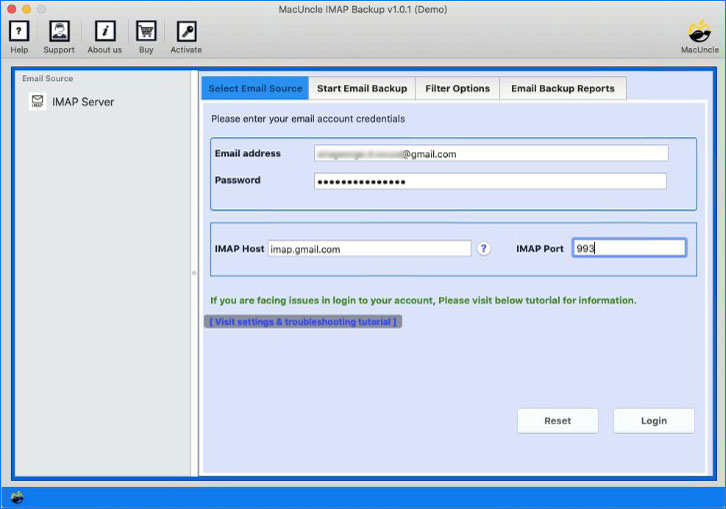
- Start the software on your machine first of all.

- Enter IMAP login info for BT Mail and the login button.

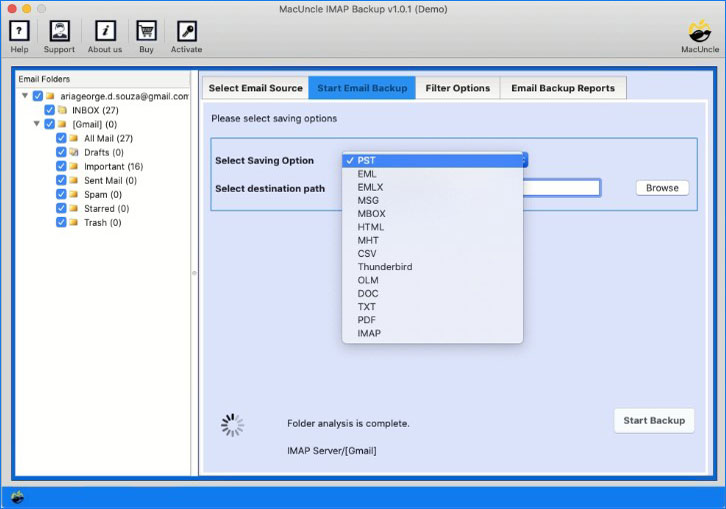
- Select mailboxes and choose PST format.
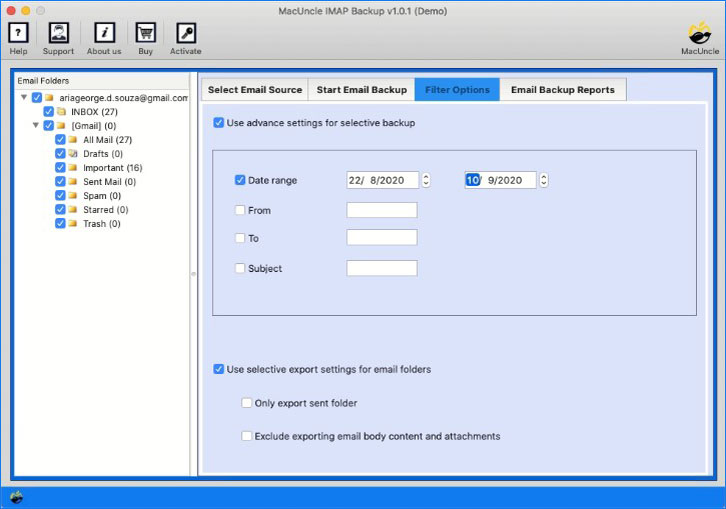
- Apply a filter before starting the conversion.
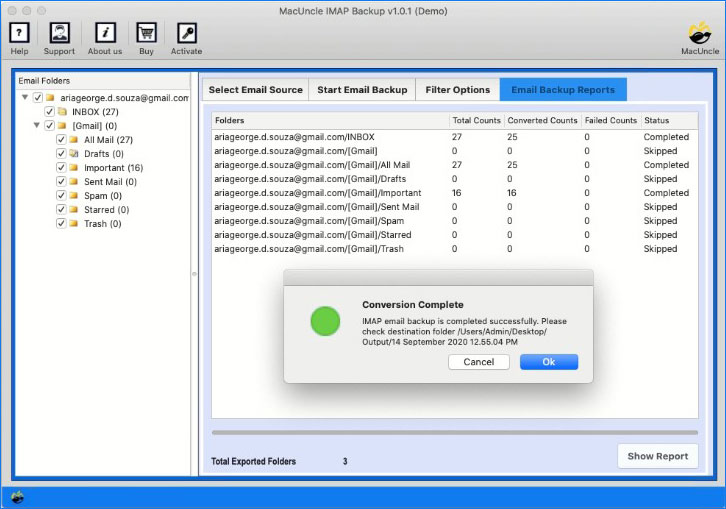
- Hit the Start Backup button to migrate BT email to Outlook PST.

Step 2 of the Process: Now, You Can Import This PST file into Outlook’s Profile
- Launch the MS Outlook app on your Windows machine.
- Go to File >> Open & Export >> Import/Export.
- Choose the Import from another program or file option.
- Press the Next button.
- Choose the Outlook Data File(.pst) import option.
- After that, click Next.
- Hit the Browse button.
- Add the PST file, which has been created above.
- Further, pick the folder in your Outlook profile where you wish to import your BT emails.
- Now apply other settings (duplicate options as needed).
- Press the Finish button.
- Now, wait for the process to finish.
Check the migrated BT emails in the Outlook client after the process completes.
Use the same tool to transfer emails from btinternet to Gmail Account.
FAQs
Q) Can I import all my BT Mail emails into Outlook?
A) Yes. By setting up BT Mail in IMAP, all the mail and folders present on the BT Mail server are synchronised to Outlook. You can then export these emails to an Outlook PST file if there is a requirement for a local copy or to move them to another Outlook profile.
Q) How do I create a backup of BT Mail emails before migrating to Outlook?
A) You can back up BT Mail by exporting your MS Outlook Mailbox to a PST file after synchronising via IMAP or by using a third-party BT Mail backup utility that allows you to save emails in PST format.
Q) Looking for a quicker way to move BT Mail to Outlook?
A) Yes. The expert BT Mail migration utility allows you to migrate an entire mailbox directly into Outlook or PST format without any manual tweaks. It is helpful to migrate a huge mailbox and also maintain email attributes and folder hierarchy properly.
Conclusion
The process to transfer BT Email to Outlook can be done by following two different approaches. You might wish to configure your BT Internet Mail straightaway in Outlook or use the specialised tool for importing some particular folders into the Outlook profile. The choice rests with you after understanding the things in detail.