How to Import Roadrunner Email to Gmail Account?


Are you someone who is still using a Roadrunner Email account and wishes to migrate your account to Gmail? Indeed, you can make a complete migration by performing a simple import of Roadrunner email to Gmail without conceding any data loss. This process of migrating a large number of emails might appear quite cumbersome for first-timers. Here in this blog, we are going to discuss the best and easiest approach to ensure absolutely safe migration. We are going to offer you the details of how to transfer Roadrunner to Gmail safely.
Even though there are many ways to achieve the transfer of email data, you might run into trouble if you have taken the incorrect approach. So, to avoid any such migration-related issues, here we are going to discuss the pros and cons of every possible way to transfer Roadrunner to Gmail. For all those users who wish to switch from a specific @rr.com to a @gmail.com account, we need to first understand the core reasons behind why the users tend to migrate their Roadrunner email data to Gmail.
Why the Need to Transfer Roadrunner Email to Gmail?
First, understand that you are not the only user who wants to forward Roadrunner email to Gmail. However, there will be different reasons behind making a switch to Gmail. The first and foremost reason behind making a switch from Roadrunner Email to Gmail is its limited storage capacity, which is no more than 5 GB. That is why Roadrunner users frequently encounter full mailbox issues, which are quite frustrating. With Gmail providing almost 3 times the email data storage capacity in contrast to Roadrunner email, more and more Roadrunner users are inclined to migrate their email data to Gmail.
Secondly, Gmail has evolved, providing its users with many extended features in order to give an easy and efficient way to manage their bulky email data. It offers greater flexibility to efficiently manage all email-related subscriptions right from the main dashboard. The labelling feature enables all Gmail users to use different labels in order to keep their group emails in one place with easy identification using different colour codes. This labelling feature is unique to Gmail, thus making it more user-friendly.
However, both Gmail and Roadrunner email clients offer IMAP features to easily connect and retrieve emails from a common server interchangeably. This makes Gmail a more robust and efficient email management system in every single aspect when compared with Roadrunner.
Related Articles | Why is My Roadrunner Email Not Working?
Manual Ways to Transfer Roadrunner to Gmail
There do exist certain manual methods that you can undertake for executing this task to migrate Roadrunner email to Gmail.
#1: Use Gmail’s Mail Fetcher to Import Roadrunner Emails
To add Roadrunner email to Gmail, perform the following steps sequentially:
- Log in to your Gmail account.
- Click on the settings gear and choose See all settings.
- Click on Accounts and the Import tab.
- Click on Import mail and contacts.
- Enter Roadrunner Account Credentials and log in.
- Then enter your Roadrunner Password and press Next.
- Now choose the “Import Mail” option from the list and hit Import.
In around 2 days (sometimes this duration might extend up to one week), all Roadrunner messages will start to appear in your Gmail.
But the greatest obstacle to utilising this particular service is the need to convert Roadrunner email from an IMAP account to a POP account. For many users, such a change may not be possible, which makes this process not that helpful for them. Rather, you can attempt another easier way, which uses the source, i.e., Roadrunner’s UI.
#2: Forward the Roadrunner Email to Gmail
This method to convert Roadrunner email to Gmail is pretty much straightforward, as follows:
- First, log in to the @rr.com account.
- Open any message you wish to move.
- Click the little forward arrow now.
- Here, in the new message draft, put the @gmail.com account.
- Finally, press Send.
Normal forwarding works fine for existing emails, but you do not wish to repeat the steps each time a new mail message is received. Also, you do not have any other method of foretelling when the latest message will be received, so you have to repeatedly check your mailbox for any updates, which becomes tedious.
#3: Set up Auto-forwarding for Moving All Upcoming Messages
Following the instructions given below to import Roadrunner email to Gmail:
- Open the Roadrunner account.
- Click Settings > Choose Mail forwarding.
- Type the destination @gmail.com address.
- Check the box if you want to retain a copy of that email.
- Further, Save > Verify through the confirmation link (which will be sent to the destination Gmail).
Even though there are many benefits of this, forwarding isn’t the best option. Email forwarding can’t move existing mail messages altogether. So, you have to shift them one by one. Also, when you utilise email forwarding, the original message is modified by overwriting it with some new metadata. The email content will not change, but these new emails can’t be used as evidence in court any longer. If you are a user who is just moving emails between personal accounts, this is easy. But such a process becomes a critical one if you work in an industry where compliance is crucial.
Additionally, some people might not have the option of auto-forwarding in their Roadrunner account’s webmail portal. Rather, users could utilise a desktop-based email program like MS Outlook or Mozilla Thunderbird for setting up forwarding. Nonetheless, you should have an email program already and add your Roadrunner email account to that email program. And once this is done, there’s a better option to transfer emails than plain old forwarding. Let us check out what this is.
#4: Make Use of Email Clients to Migrate Roadrunner Email to Gmail
Just follow these steps to add Roadrunner email to Gmail:
- Initiate by installing the email client of your preference.
- Add both the Roadrunner account and the Gmail account using IMAP
- Wait for both accounts to synchronise.
- Open both folders side-by-side; drag and drop from one folder to the other.
- Allow the email client to upload the copied messages to the Gmail account.
- You have to repeat this till all mail data gets migrated.
This process is noticeably speedier than mail forwarding, which does one email at a time. But this way is still not foolproof. Firstly, there’s no check or reporting, which signals how many emails have been transferred and how many emails remain. You need to track them on your own. The 2nd limitation is that it is ambitious in terms of how much time this shifting will take. Also, as this process is entirely manual, you will have to spend time & effort on this, which is going to compromise other significant tasks.
Think Beyond the Manual Operations!
When you think beyond the aforementioned manual ways, there is something much better waiting to be explored! You will have an edge by professionally approaching the task, as the results will be guaranteed in that case, and the process will be much easier than executing the uncertain manual methods mentioned above. Here, your data will be in safe hands, and you will most definitely see successful outcomes by bypassing any limitations seen otherwise in the manual tussles- that’s for sure!
Professional Tool to Import Roadrunner Email to Gmail with Perfection
IMAP Backup Wizard has a super-simple setup & simplistic user interface, so you do not need to acquire any technical understanding to utilise this tool. You can even download the demo version that lets you check the tool for free before investing in it. The finest aspect about this automated solution is that it not only supports Roadrunner email but also almost all IMAP-based email servers.
Simple Steps to Import Roadrunner Emails to Gmail
Here’s how you can transfer Roadrunner to Gmail with such speed that the task will be done much before you even notice it happening in front of your eyes. All you need to do is to follow the simple steps given below to do it in a flash:
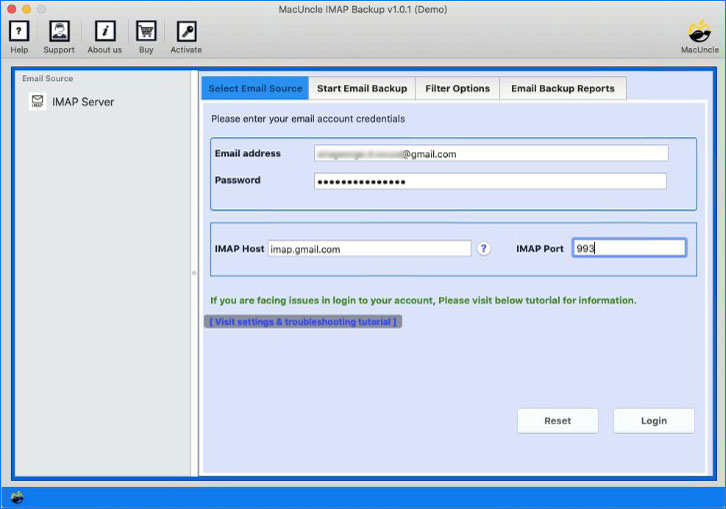
- Launch the software to start Roadrunner to Gmail Migration.

- Enter your Roadrunner account’s login info.

- Click the Login button now.
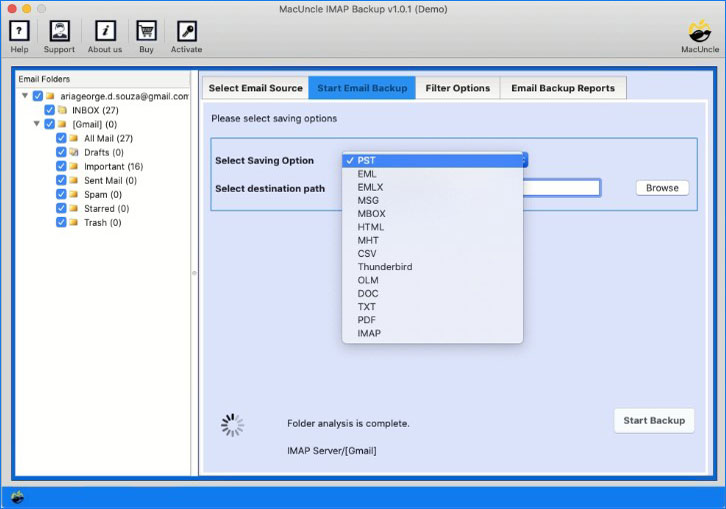
- Select Mailboxes & applying any filter settings.
- Select Gmail and enter the account details.
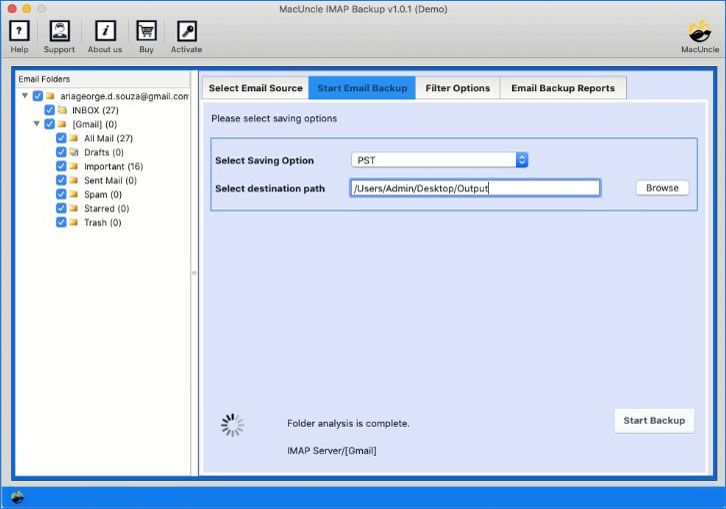
- Finally, press the Start Backup button to initiate the movement of email data.

Final Talk
With so many detailed instructions, now you must have gathered enough information about the process to import Roadrunner email to Gmail or any other IMAP account. Manual ways are tedious and cumbersome, and leave room for errors to happen. The automated software thus happens to be the best alternative, without any contesting argument to it. So, if you wish to obtain sure-shot results, you know which option to go for!
FAQs
Q) Is RoadRunner email still active?
A) Yes & also no! Well! To be precise, RoadRunner email service & all of its allied sister services had been absorbed by Spectrum. But you can still log in & see your emails with the same @rr domain. However, the entity called RoadRunner email does not exist anymore as a separate platform.
Q) What are RoadRunner Server’s IMAP settings?
A) You may use the following:
- IMAP Server mail.twc.com
- IMAP Port 993
- IMAP Security SSL/TLS
- Username: Full Roadrunner’s email address
- Password: Roadrunner’s password
Q) How long does it take to shift all messages from some old RoadRunner account to Gmail?
A) There isn’t any exact figure, but you can try to make a fairly precise estimation by dividing the total of the mail volume with your actual bandwidth. If you plan to migrate multiple email accounts, the pro tool happens to be the best selection as it provides great migration capacity, so you can make the best use of the available bandwidth.