Steps to Convert JSON Chat Files on Mac
You can convert JSON and JSONL chat files in five short steps using MacUncle Chat Converter. The guide below shows every screen with the exact button to press.
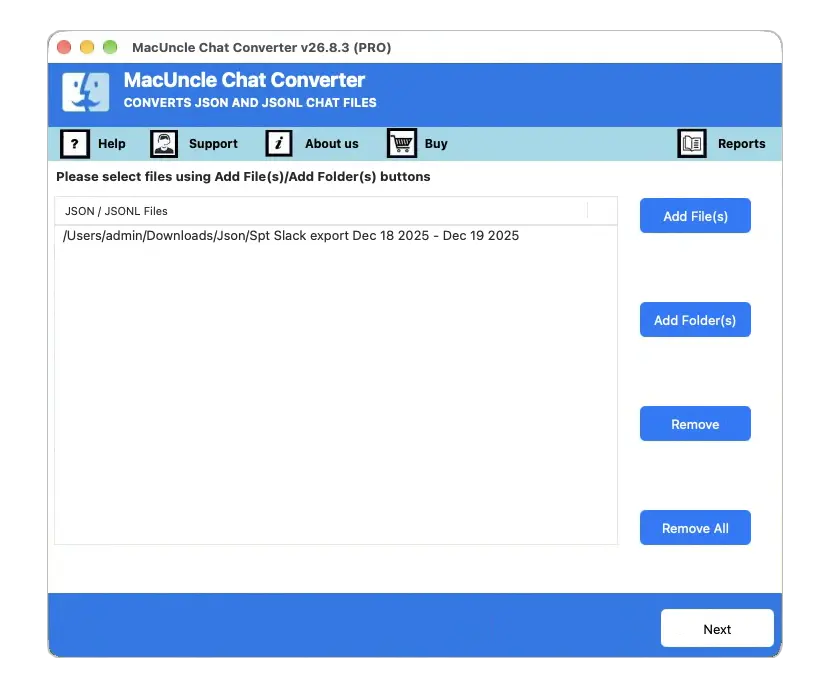
Start MacUncle Chat Converter on your Mac computer. Add your chats using the Select Files or Select Folder option. You can add single JSON or JSONL files or a complete folder of exported chats.
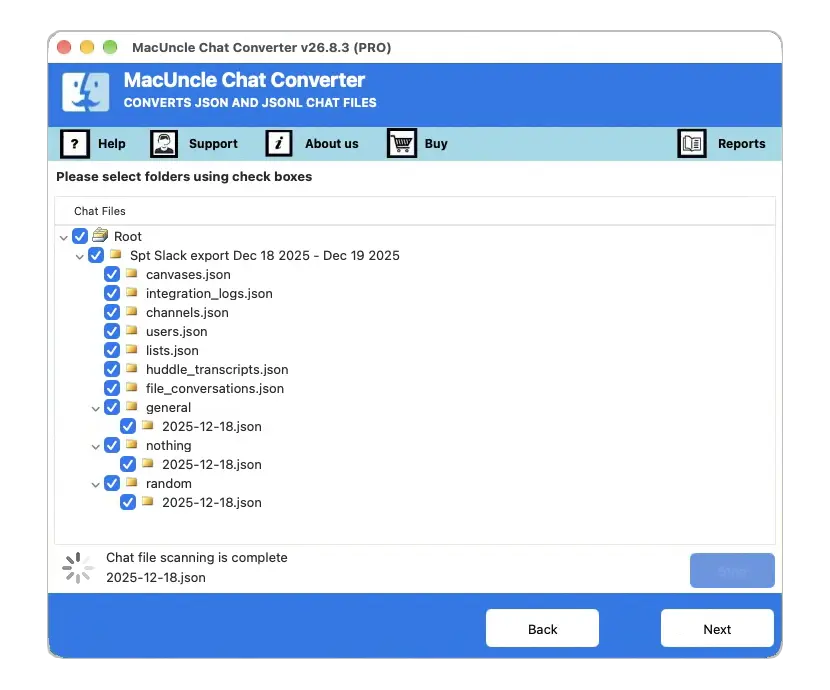
The software lists every conversation found in your files. Check only the chats you want to convert and uncheck the rest. Use the top checkbox to select all conversations in one click.
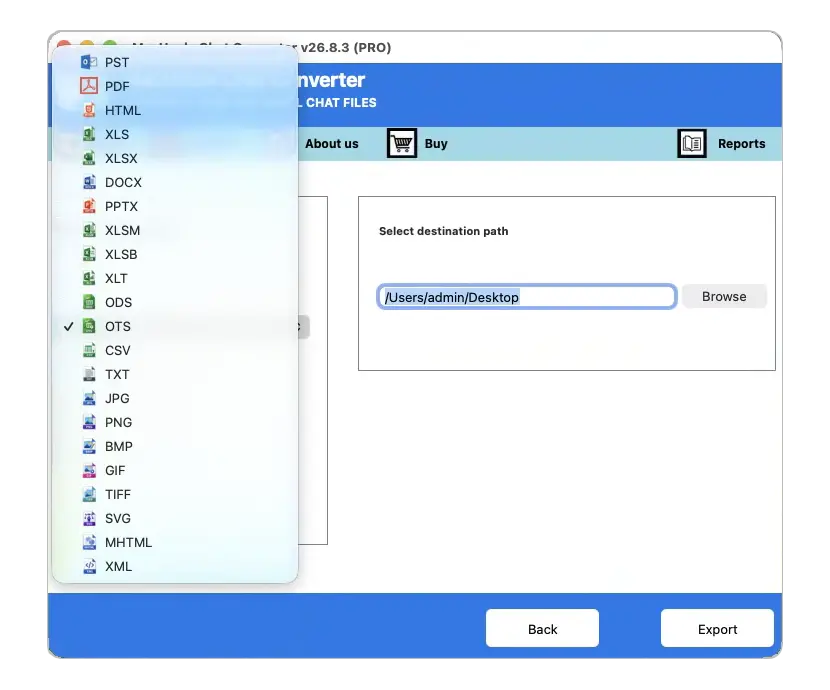
Open the Select Saving Option list and pick your output format from PDF, HTML, DOCX, TXT, CSV, XLSX, PNG and 21 more options.
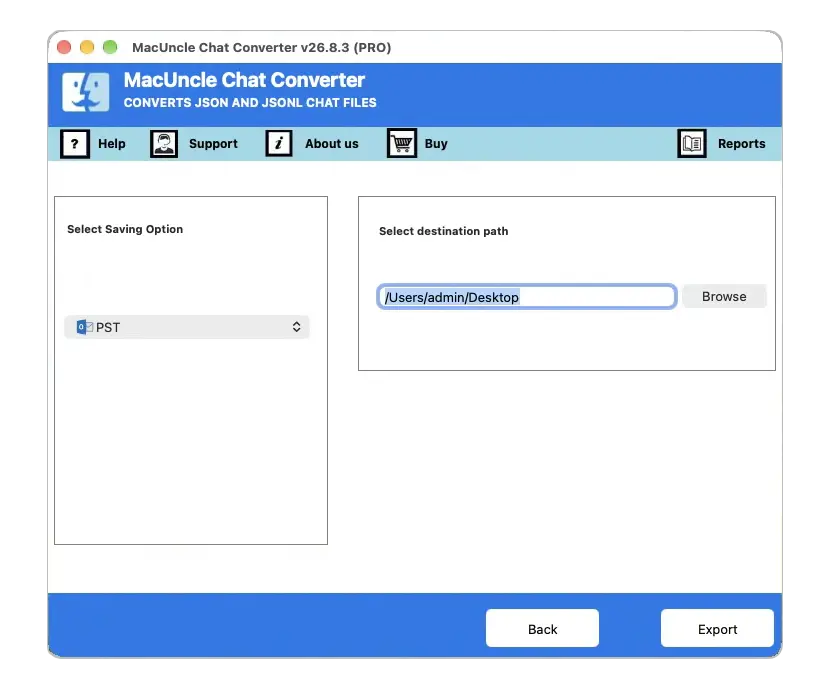
Set the extra options for your format, such as page setup for PDF output. Then click the browse icon to choose a destination folder for the converted files. The desktop is used by default.
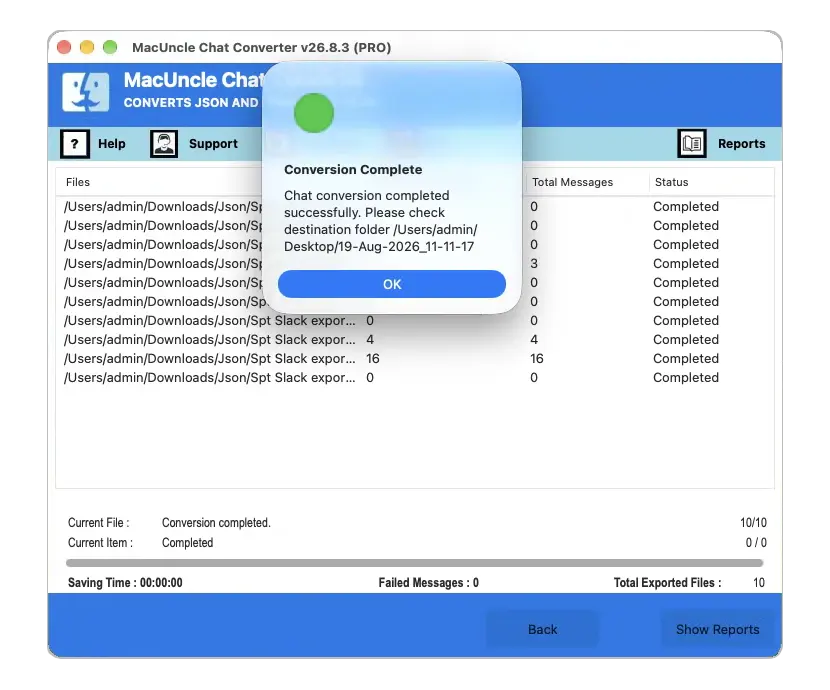
Press the Convert button to start the process. When the chat conversion completes successfully, click Ok on the message. The folder with your converted chat files opens automatically.
Trial note: the free trial converts the first 25 chats from each JSON or JSONL file. Every saving option stays available, so you can test the full working before you buy.
Need the full version? Get the license from the Chat Converter purchase page, or go back to the product page for features and specifications. For any help during conversion, contact support@macuncle.com.