How to Add ProtonMail to Apple Mail Account?


We present here the best and most adaptable solution to add ProtonMail to Apple Mail. There are different solutions to import or migrate emails to any other email client. But what we need is a method to move all or multiple files to Mail.
ProtonMail is an end-to-end encrypted email service. Since its launch, it has established itself as a reliable email service for users who demand security for email communication. If the whole conversion is accessing ProtonMail on a Mac, there are two methods to use. The first is online using a web browser. The second method involves an email client, such as Apple Mail. There isn’t a native Mac stand-alone program included with ProtonMail. For temporary purposes, transferring or adding the emails from ProtonMail to Apple Mail is the perfect option.
Reasons to Move ProtonMail Emails to Apple Mail
Consider a few needs or reasons for a ProtonMail email migration to Apple Mail. These are the most common reasons why users are switching to an Apple Mail account.
- We can access the emails from any Mac Operating System.
- You can efficiently send, draft, receive, and manage your data with the aid of Mac Mail.
- Users can more easily manage and arrange their contact database with the aid of this email client.
- End-to-end encryption is the foundation of Apple Mail’s security reputation, which is quite robust.
- It enables you to add different attachments, different formatting, and different fonts to your email messages.
How to Manually Add ProtonMail to Apple Mail?
Users can manually configure ProtonMail with Apple Mail with ProtonMail Bridge. ProtonMail users have end-to-end encryption, so direct IMAP setup is not available. ProtonMail Bridge creates a secure IMAP and SMTP connection between ProtonMail and Apple Mail.
Note: ProtonMail Bridge is available only on Proton paid plans. (Mail Plus, Proton Unlimited, etc.). Free ProtonMail users cannot use this method.
Steps to Configure ProtonMail with Apple Mail
- Download and install the ProtonMail Bridge on Mac.
- Launch ProtonMail Bridge and sign in to your ProtonMail account.

- In the ProtonMail Bridge, go to Email Clients and Select Apple Mail.
- Install the security certificate when prompted by macOS.
- Open Apple Mail. Select Other Mail Account.

- Enter IMAP and SMTP credentials shown in the ProtonMail Bridge Window.

- Apple Mail will add the ProtonMail account and begin syncing the email and folders.
- ProtonMail Bridge will automatically configure the account in Apple Mail.
- Wait for Apple Mail to synchronise ProtonMail emails and folders.
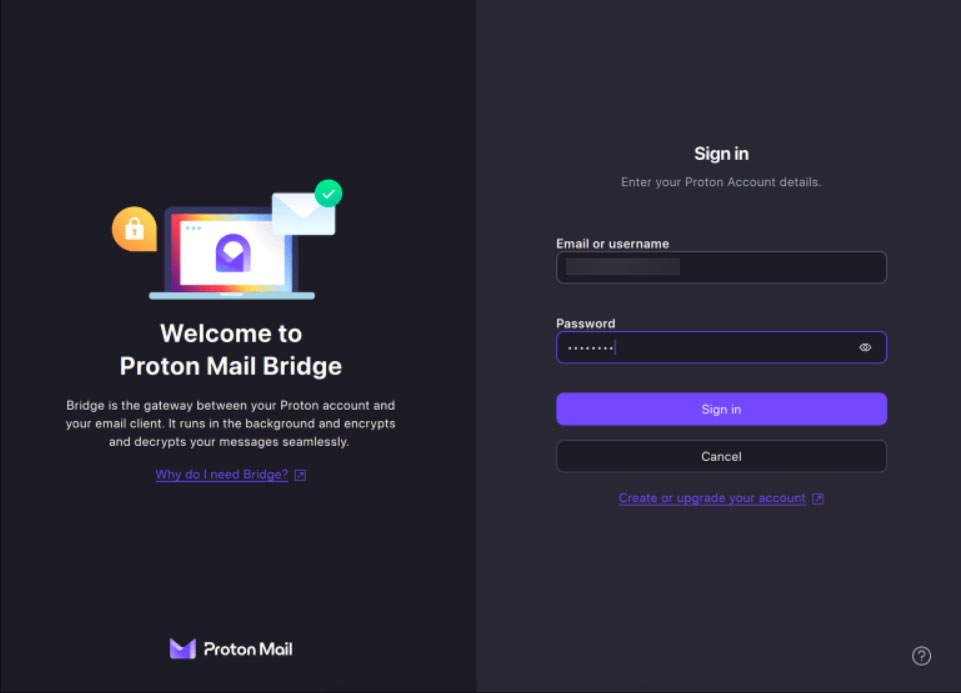
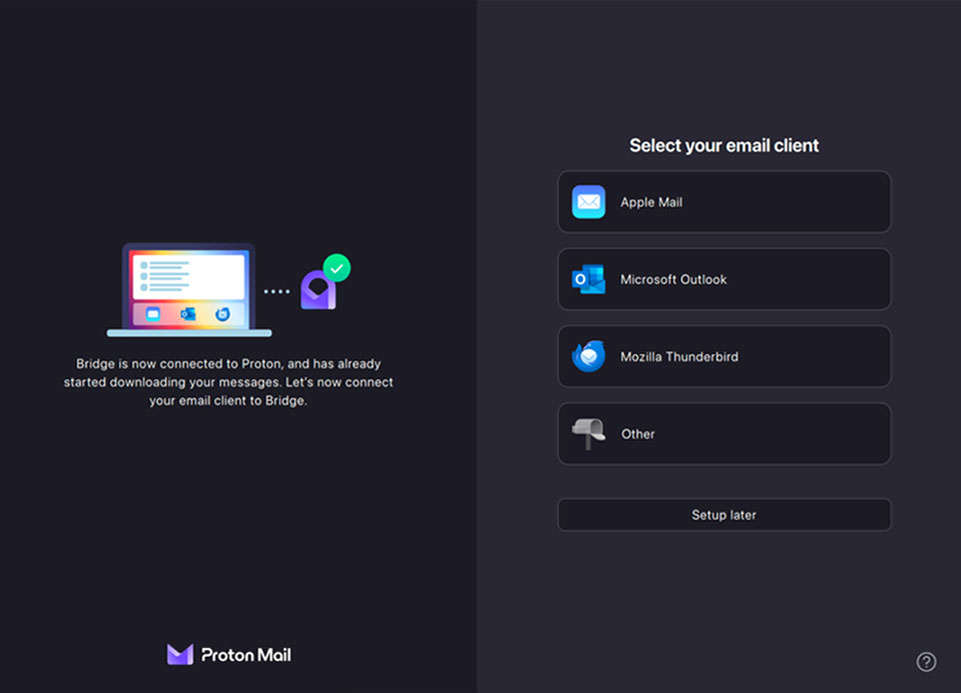
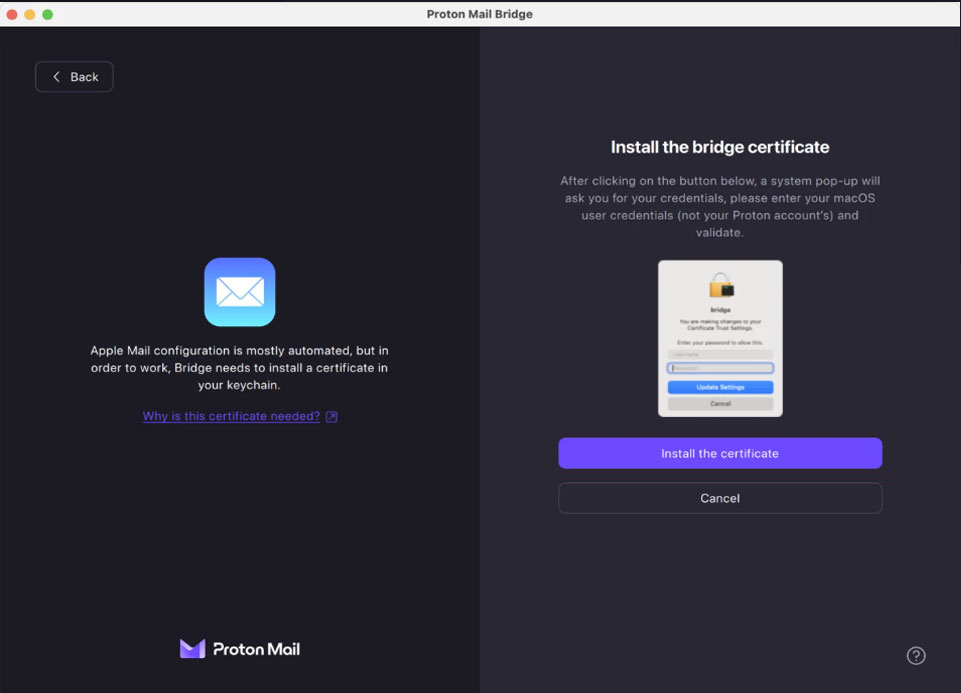
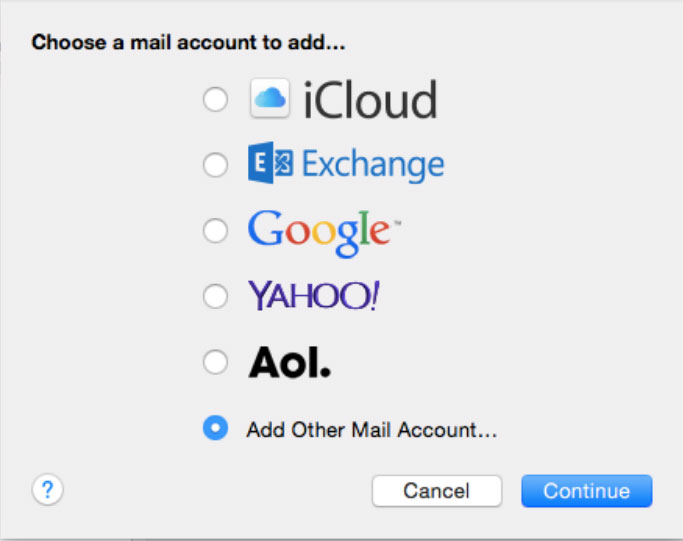
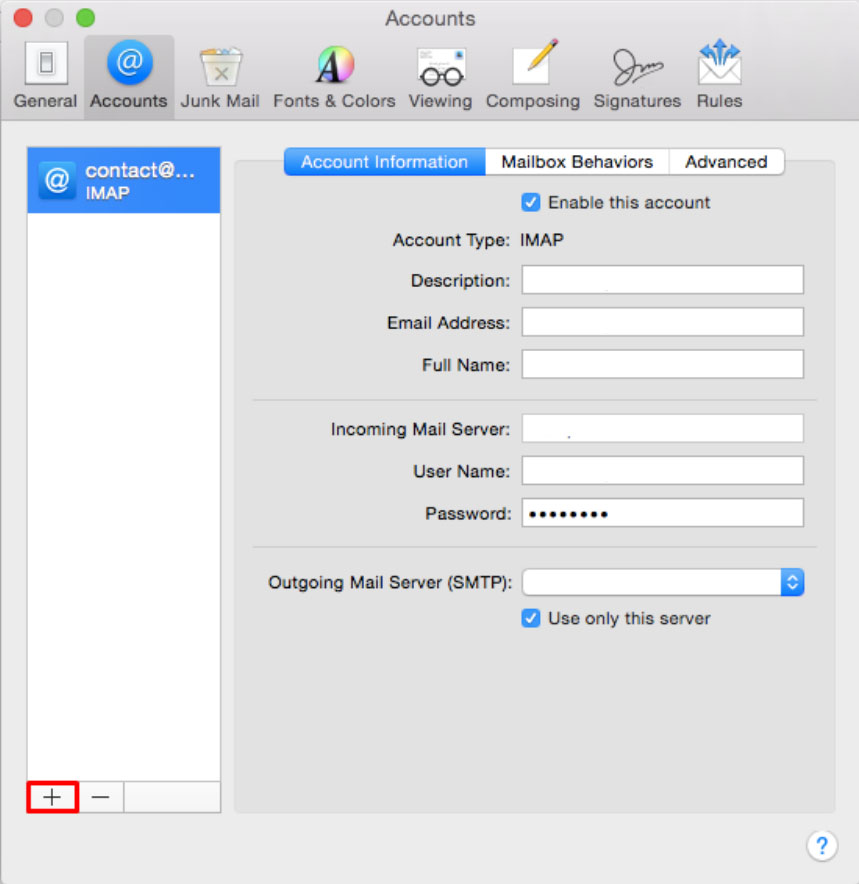
Once the synchronisation process is completed, you can access ProtonMail emails directly within the Apple Mail application.
Limitation:
- It is only available in the paid Proton Subscription.
- Initial synchronisation takes time for large mailboxes.
- Technical setup required for first-time users.
Easily Add ProtonMail to Apple Mail Using a Professional Tool
With the ProtonMail Backup Tool, transfer the emails and attached documents to the Mac Mail account directly. By using just the software, we can import the emails without adding one account to another. The process will be completed in a few minutes. Before getting the full product, try out the demo edition to learn the working steps of the toolkit. Get the setup file from here and follow the steps in the coming section.
Import ProtonMail Emails to Apple Mail Instantly – In 5 Steps
Download the software from the above links as per the need. Each step can be done without the need for any technical skills. Carry out the procedure:
Note: With IMAP, migrate all the emails directly to the account. Whereas with the MBOX option, we can convert the email files to *.mbox and then import the files to the Apple Mail account.
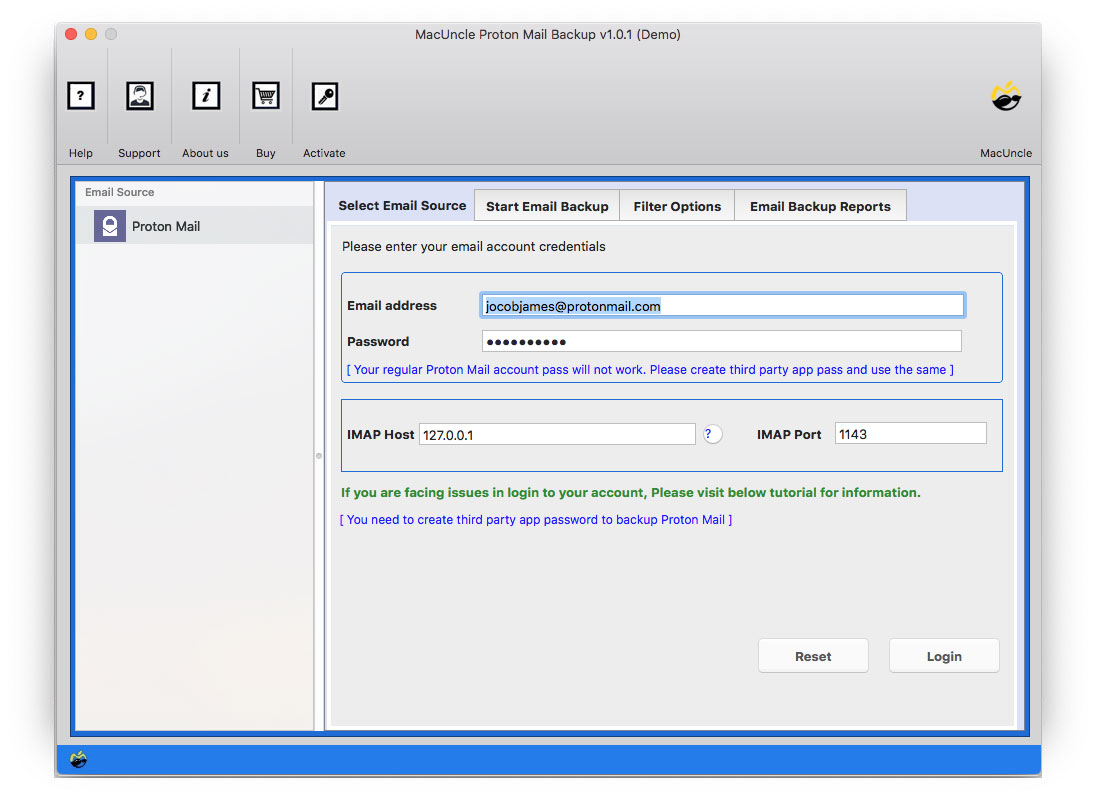
- Start the tool and enter the Email Address & Password. Press the Login button.

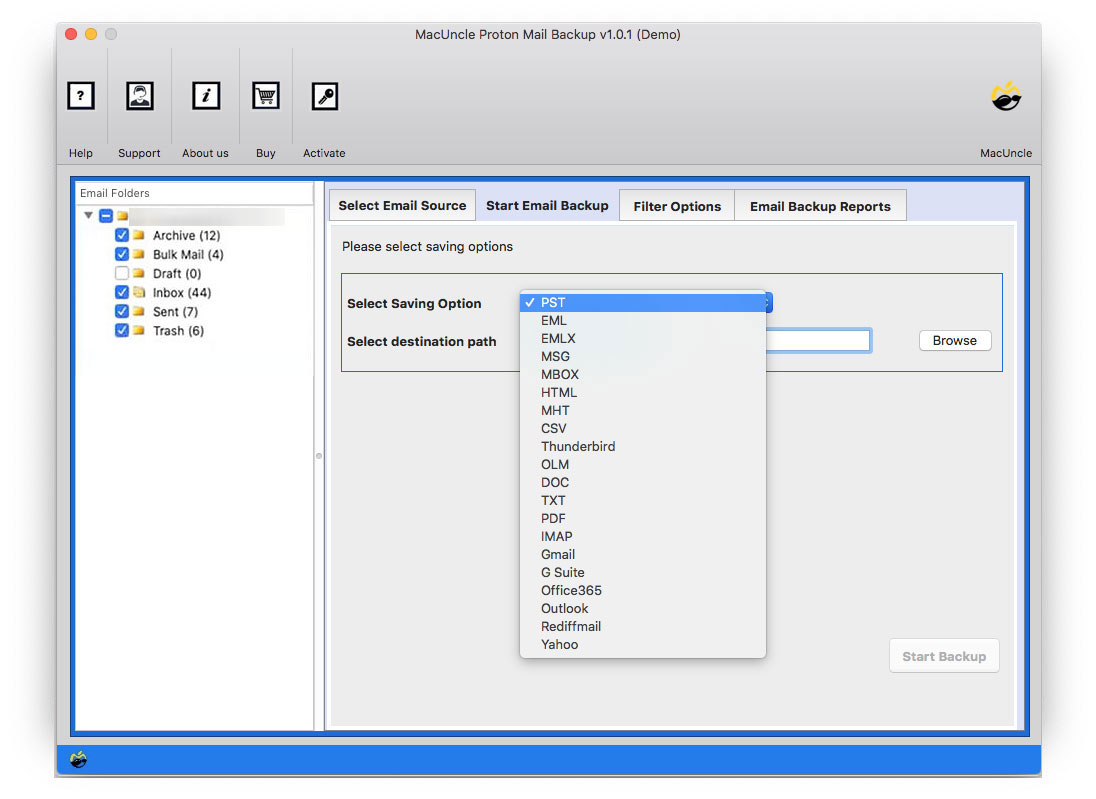
- Choose the email files or folder using the check box. Then, select IMAP or MBOX format from the options.
- For the MBOX option, use the destination location to store the files. While for IMAP, the ProtonMail emails are directly sent to another Apple Mail account.
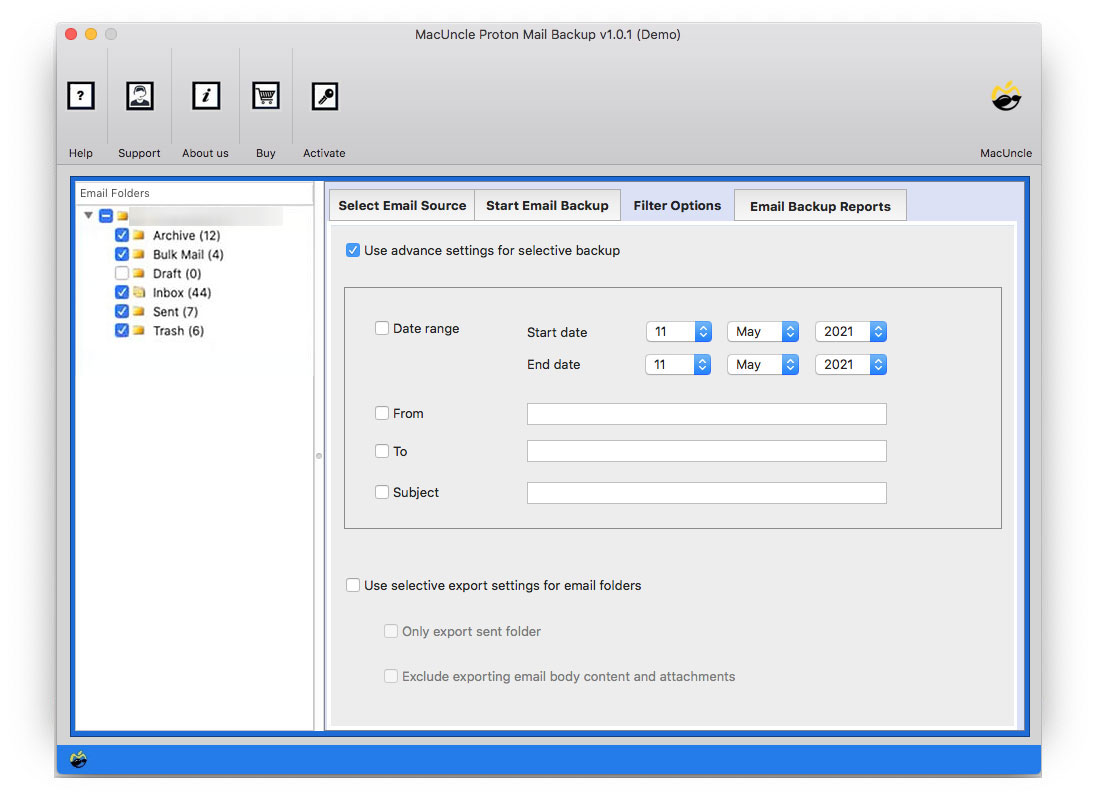
- Go to the Filter Option to set various settings and transfer only the emails required.
- Hit the Start Backup button to start the procedure.
Read more blogs:
Notable Features of the Software to Migrate ProtonMail to Gmail
Below are the advanced traits of the solution mentioned above. By using the tool itself, we can understand the capabilities. However, here are some of the vital features.
- Add Emails as well as Attachments: The tool not only adds emails but also attaches documents. Directly move the email messages and all other files to the Apple Mail Account. Just select the file before migration.
- No Need for Extra Application / Procedure: MacUncle does not need any supportive application to work on. The whole process can be completed just with the tool itself.
- Perform the Selective Migration: The filter options will allow selecting a file and then adding only the files required to move to another email client. Transfer the email from a specific email address or a particular date.
- Directly Add Emails to Apple Mail: We recommend users test the IMAP option before using the conversion. The option does not require changing the file format, so you can add ProtonMail to your Apple Mail account without any complex steps.
Frequently Asked Questions
Q) Does Proton Mail work with Apple?
A) Yes. You can download ProtonMail on macOS and work on it effortlessly. Otherwise, add ProtonMail to your Apple Mail account and later get all the emails in the Mac Mail.
Q) What is the best way to move emails from ProtonMail to the Apple Account?
A) Using the suggested software here, you can execute the migration with ease.
Q) Is there any direct way to get Proton Mail emails in Mac Mail?
Yes, with the MacUncle software, move as many emails from ProtonMail to the Apple Mail account.
Conclusion
To conclude, we have the best approach out of all the other solutions in terms of providing the bulk migration of emails to another email client. So, add ProtonMail to Apple Mail using a manual or professional approach. Without accessing any of the email clients or applications, we can complete the migration within the application.