Airmail to Apple Mail: The Complete Migration Guide for Mac Users


In general, most Mac users switch over to the default Mail application on macOS. But migrating emails from Airmail for years could be really difficult. The real question here isn’t whether you should migrate Airmail to Apple Mail; it is how to do it without losing the years of messages and attachments along with that.
The good news is there is no single right way to do this. Airmail has the option to save individual emails in EML. Depending on the number of emails present in the Airmail account, we must proceed with the migration method. The guide here will walk you through all the approaches to get an effortless transition of emails from one account to another.
Why Mac Users Switch from Airmail to Apple Mail
Apple Mail is preinstalled on macOS and syncs with iPhone, iCloud, iPad, & all other Apple services. Most people prefer to use this due to its neat interface design, stable features, & support given by Apple’s native ecosystem. The most common reasons to make the switch include the following:
- Better integration with macOS.
- No extra subscription cost(s).
- Simpler setup and easier email management.
- Seamless syncing across all Apple devices.
- For long-term, dependable support provided by Apple.
Airmail vs Apple Mail
Let’s now check Airmail vs Apple Mail. Both apps are quite powerful. But people who wish to have simplicity & deeper Apple integration usually pick Apple Mail.
| Feature | Airmail | Apple Mail |
|---|---|---|
| Interface design | Quite customisable | Neat & simple |
| Third-party integrations | Comprehensive | Very limited |
| Support of Apple’s ecosystem | Fine | Quite good |
| Pricing | Premium features are available | This is free with macOS |
| Easiness | Best for advanced-level users | Novice-friendly |
| System integration | Moderate | Native Apple’s support |
Try out the best approach to export Airmail emails on Mac in this article.
Prerequisites Before the Migration
Before you start migrating from Airmail to Apple Mail, you must consider the following and move accordingly to avoid any data loss:
- Create a backup of all your critical emails.
- Try to make sure there is sufficient space available for storage.
- Update both apps to their latest versions.
- Try verifying your internet connection when using IMAP accounts.
- Also, check your mailbox folder organisation.
Such small preparations will help you to prevent any migration problems from arising later.
To know more about other email clients, check out the best macOS Email clients.
Manually Migrate Airmail to Apple Mail Account
There are some manual methods that you can attempt to transfer from Airmail to Apple Mail. The methods below are fine if the limited free option does not appeal.
Method 1: Use the Same IMAP Email Account
The most obvious way to move your emails is to set up the same IMAP account within Apple Mail. This involves no file exports, as emails sync automatically.
- Open Apple Mail on Mac
- Select Mail > Add Account.
- Select the email provider or choose the option for the account.
- Enter the email address and account credentials.
- Follow the instructions to complete the account setup.
- Ensure the Mail is enabled for the account.
- Allow Apple Mail to sync the messages and folders.
Note: The method does not convert or export the emails from Airmail. It simply adds the account to Apple Mail. It works best when the messages you want to access are still on the mail server. “On My Mac” mailboxes are different as they are stored locally on the Mac.
Method 2: Export Mailboxes from Airmail & Import into Apple Mail
This method works well if you have local folders stored in Airmail. With no dependency on email server syncing, this process is useful in case of archived emails, as it preserves the mailbox structure. Undertake the following steps:
- Open Airmail on Mac.
- Select the required email messages to extract.
- From the menu bar, choose File > Export as EML.
- Select the destination folder on Mac.
- Now, save Files in the “To Import Folder” or “the Files Folder”.
Note: This could be time-consuming in case of large mailboxes, as it involves manual importing, so multiple folders might require separate exports.
Migrate Airmail to Apple Mail with a Dedicated Tool
For people who have been managing large mailboxes, the professional tool could simplify the whole process of migration considerably. Airmail Converter helps people to export their emails to Apple Mail while still maintaining email properties, large attachments, and folder structure. This could be helpful while dealing with large-scale email data migrations or for archived data.
How to Import Emails from Airmail to Apple Mail?
Get the tool for Mac from here and follow the steps below:
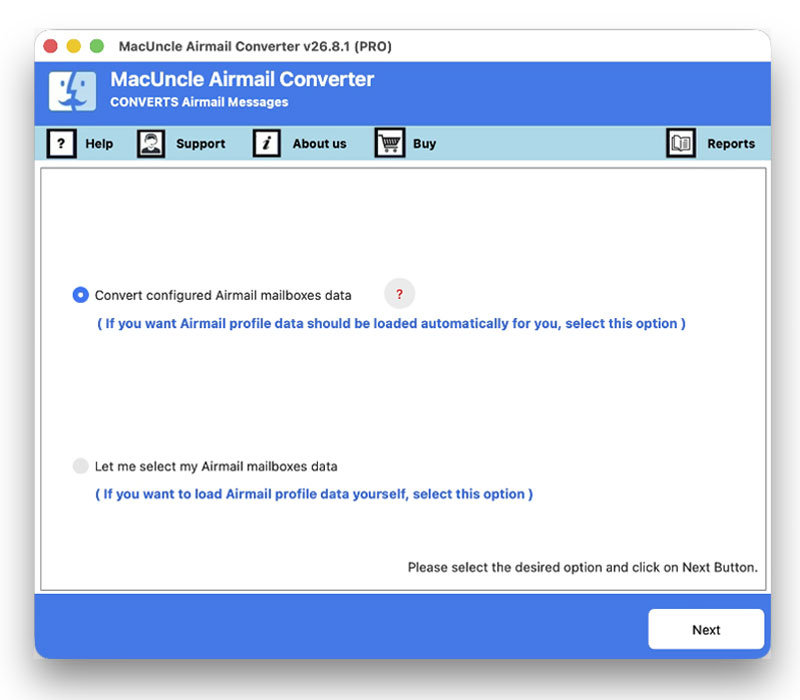
- Launch the tool and choose the appropriate option as shown here.

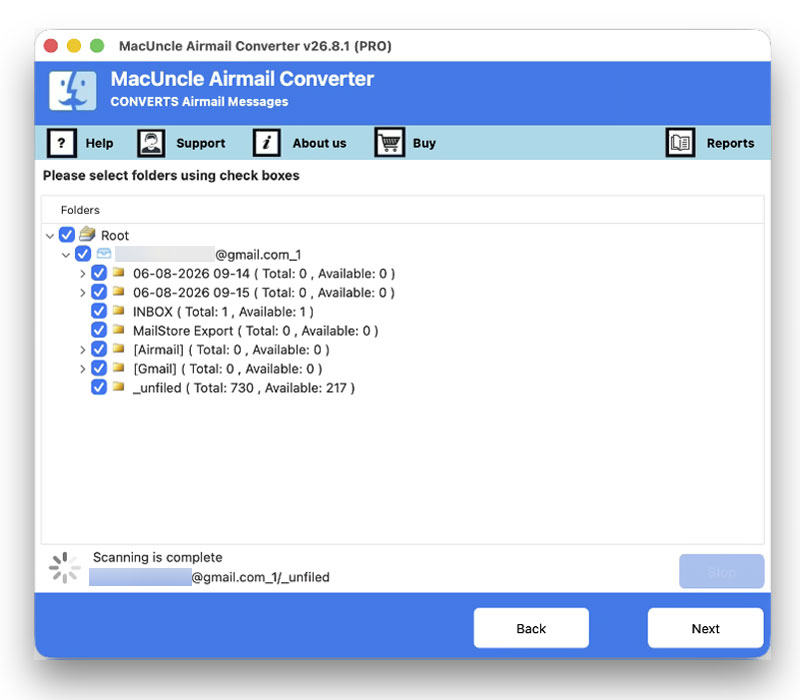
- If selected, configure mailboxes; now choose the desired folders using the checkbox. Press the Next button.
- Now, choose Apple Mail and set the default location.
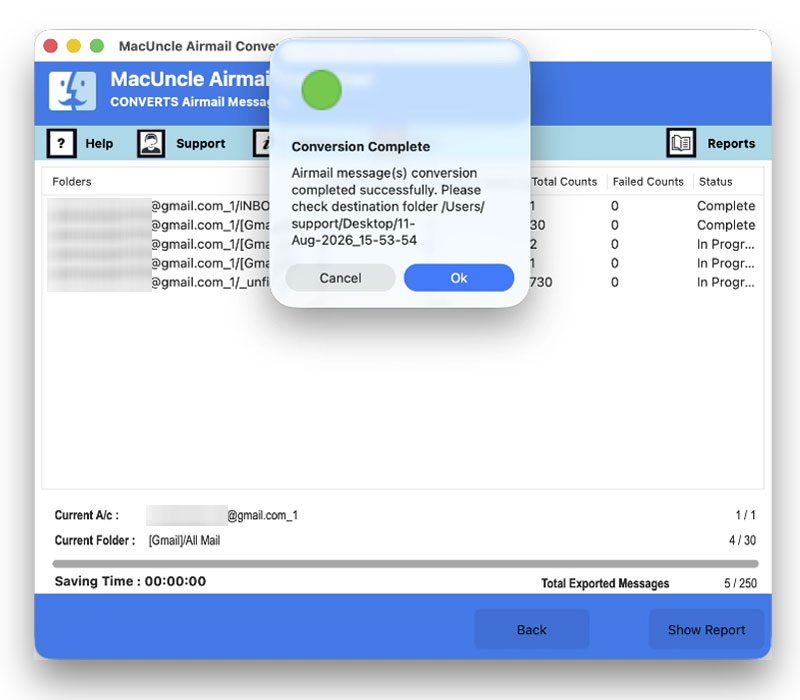
- Press the Export button to start the conversion.

FAQ
Q) How to move the emails from Airmail to Apple Mail?
A) You can try the manual ways, but for better results, a professional migrator can help you with a safe email data transfer.
Q) Could Apple Mail import Airmail mailboxes straight away?
A) Apple Mail can definitely import supported mailbox formats like MBOX files that are exported from Airmail.
Q) Is it possible to move all the emails from Airmail to Apple Mail?
A) Certainly! It is indeed possible to move emails manually through several mailbox export/import methods, but using the professional migrator is a better option if data safety is your top concern.
Q) Will my email attachments also move while switching from Airmail to Mac Mail?
A) Definitely! If you do the transfer perfectly, all your attachments can also be easily moved along with the email messages.
Conclusion
If the email lives on an IMAP server, Method 1 gets you to the result within minutes. If the Airmail mailboxes are in a local archive or if you want a guaranteed folder structure, then use the dedicated software mentioned here for quick transfer. The article has all the details and a comparison of Apple Mail and Airmail for a better view of the email clients’ features.