How to Export Airmail Emails on Mac?


If you want to switch email clients, archive old email messages, or just want to safely keep the message, knowing how to export Airmail emails on Mac is essential. Airmail doesn’t make backups automatically, so if the Mac crashes, the emails on the system can be deleted. Therefore, it is recommended to back up emails from Airmail.
Does Airmail provide an export option? Yes, Airmail offers options for saving individual or multiple emails. Here, we are focusing on exporting or processing multiple mailboxes at once. Get on with the article and grab the right approach from here.
In this article, you will learn different ways to export the emails from Airmail. Each method serves a different purpose, so we walk through it step by step.
What Does Exporting Airmail Emails Mean?
Exporting emails simply means saving a copy of Airmail outside the email clients, which the account has the option to do in EML format. When we export the message, it saves to the folder on the Mac, where you can move it, upload it to cloud storage, or import it to another app later.
Here comes the difference from the full backup, which captures the entire Airmail account data, that is, settings, folders, and the messages rather than individual emails. Here we will cover all:
How to Export a Single Airmail Email on Mac?
This is the quickest way if all you need is to save one message:
- Open Airmail and select the emails that need to be exported.
- Right-click on the email listed in your inbox.
- Choose Save As or Export from the menu.
- Select a location folder on the Mac.
- Airmail will save the email as a *.eml file that can be opened by double-clicking it in any compatible program.
Export Multiple Airmail Emails at Once
Exporting one email at a time works fine occasionally, but if you are archiving the entire folder or preparing the client switch, you want to export in bulk:
- Launch Airmail and navigate to the folder containing the emails that you wish to export.
- Select multiple emails or hold Cmd and click on each one.
- Hover the mouse over the selected emails and select Export.
- Pick a destination location, then create a folder.
- Airmail will export each email as an EML file into the folder.
How to Back Up Airmail Emails on Mac?
A backup is more comprehensive than an export—it backs up your whole mailbox rather than specific messages. Two strategies can be successfully employed:
Use Time Machine
Time Machine is a built-in macOS backup feature that creates a backup of the files that are stored on the Mac
- Make sure Time Machine is set up and the machine has the external drive connected.
- Allow Time Machine to create regular backups.
- As per the Airmail configuration and the files included in the backup, the locally stored data from Airmail might be available in the Time Machine backup.
- To recover data, use the Time Machine backup to restore the file from an earlier snapshot.
Export Airmail Emails on Mac to a Desired File Format
After going through the methods mentioned above, if you prefer an approach that has multiple saving options, use the Airmail Converter. The tool can single-handedly manage multiple mailboxes and convert them to a format that suits them best. For example:
- For documenting and sharing, convert Airmail to PDF
- Outlook Migration – convert to PST
- For data organizing – convert Airmail emails to CSV format
Follow the Steps to Download Airmail Emails in a Different Format
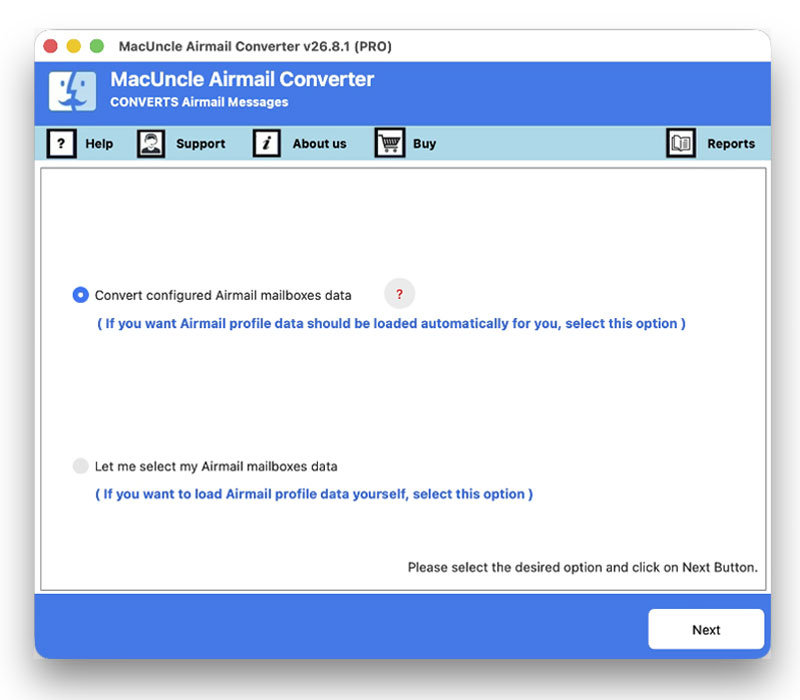
- Launch the toolkit and choose the desired options as shown here.

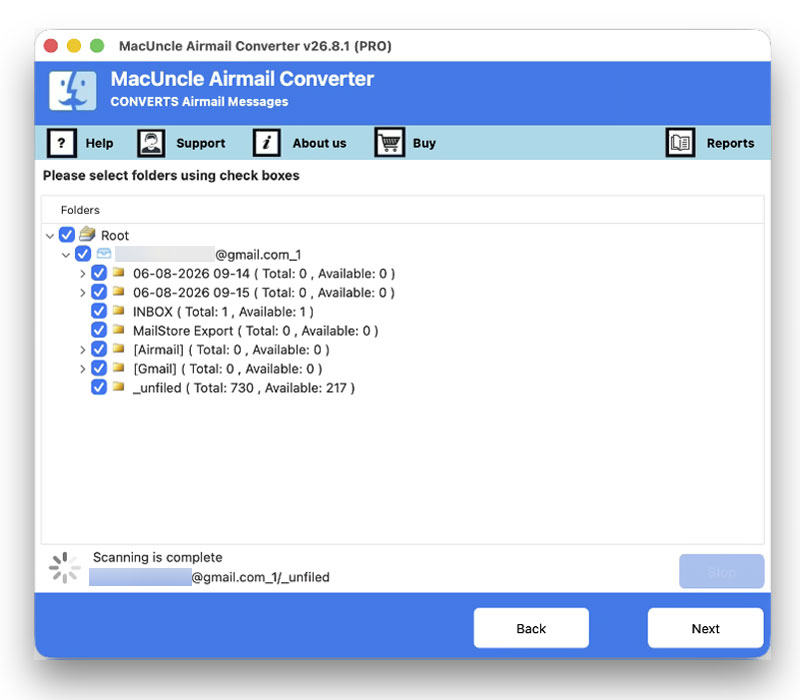
- After selecting the option, choose the desired folder from the list. Press the Next button.
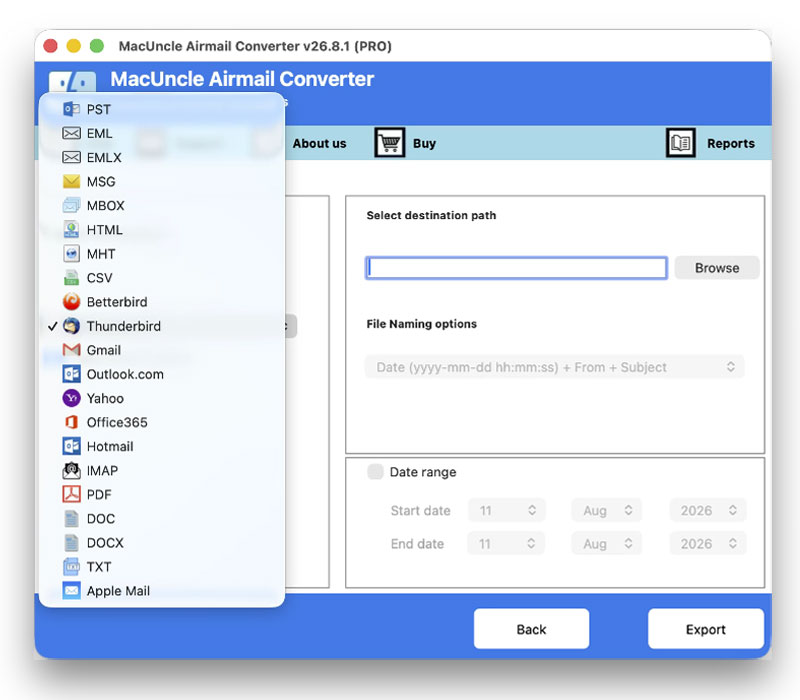
- Now, choose any file format or email client from the Select Saving Option.
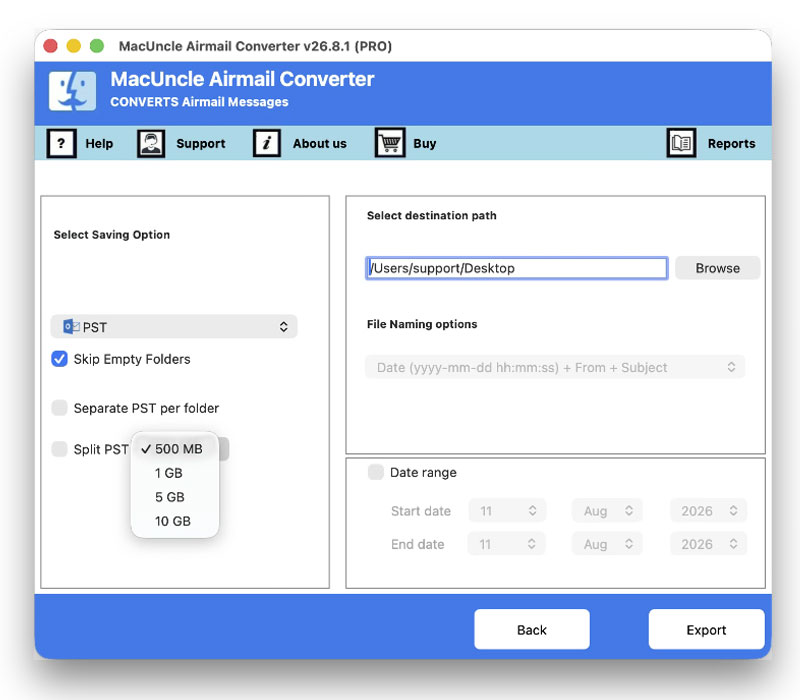
- Set a location to store the exported file.
- Finally, press the Export button to start the process.
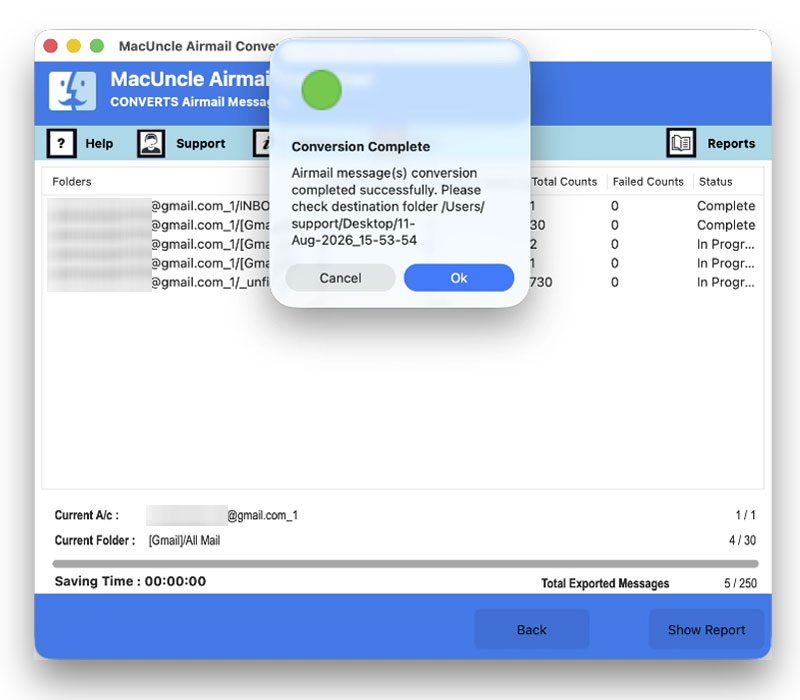
Use the same tool to move emails from Airmail to the Apple Mail account. With this, perform the email transition with precision and flexibility, as the tool instantly fetched the Apple Mail default location within the tool
FAQ
Q) Can I send my Airmail mailboxes to Outlook or Gmail?
A) Yes, since Airmail exports to the standard .eml format, you can bring the files into Outlook or even drag & drop them into Gmail using an import tool.
Q) What file format does Airmail export to?
A) Airmail exports email using an .eml file. This is a common format used by almost all desktop mail clients and webmail sites.
Q) How many emails can I export at once?
A) Airmail doesn’t really have a cut-off, but exporting tens of thousands of emails can take a while—exporting in smaller batches per folder is often much faster and simpler.
Q) Is the original email removed when exporting?
A) No. When you export, it does not delete the original email. It simply saves the email in a different place, so the original email is still in Airmail.
Conclusion
Whether you need to save one important message, export a whole folder at once, or automate a complete backup for the future, Airmail will let you save a copy of your email safely on your Mac. To really be on the safe side, also couple this with a Time Machine backup along with regular exports. Alternatively, if you want to save your emails in a flexible file format for easier migration or sharing, you can try the software.