How to Convert HTML to PDF without Losing Formatting?


HTML files are very basic types of files which are primarily used for creating webpages on the internet. It is essentially the backbone of the web; it structures everything from the simplest of web pages to the most highly complicated reports, invoices, and dashboards. However, if we talk about sharing, printing, and archiving the content, PDF is the best and most widely accepted format.
Conversion of HTML to PDF has always been and still is an excellent and straightforward avenue to keep web content in a secure and easily shareable format. In fact, HTML to PDF can come to your rescue while you are doing one or all of the things, such as archiving important web pages, making a document for offline access, or converting the content of a web page into a PDF format for different personal or business needs.
Why Does Formatting Get Lost During the HTML to PDF Conversion?
Understanding the root cause helps you to choose the right method. The formatting loss that happens during the conversion of HTML to PDF could be due to:
- CSS not displaying properly: It is a common problem with some tools that do not preserve the exact design, colour, spacing, page layout, etc. of the original in the output PDF.
- Fonts not embedded: If your font is a web font like Google Fonts or a custom one, then you need to be connected to the internet to open it.
- JavaScript is not executed: There are tools or methods in which the final PDF will not show the dynamic content, such as charts, pop-ups, animation or other interactive elements.
- Page formatting issues: Webpages keep scrolling, but a PDF file has a fixed page size. Hence, the content may get cut off or misaligned during conversion.
- Images or style may not load correctly: Tools may not load linked images, fonts or CSS files, especially if the files are stored in a different folder than the HTML.
Therefore, we need to choose the right method that eliminates these issues. Check out the method mentioned below.
What is the Best Way to Convert HTML to PDF Format?
We can use different standard methods to convert the HTML web file to PDF format for free. However, the solutions come with certain limitations.
Method 1: Manual Conversion with Web Browser (Print to PDF)
Every modern browser includes the built-in Print to PDF feature, which we can use to convert HTML to PDF format.
Using Google Chrome
Availing the print engine produces the most accurate HTML to PDF output among browsers.
- Open the HTML file in Google Chrome.
- Press Ctrl+P (Windows OS) or Cmd+P (macOS) to open the printing tab.
- Click on the “Destination” dropdown menu and select Save as PDF.
- Set all the other required settings as needed.
- Enable Background graphics under “More settings” (It is critical to preserve background colour and CSS-generated visuals.)
- Click Save and choose the output location.
Use Microsoft Edge
The process is similar to Chrome as it uses the same Chromium engine. Additional features offered by Edge are the “Print using System dialogue” option, which gives you access to additional paper formats and quality settings.
Limitations of the browser-based method to convert HTML to PDF format: This method is free and accessible, but it comes with limitations for high-volume or any automated cases. It requires manual conversion because each of the files does not support batch processing.
Method 2: Use Microsoft Word or LibreOffice to Convert HTML to PDF
If the HTML content is simple for text, tables, and basic styling, it can be useful as an intermediary
Use MS Word
- Open Microsoft Word and go to File > Open.
- Select the *.html file.
- Review formatting and make the necessary corrections.
- Go to File > Export > Create PDF/XPS Document.
- Click Publish to save the PDF.
Use LibreOffice Writer
- Open LibreOffice Writer.
- Go to File > Open and select the HTML file.
- Once imported, go to File > Export as PDF.
- In the export settings, choose the preferred compression, image quality, etc.
- Click Export.
LibreOffice offers more PDF export settings than Word, that being embed all fonts, setting PDF/A compliance for archiving and controlling image downsampling.
Method 3: Automated Conversion using Professional HTML to PDF Converter
For users who want the graphical interface combined with batch processing, HTML Converter is the best. The tool has an advanced conversion algorithm that keeps the formatting and other data the same as the original file. Convert HTML to PDF format in a single process. The software maintains images, fonts, page structure, etc., to ensure a professional-looking output. Use the same tool to convert HTML to TXT format for easy access in any text editor.
How do the Professional Tools Work to Convert HTML to PDF?
- Launch the software on the Mac system.
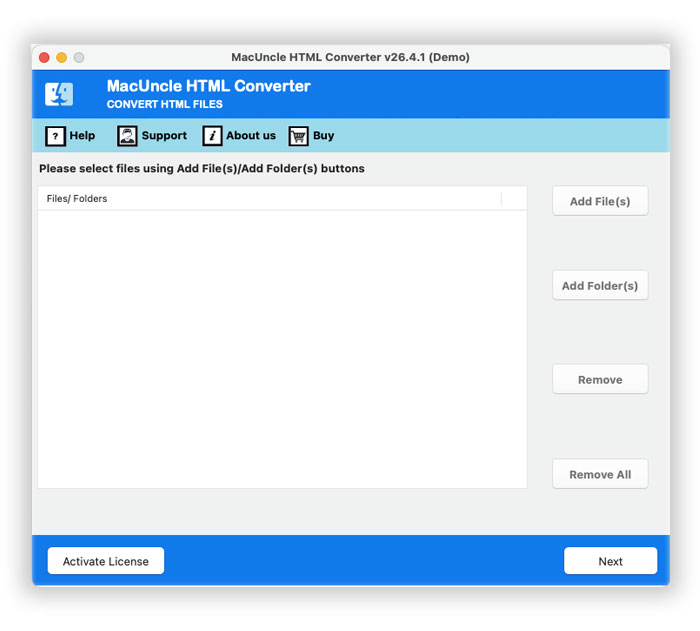
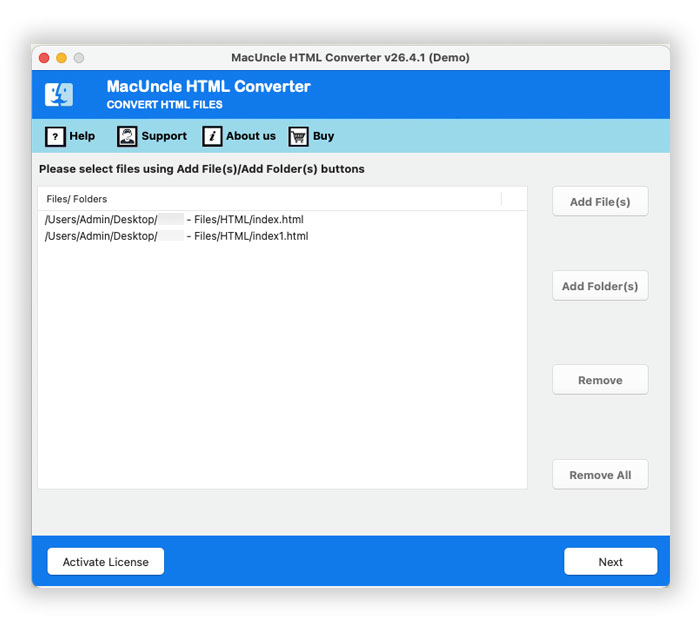
- Add HTML files using the Add buttons. Press the Next button.

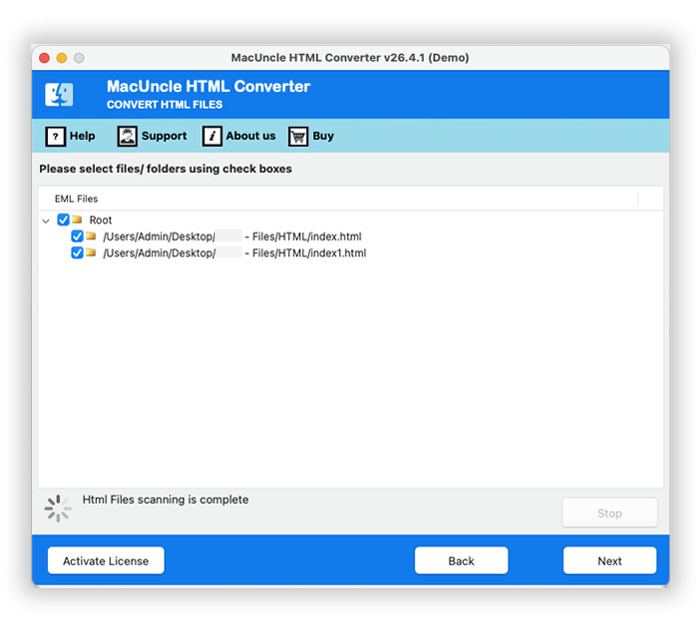
- Now choose the desired file from the list. Click the Next button again.
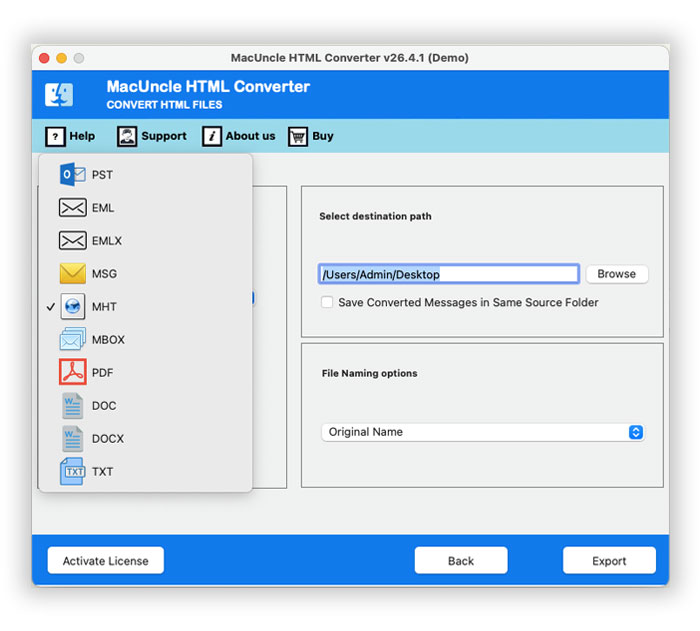
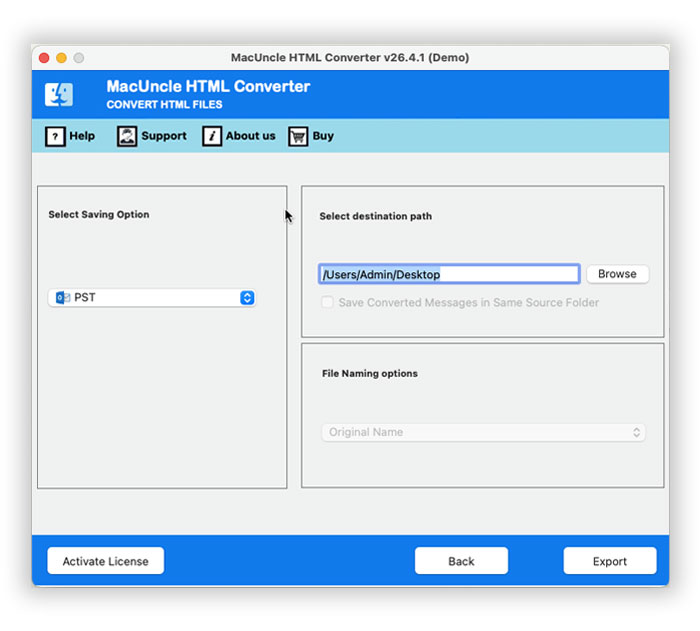
- Now, choose the PDF file format from the list.
- Set a location to export the converted PDF file.
- Press the Export button.
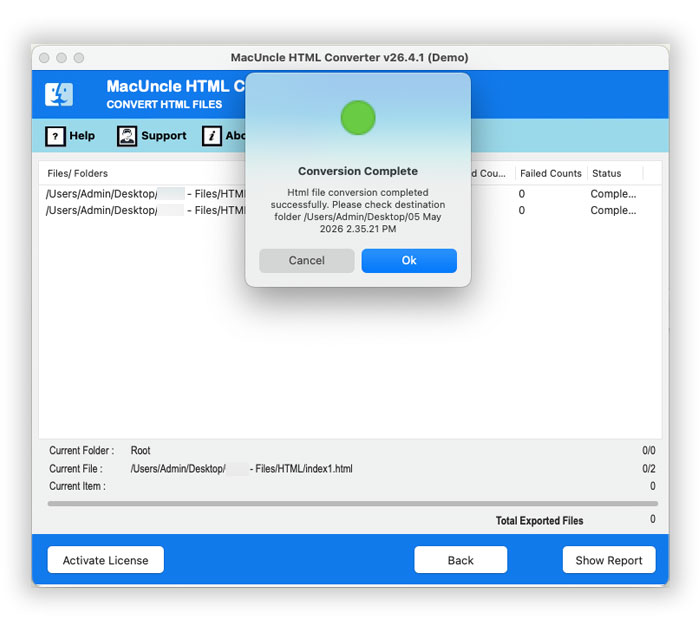
What makes the Tool stand out? No coding required to convert an HTML web page to PDF without Losing Formatting. Batch conversion of multiple files in a single process.
FAQs
Q) Can I convert an HTML file to PDF for free?
A) Yes. The easiest no-cost method is to use Google Chrome or Microsoft Edge. LibreOffice Writer is also another free option that can handle simple HTML Conversion.
Q) How do I convert an HTML email template to PDF without losing its design?
A) Chrome Print to PDF is the most reliable option as a free option, since it renders inline styles correctly.
Q) How do I Convert HTML to PDF on the Mac?
A) On macOS, the browser’s Print to PDF works via Cmd+P > Save as PDF and macOS also has the built-in “Save as PDF” option in every print dialogue. For the automated method, use the recommended tool to export the HTML web page to PDF format.
Conclusion
Simply put, converting HTML to PDF is not that hard, but it may turn out pretty daunting in case the HTML files contain CSS, fonts, dynamic content, and page layout. Fortunately, there are a few different ways to accomplish the task, and the best method depends on your needs. The browser methods are a good choice because they are quite reliable as a starting point without the hassle of figuring things out by yourself. If you are someone handling a large number of HTML files, then the professional tool that can easily be run by the end user to convert in bulk mode without coding at all, presents the best option that will simply remove a code barrier.