How to Convert PST Contacts to VCF Format ?


Managing contacts from an email account is very crucial. MS Outlook is one of the most commonly used email clients for personal and professional communication. Outlook stores all data in PST format, including the contacts. Therefore, there are instances when users want to convert PST contacts to VCF format.
When the contacts are in PST format, it becomes challenging to access the files on other devices without Outlook. Thus, we need to get the data file in vCard format. It is a universal format for contact information, and it can be easily imported to any application.
In the write-up, we will break down how to manually and professionally convert PST contacts to VCF format. It will explore the reason why the user wants to convert the file and help you determine which one of them is the best approach for a specific need.
Overview of PST and VCF Files
It is essential to understand what the two file formats are before getting into the conversion process.
- PST File: As mentioned earlier, PST files are a proprietary file format that MS Outlook uses to store data. They include emails, tasks, calendar events, and, most importantly, contacts.
- VCF File: vCard Files are a file format for electronic business cards. It is a standard format designed for easy transition of contacts. VCF files consist of multiple contacts, such as name, phone number, physical address, email address, etc.
Why user want to convert PST contacts to VCF format? It has universal compatibility, making it easy to import and export contacts across different devices and applications.
Also Read Article | Transfer Outlook Contacts to Mac Address Book
Why Convert PST Contacts to VCF?
There are several reasons why users want to convert PST contacts to VCF file formats.
- Platform Migration: The Reason for moving the contacts is that the file is not readable by the new email client. Usually, when someone decides to switch from Microsoft Outlook to a different email client (like Thunderbird) or a web-based service (like Gmail or iCloud), it is advised to export the contacts out of Outlook in a standard format.
- Extracting Contacts from Orphaned PST Files: The deal is that if a PST file is not connected to an Outlook mailbox (an “orphaned” file), the contacts in it can only be retrieved by a tool that can read the file directly, such as PST Viewer and change the output format into a new one that is accessible, like VCF.
- Device Synchronisation: First, the contacts need to be in a standard format file, such as VCF, so they can be imported into the mobile device (Android, iPhone), and thus the same contacts can be accessed on different devices.
- Contact Sharing: Sharing the contacts with Co-workers or friends is better if you send a universal vCard file instead of a PST file, which is not common and is practically only for Outlook users.
- Data Backup: Besides creating VCF files, users can take advantage of backing up their contacts more easily. Since they don’t rely on Outlook, VCF files can be saved on any generic storage—USB flash drives, cloud storage, or external hard drives—to keep them safe.
Method 1: Manual Method to Convert PST to VCF
The most common way to convert Outlook PST contacts is by using the Outlook and Google accounts. However, it is only effective for a small number of contacts. This two-stage process required the Outlook installation and configuration.
Step 1: Export PST Contacts to CSV with Outlook
- Open MS Outlook on the computer.

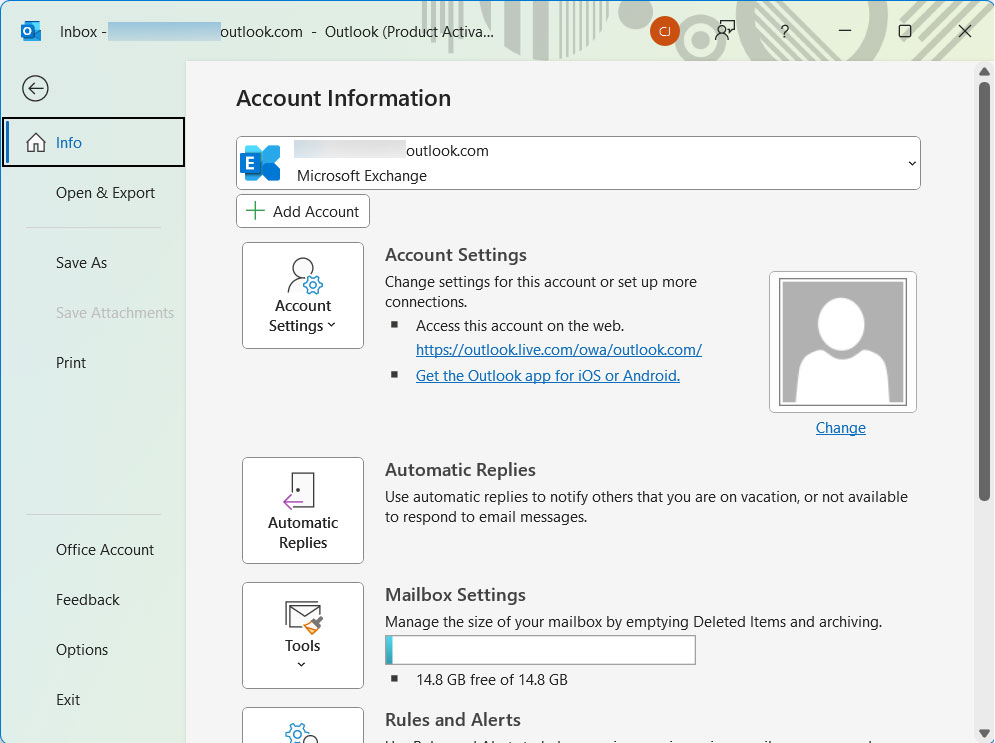
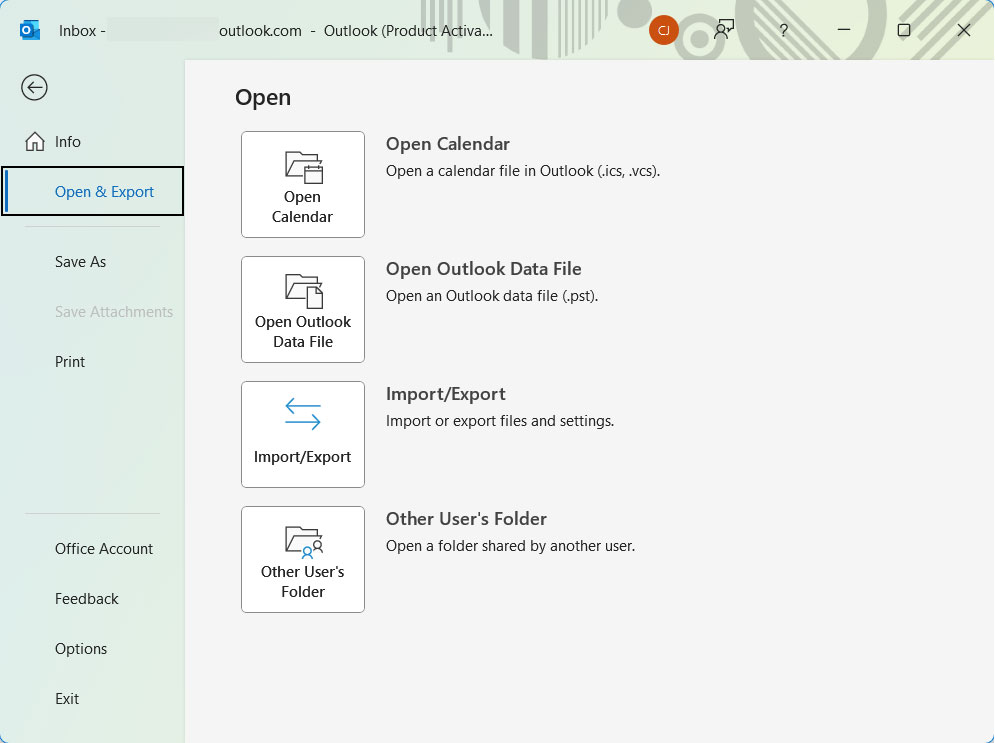
- Go to File > Open & Export > Import/Export.
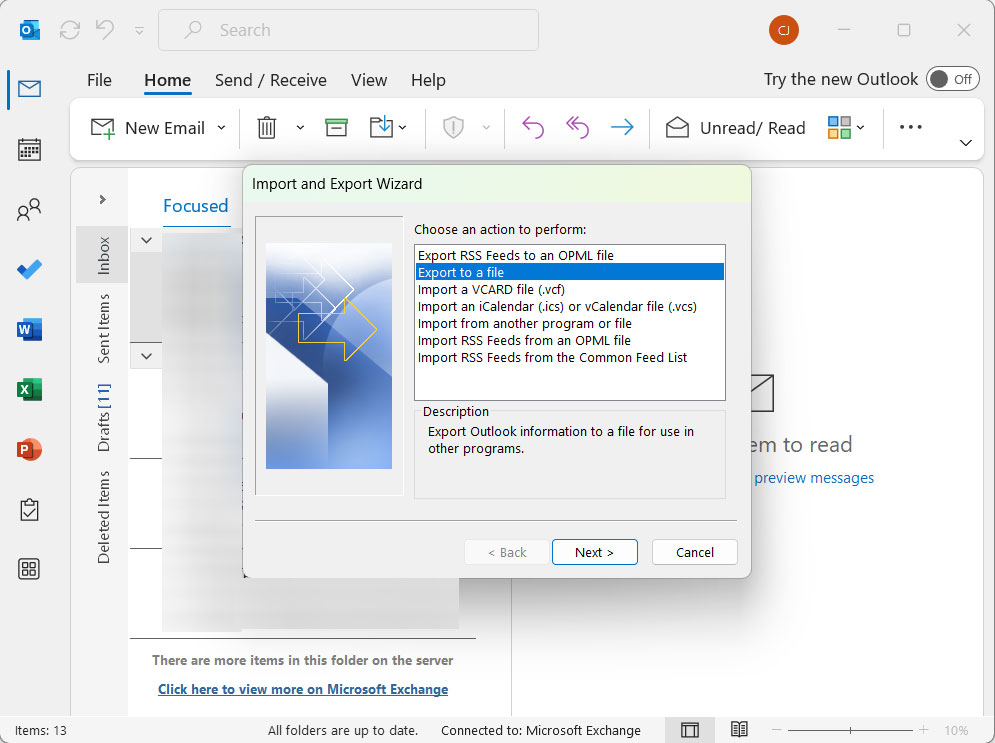
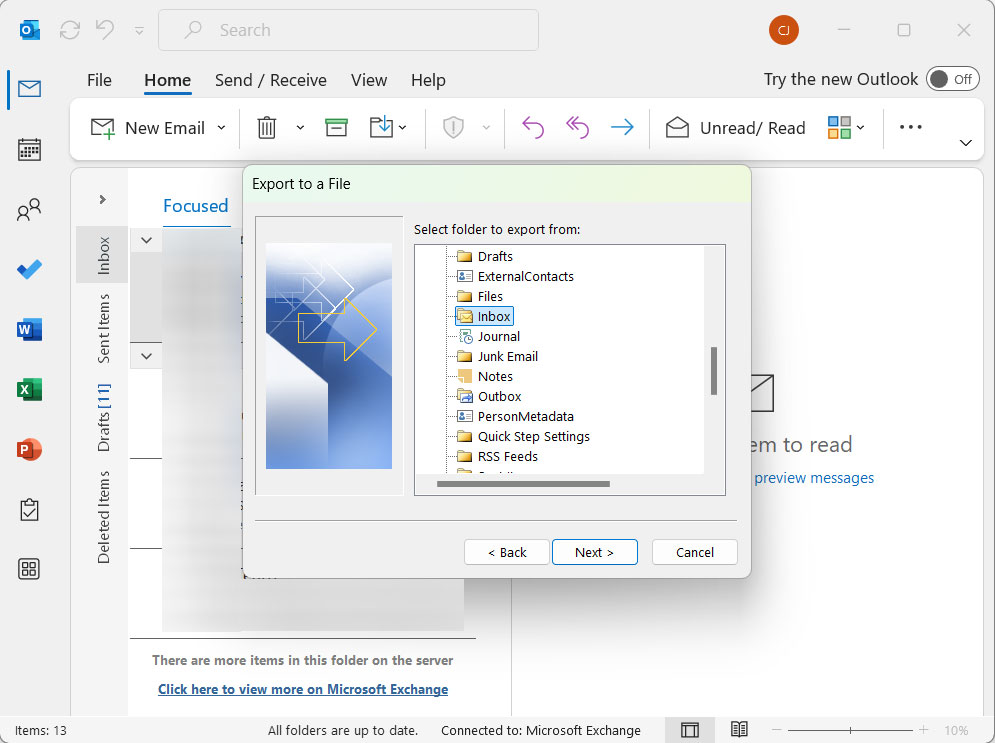
- In the Import and Export Wizard tab, select Export to a file and click Next.
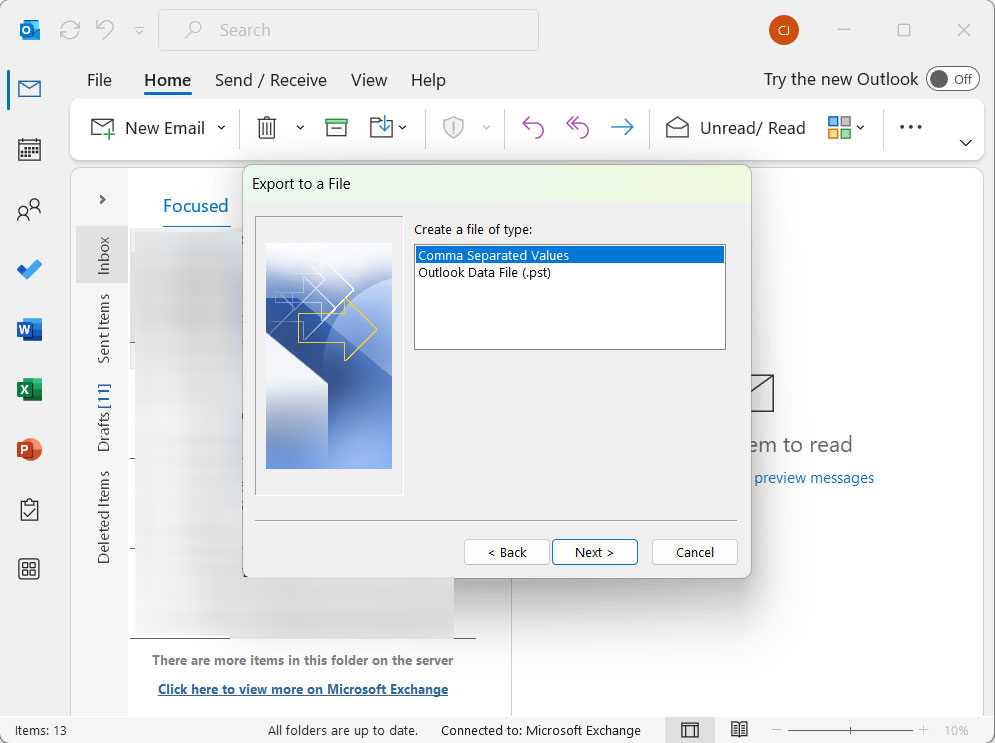
- Then, select Comma-Separated Values from the list of types and click the Next button.
- From the folder listed below, select Contacts and again click Next.
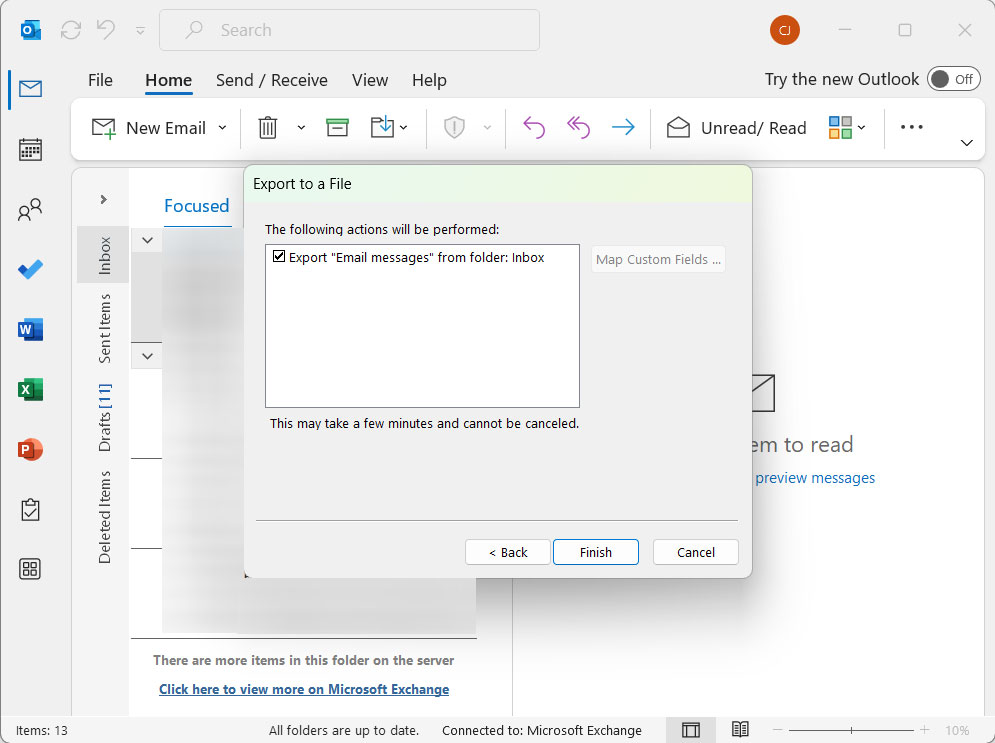
- Finally, browse, give a name and choose a destination. Click Next and then Finish.
Step 2: Export PST Contacts to VCF with Google Contacts
As we said before, Outlook can only export a small number of contacts. We can use Google Contacts to complete the multiple contact conversion.
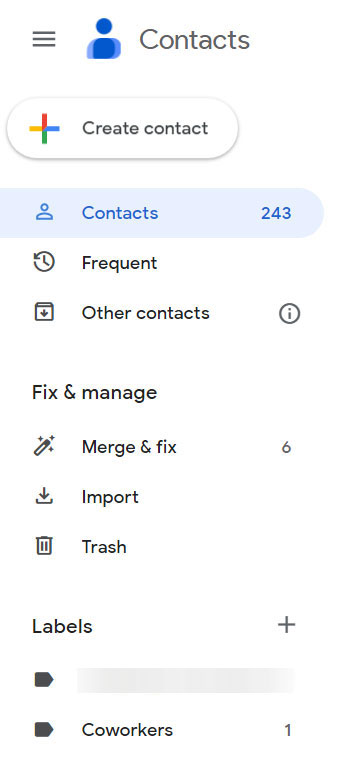
- Go to contacts.google.com and sign in with your Google account.
- Click on the Import option from the left panel.

- Choose the CSV file you exported from Outlook. Then, click Import.
- After you import the file, you’ll see your contacts in Google Contacts. Select the imported contacts.
- Click on the Export button.

- From the new tab, select vCard and click Export.
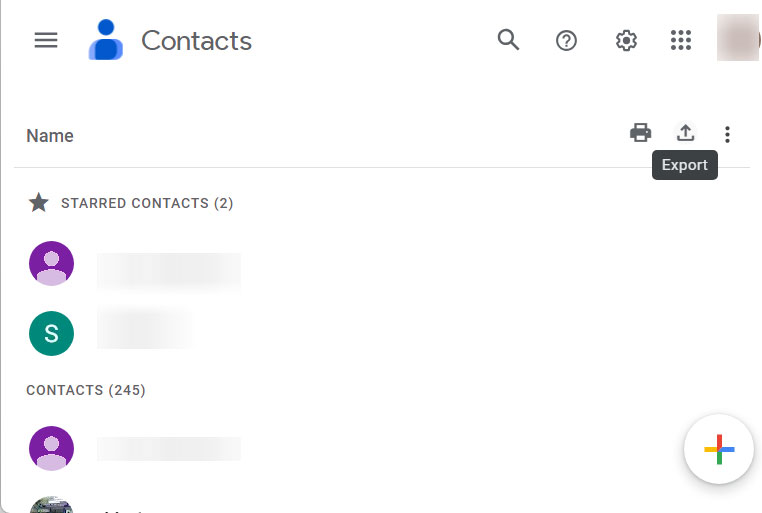
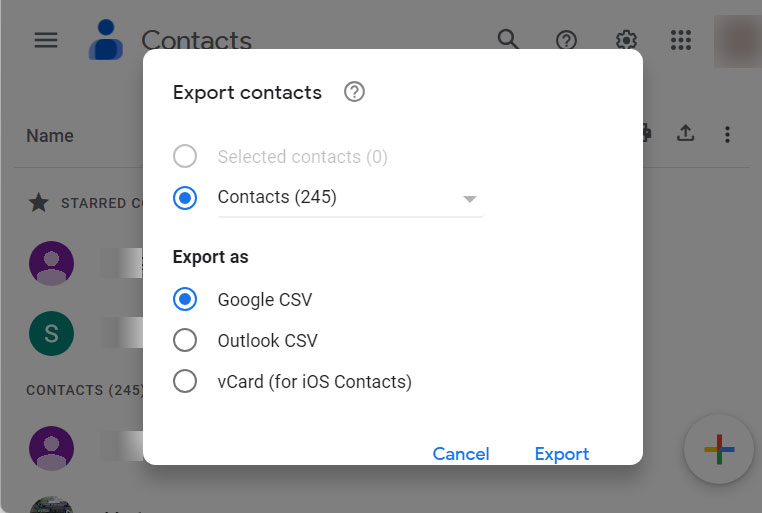
A single VCF file with all the contacts will be downloaded to the computer.
Limitations: The multi-stage process is lengthy and requires a lot. No built-in conversion is possible with the method. Requires additional application support. No orphan PST files are supported via the manual approach. At times, the Import Export options grey out in Outlook, which could halt the whole process.
How to Convert PST to VCF File Format?
If you have a large number of contacts to convert, the PST Converter is the best choice. The conversion completes in a single go without the need to do the two-step procedure. Within a few clicks, the whole conversion completes and generates the VCF files.
Convert PST Contacts to VCF – In 4 Simple Steps
Follow the steps after installing the software from the above links:
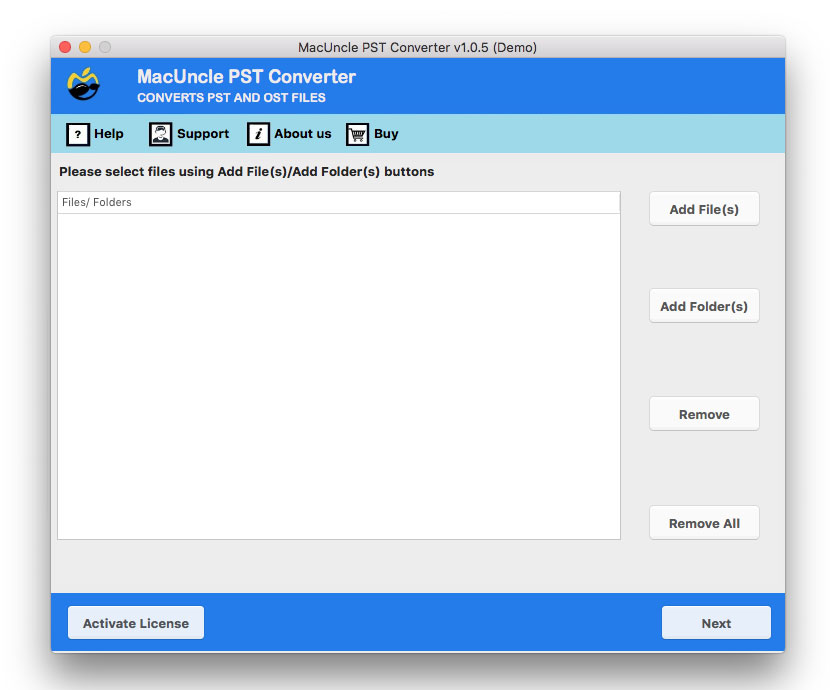
- Start the software on the system.

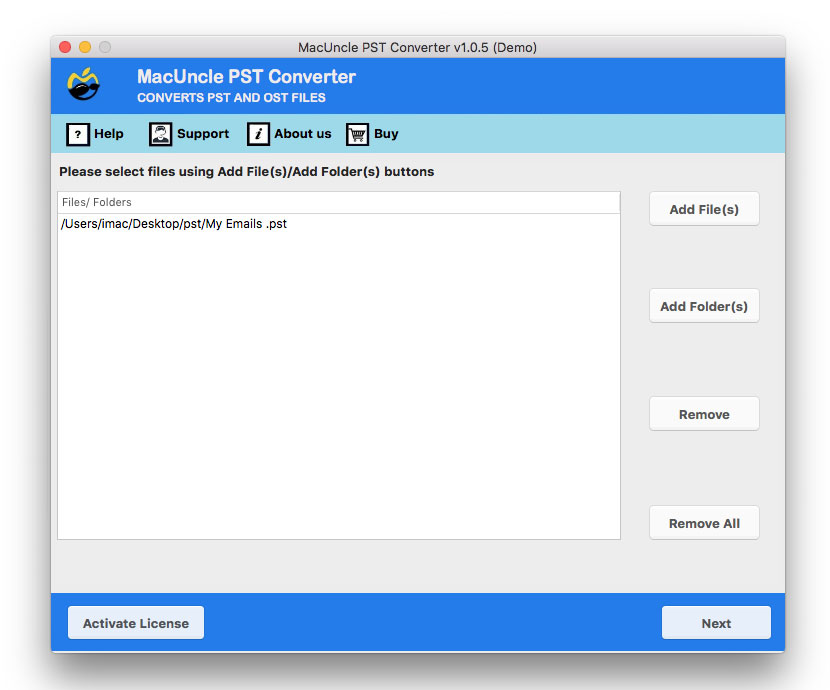
- Add the PST file to the software interface. Press the Next button.
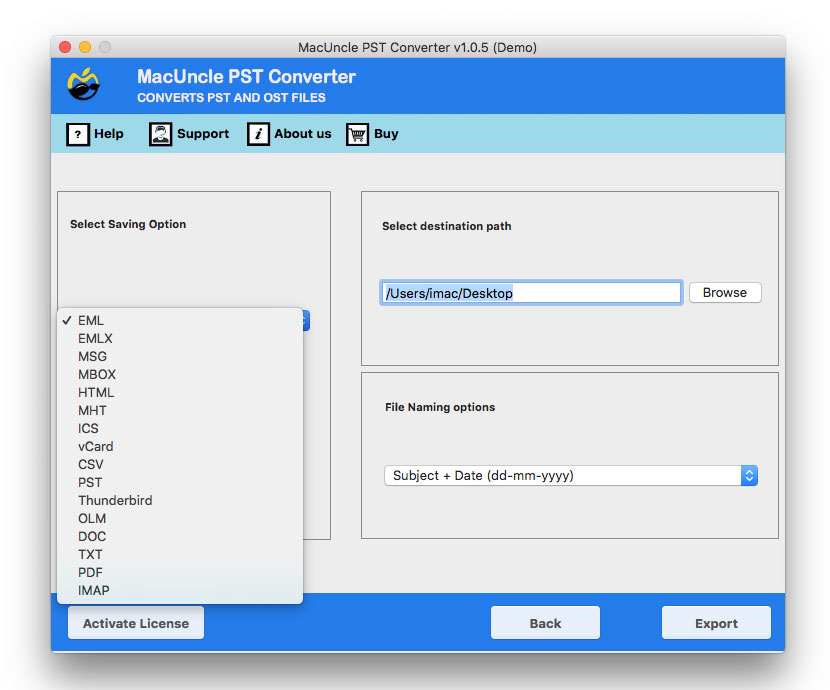
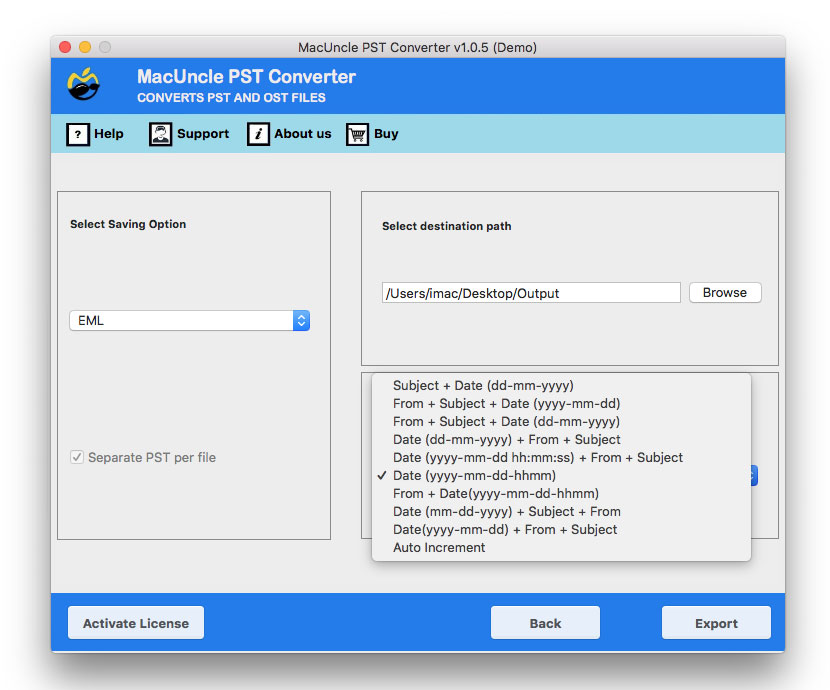
- Further, choose the VCF file format from the list of options.
- Select a location to save the converted file.
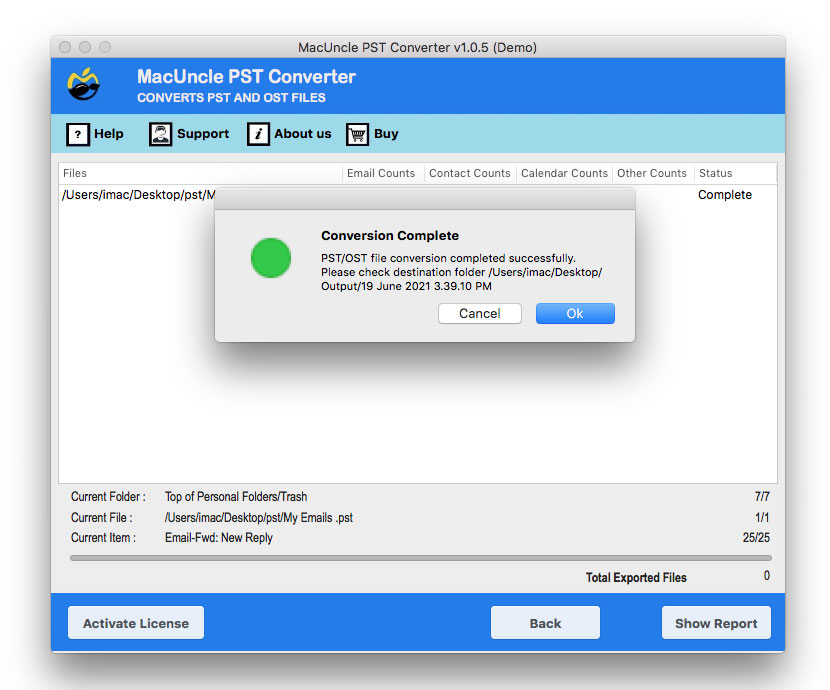
- Then, press the Export button to start the conversion.
Conclusion
Converting Outlook contacts from PST to VCF file is a necessary step for better contact management and data portability. While we have free options that help to export the contacts to VCF after importing the Outlook contact files, it comes with limitations in terms of speed, data integrity, and complexity, which make it less ideal for most users.