How to Edit EML Files on Mac Without Any Hassle


You can edit an EML file on your Mac by opening it in TextEdit for a quick header and text edit, using Apple Mail’s Send Again to rework a message, using Thunderbird’s Edit As New Message, or converting it to an editable format of your choice. This article shows you precisely how to perform each of the processes.
An .EML file is basically one email message saved in the system as plaintext in the MIME standard format. This format includes information contained within the header (such as From, To, Subject, Date) and the message text itself (with any attachments included in the encoding). Apple Mail, Thunderbird, Outlook, Windows Live Mail, and eM Client all generate EML files when you drag out a message or export it.
Mac users usually have some need to edit one when they want to:
- Fix a typo or wrong address in a saved draft or template
- Reuse an old message as a basis for a new one
- Remove sensitive text before sending an email
- Make the email into an editable document for a report, case file, or archive.
Can You Edit an EML File Directly on Mac?
Yes, but not by double-clicking. Opening an EML file by double-clicking will open the message in Apple Mail as a received message, which is read-only. Your options are editing the raw text, opening the message as a new editable message, or converting the file to another format.
Before you start, you should
- Make a copy. First, select the file in Finder and hit Cmd + D to duplicate the file. One wrong edit to the MIME structure can make the file unreadable.
- Understand that an edit is permanent. Once edited, the EML file is no longer the same. If the message has evidentiary value (for purposes of legal discovery or HR auditing), always work from a copy, not the original.
Method 1: Edit EML Files on Mac with TextEdit
TextEdit is the fastest way to edit headers or plain text content since an EML file is just a text file. It comes with any Mac, so you will not need to install a text editor.
How to Open an EML File with TextEdit on Mac
- Right-click the EML file in Finder and select Open With > TextEdit. (Choose Other… if TextEdit is not found in the list.)
- If the file was opened in a formatted view, go to Format > Make Plain Text so TextEdit will leave out any rich-text codes.
- Edit the required data. (Headers are at the beginning of the message: From:, To:, Subject:, Date:. What is under the empty line is the body of the message.)
- Press Cmd + S to save changes. When asked to add a .txt extension, click Use .eml to store the file with the original extension.
- Try double-clicking the EML file to check in Apple Mail.
Method 2: Edit an EML File with Apple Mail
Apple Mail’s Send Again command allows you to turn any saved message into an editable draft. The formatting and attachments of your original email are retained, so using this method is recommended if you are planning to make changes to an HTML email that is not easily editable as plain text.
- Double-click the desired EML file to open it in Apple Mail.
- While the message window is open, go to Message > Send Again (Shift + Cmd + D).
- This will prompt Apple Mail to create a new compose window. Change recipients, subject line, body text, or attachments.
- Close the window and click Save. Your edited message will be saved in your Drafts mailbox.
- If you want to save your changes as an EML file, you can either drag from your Drafts mailbox to your Desktop, or right-click the draft and select Save As with Raw Message Source option selected. This will create an edited .eml file on your computer.
Note that Mail will set the date of the new message to the current date and change the From field to your account. If you want to retain the original headers, you should use Method 1 instead.
Method 3: Edit an EML File in Thunderbird
Mozilla Thunderbird is a free email client that works on macOS and has a built-in ability to open EML files as editable messages. You can use it to edit EML files without importing the changes into a mailbox, which makes it a viable alternative to the default Apple Mail application.
- Install Thunderbird and configure an email account.
- Then, go to File > Open > Saved Message… and select the EML file you want to edit. Alternatively, you can drag and drop the file into the Thunderbird window.
- When the message appears on the screen, go to Message > Edit As New Message.
- Make the necessary changes in the new window.
- Then, choose File > Save As > File… and save it as an .eml file.
Want to work with the whole folder of EML files? Import the files to Thunderbird first. See how to import EML files to Thunderbird.
Method 4: Convert EML Files with MacUncle, Then Edit
The manual methods tackle emails one at a time and are broken by encoded or HTML content. When you’ve got dozens or thousands of EML files, or you need to have an easily editable document rather than raw email code, convert them first with the EML File Converter. Export to DOC, TXT, or HTML, and you can edit every email in Word, Pages, or TextEdit, with the attachments saved alongside.
Key features
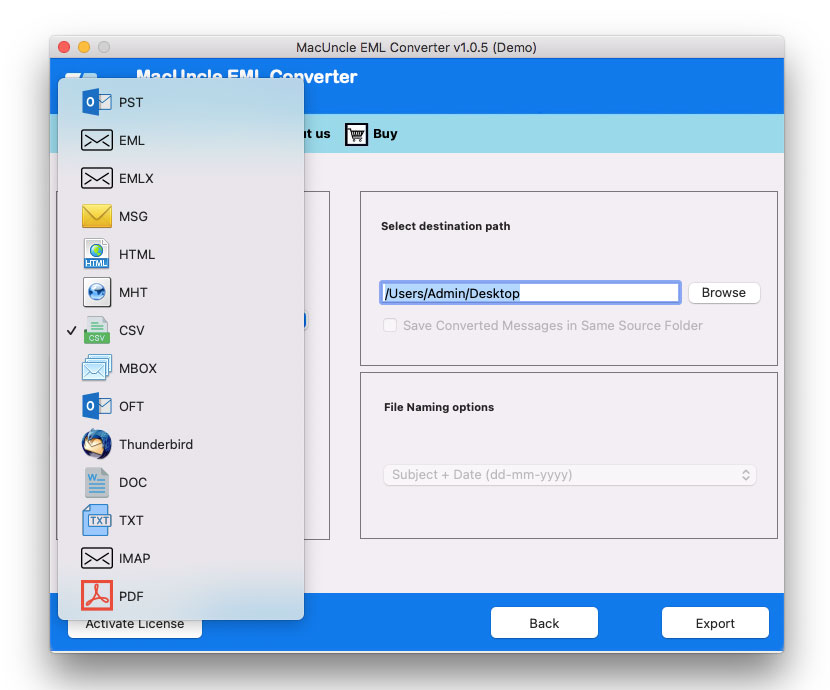
- 12+ output formats: Email formats EML, EMLX, PST, MSG, and MBOX, and document formats DOC, TXT, HTML, MHT, CSV, and PDF.
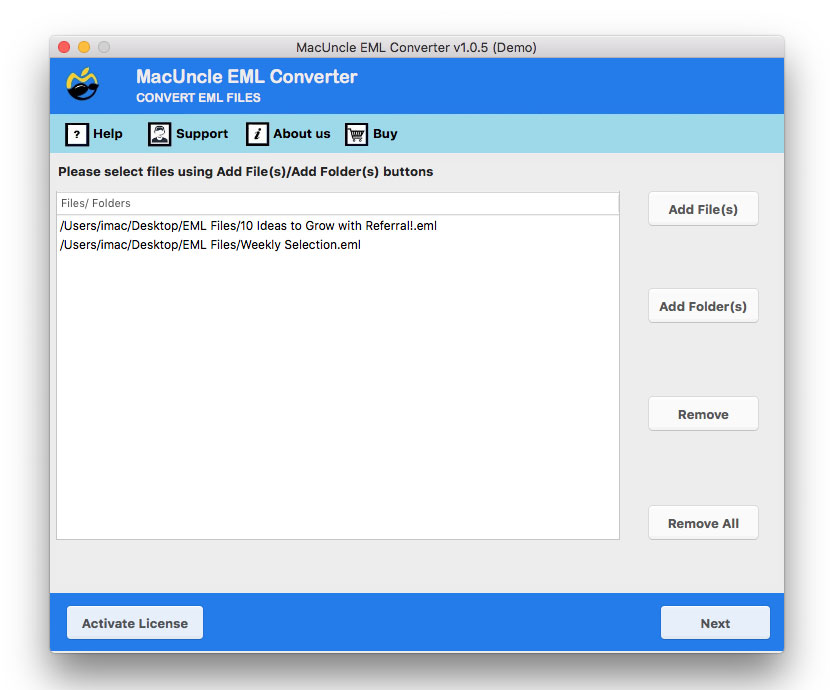
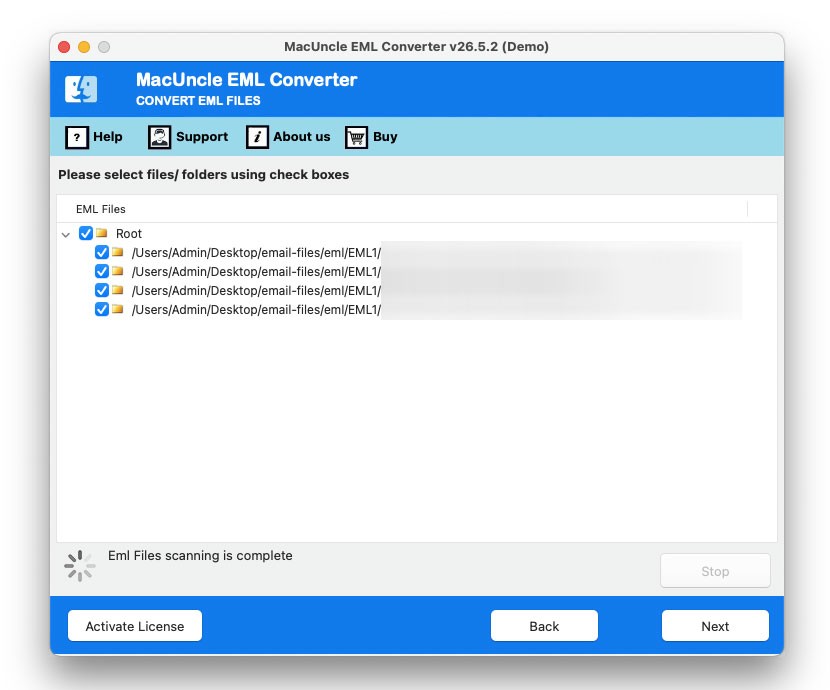
- Batch conversion: Use Add File(s) or Add Folder(s) to load single files or entire folders and select only the emails you need with checkboxes.
- Preserves Attachments: Attached documents are exported along with each email, completely unchanged.
- No file size limit: Handles large EML files and large folders too.
- Metadata preserved: Senders, recipients, dates, and folder structure are intact.
- Direct migration: Migrate EML emails into Gmail, Office 365, Yahoo Mail, or Thunderbird via IMAP (Pro license).
- Wide compatibility: Works on macOS 10.10 Yosemite through macOS 26 Tahoe; a Windows edition is also available.
Follow the steps to use the tool:
- Start the tool and add EML files. Press the Next button.

- Now, choose the desired files from the list. Again, press the Next button.
- Choose a desired editable file format from the list.
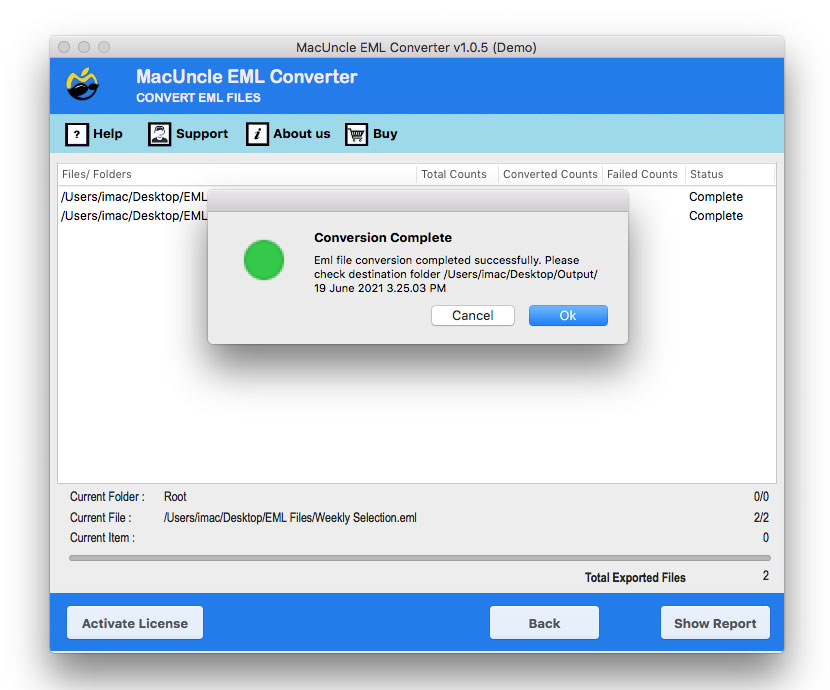
- Browse to a location and finally press the Export button.
Common Issues While Opening EML Files
- The file will not open after I try to edit it. Probably, I have broken MIME boundary lines or encoded blocks. I need to restore my backup copy and try to edit only the text parts.
- The text of the message is unreadable. It is base64-encoded text. Better to use Apple Mail, Thunderbird, or any other EML viewer or converter instead of TextEdit
- TextEdit converted my EML file to TXT. How do I rename the TXT file back to EML? Just change the TXT extension to EML in Finder.
- Some attachments are missing after saving the file. Most probably, I cut some part of the encoded attachment block by mistake. It would be better to start from the backup copy.
FAQs
Q) Can I edit an EML file on a Mac without any software?
A) Yes, since TextEdit and Apple Mail, the preinstalled apps on Mac, are capable of editing EML files.
Q) Will the date and sender of the original email change after I edit the email in TextEdit?
A) Only the headers you edit will be changed. When you open an EML file in Apple Mail or Thunderbird, a new message will be created with the “From” field replaced by your email account and the sending date updated to the current date.
Q) How can I edit multiple EML files?
A) You can convert multiple EML files to DOC/TXT in bulk using the recommended tool and edit the converted documents.
Q) Is it possible to convert EML to Word for editing?
A) Definitely yes. Please refer to the guide below to see how to convert EML to Word on a Mac.
Q) How can I open an EML file on a Mac without editing?
A) You can double-click the EML file to open it in Apple Mail. Or you can also use the free MacUncle EML Viewer to open EML files.
Conclusion
Editing an EML file on a Mac is a relatively easy task if you know the right way to edit the file according to the specific needs. TextEdit is appropriate for making minor changes to the header and plain text parts of the email. Apple Mail or Thunderbird are perfect tools for editing the text content of an email without trying to edit the file’s raw data structure. Converting EML files to DOC, TXT, or HTML is a sensible idea if you want to edit multiple messages. Remember that it is essential to make a copy of the EML file every time you edit it to avoid losing any valuable information such as attachments, text, and vital metadata.