How to Export Facebook Messages to PDF?


Facebook Messenger includes countless chats from the past: family chats, business negotiations, invoices, agreements, and so on. But Facebook Messenger doesn’t offer any direct option to save a chat as a PDF. And when you need to have your chat saved as a PDF document for any reason – as evidence in court, as part of an HR claim, as a client document, or even for archival purposes – then you’ll need to go through a somewhat roundabout process.
This guide covers both processes. Starting off with the manual methods that utilize the Facebook export utility and the browser solely, and moves on to the automated one that involves a tool that offers an instant solution.
Reasons to Export Facebook Messages to PDF
The PDF format is the best way to preserve a conversation exactly as it was:
- Legal evidence: It’s standard practice in the legal system to consider the record of a chat as a PDF file.
- Permanent backup: You can unsend messages, delete chats, lock or disable your account. The PDF copy will stay in your local folder.
- Sharing and printing simplicity: PDFs open the same way on all devices and can be printed.
- Export before deleting or disabling the account: You save your message history for the future.
- For business purposes: Customer service conversations and orders can be saved among other documents.
Before You Begin: Export Messages from Facebook
Both the manual and automated procedures start with the official Facebook data export. You can find it in the Accounts Centre. Depending on the version of the application that you have, you will see Download your information or Export your information.
- Log in to Facebook and click on your profile picture > Settings & privacy > Settings.
- Go to Accounts Centre from the left sidebar.
- Navigate to Your information and permissions.
- Click Download your information (or Export your information).
- Select Download or transfer information / Create export, and then select your Facebook profile.
- Choose Specific types of information and select Messages only (it helps keep the file size down).
- Click Download to device.
- Configure the following options:
- Date range: All time or any custom range if you require messages from only a specific date range.
- Format: HTML for the manual procedure and JSON.
- Media quality: Select Low quality if you just need messages and no media.
- Click Create files / Start export.
Facebook will send you an alert (and an email alert too) once the archive is available. Go back to the same page and download the ZIP file. Download it as soon as possible; it will be available only for a limited time period (typically four days), after which it becomes unavailable, and you have to request it again. Facebook might require your password before downloading begins. Now, let’s find out the methods to export Facebook Messages to PDF document format.
Which one to choose? HTML is supposed to be read in a web browser. JSON is a data format. If you are not sure what method you want to use, choose JSON format because software can easily convert JSON to a readable format, but not vice versa.
Tip: Missing chats? Facebook Messenger now employs end-to-end encryption for several personal chats. If your chat doesn’t come up in your export, look up Messenger privacy settings for the end-to-end encryption option for chats/messages.
Manual Method 1: Facebook HTML Export + Print to PDF
Exporting a Facebook conversation to a PDF using the free HTML export option of Facebook is a great solution.
- Follow the procedure mentioned above and choose HTML to download.
- Unzip the downloaded file in ZIP format.
- Go to Facebook Activity > Messages > Inbox and navigate to the folder for the corresponding conversation. Find message_1.html. Conversations that have a lot of content may include not just one, but several files such as message_1.html, message_2.html, etc. If the folder structure varies, find the needed file named message_1.html in the extracted folder.
- Open it in Chrome, Safari, Edge, or Firefox.
- Print as PDF:
- Mac: Click Command + P and choose Save as PDF.
- Windows: Click Ctrl + P and choose Microsoft Print to PDF or Save as PDF.
- Save the PDF: You can adjust the paper size, orientation, and margins as you need to save the file.
Manual Method 2: Screenshots or Copy-Paste to Export Facebook Messages to PDF
For short one-off conversations, you can skip the export step altogether.
Screenshots:
- Access the conversation on messenger.com or the Messenger app.
- Scroll down to the desired part and take the screenshots.
- Embed the screenshots in a Word, Pages, or Google Docs document in order.
- Save or export the document as a PDF file.
Copy-paste:
- Access the conversation on messenger.com using a desktop browser.
- Scroll up until all desired messages are loaded.
- Select, copy, and paste them into a document.
- Format and save the document as a PDF.
Both are fast and effective for just a few messages, but quickly become unwieldy – old messages take time to load on Messenger, copy-pasting frequently skips timestamps and usernames, and screenshots create large, unsearchable files.
Export Facebook Messages to PDF Using MacUncle
Chat JSON Converter is a desktop program that enables you to transform your exported chat conversations in JSON and JSONL format into documents. The software works for Facebook Messenger, along with Instagram, Slack, Telegram, Signal, Microsoft Teams, Google Chat, Skype, and many others, based on JSON chat conversation exports.
Check other related article: How to Export Skype Chat history to PDF format?
Follow the steps below:
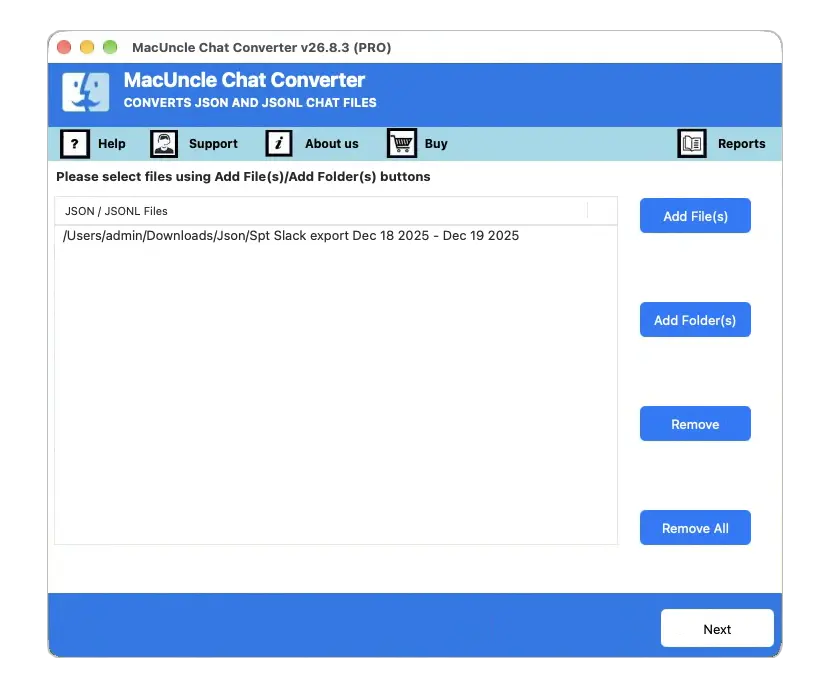
- Start the tool and add Facebook chat files. Press the Next button.

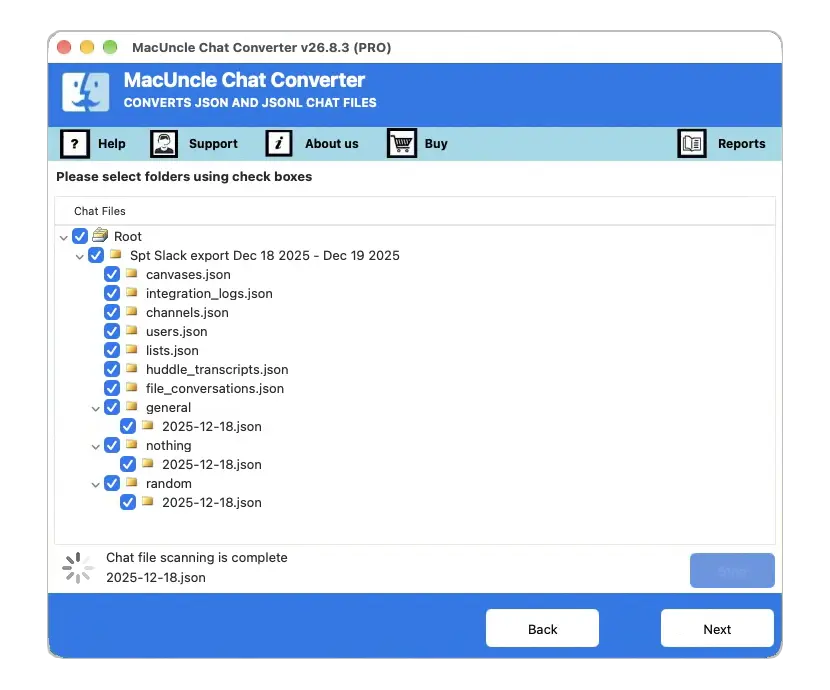
- Select the desired files from the list. Again, press the Next button.
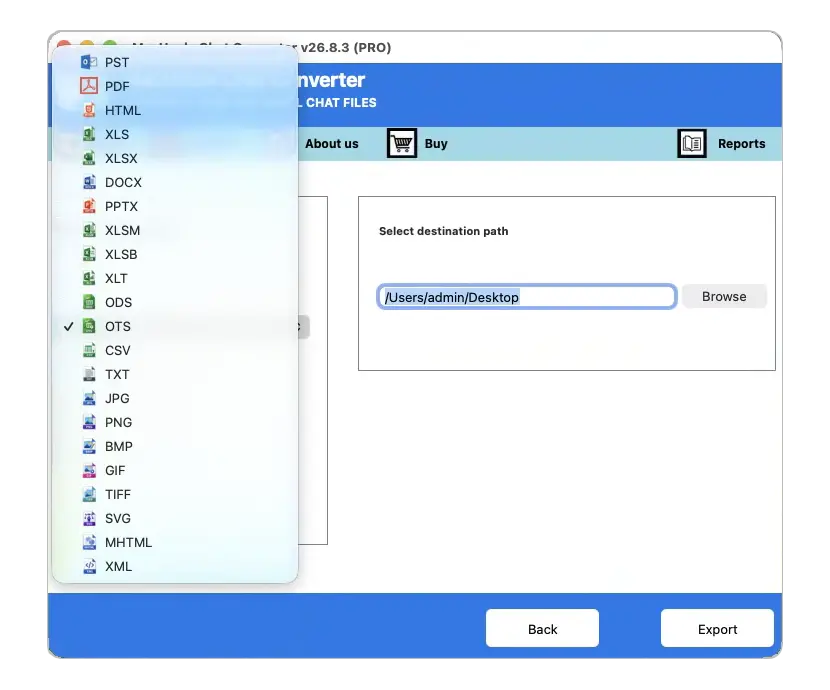
- Choose PDF from the list of saving options.
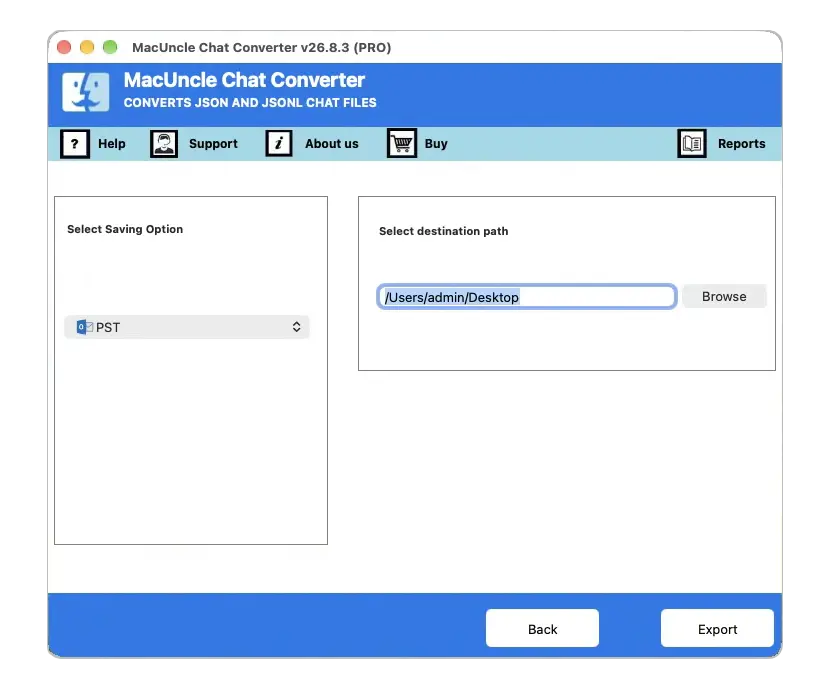
- Now, browse to a location to store the converted file.
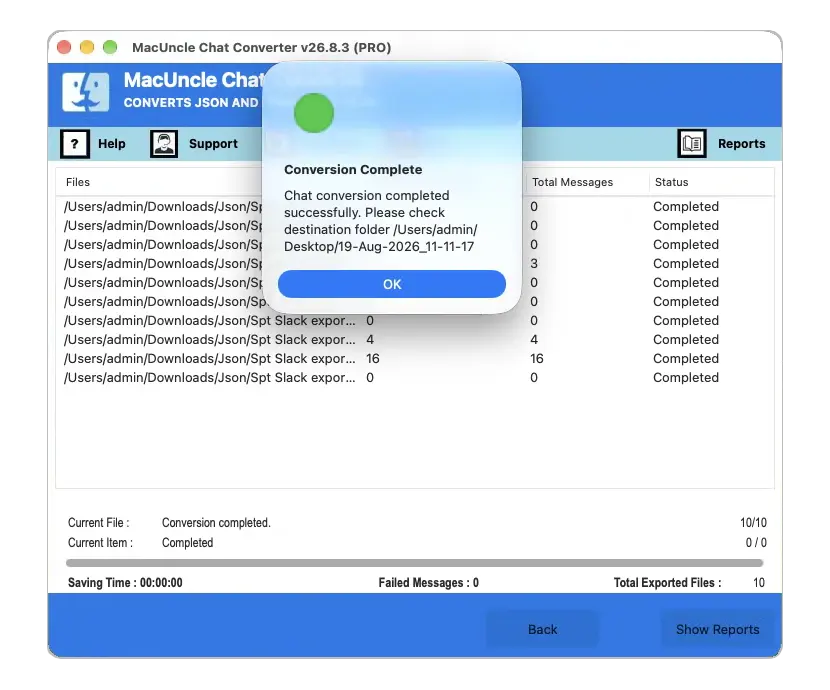
- Press the Export button to start the Facebook messages to PDF conversion.
FAQs
Q) Is it possible to export the Messenger conversation to PDF directly via the Messenger application?
A) No. Neither the Messenger application nor messenger.com provides a direct way to do it; you should download your data via Accounts Centre and convert it.
Q) How much time does Facebook need to prepare my messages?
A) The answer depends on the amount of your data and may vary from several minutes to several hours, and even more for large accounts. You will be notified once everything is prepared.
Q) Is it possible to export only one conversation?
A) Facebook provides an export of all conversations within the chosen time period. Then you can convert only one of them by opening the HTML file manually or checking only this chat in MacUncle Chat Converter.
Q) Is it compatible with Facebook’s HTML version of the export?
A) Not really – it works with JSON and JSONL formats only. Select the JSON file when downloading your Facebook export if you use the recommended tool.
Q) Will there be photos and attachments in the PDF?
A) As shown in the manual HTML process, media will be displayed depending on the selected media quality option. However, the converter is mainly interested in the conversation itself and converts messages into names, time, and text.
Q) Can I export somebody else’s conversation or a deleted one?
A) Only available conversations will be exported, as they should be in your account. If you have deleted some messages in your account, they won’t be visible in the export.
Q) Does the tool require the internet to process the files?
A) Not at all. The application works offline on your PC without ever uploading the chats anywhere.
Conclusion
Need only a few conversations? Just download the HTML version of the Facebook chat application and make a PDF out of it for free in your browser. However, taking screenshots and copy-pasting may be enough if there are only a few messages to export. But if there is a need for something more involved (your entire inbox, past data, or for making an official document), doing it manually is both tedious and error-prone. Extract your data from Facebook in JSON format and import it into a suggested tool to make a clean PDF of each conversation.