How to Export Skype Chat History to PDF Format?


If you are here to find a way to export Skype chat history to PDF, you are aware of the fact that Skype is no longer available as it once was. Microsoft retired Skype on May 5, 2025, and made the transition to Microsoft Teams Free. Let’s find out more about it here.
Microsoft also provided a Skype Export Portal that allowed users to download chat history and contacts, but the export window was only active till June 2026. As the deadline has passed, there is no point in trying to retrieve chat history using the old Skype export portal. However, there is a chance to recover old Skype conversations if you have successfully migrated to Teams Free or if you have downloaded Skype data.
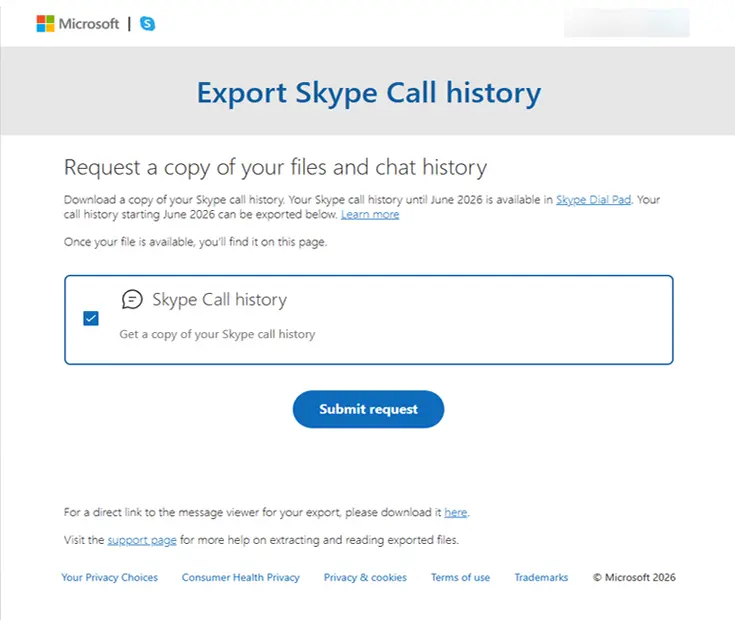
Important: The Skype Export portal might be accessible, but it is documented that Microsoft has begun deleting Skype data after April 1, 2026. Therefore, an export may not reflect the entire history.
After you have retrieved your chat history, you can convert the exported files to PDF, and then you can open, share, print, or store the chat data without wasting paper. Here, we show how to export Skype history to PDF from data you still have access to, including exporting Skype history from Teams Free and converting the exported files to PDF.
How to Locate a Skype Conversation via Your Skype ID?
Commonly, people know the one thing they actually start with: “I want a specific conversation from my Skype account; how do I find it?” Well, there are actually two of those, simply depending on where your data are these days.
If your account migrated over to Teams Free: Access Microsoft Teams Free (teams.live.com) with the Microsoft login details you used for Skype, and your contacts & past conversations will appear on the chat list. Search for the contact name, Skype ID, or some of the content of the conversation in the search bar, and you’ll be taken directly to it.
If you have an exported Skype data file: When Microsoft completes an export request, the data is delivered as a. tar archive; Unzip it to find a file called messages.json, containing every conversation with each contact (by their Skype ID or username). To locate one conversation in here, you’d need to open it and search for the contact’s Skype ID— which is where the manual method below becomes a pain, and where a dedicated converter tool starts to come in very handy, since it can list all conversations by contact, and then you select the one you want.
If you want more details on Teams chat, check out our complete guide on how to Save Microsoft Teams chat to PDF.
The Manual Method: Export Skype Chat History to PDF
If you’ve already got your exported.tar/JSON file (or just got it in time before the export window closed), then here is the manual way – free and easy:
- Download your exported file: If you exported before 15 June 2026, go to the Skype export portal – https://teams.live.com/dataexport/skype, log in, and download the file listed in “Available Exports”.
- Extract the archive: Get the file as a.tar; open it in your operating system’s archive manager to find the folder containing messages.json.
- Open the JSON file: JSON, by nature, isn’t for reading, so you will need to decipher it from raw data, including timestamps, sender identities, and message text.
- Find your conversation: Search for the Skype ID/name of the person within your message file.
- Copy the conversation text: Highlight and copy the block of messages.
- Open Word /: Paste the copied text, then edit out the timestamps and empty lines that have been pasted along with the sender’s name and message.
- Save as PDF: Save your chat conversation as a PDF (File > Save As, Export As, or Similar).
The Easier Way: Dedicated Tool to Save Skype Chat to PDF Format
If that manual approach feels like more hassle than it’s worth — particularly if you’re trying to find a single, specific Skype ID conversation among a huge export — our tool handles the two biggest pain points of the manual method in a single click: it reads your raw JSON for you and allows you to select your conversation.
JSON Chat Converter converts JSON/JSONL export files from Skype (and Slack, Telegram, Signal, MS Teams, and more) to readable documents — PDF included.
How to Convert Skype Chat Export to PDF Format?
Since the Skype chat is already in hand, we can proceed with the conversion of the file using the steps below:
- Launch the tool and add Skype Chat History. Press the Next button.

- Now, choose the desired file from the list here and press Next again.
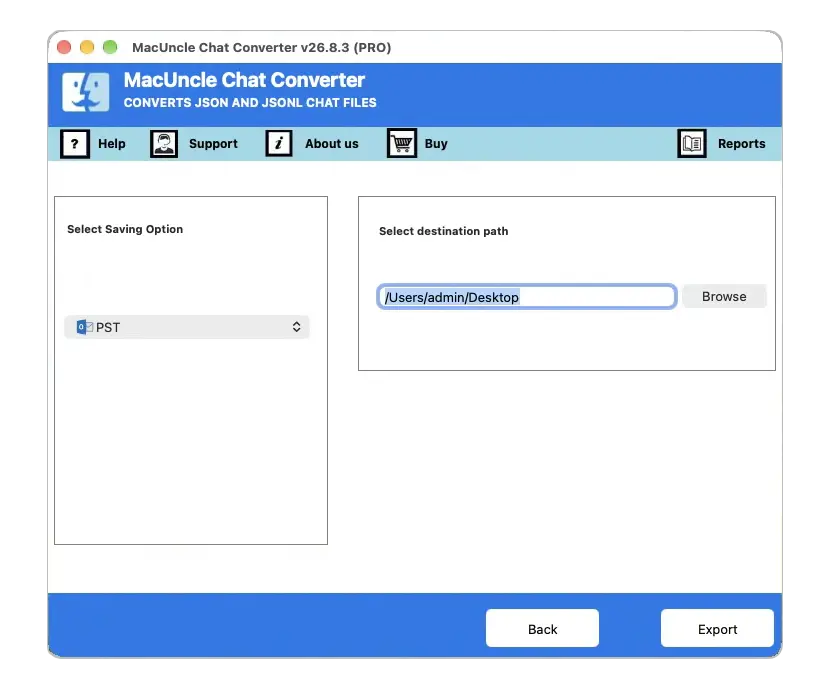
- Select PDF from the options here.
- Then choose a destination location to store the converted Skype data.
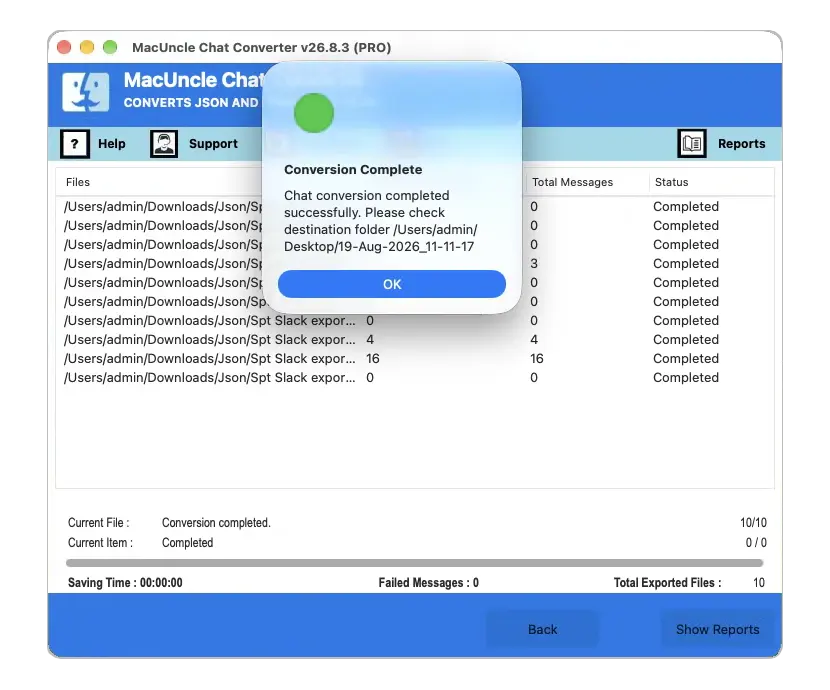
- Press the Export button to start the Skype chat history to PDF conversion.
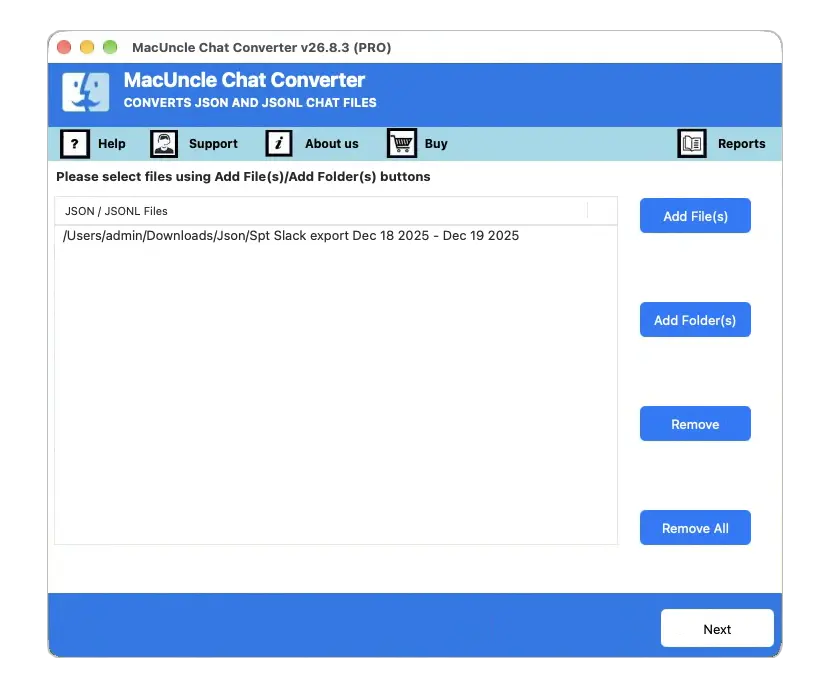
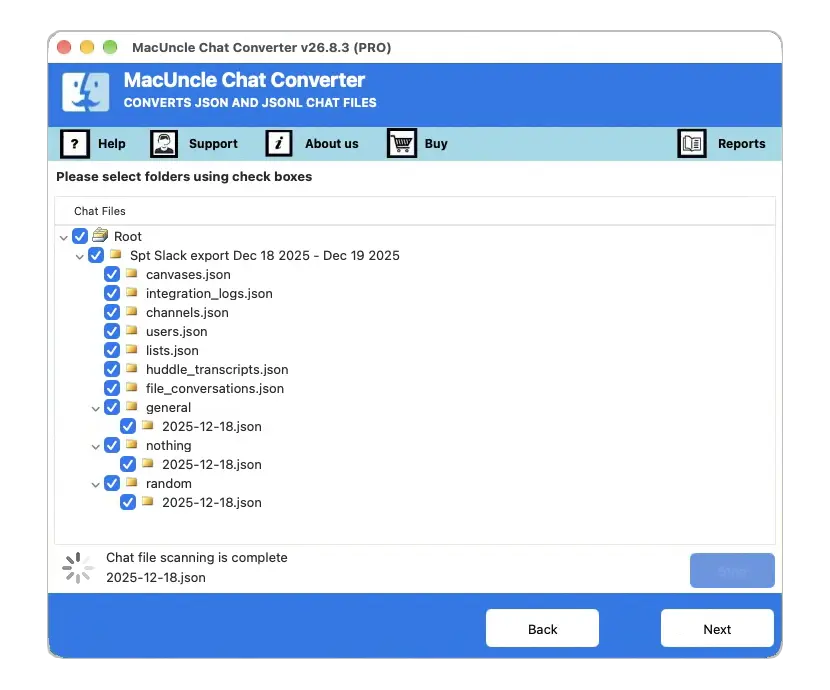
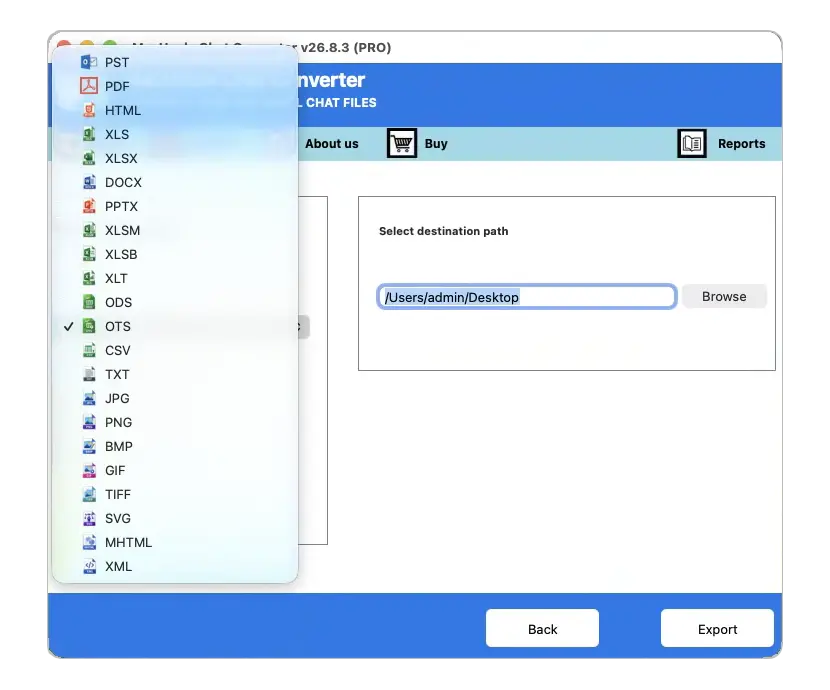
Price: The first 25 are exported for free, so test it out before you buy. Full one-time purchase at $29 for Mac & Windows. Check it out now.
FAQ
Q) My Skype export portal is gone – what now?
A) The official request window was not reopened after June 15, 2026. You can still convert your export file if you’ve already downloaded it, or re-download it if needed using the methods above. If you never requested an export file and haven’t used the account in the meantime, that data may be gone from Microsoft’s side — try Teams Free instead, since active Skype chat history was migrated there automatically.
Q) Is my Skype account or password required by Chat Converter?
A) No. It does not log in to Skype or Teams; it only processes the JSON/JSONL file you’ve already exported.
Q) Do I need a Teams or Skype account or password to use Chat Converter?
A) No. Chat Converter is a desktop application that operates entirely from the JSON/JSONL export file you already have, so it doesn’t log in to your Skype or Teams account.
Q) Is it possible to convert just one conversation instead of my whole chat history?
A) Yes. This is the major advantage over the manual method. The tool recommended here lets the user select an individual conversation for the export before converting.
Bottom line
Now that Skype has been retired, the traditional “just open the app and export” is no longer possible. Now, all we can rely on is the options with downloaded chat if you have one, or directly use Microsoft Teams Free (if the chat is already migrated). Try the manual approach only if there are a few files to process, but use the automated tool for batch conversion of Skype chat export to PDF format.