How to Export Microsoft Teams Chat to PDF Format?


Microsoft Teams is a widely used communication and collaboration app in the workplace, with chat channels, sharing critical files, meetings, screen sharing during meetings, making audio & video calls, etc. As the conversation grows, there are some cases when you are required to turn to a report or keep an offline record. Then there comes the question: how to export Microsoft Teams chat to PDF format.
Unfortunately, there’s not an obvious button like Export Chat to PDF in most accounts that you have for work/school accounts for Teams; for example, depending on the Teams account and the size of the chat conversation to save, it’s generally done either manually or via compliance tools within Microsoft 365 (like eDiscovery), or a special converter tool.
TL;DR
Teams doesn’t have an ‘Export to PDF’ button built in, so if you want to export a chat, there are two ways:
- Manual (free): Open Teams in a browser, scroll to the top of the conversation, select all (Ctrl / Cmd + A), then do Print to PDF. Quick, but will only capture everything that is currently in view and can turn into a bit of a cluttered mess if you have a long thread.
- Tool-based (bulk / legal / HR use): Extract Teams chat using Microsoft Graph or Purview eDiscovery (Office 365 admin required), then convert the extracted JSON files using the MacUncle tool. Jump straight to the steps if you have the exported Teams Chat and want a quick batch conversion.
Jump to: Manual method | Tool method | FAQs
Reasons to Export Microsoft Teams Chat to PDF Format
Teams chat is, by design, deeply ingrained into the Microsoft ecosystem, but there are various legitimate business reasons to want to get rid of it and make it portable and shareable:
- Legal & compliance evidence: Teams chats can be exported to PDF files, which serve as a standardised way of storing the conversations (for legal/compliance/audit reasons). PDFs are the sole format that courts and compliance teams will recognise as documented communication.
- HR/Workplace Investigation: Creates a static record of the conversation with a timestamped recording that is inflexible after the event.
- Client or Vendor Sharing: Sharing a PDF conversation record with a client or vendor who does not have access to your Teams workspace or a Teams license
- Offboarding and Audits: Keep the chat history of employees who are leaving for business continuity, audits, or records.
- Personal Archiving: Storing critical conversations on a portable, easily accessible medium for later retrieval instead of relying on Teams search & retention policies.
Note: If you are here because the old Skype account is now showing up as Microsoft Teams Free, the Skype conversation might have migrated automatically. If you are specifically trying to export chat history from Skype, then read the article on how to export Skype chat history to PDF format.
Does Microsoft Teams Have a Built-in Export Feature?
No. One of the most common questions that Teams users have. Microsoft’s own support forum has questions similar to this. As shown here, it is verified that there is no export button for the end user and that there are only workarounds.
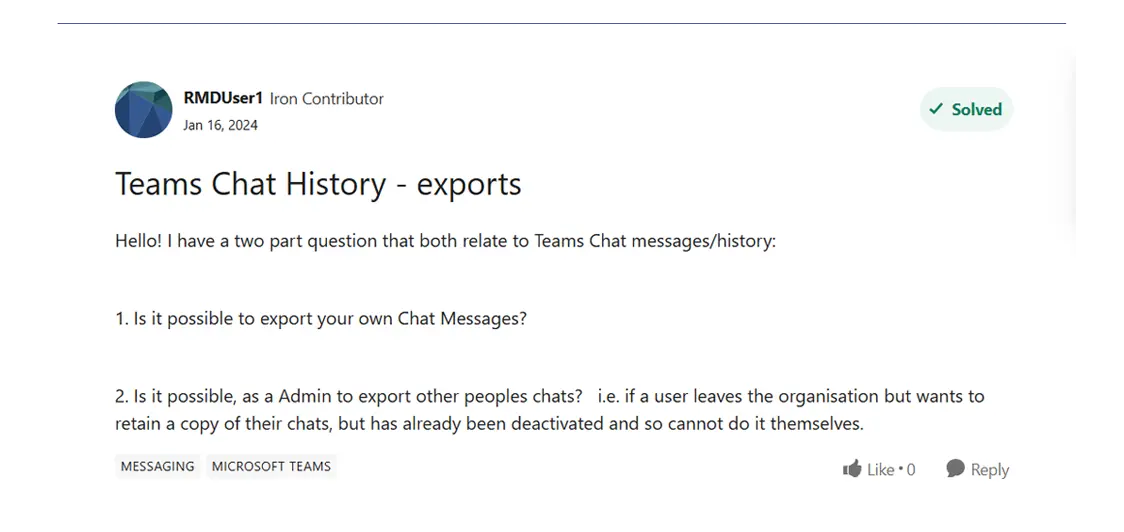
So, we’re left with two real options: We can manually copy and print the chat, then convert it to PDF. For bulk conversion, the second option offers a much cleaner and more efficient approach.
Method 1: Export Teams Chat to PDF Manually
This is the quickest way to get a couple of conversations if you’re okay with the formatting task.
- Open teams.microsoft.com in any browser.
- Open the chat you want and scroll all the way to the top.
- Select the conversation with Ctrl + A (Windows) or Cmd+A (Mac).
- Open the Print dialog with Ctrl + P or Cmd + P, or right-click and choose Print.
- Set a location to save as a PDF.
- Click Save and name the file.
If it doesn’t produce the output in a clean format, another alternative is to paste the copied conversation into a text editor and save to PDF.
Note: The method only captures what’s on the screen. All the other collapsed thread replies, edited message history, and attachments are left out, and thus the formatting gets disorganised.
Method 2: Export Teams Chat Data and Convert it with MacUncle
Considering the mentioned limitations, we can use a one-stop approach that converts the exported Teams chat in bulk to PDF with JSON Chat Converter. It is the better approach, as we can pull the underlying full Teams chat data as JSON and run it through the converter here.
Here’s how the two-step process works:
Step 1: Get Teams chat data:
Teams chat messages can be extracted in JSON format via Microsoft Graph’s export APIs or via Microsoft Purview eDiscovery/Content search export, which organisations with the right licensing use for compliance purposes. This step needs admin or eDiscovery manager access; it is not something any user can follow.
Step 2: Export Microsoft Teams Chat to PDF
Now comes the tool; it is built specifically for JSON/JSONL and converts it to a readable output format.
- Launch the tool and load the Teams JSON export(s).

- Now, choose the desired folder from the list and press the Next button.
- Select PDF as the saving option from the list.
- Then, browse to a destination location to store the final output.
- Press the Export button to start the Teams Chat to PDF conversion.
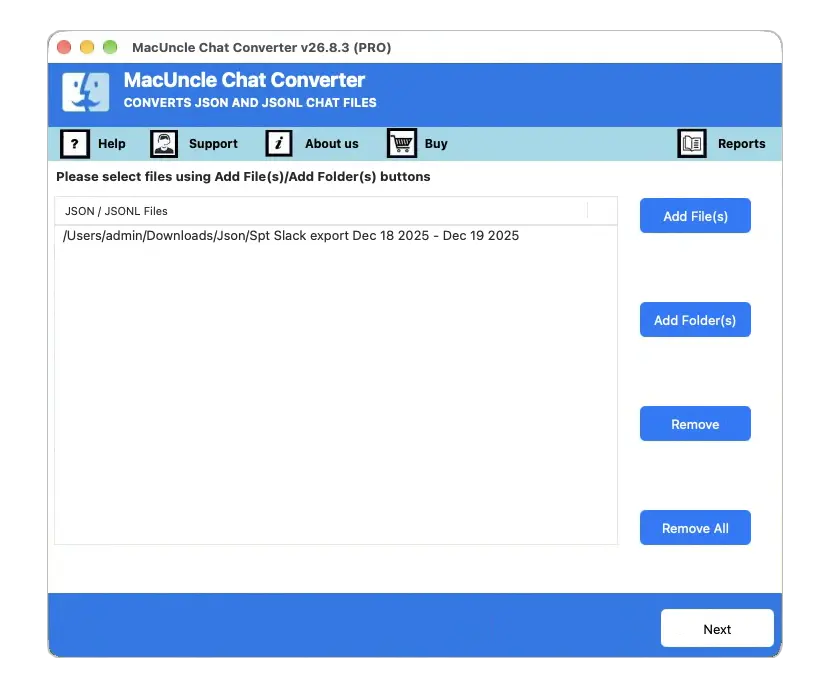
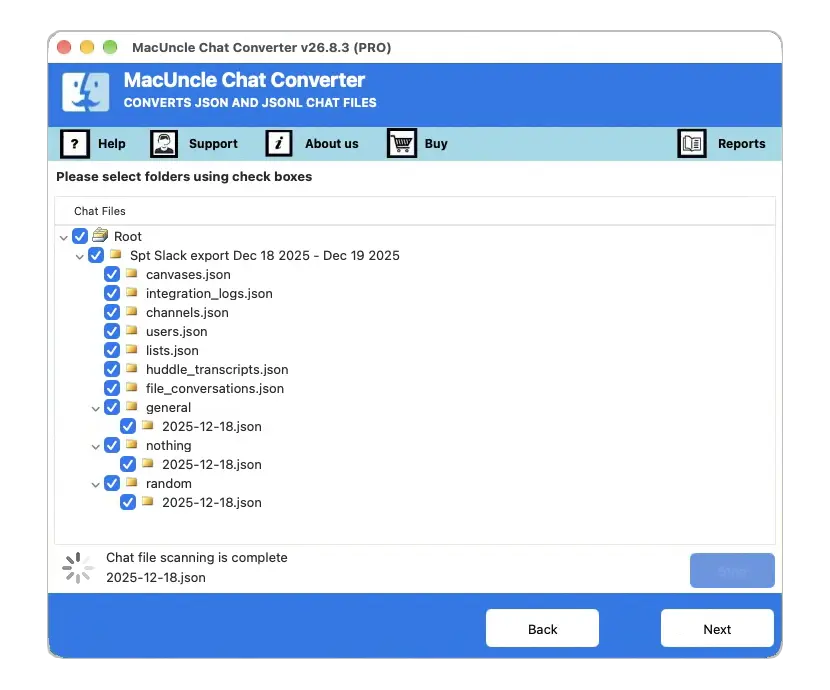
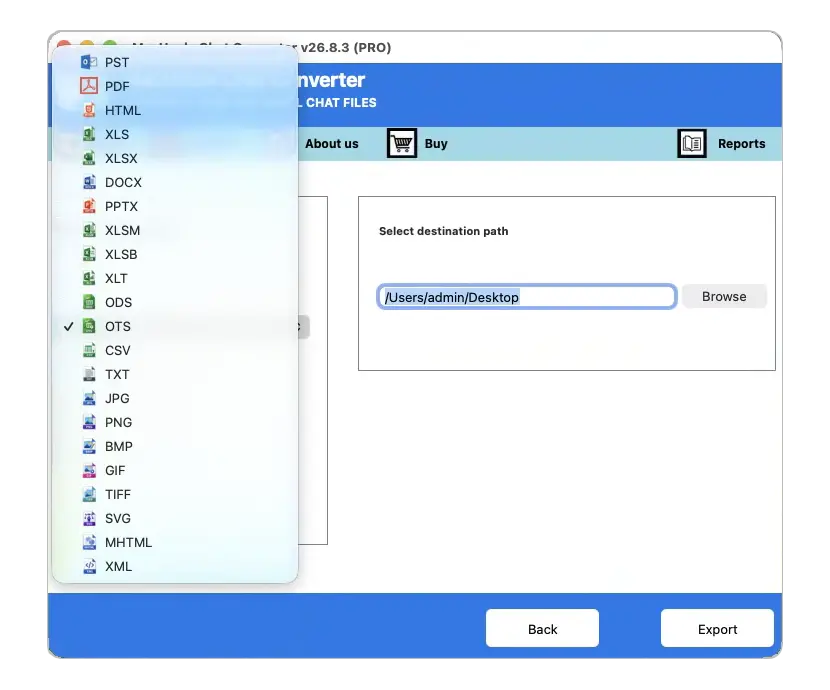
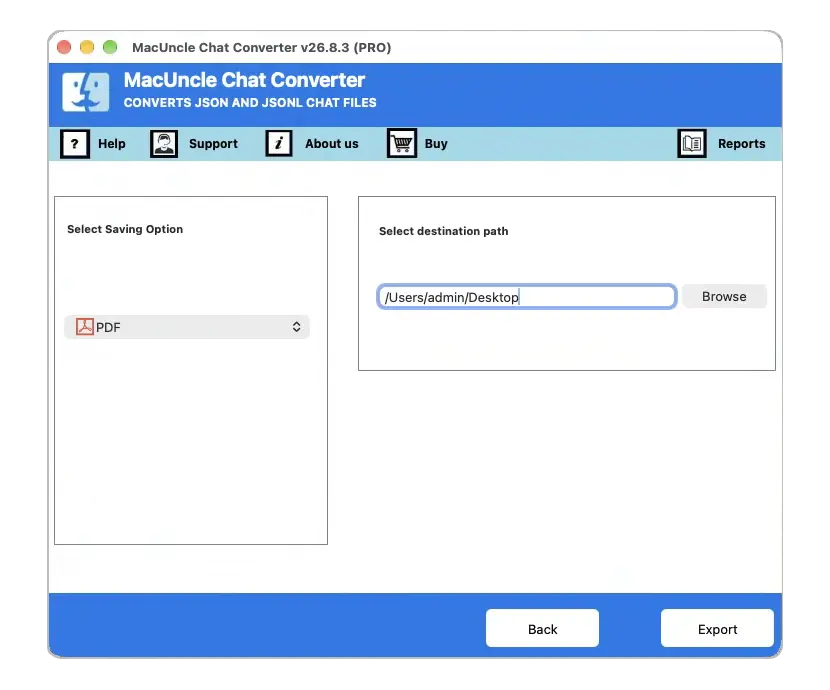
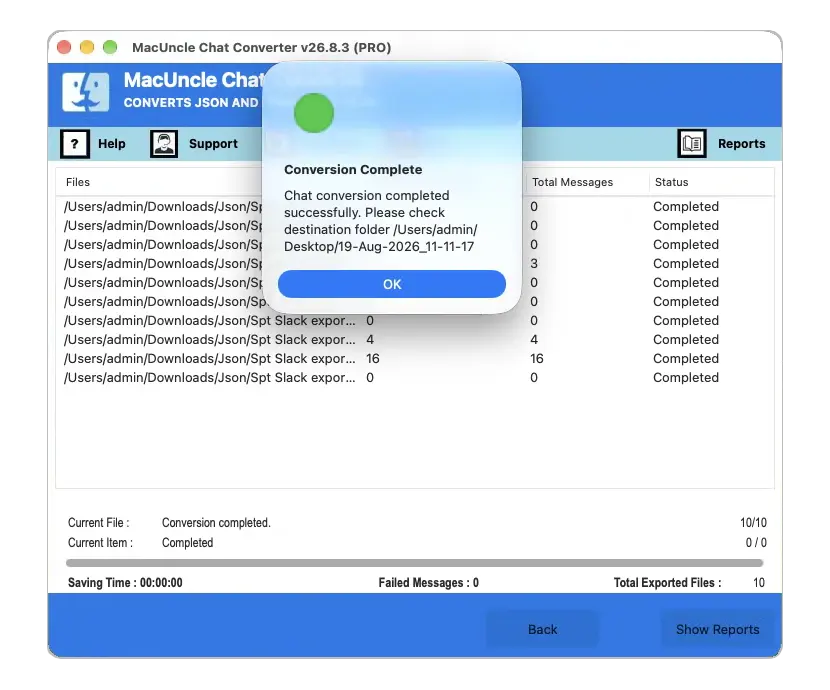
Since it is an offline tool, nothing of the conversation will leave the machine during the conversation, which is a very interesting point of view for HR and legal cases.
We can use the same application here to convert Google Chat to PDF format. The steps are the same as described above.
FAQs
Q) Can I export my Teams chat directly as a PDF file?
A) No. The end user of Teams cannot directly export a chat. Microsoft has clarified in Q&A threads that you are either using the browser print option or, as an administrator, you can use Export options in Teams.
Q) How to export the whole Teams chat history?
A) First, scroll to the top of the chat and select the entire message or use the print option. By default, Teams loads only the recent messages; it will automatically load old messages later. Admins can take a full record using Microsoft Purview eDiscovery if your chat history is long.
Q) Do I need an admin role to export my Teams chat history?
A) You don’t need admin-level access for a single-person print from a browser. However, if it requires pulling the JSON file, you need appropriate eDiscovery permission, such as the Export role included in the eDiscovery Manager role group.
Q) Can a Teams chat export convert to formats other than PDF?
A) As mentioned, use the recommended tool. After extracting the file, you can save it in any available format, such as DOCX, XLSX, CSV, HTML, PPTX, or an image format like PNG, for your records.
Q) What should I do if my Microsoft Teams chat history is missing?
A) If the older Teams messages or entire conversation are missing, then start by checking if you are signed in with the correct account, whether the chat is deleted or archived, or if it is affected by retention settings. There are multiple troubleshooting steps we can follow; get them from our guide here: Microsoft Teams Chat History Missing.
Conclusion
To export a Microsoft Teams chat to PDF largely depends on your data and accessibility. A short chat — instantly print it as a PDF to generate a quick and readable copy — is enough. However, a long conversation may not be saved correctly, and it’s simply not time-efficient. If you’re dealing with more than just a few chat messages, consider exporting conversation data from Microsoft Graph or Microsoft Purview eDiscovery, then convert your exported JSON files to PDF using the recommended Microsoft Teams chat-to-PDF exporting tool.