How to Export Gmail Emails to EML File in Batches?


Are you here to find a solution to Export Gmail Emails to EML? Then, we suggest the user read the complete article to get different methods for single as well as batch emails. Experts advocate moving to EML from Gmail, though, as the best option to think about if email migration is in the plan. Before going any further, let’s discuss what exactly EML is, since we all know what Gmail is.
Microsoft created the EML format for storing emails. Users can keep the plain text version of emails as *.eml files on their devices. This kind of format is useful since it lets you keep the headers and original HTML structure of an email. The substance of messages, as well as other data like the subject, sender, receiver, and data, is saved in a straightforward text format.
Therefore, to convert the emails to the same format, there are multiple methods. Here we have a different solution from manual to automated.
Why Convert Gmail Emails to EML Format?
The following are some reasons why you may need to convert your emails in Gmail to the EML format:
- Backup of Email: EML files provide a simple and effective way for backing up important emails. You can store them on a computer, external hard drive, or cloud storage.
- Legal and Compliance: EML files are used to store or save email evidence for legal or compliance purposes.
- Email Archiving: EML files are great for archiving old e-mails. They can be easily sorted into different folders and can be searched easily later.
- Email migration: When using an alternative email client that supports EML files, exporting is the best option. Otherwise, the complete email migration is required, which needs technical knowledge.
Manually Export Gmail Emails to EML Files
It might be necessary to save it in a different format, specifically as an EML file, if you want to open it with a different email client or webmail.
EML files can be backed up and shared without the original messages being forwarded. Whatever your motivation, Gmail makes the conversion simple.
a) Method #1 – Extract Single Gmail Emails to EML at once
- Start your Gmail Account and select any email messages.
- Then, from the tab, navigate to the 3 dots in the top left corner.
- Click the Show Original option, which will take you to a new window with all the details of the email message.
- Press the Download Original button. Thus, the files get saved in *.eml.
Now, easily open the files in any EML-supported email client or webmail.
b) Method #2 – Copy & Paste Approach
This technique is considered a simple and quick method for the instant requirement to export Gmail emails to EML format. Follow the steps here:
- Select all of the message text, then copy it.
- Use Command+A to pick the text and Command+C to copy it if you’re using macOS.
- Copy and paste the entire document into a text editor like Notepad++ or Brackets.
- As mentioned before, save the file with the.eml file extension.
Loopholes of Manual Practice: Both procedures are to save a single email from Gmail at once. To download any number of files, the user has to go to each message one by one. This is possible only if there are a few files to export. Secondly, without access to the Gmail account, the above approaches cannot be completed. Altogether, it makes the approach time-consuming and nerve-racking.
Expert Solution to Save Gmail Emails as EML Format
If the requirement is to extract multiple email files at once in EML format, then the Gmail Backup Software is the best. The software downloads email messages directly from the Google Account. Before saving any files from the mail account, one can choose the desired emails beforehand. It also put forward the option for the selective export of emails with the advanced Filter options.
Test before Purchase: Use the trial package of the tool to know what the procedure is about. To understand how the software works, all the important features are included in the free trial set. Check all the traits one by one, and then later buy the Pro package.
How to Export Gmail Emails to EML Format?
Install and start with the Gmail to EML conversion by following the steps below:
Note: To move further with this method, it is recommended to create app passwords. For more details, refer to Gmail Account Settings for MacUncle Products.
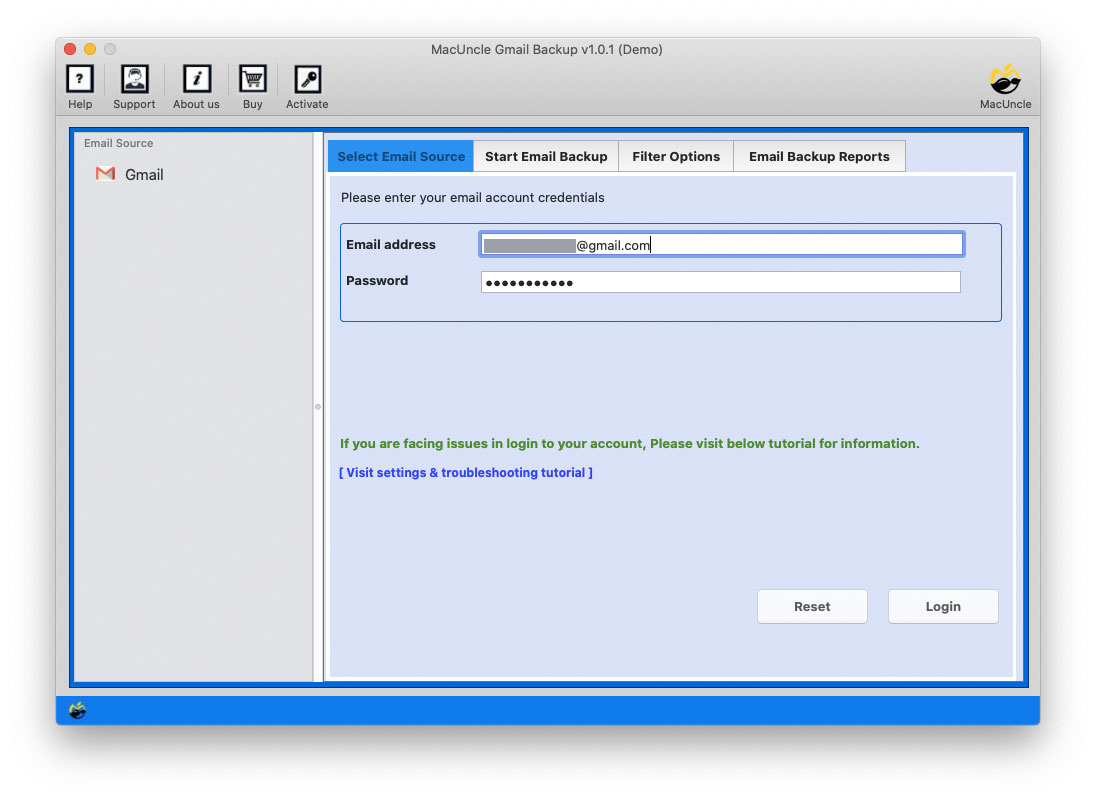
- Start the Software and enter Gmail credentials. Press the Login button to proceed.

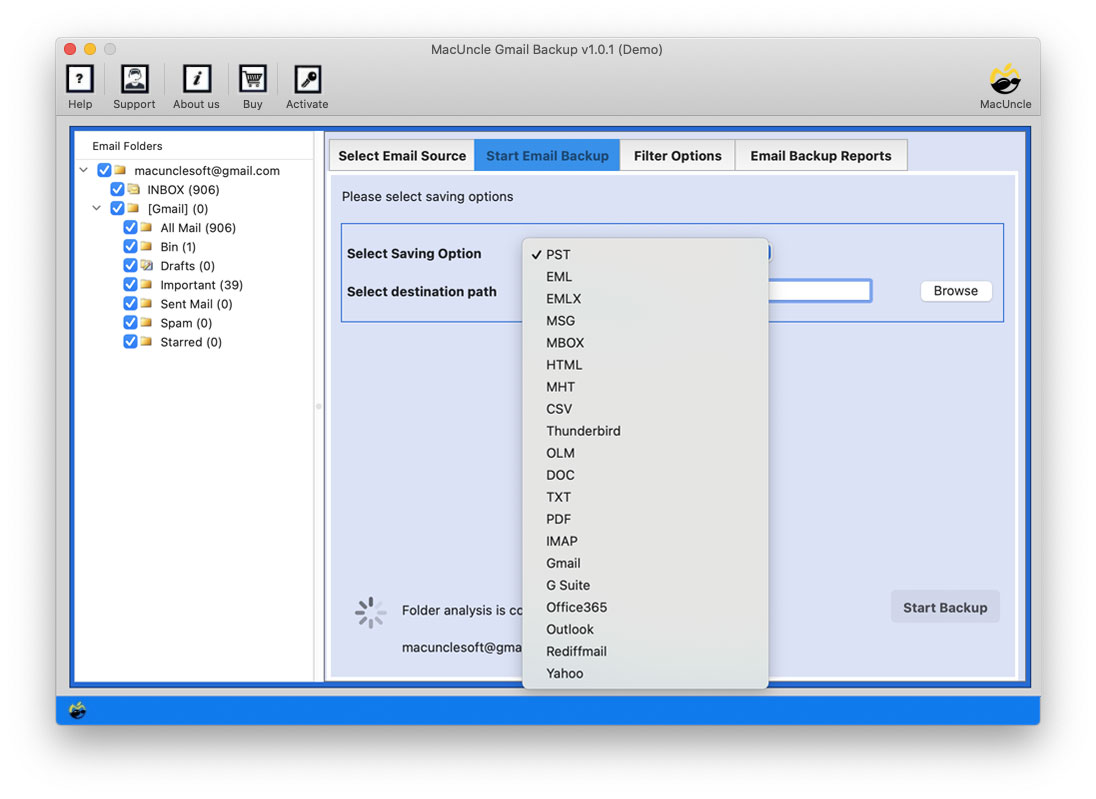
- Select EML format from the list of Saving Options. Also, set a location for the exported file to store.
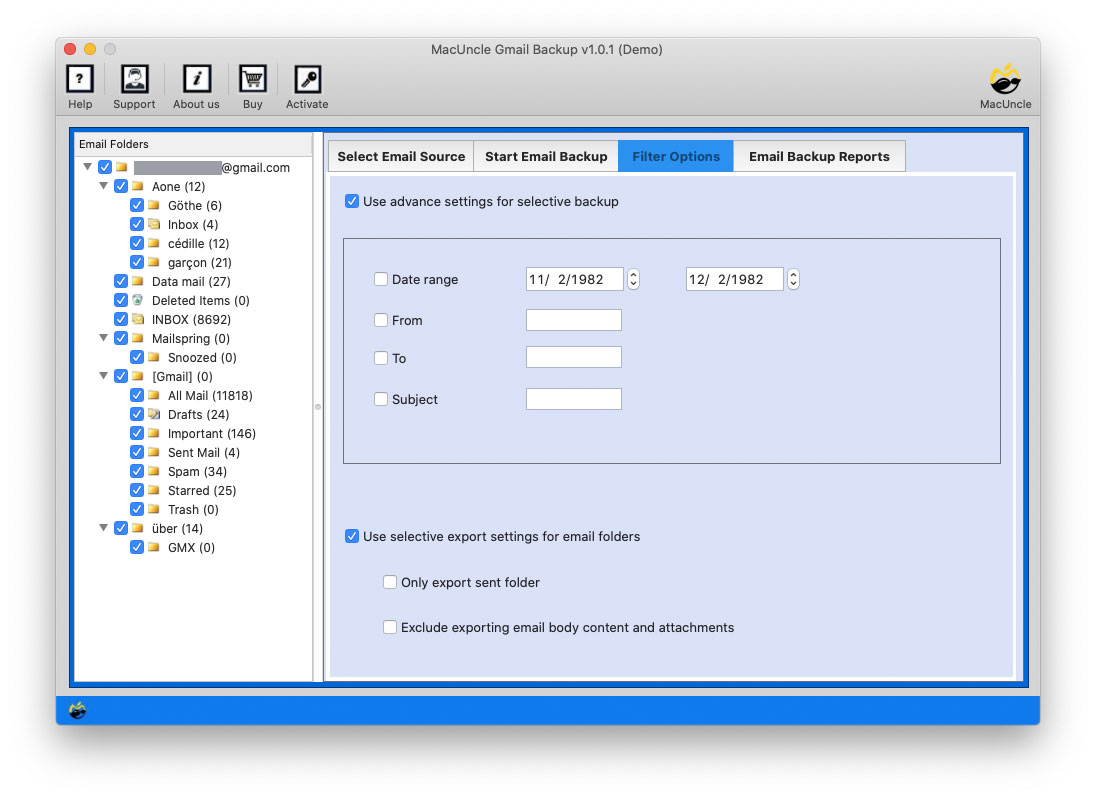
- Go to the Filter Option to selectively save Gmail emails as EML format.
- Hit the button “Export” to start the process.
Soon, all the selected files will be downloaded. If you currently don’t have an EML-supported email client, use the free EML File Viewer Application.
Reasons to Get the Software to Export Gmail Emails to EML
We all doubt a third-party tool until we are delighted with the features. Therefore, for the ease of our esteemed reader here are some of the essential traits of the application. Get an insight into what the tool will provide.
- Instant Result with 100% Accuracy: Even though there are options to batch export Gmail Emails to EML, the tool completes within minutes. The whole step can be done within a few clicks, offering 100% accuracy. The tool maintains the originality of the email data.
- Multiple File Export Option: If there are only a few email messages to export, then it is not an issue. But when it comes to extracting all the emails from the account to EML, we need batch export options.
- Filter and Convert Feature: Use the filter option to fetch emails from a particular date, time, subject, etc. The feature lets the user save Gmail emails in EML format selectively from the account.
- No Need to Access Gmail Account: At any point, the software does not ask to sign in to the Gmail account unless there is an authentication issue. Within the tool itself, the whole procedure can be carried out.
Outline of Blog
The article summarises all the methods for fetching emails from Gmail in EML format. The need may vary among users; check and grab the right solution as per the situation. To export a few email messages, the manual method is the right fit, but to download multiple Gmail messages at once, we recommend using a third-party application.
Frequently Asked Questions
Q1) Is there a way to export multiple Gmail emails in EML format?
A1) The suggested software fetches all the emails from the Google account to the interface, and we can effortlessly select the files and export them to EML format
Q2) How to extract only the desired files from a Gmail account?
A2) With the Filter option in the MacUncle tool, we can easily export Gmail emails to EML selectively.
Q3) Which method is the simplest one when it comes to exporting batches?
A3) The software mentioned here has the option to perform conversion to multiple files along with other advanced features. Thus, using the automated method is the best yet effortless way to export Gmail emails to EML.
Q4) How to save emails from Gmail in EML format in batches?
A4) We can either use the manual methods, but the steps need to be done repeatedly. To download Gmail emails in EML format in batches using the recommended tool is the best.