How to Export Telegram Chat to PDF Format?


There is no direct ‘Export as PDF’ facility on Telegram, unlike many other messaging services. The export facility on Telegram creates an HTML or JSON format of your chats; however, this can be converted to a high-quality PDF in a matter of minutes. There’s also a way to automate this if you’re exporting several chats or want a polished final product.
Here’s how to export a Telegram chat to PDF on desktop, mobile, and web, the Telegram export tool, and how to use a chat-to-PDF conversion application for bulk or business-grade exporting.
Why Export Telegram Chat to PDF?
Users may want to export Telegram chats to PDF for various reasons, ranging from simple needs to advanced requirements.
- Saving business discussions, client conversations, or group chats in a format that can be taken anywhere, at all times.
- It is far easier to submit PDFs as evidence than a screenshot, as it is harder to alter them after they have been created.
- Make backups before deleting an account and leaving a group – Telegram states that message history may not be able to be recovered once an account or chat is removed.
- Sharing chats with non-Telegram users, as a PDF can be opened on any device.
- Saving conversations of your channel or group for compliance or later reference.
What You Need to Know About Telegram’s Native Export Tool
However, Telegram Desktop does have a real ‘Export chat history’ feature built-in, but it only exports HTML or JSON (along with a directory of media files) – not a PDF itself. You will require one more step to get the Telegram chat in PDF format. This native export option is exclusively found in Telegram Desktop, not in the mobile applications or Telegram Web, so mobile users need to export through Desktop first or find a share/print alternative.
Method 1: Using Telegram Desktop (Windows/Mac)
- Open Telegram Desktop, then select the chat or group to export.
- Click the three-dot menu on the top right and select Export chat history.
- Configure an export – Select which contents to include (photos, videos, documents, etc.) and set the format to HTML for better formatting.
- Press Export and select where you want to save your archive: Telegram will then create an HTML file and a media folder.
- Open the messages.html file you’ve exported in your web browser.
- Press Ctrl+P (Windows) or Cmd+P (Mac) and select Save as PDF, then save.
Method 2: Export Telegram Chat to PDF on Mobile (iOS/Android)
As both Mobile Apps don’t have a built-in export option, the safest way is to export the chat on Telegram Desktop (Method 1) and then transfer the generated PDF to your mobile using cloud storage, email, or a cable.
Or, if you want to open conversations, you can open the chat directly on your phone, take screenshots of each page, then use any PDF-maker application (or your phone’s default “Print” > “Save as PDF” function on scrollable screenshots).
In the case of large chats, screenshots are no longer viable. Export to desktop or an automated conversion tool should be used instead.
Method 3: Export Telegram Chat to PDF via Telegram Web
- Open web.telegram.org in your browser and sign in, then open the chat you want to save.
- As Telegram Web doesn’t offer an export button, it is necessary to select and copy the messages shown or scroll down to load the full chat history needed.
- Copy and paste the text into any text editor.
- Create the final PDF by doing File > Print > Save as PDF.
- If you’re looking to do anything more than a quick chat, then Telegram Desktop’s export tool (Method 1) is much faster and more comprehensive.
Limitations of the Manual Method
- No direct PDF output — needs that extra HTML-to-PDF or copy-paste step with every manual path.
- All Mobile Apps have absolutely no native export tool, so we have to do a manual workaround using a desktop.
- Media isn’t integrated seamlessly into the final PDF – all images and other files remain as individual objects in the exported folder.
- Different browsers and OS have variable print-to-PDF formats.
- No batch processing – exports and conversions must be done on each chat.
- Massive group chats or long-term channels can result in ridiculously long HTML exports that are a pain to browse.
Automated Method: Convert Telegram Chat to PDF Format
Overcome all the above limitations and issues by using the JSON Chat Converter by MacUncle. Why use the tool? It converts multiple chats in JSON or HTML format to PDF or any desired format with ease. Add the files and let the tool complete the conversion without any delay.
From the links below, download the tool compatible with your operating system and follow the steps below:
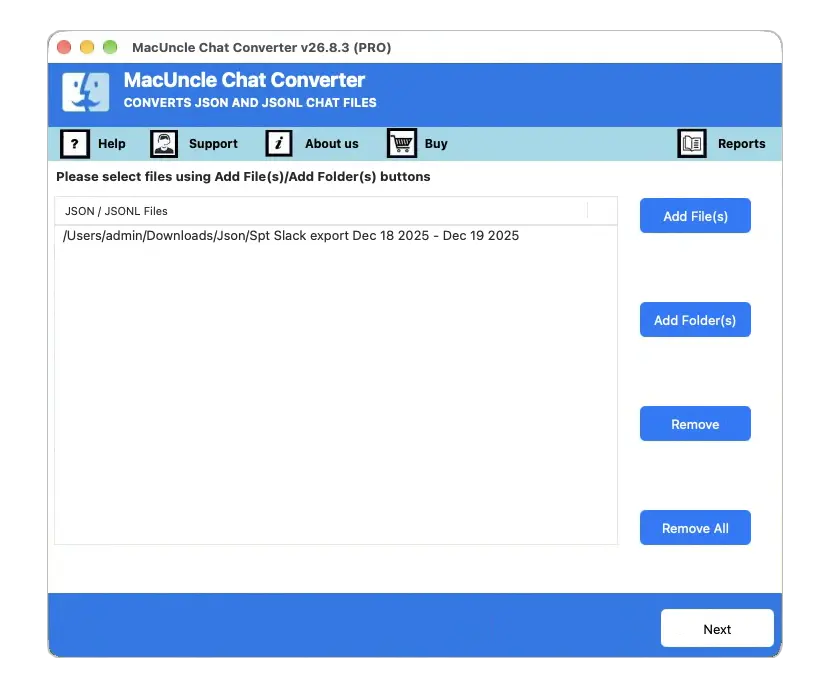
- Start the tool and add Telegram chat files using any of the Add buttons.

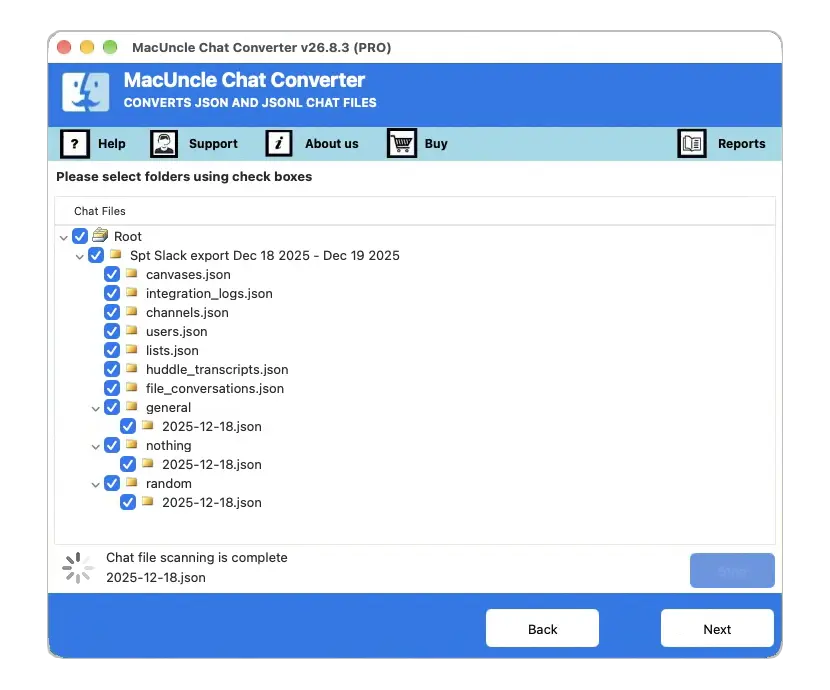
- From the list, choose the desired files as shown here. Press the Next button.
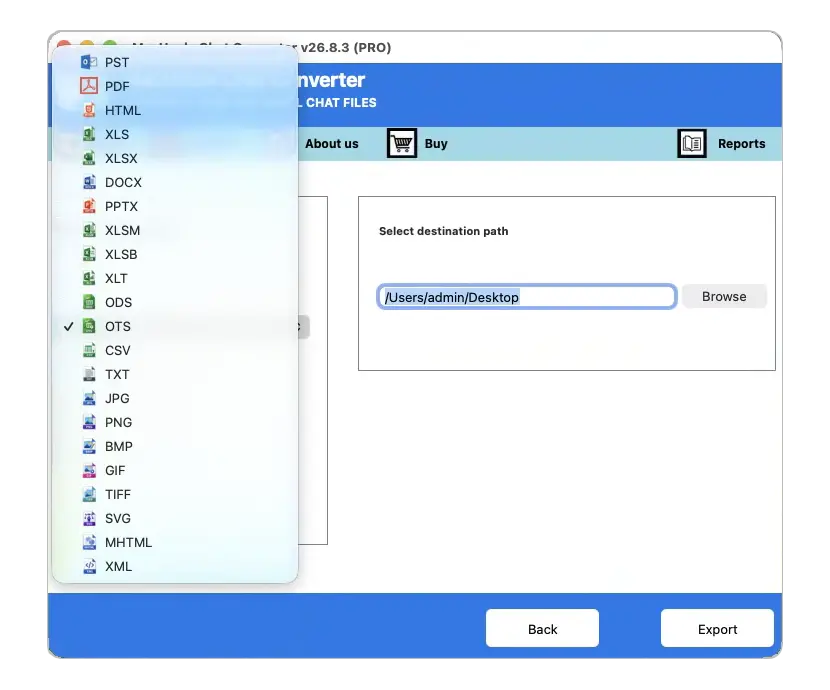
- Set PDF as the output format to convert a Telegram chat to PDF.
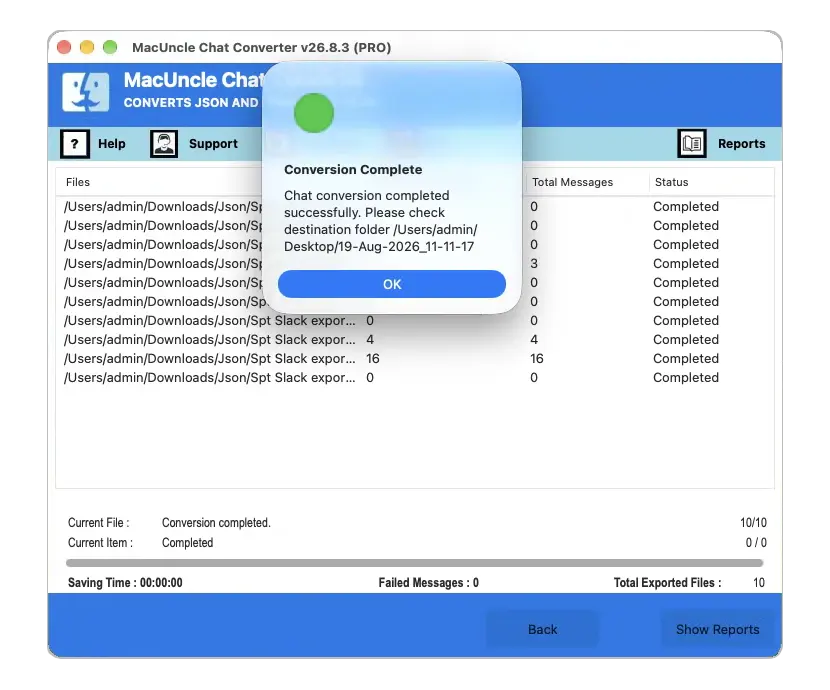
- Press the Export button to start the conversion instantly.
Learn how to use the same tool to bulk export entire Teams chats to PDF after extracting the chat data with the required admin permissions.
FAQs
Q) Is there a way to export a Telegram chat to PDF straightaway without any additional steps?
A) No, direct approach. The export tool built into Telegram is in HTML or JSON. You’d have to print the HTML as a PDF yourself or run the JSON through a converter tool.
Q) Why doesn’t Telegram Desktop’s export tool appear on mobile?
A) Export chat history is already built-in, but is not available for the iOS and Android apps and Telegram Web yet. It is available only in Telegram Desktop (Windows/Mac/Linux) for now.
Q) If I export a chat from Telegram, will it also remove the chat from the application?
A) No. Export is making a separate copy of the chat, and your original chat will still exist in Telegram.
Q) Can I export an entire Telegram group or channel to PDF?
Yes. Telegram Desktop export tool can be used for groups and channels in the same way as it works on individual chats.
Q) Is a Telegram chat exported to PDF admissible as evidence?
PDF files are commonly used as supporting documentation, but formal admissibility depends on the specific legal process.
Conclusion
There are also a number of ways to export Telegram chat to PDF, but which makes sense depends on the volume of files you’re converting. For a single brief conversation, saving to HTML in Telegram Desktop and printing to PDF is simple and free. If you need to convert numerous chats, group archives, or files that will appear semi-official and must maintain metadata, then a dedicated automated converter program will save you a lot of time and give much better consistency.