How to Export Yahoo Emails to MBOX Format?


Email migration has emerged as a common necessity for users in search of switching platforms or creating backups. If you are a Yahoo Mail user looking to export your emails to MBOX format, you have two different alternatives: automatic software and manual techniques. In this write-up, we will explore both strategies to help you select the method that satisfactorily fits your needs to export Yahoo emails to MBOX Format.
Yahoo Mail is widely used for both personal and professional communication, storing important emails, etc. Users often need to export Yahoo emails to MBOX format for backup purposes, email migration, or to access the data in MBOX-supported email clients like Thunderbird, Opera Mail, Apple Mail, or other Unix-based applications. Since Yahoo Mail does not provide a direct option to export emails in MBOX format, the process can be confusing and time-consuming without the right approach.
Why & When to Export Yahoo Mail to MBOX?
Users have a variety of reasons for wanting to export the emails of their Yahoo Mail accounts to new ones.
- Platform Independence: The MBOX format keeps the email on the user’s side in different email clients without compatibility issues.
- Backup and Security: Making a backup in the MBOX format is definitely a wise move to protect the most valuable emails if they are deleted accidentally or your system crashes.
- Universal Email File Format: The method is a way of ensuring that if, in the future, you decide to use a single e-mail client that supports MBOX, you will not lose any files during the transition.
These are the reasons why users want to export Yahoo emails to the MBOX file format. Now, let’s see when to export the Yahoo Mail emails to *.mbox format.
- For Backup Purposes: Before making any significant transition in Yahoo Mail, it is recommended to back up the emails to any file format. Storing in MBOX files provides a convenient way to store mailboxes outside the Yahoo account.
- Migrating to Another Email Client: As discussed above, if you migrate the emails from Yahoo to another MBOX supporting email client, it is a must to export emails from Yahoo to MBOX format.
- Research & Legal Compliance: In very rare cases, you just need to export emails for research purposes or to comply with legal requirements.
Manually Export Yahoo Email to MBOX Format?
Here’s how you may convert Yahoo emails to MBOX manually.
Steps to Export Yahoo to MBOX Manually
- Open your web browser and log in to your Yahoo Mail account.
- Go to “Settings” in your Yahoo Mail account.
- Navigate to “Account Info” > “Account Security“.
- Enable IMAP.
Via Thunderbird
- Open a Thunderbird account in the system.
- Navigate to Tools>Account Settings.

- From Account Actions, Click on Add a Mail Account.

- Enter all the account details and a password to proceed.

- Press the Continue button. Click on the Done button.
- Finally, press the Finish button.
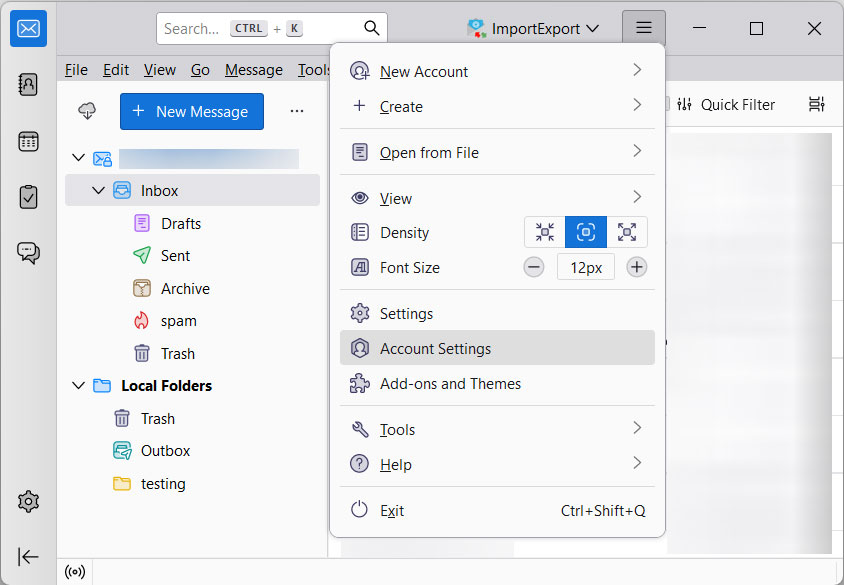
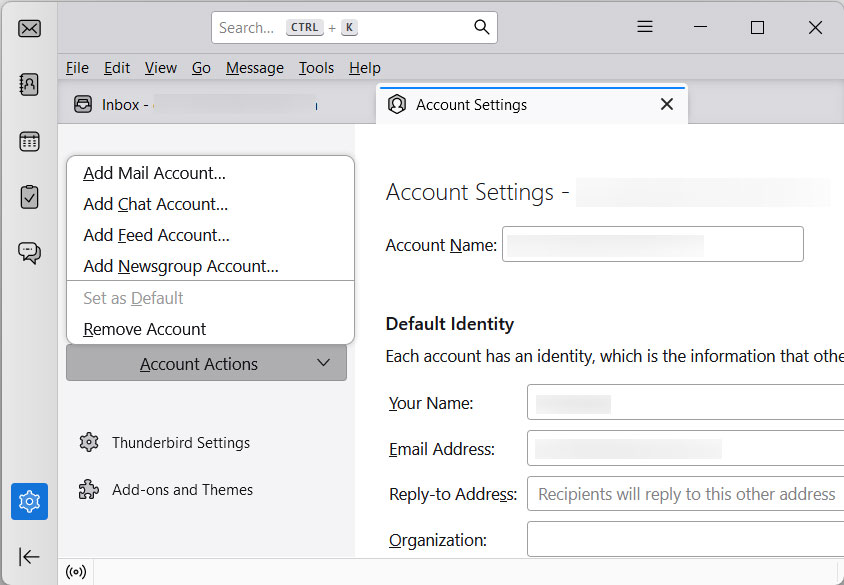
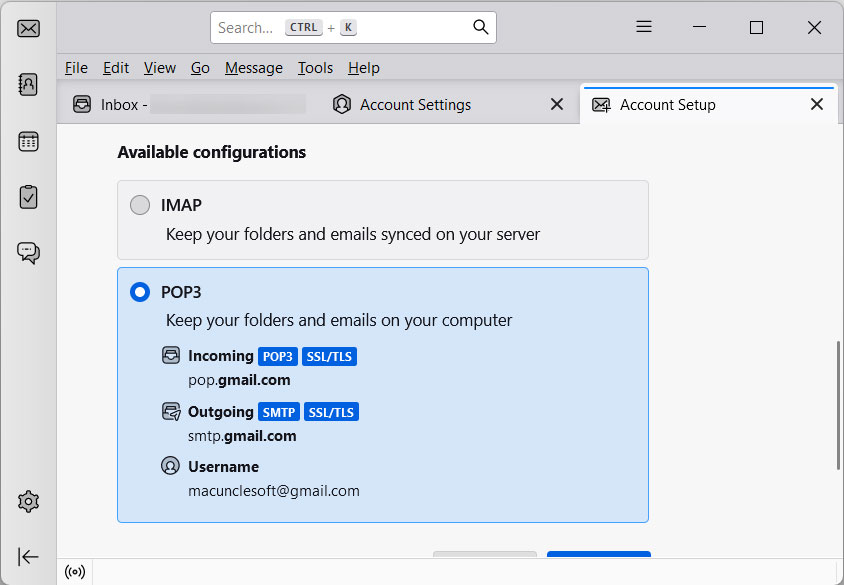
A Yahoo account is added to Thunderbird.
Export Emails to MBOX format from the Thunderbird Account
- Again, go to Thunderbird and select the Yahoo folder.
- Right-click and choose ImportExport Tools NG.
- Select the Export Folder and choose the Export format as MBOX.

- Browse a location and click on the save button.
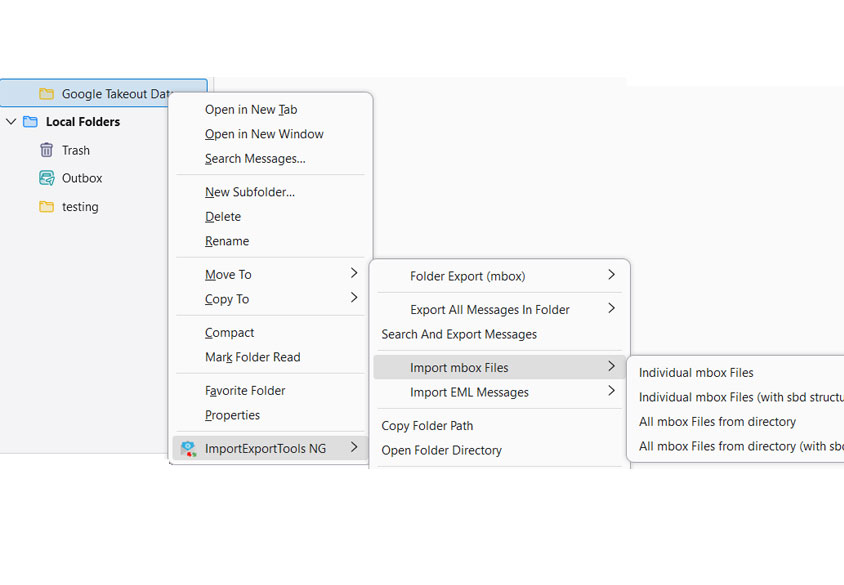
Verify and Save:
- After the export is complete, verify the MBOX file for accuracy.
- Save the MBOX file to your preferred location.
Export Yahoo Emails to MBOX Format – Professional Approach
Automated software program solutions are designed to streamline complex obligations and offer a consumer-friendly experience. One such tool for exporting Yahoo emails to MBOX is the Yahoo Backup Wizard. This user does not need to configure any account. Export the email files from Yahoo Mail to MBOX format within the tool itself. After conversion, the user can check the file with the help of MBOX Viewer, as it cannot be opened with a standard file opener or without a compatible email client.
How to Save Yahoo Email to MBOX Directly in Batches
Firstly, grab the desired version of the tool and complete the installation.
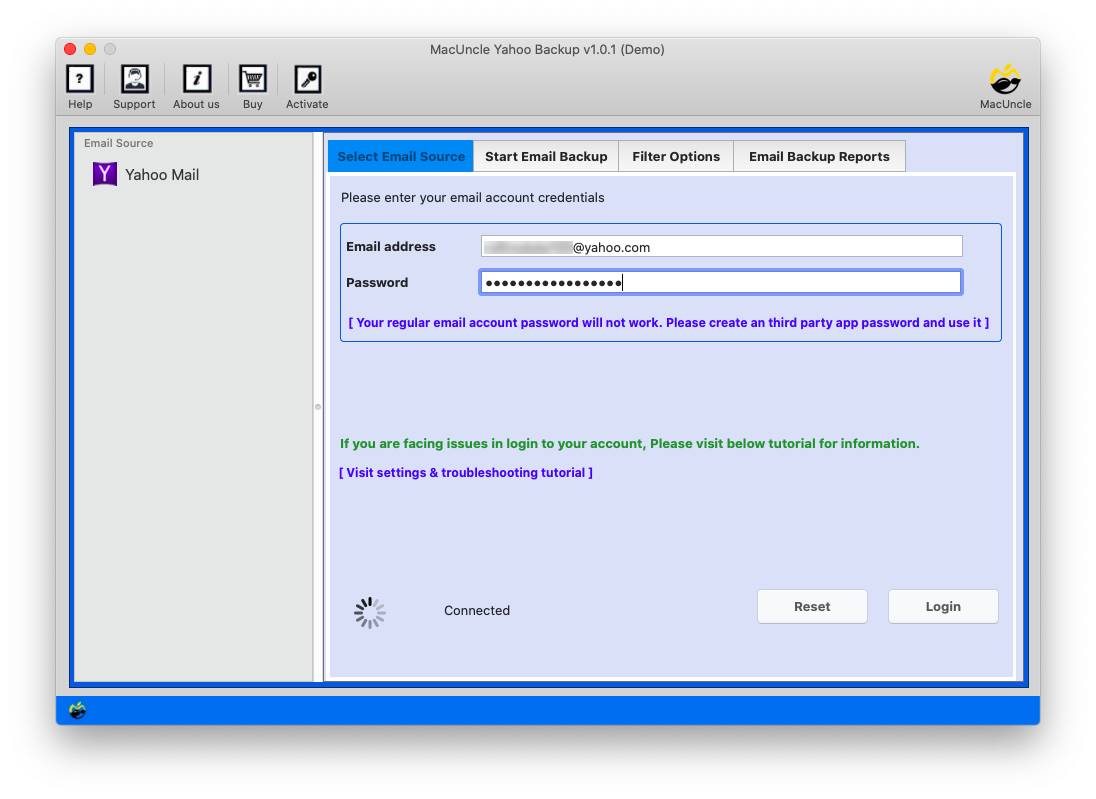
Note: To ensure a smooth migration, use Yahoo Settings to create an app password.
- Start the software and enter your Yahoo Mail login details.

- Now, choose any Yahoo email or file from the software panel.
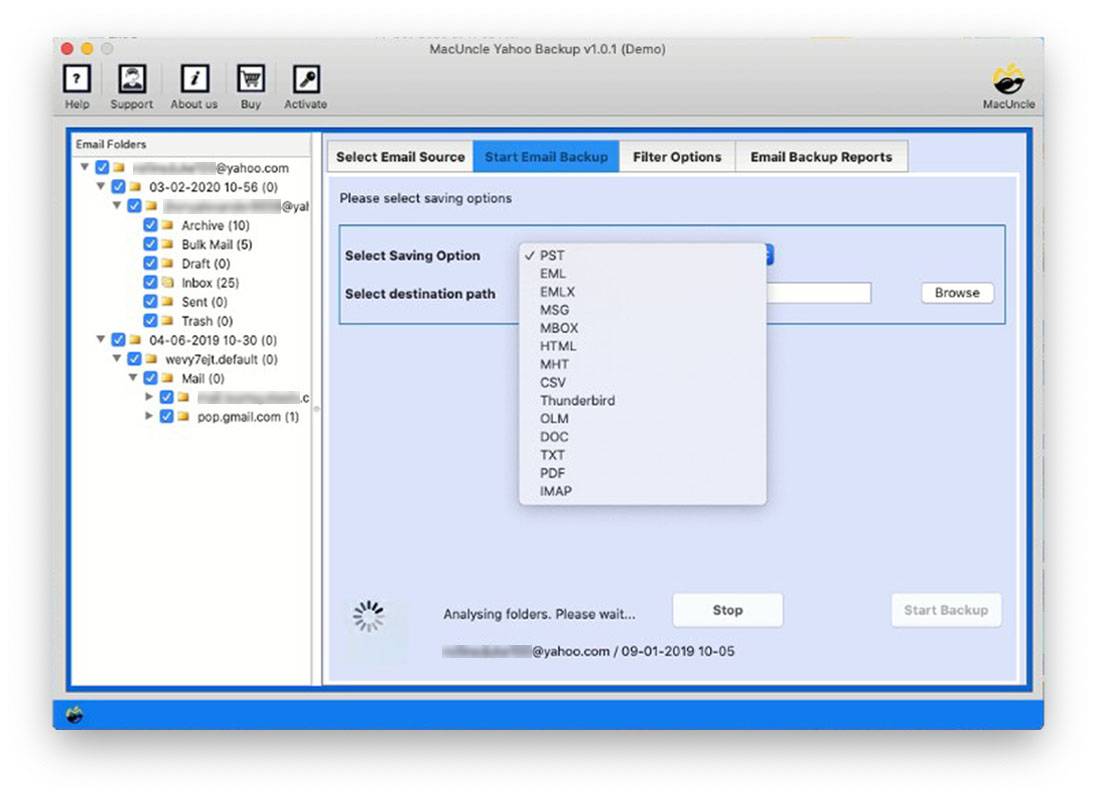
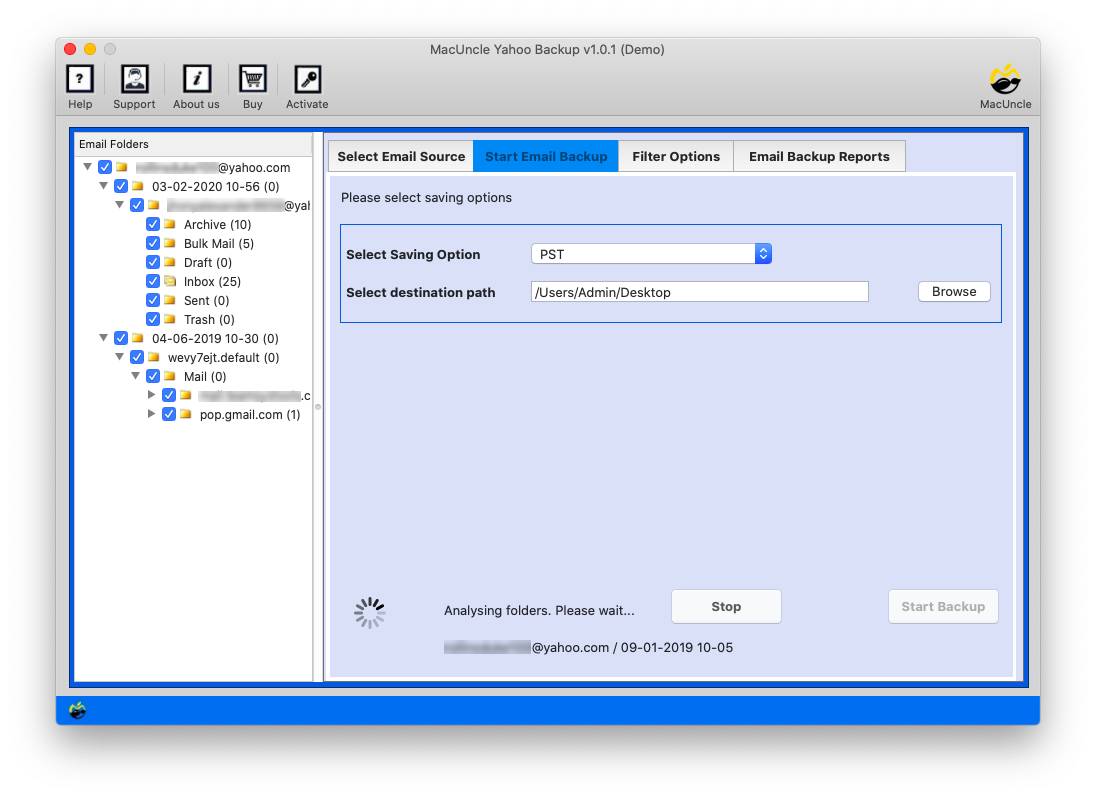
- Then, select the MBOX file format from the options below.
- Set a location to store the exported data from the Yahoo account.
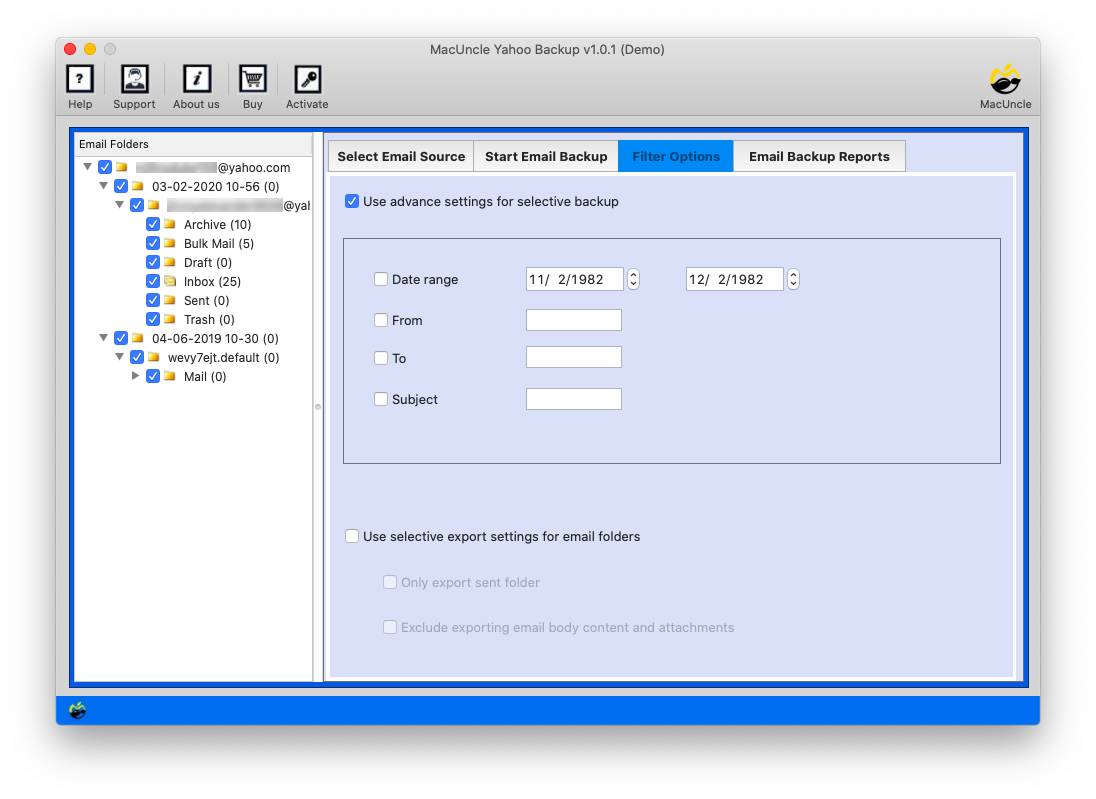
- Go to the filter option to export only the desired files from your Yahoo account.
- Press the Export button to start the procedure.
The same tool can be used to Export Yahoo emails to EML format also.
Traits of Using the Automated Software
The following are some of the vital features of the recommended professional tool. However, users can try the Demo version to check out all the features.
- Time-Efficient: The automated process does away with the time and effort typically associated with manually exporting Yahoo emails to MBOX.
- User-Friendly: It generally has a user-friendly interface that is accessible to users with different levels of technical knowledge.
- Bulk Export: The tool is often capable of allowing you to export multiple emails and folders in a single operation. As all the emails will be uploaded to the software panel, users can choose as many emails as they want.
Conclusion
The deciding factors in whether to go for a manual method or an automatic software program are your options, technical know-how, and personal necessities. Automated tools are perfect for quick and trouble-free enjoyment, while the manual method requires following the steps. Whichever method you opt to use, it is advisable to have your data securely backed up before starting any migration process.