Apple Mail Not Working on Mac? Get Fixes That Actually Work


Apple Mail is one of the most common email clients used by millions of users. Sometimes, users have mentioned having trouble with the Mail app not working properly on Mac. Whether you can’t perform any activities, the app is crashing, or the emails are not coming through. In this guide, we will give the solutions from common to technical troubleshooting to fix the Apple Mail not working on Mac issue.
Apple Mail is a default application for Mac users for day-to-day communication. When Apple Mail is not working properly, such as Apple Mail keeps quitting unexpectedly, attachments are not downloading properly, Apple Mail authentication fails, etc. These could interpret the workflow and causes delay in resposed or missing emails. The cause of these errors could be a wide range, such as slow syncing and authentication errors, or any application failure. In the article, we will find out the reliable approach to diagnose and resolve any issues with Apple Mail and help you restore smooth and uninterrupted email access in the application.
What are the Quick Fixes for Apple Mail Not Working on Mac?
Before we go into the more technical solutions, we must first try the easy and often overlooked reasons why any email client does not work properly. You might be surprised when a simple restart usually solves any complex issues. Just like that, perform the methods below and check if the issue is resolved.
Check Internet Connection
It is an obvious one, still the first thing we rule out. Apple Mail requires an active internet connection to work properly, which is necessary for tasks such as sending and receiving emails.
- Turn off Wi-Fi and then turn it back on.
- Try launching another app which requires an internet connection.
- Otherwise, try browsing and check if you are able to go through.
- Try connecting to another network and see if the issue persists.
Restart the Mail App
Do a quick Mail restart and check if the issue is resolved.
- Click on Mail Menu and select Quick Mail or use Command +Q.
- Wait a few sections and open the app again.
With a restart, we can get a clear start and thus resolve many issues, including connection and sync issues, and fix the Apple Mail freezing issue.
Restart Your Device
If restarting the app doesn’t work, a full device restart is the next logical step. This clears the Mac’s RAM, stops all the running processes abruptly, and reloads the macOS, which mostly resolves all the underlying causes that are affecting the Mail app, such as issues like Apple Mail Not Working on Mac.
Fix Mac Mail Not Working – More Advanced Troubleshooting Steps
If the above-mentioned quick fix didn’t work, we must expand our troubleshooting procedure. Follow the steps mentioned below for account settings, storage issues, etc.
Verify Account Password and Settings
A common reason why Apple Mail authentication failed message or is not working could be due to an incorrect password. If you have updated the account password on another device, then we must check it.
Sign in to the email provided with a web browser (If you can’t log in, then the account credentials are the issue)
- On the device, go to Settings> Mail Account.
- Select the account which has trouble working properly and tap the Account again.
- Enter the updated password and check if the Mail works properly.
Check Apple’s System Status to Fix Apple Mail Not Working on Mac
There are times when Mac Mail freezes, but not from the user’s end. If Apple’s server or any email provider’s server is experiencing any outage currently.
- Visit Apple System Status and check if there is any issue with iCloud Mail.

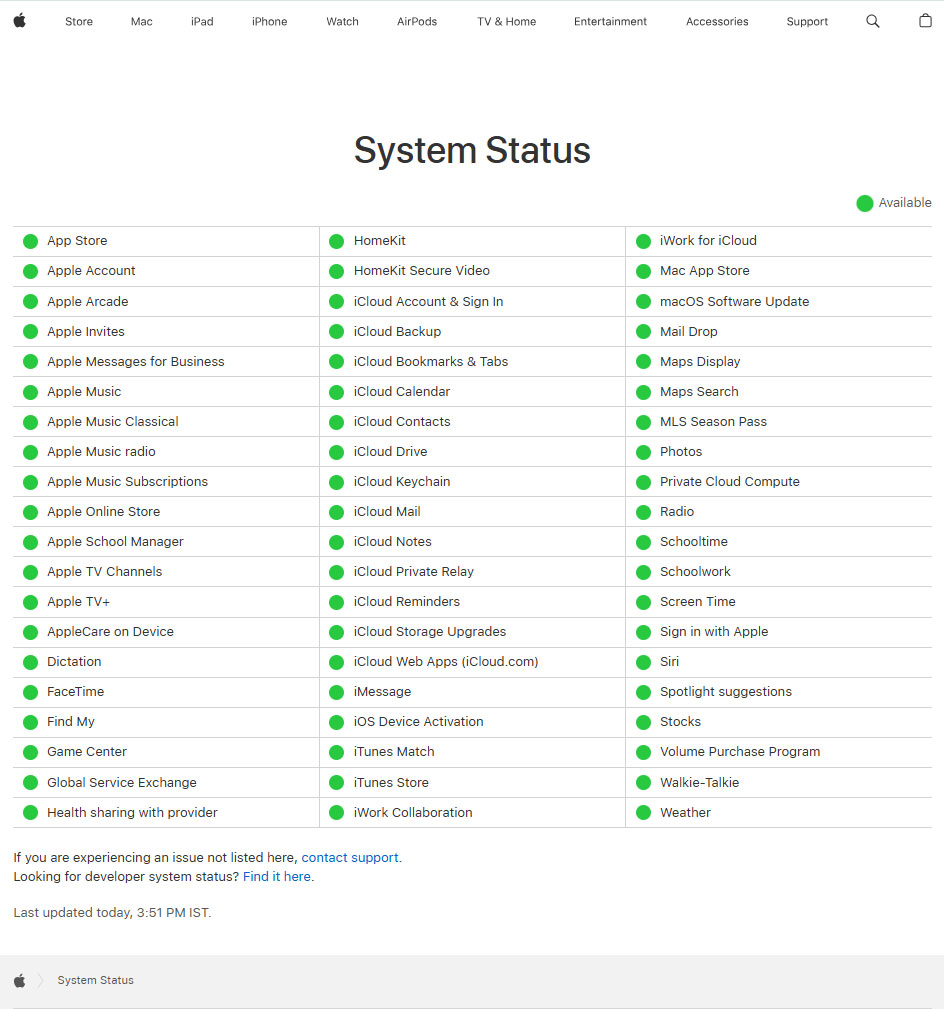
Note: If you are connected to Apple Mail with other email providers, then check the specific email provider. That is the Google Workspace Status Dashboard for Gmail, MS 365 Service health for Outlook.
Free the Storage Space
If the storage space has reached the limit, the new emails will not come through. First, we need to check the storage space and use a reliable method to free up the space to fix Mac Mail Not Working properly.
- Go to Settings > Your Name > iCloud.
- Now, check each of the options and delete unnecessary files.
- If required, you can also purchase additional iCloud storage space.
Also read related blogs | Resolve iCloud Storage Full Not Receiving Emails
Note: Check this article out to know how to mass delete emails on Apple Mail
Technical Solutions to Fix Apple Mail Not Working on Mac
After trying everything listed above, if the Mac Mail is still not working, then we can move to the next steps of advanced troubleshooting fixes.
Remove and Re-add Email Account
If none of the methods worked for you, then try removing and re-adding the problematic email account.
- Go to Apple Menu.
- Select System Settings and Internet Account.
- Select the Account you want to remove and click the minus (-) button.
- Restart the app and click on the plus (+) to add the account back.
Note: Back up Apple Mail to an External hard drive or ensure you have saved the emails elsewhere. If the account is set up as POP, deleting the account will delete all the emails stored in the devices. However, most of the modern emails are on IMAP.
Rebuild Mailboxes to Apple Mail Not Working on Mac
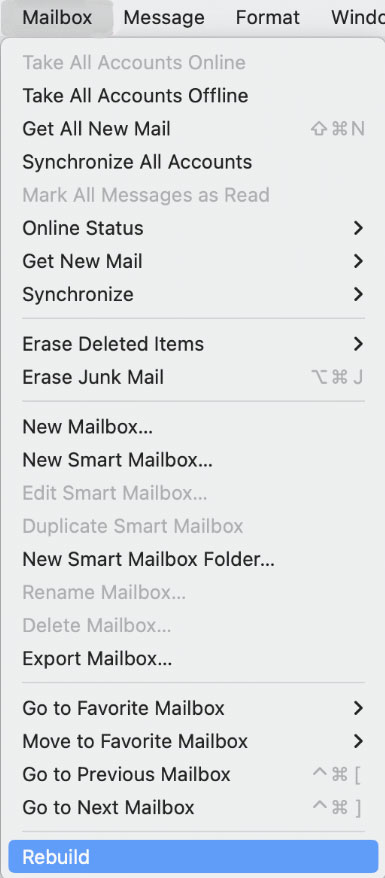
Rebuilding a mailbox can fix almost all the issues, including Apple Mail authentication failed messages on Mac. This is one of the most common working methods that would fix Apple Mail hangs by performing the task instantly.
- Open the Mail app.
- Select the Mailbox to fix.
- From the menu bar, click Mailbox > Rebuild.

Reindex Envelope Files
After performing the procedure to rebuild a mailbox, if it doesn’t solve the problem or the issues are across the mailbox, then try reindexing the Envelope files. It will force the Mail to rebuild the entire database from scratch, which could resolve any issues, including “Apple Mail Not Working on Mac”.
Follow the steps below to resolve the issue if Apple Mail keeps quitting unexpectedly:
- Firstly, quit the Mail App.
- Open Finder.
- Go to Menu > Go > Go to Folder.
- Enter ~/Library/Mail/V*/MailData (*the macOS version)
- Now, locate the file starting with Envelope Index, as follows:
- Envelope Index.
- Envelope Index-wal
- Envelope Index-shm
- Copy the files to the desktop
- Delete the original file
- Now, restart the Mail app.
Launch the Mail app again, and it will recognise the missing index file and re-index automatically. This eventually resolves the issues, including the Apple Mail not working issue.
Check for any Software Updates to fix “Apple Mail keeps Quitting”
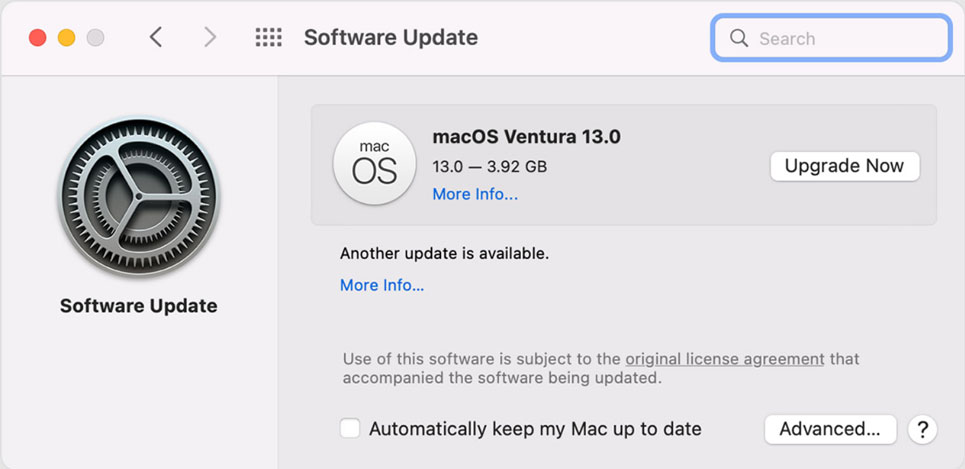
If your Mac is updated, most of the issues can be resolved by this. It is a must and worth trying methods to overcome any issues, such as Apple Mail not working on a Mac.
- Go to the Apple Menu
- And select System Settings and select General.
- Click on the Software update to find any update message.
- If any updates are available, click on Upgrade Now.

FAQs
Q) What steps should you take if Apple Mail is still not working after restarting?
A) If Apple Mail is still not working after restarting and performing all the troubleshooting steps mentioned in the article.
Q) Why is Apple Mail still not working on my Mac?
A) There are multiple reasons why Apple Mail might not work, which could be due to email settings, corrupted mailbox file, outdated macOS or temporary server issues with the email provider.
Q) When should I contact Apple support for Apple Mail issues?
A) If Apple Mail is still not working properly after trying all the troubleshooting steps, then it is best to contact Apple support for further assistance.
Apple Mail Still Not Working? What Else
If you have followed the steps in the guide – from common troubleshooting to rebuilding mailboxes and even re-added the account – and Apple Mail still is not working on Mac, then the issues may not be a simple software glitch. Usually, the systematic troubleshooting resolves the issue that withstands the email client without the need for any technical support. However, if the “Apple Mail Not Working on Mac” issue persists, then it is best to contact Apple support.