Fix “Operation Cannot be Performed Because the Message has Changed”


“Operation cannot be performed because the message has changed.” This error occurs more frequently in Outlook. As we discuss it now, the issue has been present for the past couple of years. Therefore, we will need to identify the cause and then proceed with the troubleshooting steps.
For you to resolve this issue and get your Outlook to work normally again, you should understand the initial cause of the error so that you can use the most appropriate solution to fix it. Once you know the root cause of the error, you will be able to fix it and eliminate it. In our guide, we have provided the cause of this error and how to fix it correctly.
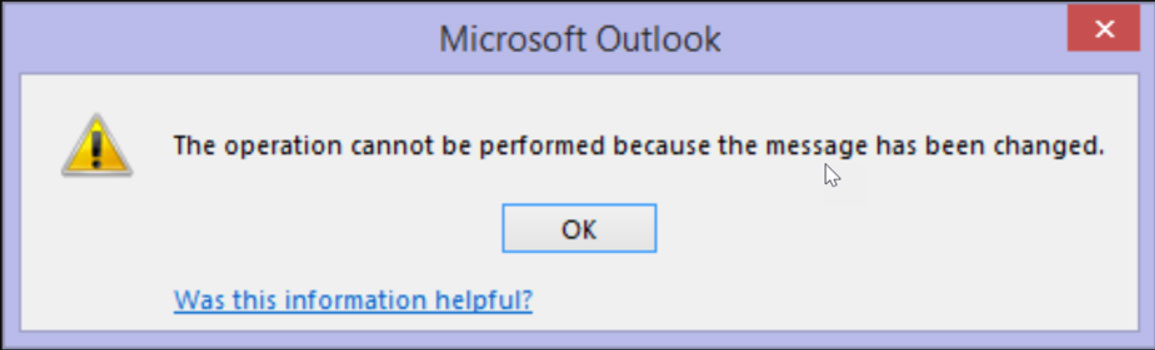
Understand the Error – “Message Has Been Changed”
This warning in Outlook usually indicates that the local copy is out of sync with the one on the server. Therefore, when users are trying to perform any action, the client is simply verifying its state. In simple terms, if any dispute arises between the local cache and the server, it warns users to prevent data corruption and unintended modification to the outdated version of the current emails.
- Emails Modified After Opened: As we discussed earlier, the common cause is when the same email is being accessed or modified by Outlook on the device and by another device at the same time.
- Synchronisation Issue: If there is a delay in synchronisation between the Outlook client and the email server by the time the actions are registered, the server has already updated the message as per another device.
- Third-party Add-in Interference: The Add-ins can interfere with the normal message handling process, which could cause the loss of track of the messages in the current state.
- Corrupted Data File: A damaged or inconsistent Outlook file can cause synchronisation imbalance between local and the server’s actual data.
- Network Instability: A sudden fluctuation in the internet connection while an operation is in progress can prevent Outlook from completing the action correctly.
Related Outlook Error You May Encounter
“Operation cannot be performed because the message has changed” error usually occurs due to some sync or data file issues. In case you encounter any of the below-related errors, the provided guides may resolve the issue.
- Outlook data file cannot be accessed (0x8004010F): This error occurs when Outlook fails to open your PST/OST data file. The error message appears due to file corruption or if the file was moved to a different location.
- Outlook closing itself after opening: The Outlook application stops responding and closes itself due to damaged add-ins and data files or some other reasons.
- Outlook email stuck in Outbox: Another symptom of sync and connection problems between Outlook and the mail server.
Fix the Outlook Error “Operation Cannot be Performed Because the Message has Changed”
We can resolve any error or warning in the Outlook application by performing some common troubleshooting steps to more complex ones. Find out which one is causing this warning and resolve it right away.
Common Causes and Fixes
All types of errors can be overcome by some of the basic methods mentioned here. Mostly, these are the main culprits that cause any issues like “Outlook closes after opening”, ” Outlook disconnected from Exchange server”, etc.
Corrupted Local Data File
- Outlook Data File: These files, such as PST and OST, store a local copy of the mailbox data. Suppose the Outlook file becomes corrupted due to a sudden shutdown, power outages, or any software glitches. In that case, it can lead to inconsistencies and could trigger errors such as “Operation Cannot be Performed Because the Message has Changed”.
- Add-ins: Poorly coordinated Outlook Add-ins can interfere with performance, including synchronisation, potentially corrupting data or causing conflicts.
Issues with Outlook Profile
A corrupted Outlook profile can cause various problems, including synchronisation errors.
Security Software Interference
An overly aggressive antivirus or security software can interfere with Outlook’s ability to access or update its data files, which is the ultimate reason leading to synchronisation issues.
Advanced Approach to Fix the Message Synchronisation Issue in Outlook
We will discuss all the methods to troubleshoot and resolve the “Operation cannot be performed because the message has changed” error. Let’s start with the simplest method and move to more advanced steps.
Method 1: Initial Troubleshooting
- Close and Reopen Outlook Application: It is highly recommended, as it is surprisingly effective. Closing Outlook entirely and then reopening it can force a fresh synchronisation with the mail server.
- Restart Computer: A full system restart can clear out any temporary glitches, refresh the network connections, and resolve any of the background processing interfering with Outlook performance.
- Check Internet Connections: Ensure you have a stable internet connection. If you’re using WI-FI, try reconnecting with Ethernet.
Method 2: Update Folder and Force Synchronisation
Update Folder:
- Go to Outlook and navigate to the affected folder.
- Go to the “Send/Receive” tab.
- Click “Update Folder“.
This will make Outlook synchronise just the specific folder with the server.
Send/Receive All Folders:
- On the Send/Receive tab, click “Send/Receive All Folders.”
- Wait for a while before trying the operation again to ensure the client has fully processed the update
This will perform full synchronisation for all the configured accounts and folders and fix the issue ” Operation Cannot be Performed Because the Message has changed”
Method 3: Check for other Devices/Webmail Activity
- Check other Devices: If you use the same email client on the phone, tablet, or another computer, check if any modification was made to the message there. If yes, that might be causing issues.
- Check Webmail: Log in to your account using a web browser (Outlook.com).
- Check if the message exists there.
Method 4: Disable Outlook Add-ins
If there are any faulty add-ins, as we discussed above can cause a variety of problems. Follow the steps to disable and re-enable the Add-ins.
Open Outlook in Safe Mode:
- Close Outlook.
- Press Windows + R to open the Run dialog.
- Type outlook.exe /safe and press Enter.
If Outlook opens in safe mode without any error, an add-in is likely the cause.
Disable Add-ins:
- In Outlook, Go to File > Options > Add-ins.
- Next to “Manage: Add-ins“, uncheck all the Add-ins.
- Click OK.
- Close and reopen Outlook normally.
Re-enable Add-ins One by One
If the error is not showing up, go to the Add-ins section and enable them one by one, restarting Outlook after each, until the problem reappears. This way, we can identify the Add-ins that are causing the issue.
After identifying it, either keep it disabled, uninstall or look for an alternative.
Method 5: Clear Outlook Local Cache
It is one of the common and effective solutions for Exchange, Office 365, and Outlook.com accounts.
Follow the steps:
- Close Outlook.
- Open Control Panel
- Then click on Mail (Microsoft Outlook)
- In the Mail Setup dialog box, click Show Profiles…
- Select the Outlook profile and click Properties.
- Then, click on Data Files.
- Select the OST file associated with the account with the issue “Operation Cannot be Performed Because the Message has Changed” and click Open File Location. This will open the location where the OST file is stored.
Delete OST Files
- Ensure Outlook is closed.
- From the location, right-click on the *.ost file and select Delete.
Note: When you reopen Outlook, it will create a new OST file and re-download all mailbox data. If required, the user can back up OST files. If you are using a POP3 account, then you will have a PST file. Do not delete the PST file unless you have a backup. For PST files, running the Inbox Repair Tool is the appropriate step.
Read more article | Get different methods to clear Outlook cache on Mac
Method 6: Repair Outlook Data File with the Inbox Repair Tool
While the above method is limited only to OST files, the Inbox Repair Tool (SCANPST.EXE) can be useful for both OST and PST files.
Follow the Steps:
- Close Outlook entirely.
- Locate SCANPST.EXE. (Location varies depending on the Outlook version)
- Double-click SCANPST.EXE.
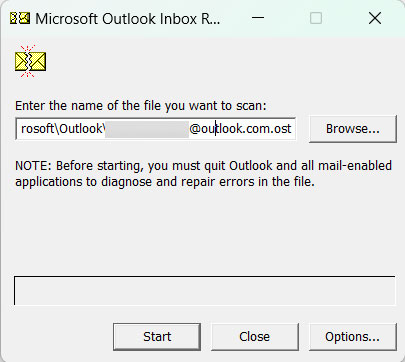
- Click Browse and navigate to the .ost and .pst files.
- Click Start to begin the scan.

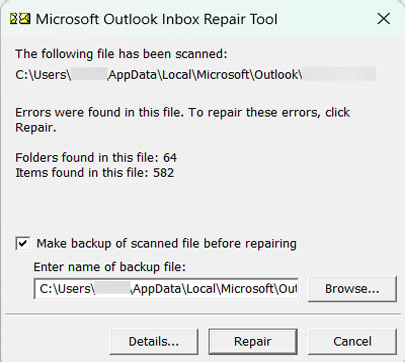
- If you have found the error, click ‘Repair’. You may need to back up the file before attempting the repair.
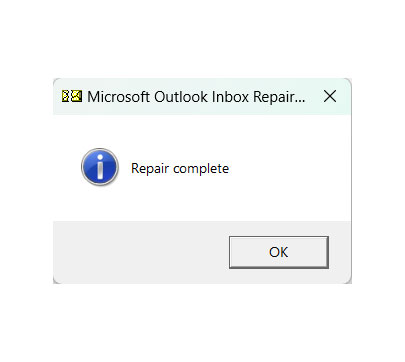
- After the repair is complete, open Outlook and check if the issue is resolved.
Method 7: Create New Outlook Profile
If the existing Outlook profile is corrupted, creating a new one could resolve this issue.
Follow the steps below:
- Close Outlook completely.
- Open Control Panel.
- Click on Mail (Microsoft Outlook)
- In the Mail setup dialog box, click Show Profiles….
- Click on Add to create a new profile.
- Enter a name and click Ok.
- Now follow the instructions to set up email account(s) within the new profile.
- Select a newly created profile from the drop-down list in the Mail dialog box.
- Click Ok to close the Mail Setup Dialog box.
- Open Outlook. It should launch with the configured new profile.
Check if the “Operation Cannot be performed because the message has changed” error persists. If yes, try the below-mentioned expert-backed approach to safeguard the Outlook files.
Alternative Approach to Preserve the Outlook File
For those users who are constantly facing this issue, “Operation Cannot be Performed Because the Message has Changed,” and want to move on, the procedure appears complicated. Hence, we recommend PST Converter, which is used to convert Outlook PST files to other email client formats like PST to MBOX for Thunderbird or PST to EML for other applications. Demo the tool to learn more at:
Conclusion
The “Operation Cannot Be Performed Because the Message Has Changed” error in Outlook occurs when the local Outlook client is out of sync with the mail server, and this is an issue that could occur for a long time. In this guide, you learned the causes that can lead to this, which include corrupted data files, problems connecting to the network, and the presence of third-party add-ins. We also highlighted all troubleshooting steps to try, from easy to advanced.