Why Is Outlook Stuck in Offline Mode? Here’s How to Fix It


Is your Outlook in offline mode? How to overcome this: If your Outlook is in Offline mode, see some quick fixes and other advanced methods to overcome this situation, as this causes some other common problems and affects performance.
Microsoft Outlook is one of the most popular email clients. It provides various capabilities of email management, scheduling, and task management. As this software provides various advanced features, it can have some issues, such as going into offline mode. So it restricts access to emails and other features, which affects the performance.
An advanced solution: If any such issue occurs in the future why not save Outlook emails to Hard Drive? Therefore, we have come up with the software Email Backup Tool to quickly extract emails from the Outlook application. Get the desired version from the below links:
What is Offline Mode in Outlook?
In Outlook version 2010 and later versions, users can switch to Offline Mode from Online and back to Online. This feature allows Outlook to operate without an active internet connection. It creates a local copy of the mailbox in the Offline Storage Table file. With this, users can work with the emails and other data when offline.
When Outlook keeps disconnecting from the Exchange server, it switches to offline mode. Also, users can switch manually to offline mode to work effortlessly without any interference. If any changes are made, it will store the locally synchronised copy of mailbox items.
When is Offline Mode Useful:
- No Internet Connection: If the user is travelling or working in an area where there is no proper internet access or has any temporary network issues.
- Data Management: Whatever your need for sorting, removing, or relocating emails without any sort of syncing updates the server.
Quick Fix: 90% of the time, this helps resolve Outlook being stuck in Offline.
- Start the Outlook Application.
- Go to the Send/Receive tab in the ribbon.
- Look for the Work Offline button. If it is toggled on, click it once to turn it off.
If this fixes it, that’s great. If Outlook goes back to offline mode again and the button doesn’t stay off.
Why is Outlook Stuck in Offline Mode?
- The setting has either been changed by the user or by a software malfunction.
- An incorrect network setup or a broken proxy may stop Outlook from connecting to the server.
- A firewall or an antivirus could be blocking internet access.
- Any kind of issues with the internet connection, like slow internet speed or no internet at all, will result in Outlook not being able to go online.
- The Outlook Profile issues can also cause issues, including Outlook being stuck in offline mode.
- Problems with the Exchange server of Outlook can also be the reason for Outlook going into offline mode.
- Possible conflicts with the program or add-ins may also cause problems with the program working.
Check out related articles: If you don’t receive notifications at all check out the article to troubleshoot Outlook notifications not working on Mac.
Methods to Fix “Outlook Stuck in Offline Mode”
Here, we have provided various solutions to fix Microsoft Outlook stuck in offline mode.
Check Network Connectivity
- Check that the system has an active internet connection. Attempt to browse the internet or access another online service.
- Ensure the network configuration is right (Wi-Fi key, IP address, DNS servers).
Check Outlook’s Offline Mode Setting
- Start the Outlook application.
- Click on the Send/Receive option in the menu.
- Check whether the “Work Offline” button is selected or not.
- Click on it to disable the Offline mode.
Account Settings
- Go to File>Account Settings>Account Settings.
- Check the email account information.
Run Outlook in Safe Mode
- Press Windows+R, type Outlook.exe/safe and enter. This will open Outlook in safe mode. (Disable add-ins)
- In safe mode, check if Outlook is still stuck in offline mode.
Repair Outlook Data Files to Fix Outlook Stuck in Offline Mode
- Go to File>Account Settings >Account Settings.
- Select the email account that is experiencing the issue.
- Click on the “Data File” tab.
- Select the Offline Outlook Data File associated with the account.
- Click on the “Open File Location” to open the location where the OST file is located.
- Close Outlook completely.
- Rename or delete the OST file.
- Restart Outlook.
A new OST file will be created, which might resolve the issue.
Check for any Outlook updates
- Go to File>Office Account.
- Click on the Update options and then select “Update Now“.
- Install any available updates for Outlook.
Check Server-Side Issue
If you suspect any server-side issues, contact the email provider for technical support.
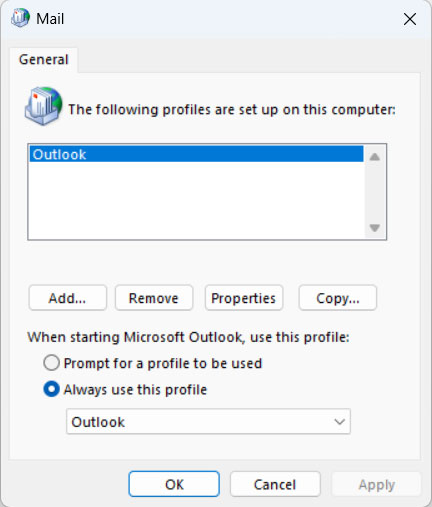
Create New Outlook Profile to Fix Outlook Stuck in Offline Mode Issue
- Close Outlook completely.
- Open the Control Panel and go to Mail.

- Click on the “Show Profile” button.
- Click on the Add button and create a new profile.

- Follow the instructions to configure the email account in the new profile
- Test the new profile to see if it resolves the offline mode issue.

Reinstall Outlook
- Uninstall Outlook from the computer using Add/Remove Programs.
- Then, reinstall Outlook from the Microsoft Website.
Conclusion
In the article, we have mentioned all the troubleshooting steps to fix Outlook being stuck in offline mode and get the application working effectively. It is recommended to use the backup tool, considering any advanced fixes. Here we have covered all the best ways from basic to advanced, that is, internet connection, rebuilding the OST files, creating a new profile, etc. Even after executing these fixes, consider using MS support or IT professionals.
FAQs
Q) What to do if Outlook is still showing offline mode even when you have an internet connection?
A) This can occur for many reasons, like wrong offline mode settings, network connectivity problems, Outlook profile problems, etc.
Q) If I’m in offline mode, I want to continue to work with my e-mail. How do I do that?
A) When in offline mode, you can send messages and view received messages, but they will not be sent or received until the connection is enabled.
Q) Can any changes be saved while working offline?
A) All changes will be saved locally in the system if the application is accessed in offline mode.
Q) Why does Outlook keep going back into offline mode automatically?
A) This is usually the result of an unstable network link, a VPN drop, any issues with an add-in, or Cached Exchange Mode being unable to establish a consistent sync. Always rule out add-ins first by trying Safe Mode.