How to Import Opera Mail to Outlook Accounts ?


Are you looking for a better method to import Opera Mail to Outlook account along with the attachments? Here in the article, we will discuss how we can manually move the emails from Opera Mail to the Outlook account. When switching from one mail client to another user might get trapped in the technical jargon; we have all the details mentioned here to complete the manual approach.
In the next section, we will give the best conversion method of Opera Mail to Outlook on Mac OS. Let’s address some explanations beforehand regarding Opera Mail to MS Outlook migration.
Learn About Opera Mail
Opera Mail is a component of the Opera Internet Suite. One such application, which has incorporated an email and news program, has been popular among its users for quite some time. Though previously built into Opera Browser, it has a separate entity following Opera version 15. As a single application, News Feed lists a user with many impressive features, including POP3 and IMAP account management, a contact manager, spam filtering, Atom, and RSS feeds, etc.
Where are Opera Mail emails stored?
The exact location of the Opera Mail varies depending on the operating system:
- Windows: C:\Users\[YourUsername]\AppData\Local\Opera Software\Opera Mail or C:\Users\[YourUsername]\AppData\Roaming\Opera Software\Opera Mail.
- macOS: /Users/[YourUsername]/Library/Application Support/Opera Mail
- Linux: ~/.opera/mail
Manually Import Opera Mail to Outlook Account
We can export the emails from Opera Mail in MBOX format, but this can’t be opened directly in Outlook. Therefore, we need a bridge between these two email clients to make the migration smooth.
Method 1: Use Thunderbird as the Intermediate Client
In this method, we are using Thunderbird to convert the MBOX files before importing them into Outlook.
Step 1: Export MBOX File from Opera Mail
- Open Opera Mail
- Locate the mail storage location.
- Copy the required MBOX files to the system
Step 2: Import the File into Thunderbird
- Install Mozilla Thunderbird.
- Install the ImportExportTools NG add-on.
- Right-click the local folder.
- Select ImportExportTools NG > Import MBOX File.
Now, you have the Opera Mail MBOX in Thunderbird.
Step 3: Add Account to Outlook and Complete the Import process
Now, we need to configure the same Thunderbird and Outlook using IMAP.
- Add any email account in Thunderbird using IMAP.
- Add the same account to Outlook using IMAP.
- Now, drag and drop the emails from the Thunderbird local folder to the IMAP folder.
- Open Outlook and sync the emails.
Limitation: The method requires technical knowledge to complete the procedure, such as configuring an email account using IMAP settings. Additionally, the entire process is time-consuming.
Best Technique to Import Opera Mail to Outlook
Since the manual approach is very long and time-consuming, everybody is searching for a trustworthy solution through a third party. The MBOX Converter allows importing Opera Mail to Microsoft Outlook PST. Besides, all Opera emails can be conveniently compiled into a single PST file. Use the MBOX Viewer to check the files before moving to Outlook. The following are the Demo version download links:
How to Perform Opera Mail to Outlook Transfer Procedure?
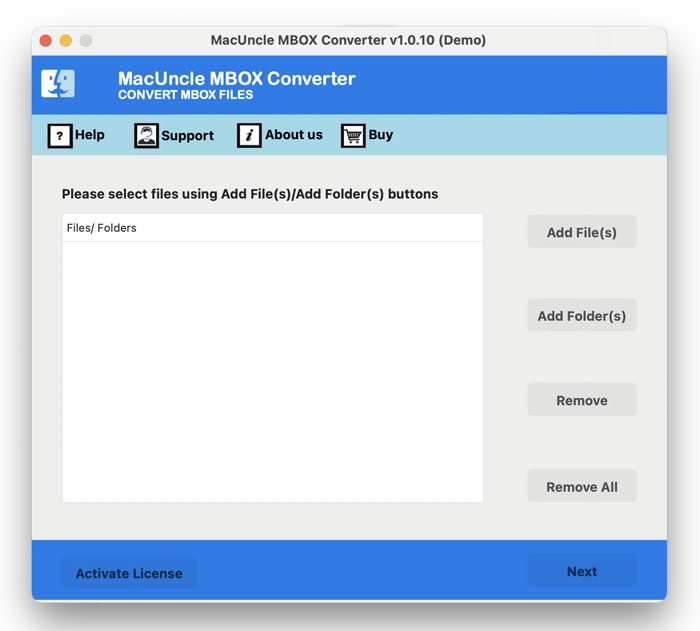
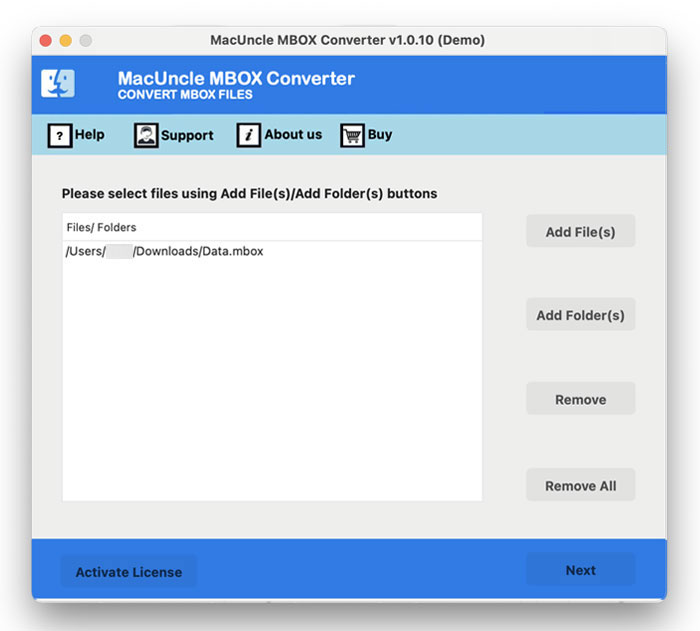
- Start the tool and add MBOX files using Add File(s) as well as Add Folder(s).

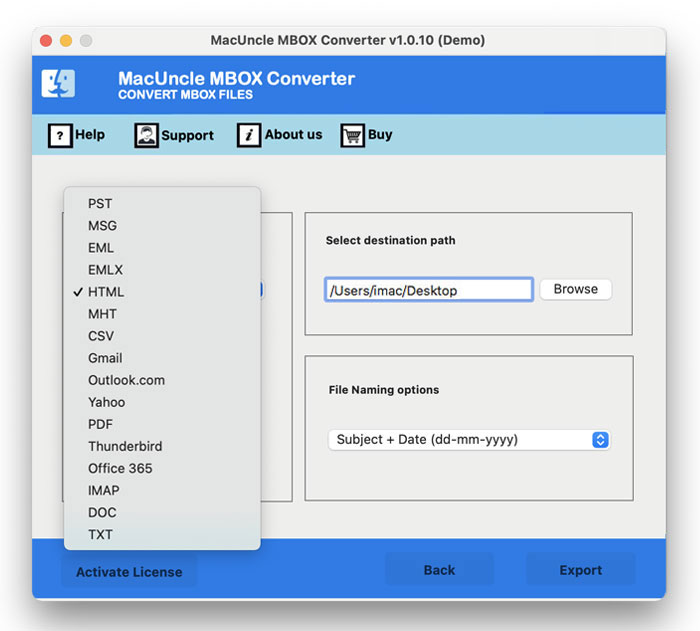
- Choose the desired file from the list. Then, select the required PST format.
- Select PST and browse the destination location, and click the Export button.
- The tool completes the Opera Mail to Outlook Conversion within a few minutes and notifies the user of some conversion completion messages.
Outstanding Features of Software
- Allows you to retrieve Opera Mail emails, contacts, and attachments
- Any Opera Mail client program can generate a single PST file
- Opera Mail messages can be migrated into MS Office 365.
- The tool helps you transfer many Opera files in bulk to Outlook PST.
- Compatible with all recent Outlook versions, i.e. Outlook 2016 and below
Reasons for Opera Mail to Outlook Migration
Please follow these instructions to switch from Opera Mail to MS Outlook. Let’s take a look:
- Although the Opera Mail client is a lightweight application with an interactive user interface, it stops with other Email client programs during the synchronisation phase.
- Secondly, in various Mac versions, it cannot be specified as the default email client.
- Including the email address internationalisation (EAI), direct access to the Exchange server helps you to thoroughly explore different topics, including dark ones, for all users. MS Outlook provides some additional features to make contacts simple.
The user must first find the exact location of the email storage to import Opera Contacts to Outlook.
Outline
It’s not easy to switch from one e-mail client to another. Users face many obstacles during their conversion from Opera Mail Contacts to Outlook. A commercial approach is proposed to resolve all these constraints to convert Opera Mail to Outlook. It is an easy-to-use solution that allows the free export of multiple mail files to Outlook PST. It also leads to the safe and stable conduct of migration procedures.