How to Import PST File to New Outlook?


Migrating old or archived Outlook data to a new email client is a common practice. And when it comes to the new version of Outlook, as it has an updated interface and features, it requires a clear understanding of how to import PST to New Outlook. Therefore, we have constructed a blog that will give the complete procedure for transferring PST files into the new Outlook application without causing any data loss.
Microsoft has been rolling out the New Outlook as the modern replacement for the classic Outlook. While it brings a refreshed interface and other performance improvements, many veteran users find it different in the import process of the PST file, as it is handled differently than before.
However, it is worth noting that New Outlook does not natively support PST import in the same way Outlook Classic did. Microsoft shifted the new Outlook towards a cloud-first model; therefore, the direct PST import functionality is limited or not present in your version.
Considering all this, we have constructed an article to explain how we can still move the PST files to the new Outlook with the proper procedure. The guide has each step in a structured manner, ensuring the process is easy to follow for non-technical users.
PST Files and Why Import PST to New Outlook
A PST file is a file format used by Microsoft Outlook to store a user’s mailbox data on the local computer. It can be said that the PST files are a digital container for all the information associated with the Outlook account. PST files are comprehensive and store a wide range of data such as emails, contacts, calendar, tasks and notes. It is one of the most reliable sources to back up the email data.
PST files are the go-to format for transferring Outlook data from one computer to another, or from one version of Outlook to another.
There are a number of reasons why users want to import PST to new Outlook. Migrating these files into the new Outlook or simply wanting to access the orphan PST files, this data would otherwise be inaccessible. Therefore, importing these files is the only way to effortlessly transfer and integrate the old Outlook data into the modern, synced mailbox, ensuring you have all the old and new data in the account.
Check out: For users deciding whether to stick with Outlook or try Apple Mail, our Outlook vs Apple Mail comparison helps clarify the key differences and advantages.
New Outlook: A Brief Understanding
The new Outlook is a reimagined and updated version of the classic desktop application. It offers a more simplified interface and cloud-based features. The important things to understand about the new Outlook are that it is a web application wrapped in a native Windows application. That is, its user interface and functionality are very similar to Outlook on the web.
While it brings many improvements, the process of handling the PST files is slightly different from the old version.
The version allows Microsoft to deliver new features and update faster and more consistently across all platforms, including Windows, macOS and the web.
How to Import PST to New Outlook Application?
As Outlook has a built-in feature to move the PST files into Outlook. However, the new Outlook uses a different approach for importing data compared to the old version.
Method 1: Here, you may need to change the file format for the first method with the PST to EML Converter.
- Launch the new Outlook application.
- Go to settings. In the settings tab, search for Import or Export. Select Bulk Importer.
- Press the Start Import button.
- Choose the EML file from the system.
- Add the Files to Outlook.
Note: If you want to directly add a PST file to a new Outlook, go to Settings > General > Outlook Data Files. And add PST files.
The new mailbox will be added to the Outlook application.
Also read | Import PST to cPanel Mail
Method 2: Import / Export option via classic Outlook.
- Start the New Outlook.
- Go to the Help option from the menu and click Go to Classic Outlook.
- Follow the steps and switch back to the old Outlook.
- Now, go to File > Open & Export > Import/Export.
- Select Import from another program or file.
- Choose the Outlook data file (.pst) and click on Browse.
- Then select the data to be imported into the new Outlook.
- Finally, switch to the new Outlook, either by launching a new Outlook or using the toggle.
Limitations: The method is time-consuming and needs to revert to the old Outlook version. Also, the Import Export Option greyed out in Outlook; issues can occur more often than it seems.
Import PST to New Outlook – A Direct Method
To move the older Outlook PST into the new Outlook account, use the PST File Converter. A direct and advanced approach to import PST to New Outlook account. The tool overcomes the confusing manual import or data format conversion, preserves folder structure, attachments and metadata. Using this method, we can migrate any number of PST files to the opted email account, where it automatically syncs with the Outlook application.
How to Upload PST into a New Outlook Account?
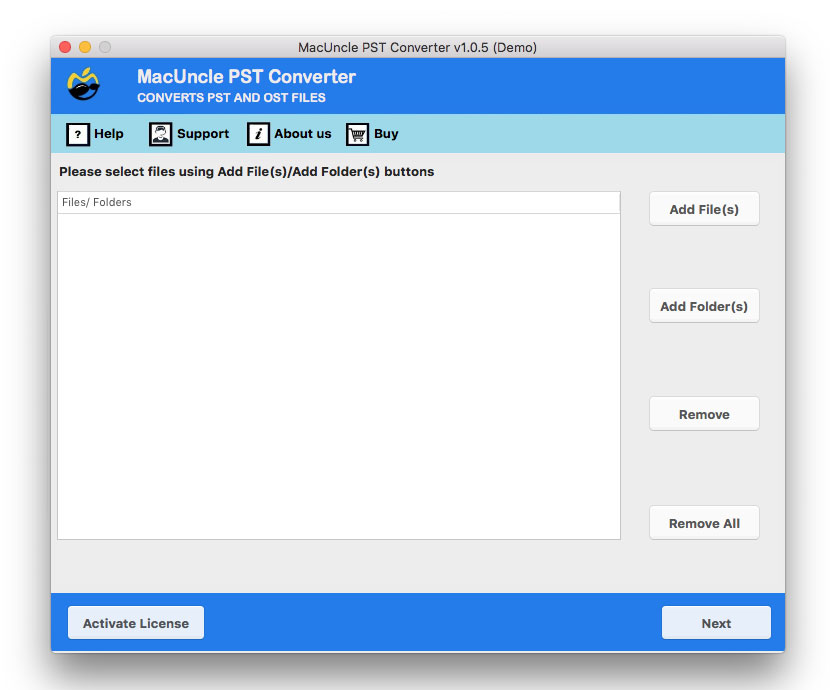
- Launch the software after downloading the appropriate version.

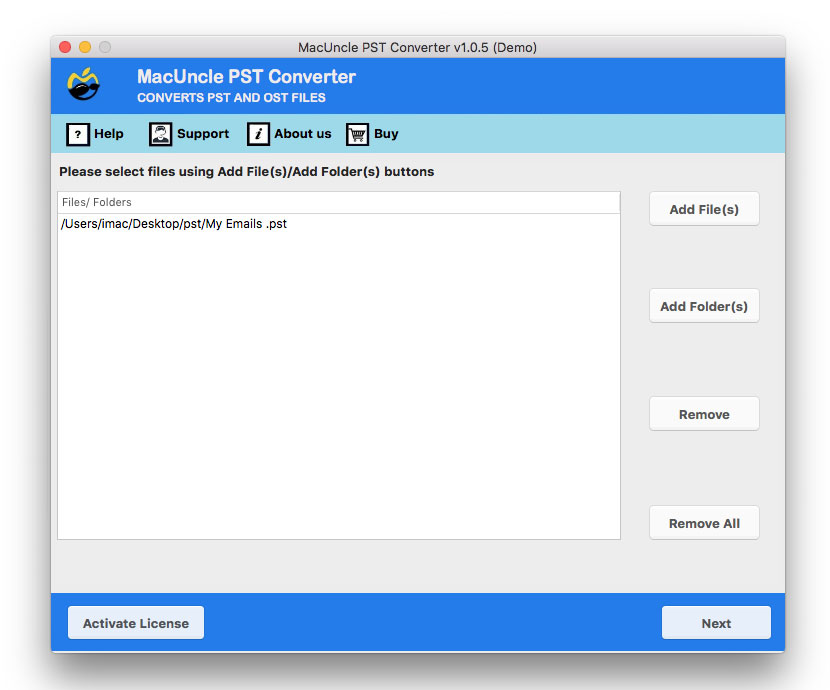
- Add the PST file into the interface using the Add button. Press Next.
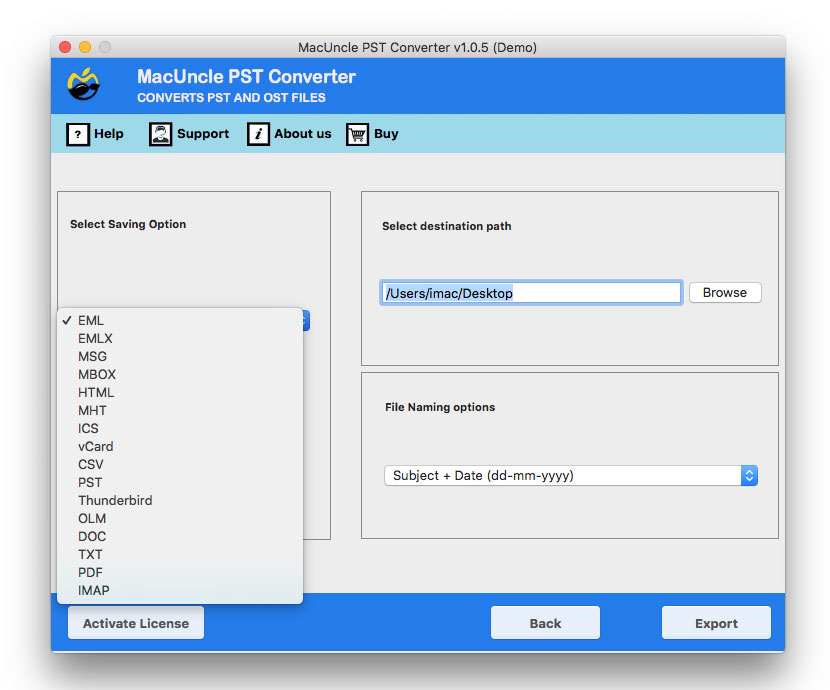
- Select the IMAP from the options.
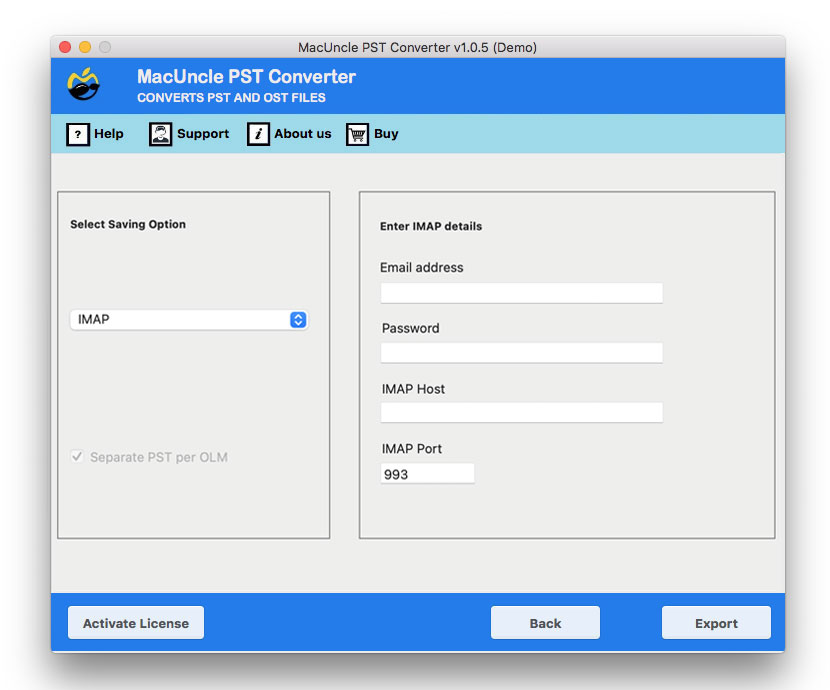
- Enter IMAP details and New Outlook account login details.
- Press the Export button to start the process.
With this, you can directly import PST to new Outlook without the need for any additional conversion.
Conclusion
Importing PST files into the new Outlook is not a straightforward process, but with the right workaround in place, it becomes much simpler and easier to manage. The write-up above has described how you can use the new Outlook’s built-in import features or use the classic Outlook for a traditional approach. Follow the steps to ensure the simple migration of important data. Any limitations in the manual method can be overcome with the recommended tool for direct migration.