Import VCF to iCloud Contacts: Complete Step-by-Step Guide


Have you somehow stored all your crucial contacts in a vCard (VCF) file and are thinking of using those now on your iPad device, iPhone, or Mac machine? If you are nodding here, then you must be thinking along the lines of importing VCF to iCloud contacts with no apparent loss of any critical contact info or any formatting. Quite luckily, the procedure of carrying out this migration is pretty easy if done properly.
The vCard VCF file is a broadly used file format for saving contact info, including phone numbers, names, email addresses, postal addresses, etc. This format is widely used across different email services as well as devices for the sharing of contact info and for backup purposes, too. Conversely, Apple iCloud enables users to safely save their contacts & sync them across all Apple devices, such as iPad, iPhone, & Mac. Here, in this blog, we will be discussing both the manual approach and the professional solution for this purpose.
What are VCF Files?
A VCF file-technically a vCard (virtual contact card)- is a type of text file designed to hold contact information. The information contained in a vCard can include your name, job title, work and home phone numbers, fax numbers, email addresses, mailing addresses, and, in some cases, a photograph, notes, or event information.
When you send a vCard from your phone and email client, and someone imports the .vcf file into their device or client, their address book or contact list will be updated accordingly.
If you’ve ever received a .vcf attachment to an email, exported contacts from Gmail, or saved contacts from an Android or Windows computer to a vCard file, you’ve used this format before.
Reasons to Import VCF to iCloud Contacts
The top reasons behind most users wanting to move VCF files to iCloud include:
- To enable synchronisation of all important contacts across multiple Apple devices.
- Keeping a real-time online repository of the most important contacts.
- To enable restoration of all contacts easily in desperate times of inadvertent deletion, damage to the device, while performing a device reset to prevent data loss.
- Keeping a safe and well-organised repository of up-to-date contacts in a single accessible location.
Manually Import vCard Contacts to iCloud
All Apple devices offer a quick and easy way to ensure uploading vCard files by making use of their very powerful web interface. Below are the instructions to be followed to do so:
- Use any web browser to access iCloud.com.
- Log in to iCloud using your unique Apple ID.
- From the iCloud dashboard itself, click on Contacts.
- Hit the settings icon in the bottom left-hand corner.
- Select the Import vCard button from the settings menu.
- From the open dialogue box, navigate to locate the .vcf file.
- Make the selection of necessary contacts which you wish to upload, which will automatically get synchronised once uploaded to your individual iCloud account.
When Does the Manual Method Make Sense?
Even though there is a straightforward option available to import VCF to iCloud manually, it indeed has its own limitations as follows:
- Users can only upload a single VCF file at once.
- It might consume extra time while uploading a pretty large VCF file.
- The resultant attributes, such as contact addresses and notes, might not appear correctly.
- Users are unable to see any contact previews or do any kind of filtration before importing the VCF file.
Note: In case you have too many contacts stored in your VCF file or your VCF file is too bulky, a professional tool is recommended over the manual method to ensure making a complete, seamless, and hassle-free migration.
Check related article | If you’ve ever wondered what’s inside the VCF files, explore the guide to learn different ways to Open VCF files.
When a Tool Adds Real Value: Transfer VCF to iCloud Contacts
If the manual method satisfies your requirements, go no further – no other software is necessary. However, there is truly a desktop utility that has phenomenal benefits for these extreme situations:
- If you have several VCF files (e.g., exports from multiple accounts or phones) and want to merge them all into one file ready for import.
- To import a very large address book, for example, say 1000+ contacts spread over several different files, and performing 30 separate imports is not convenient.
- You want to export a VCF file to another format ( CSV, Excel, PDF, PST ) for import into another CRM, archiving or sharing with non-Apple systems.
- VCF files have been inconsistent in format, and you want to sort them out/preview before entering iCloud.
Smart Professional Tool to Import VCF to iCloud
The most popular and powerful utility tool that can seamlessly transfer multiple VCF files directly to iCloud in a single operation is vCard File Converter. This powerful utility tool is able to preserve all attributes of contacts, including contact names, addresses, phone numbers, email info, pictures, etc. It also does not alter any original file structure. Its user-friendly & most intuitive interface helps even non-technical users to successfully transfer their VCF files to iCloud. In order to evaluate the functionality of this powerful tool, users can easily download a demo version.
- The tool can import multiple VCF files to iCloud at once.
- It can also make the conversion possible into MSG and PST file formats.
- The tool can easily process any vCard file irrespective of its edition.
- It enables its users to split VCF files on the basis of contact count, individual contacts, and/or keywords.
- It can easily compile and integrate multiple small VCF files into a single large VCF file.
- The tool can convert any vCard file that is downloaded from any platform, including Google, Skype, iCloud, and alike.
Clarification: The tool merges and converts your VCF files. When you’ve done, import into iCloud with the Apple import tool described above.
How to Import VCF to iCloud Contacts?
- Download & install the tool on your Mac.

- Upload VCF file(s) using the Add option & then hit Next.
- Select the file format from the menu of Select Saving Option.
- Also, define the output folder path.
- Press the OK button.
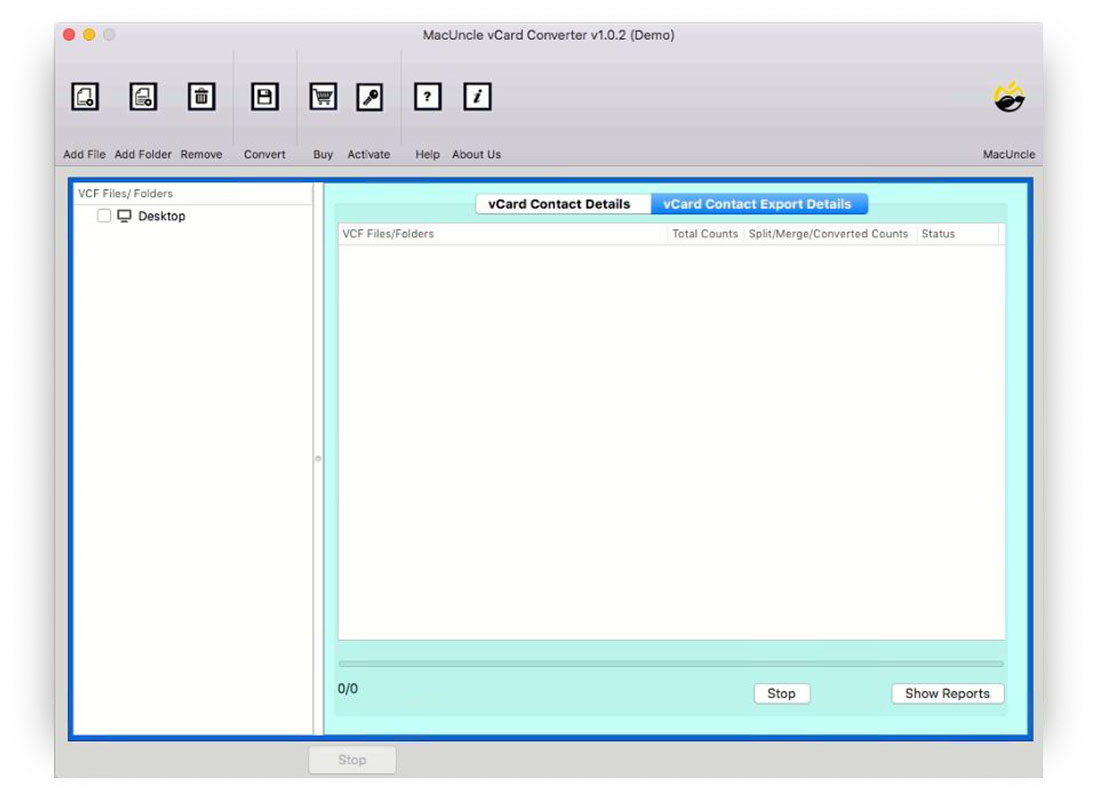
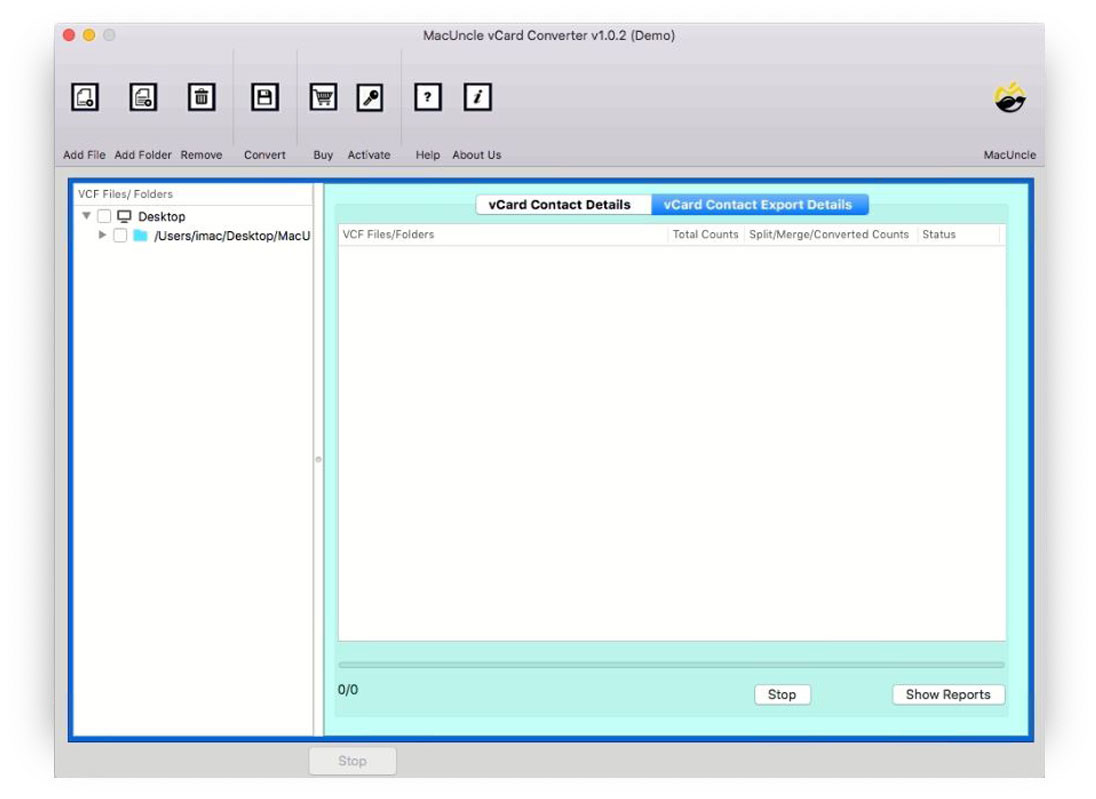
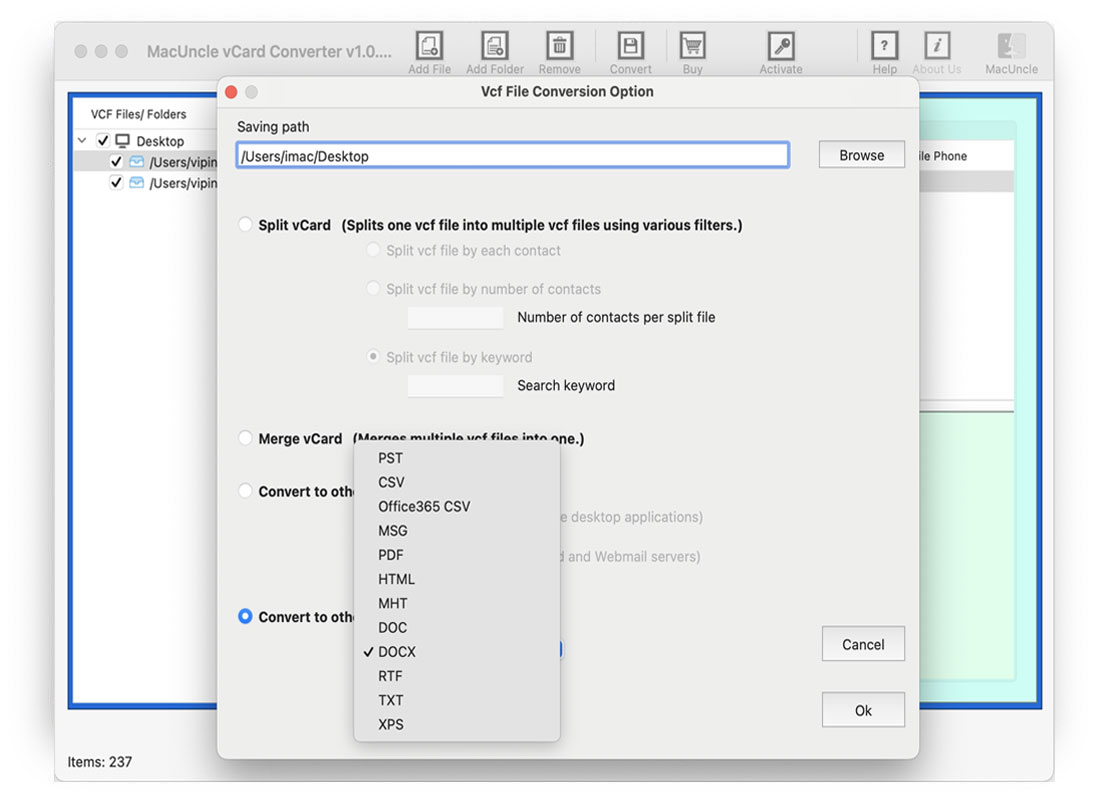
Once the process is complete, the tool will automatically direct the user to the folder which contains the converted file(s).
Looking to export iCloud contacts to CSV? Export multiple contacts to CSV using the same tool.
FAQs
Q) Is it possible to import multiple VCF files to iCloud altogether?
A) Yes, definitely. If you employ a professional tool for this purpose, you would be able to upload & transfer VCF to iCloud contacts in bulk.
Q) Does transferring a vCard to iCloud sync my contacts with my iPhone device?
A) Yes. Once your contacts are uploaded into iCloud successfully, they will automatically sync with your iPhone device as well as all other Apple devices, too, which are signed in using the same Apple ID as yours.
Q) Will importing a VCF file to iCloud overwrite my existing contacts?
A) No, the VCF file actually adds new contacts to iCloud rather than replacing or removing them. It is possible to have some duplicate contacts after an import if you already have that contact saved in iCloud.
Q) Can I directly import the vCard from the iPhone without using a desktop/laptop computer?
A) Yes! If you open the vcf file from a website, mail, or within the Files app on your iPhone and tap ‘Add All Contacts’ or ‘Add to Existing Contact’, you can import it into your iPhone.
Q: Why are some of the imported contacts missing?
A) First of all, check if the vCard version is supported. Not all the VCF files contain vCard 2.1, 3.0 or 4.0; some of the vcf files exported from old or other non-standard platforms can also contain some invalid properties or fields which are not supported in iCloud.
Q) Does the tool have an application for Windows?
A) Currently, it does not have any application in Windows. In Windows, you can convert vcf to other formats or convert a vCard on the web through a browser.
Last Lines
In this blog, we learned some easy & effective ways to migrate VCF to iCloud. The manual steps are suitable in case of migrating small files, but these might get a little cumbersome while handling data in bulk. This is where the professional alternative takes the lead! Now you know where you have to focus for such a requirement.