Outlook Emails Disappeared from Inbox? 7 Proven Ways to Recover Emails


Microsoft Outlook is commonly used for personal and professional communication. There are common frustrating issues, such as Outlook emails disappearing from Inbox. When you search for the email that you know you have received, but can’t find it.
If your Outlook emails are missing from inbox without any warning, you are dealing with one of the most alarming issues a user can face. Like, one moment your important emails are in the inbox, and then the next, they are gone. Regardless of the operating system you are using, the guide explains exactly why the Outlook emails disappear and where the messages actually go, and also the article has the approach to fix the issue instantly.
What Causes Outlook Emails to Disappear from Inbox?
There are multiple reasons why the Outlook inbox is not showing messages. The reason can range from account settings to corrupted Outlook data. Let’s check the common reasons and find out what causes your Outlook to act like this.
- Wrong Emails View or Filter settings: Outlook has a feature for viewing and filtering that allows the user to organise the emails properly. If you have incorrectly set this feature, then it can unintentionally conflict with the emails in the account.
- Server Issue: If the account is an IMAP or Exchange account, the synchronisation issue could be why the Outlook emails are missing from the Inbox.
- Conflict with the Outlook Rules: The Outlook rules automate the action to manage the emails properly, to work according to the conditions we have set up. If there is any rule that causes emails to be archived after a period of time, then you can’t find the Outlook emails in Outlook.
- Corrupted Outlook files: Outlook stores the emails and other data in the PST or OST file. If these files get corrupted, one of the issues that Outlook will have is the loss of emails.
- Account Configuration Issue: If there is any change to the account settings that you have made on another device, a misconfiguration can result in a missing folder or even a partial synchronisation of messages.
- Emails Deleted: There could be a reason that the user might have deleted the emails accidentally, moved them to an incorrect folder, or archived them. It is one of the common reasons why Outlook emails go missing from the inbox.
- Disappears as soon as you open, reply to, or forward: In most cases, it is one of three possibilities: a rule you set up that executes when “read” and archives/moves the message; Conversation View is nesting the message within a thread (no longer visible but still there).
Also, check out the article: Fix Outlook search not finding all emails.
Quick-Reference: Cause & Fix
| Cause | Fastest Fix |
|---|---|
| Wrong view/filter | Reset filter & view |
| Rules for moving mail automatically | Review/disable rules |
| IMAP/Exchange sync issue | Check sync settings |
| Corrupted PST/OST file | Run SCANPST repair |
| Accidentally deleted | Check All Mail Folders |
How to Fix the Issue of “Outlook Emails Disappeared from Inbox”?
From the above section, we know the reasons why the emails disappeared. Now, let’s follow some steps with respect to the cause to restore the emails in the Outlook inbox.
1. Check All Mail Folders
We can, for now, first check all the folders in Outlook.
- Go to Junk email, Deleted Items, and Archive.
- Expand the More section, since there are times when important folders are hidden under More.
- Use the Search bar and type the sender’s name and subject to find the missing emails.
2. Clear Filter and Reset the View
We can clear the filter and view to resolve the Outlook inbox not showing messages
- Go to the View tab on the top menu.
- Click View Settings > Filter > Clear all.
- Select Reset View to restore the default layout.
3. Check the Account type and Sync Settings if “Outlook emails disappeared from Inbox”
If you are using an IMAP or Exchange account:
- Go to File > Account Settings > Account Settings.
- Double-click the email account.
- Adjust the Mail to keep the offline slider.
- Click Next > Finish and restart Outlook.
4. Disable or Review the Email Rules
Check if there is any Outlook rule set that is automatically moving the emails to fix Outlook emails disappearing from Inbox. Follow the steps:
- Go to File > Manage Rules & Alerts.
- Review all the listed rules and disable them if any are redirecting or deleting the incoming emails
Delete or modify if you find any suspicious rules.
Find out all other steps if Outlook rules are not working properly.
5. Repair Corrupt Outlook Data Files
If you suspect the missing emails are in the Outlook inbox, use the built-in Inbox Repair Tool.
- Close Outlook.
- Search for SCANPST.EXE in the location: C:\Program Files\Microsoft Office\root\OfficeXX

- Open it and select the PST/OST file to scan and repair.
- Restart Outlook after completion.
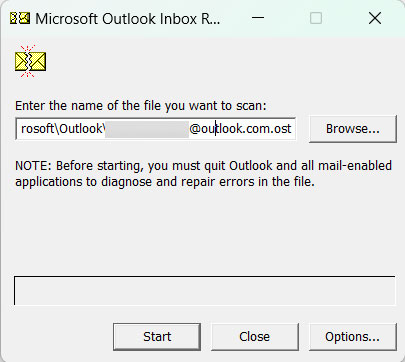
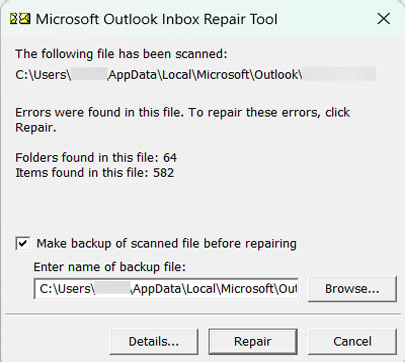
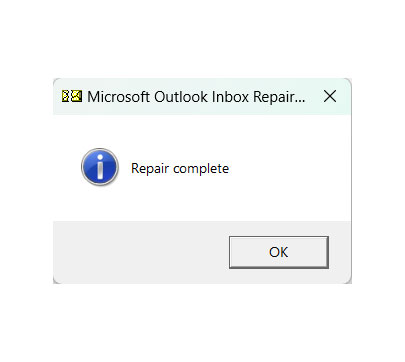
This would discover the missing emails.
6. Re-add or Reconfigure the Email Account to Fix Outlook Emails Disappeared from Inbox Issue
If none of the above steps work, try removing and re-adding the Outlook account.
- Go to File > Account Settings > Account Settings.
- Select the account and click Remove.
- Add the account again with Add Account.

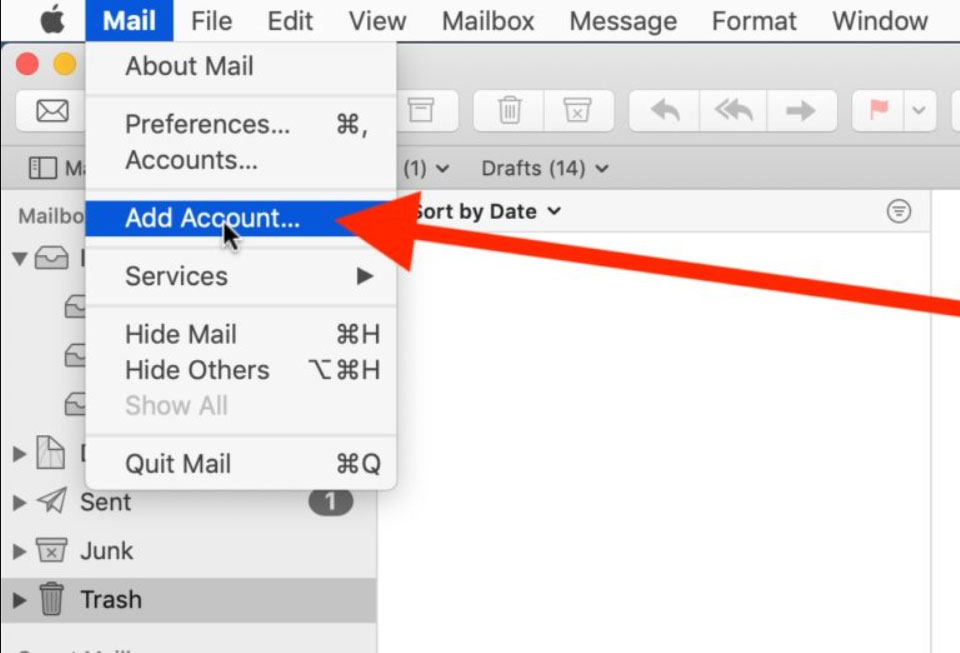
Most probably, Outlook will resolve this syncing issue.
7. Create a New Outlook Profile
If your Outlook account is compromised, creating a new one will help.
- Open Control Panel > Mail > Show Profiles.
- Click Add and set up the account.
After creating the new profile, set the new profile as the default and open Outlook.
How to Prevent Outlook Emails from Disappearing Again?
- First and foremost, what we can do is back up regularly. Backup Outlook emails to the hard drive periodically, or just extract the important emails.
- Keep Outlook updated to prevent any bugs that could cause issues like “Outlook emails disappeared from the Inbox”.
- Keep the mailbox size small by deleting unwanted emails from Outlook and emptying the junk folder.
Bonus Tip: Need to Access Emails from PST Files?
If you want to open or migrate the Outlook data, then PST Converter would be the right choice for you. It offers the capability of changing the PST files into any other file format, which is quite helpful in viewing or backing up the mailbox without the need for Outlook.
FAQs
Q) How to find missing emails in Outlook?
A) To find the missing emails in Outlook, check all the folders – Junk, Deleted, and Archive Folders, etc. We can also try resetting the view filter, reviewing email rules, and ensuring the account is properly synced.
Q) Where did my Outlook emails go?
A) Outlook emails usually go missing if they are in the Junk, Archive, or Deleted folder or in another folder due to rules, filters, auto-archive, accidental deletion, or syncing issues.
Q) Why can’t I see all of my emails in Outlook?
A) If all your emails are missing rather than just a few, you need to double-check View Settings to see if you have a filter that’s active – like “Unread only”. Also, check your sync status if you use IMAP or Exchange, as a broken sync can give the impression of a totally empty inbox.
Q) Can emails disappear in Outlook without being deleted?
A) Yes. Focused Inbox can direct incoming messages to the Other tab instead of the Focused tab. The email isn’t lost; it may simply in the different inbox tab.
Conclusion
We have discussed the most prominent issue, “Outlook emails disappeared from the Inbox”. It is one of the most stressful situations, especially if it contains important information. The issue can range from something simple, such as a filter, to something complex, such as a corrupt data file. After discussing the common reasons and their respective troubleshooting solutions, we’ve addressed nearly all possible causes.