How to Save Gmail Emails as PDF in Batches ?


If you are searching for a solution to download Gmail Emails as PDF on Mac, you are in the right place. To export all emails from Gmail to PDF, there are many solutions available. But they all have various characteristics. Here, we have listed the best solutions for saving multiple Gmail emails as a PDF.
Gmail is the most common communication medium for all professionals and common users. It is a web-based email client that can only be accessed using internet connectivity. However, if there is no internet, what if you need to access your emails? For instance, if you want to show emails as proof in court. You must have Google emails in a format that you can easily open for such situations. PDF is a file format that almost any device can access.
As we know, there are options to store emails from the Gmail account in PDF format using the Print options. Go through the article to learn more about the options to save multiple Gmail emails in PDF format.
Reasons to Download Emails from Gmail in PDF
These are the reasons to get the emails from a mail account into a PDF document format. The reasons can vary for both professional and personal use.
- Easy Access: PDFs are excellent since they’re easy to open and can be viewed on multiple devices. So if you ever have to switch from your current email provider or device, then save Gmail emails as PDF files, and thus we can make sure they’re easily accessible.
- Data Safekeeping: Things happen, and it’s not uncommon for an email account to get hacked or deleted, which results in the loss of important messages. The solution? Saving them as a PDF. Unlike the former, this provides a backup that doesn’t rely on your email provider. If any issues, such as a Gmail 400 Error, occur, perform this saving feature.
- Legalities: As we discussed before, PDF documents can be used for legal or regulatory purposes. There are various times when you need emails as proof. As PDF files are secure and reliable documents for storing electronic documents
- Sharing Documents: If there ever comes a time when you need to share an email with someone else, the easiest way is just to send them the PDF version. You can also print them if you prefer hard copies.
Which Method Should You Use?
Before you pick a method, here’s how the options in this guide compare at a glance.
| Method | Best For | Bulk Download | Keeps Attachments/Formatting? |
|---|---|---|---|
| Manual browser print | One-off emails, any device | No — one at a time | Formatting mostly, attachments not embedded |
| Apple Mail & Preview | Mac users who want a no-install option | Limited — a few files at a time | Yes, formatting preserved |
| Gmail Backup Wizard | Large-scale, automated, unattended backups | Yes — entire mailbox | Yes, zero data loss |
Common Method to Save Gmail Emails as PDF
We all know the manual method to save emails from Gmail accounts.
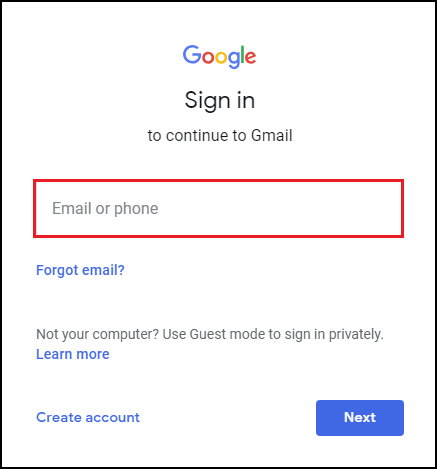
- Log in to the Google Account.

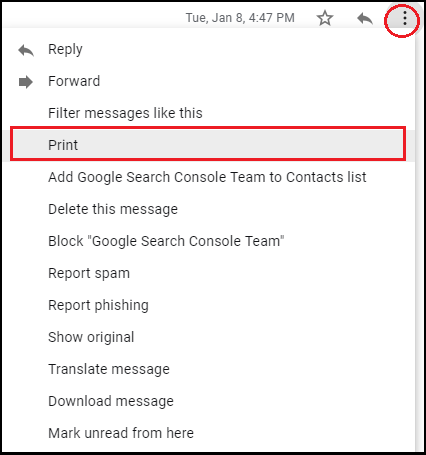
- Open the email messages one by one and click on the 3-dot.

- Then select the print option.
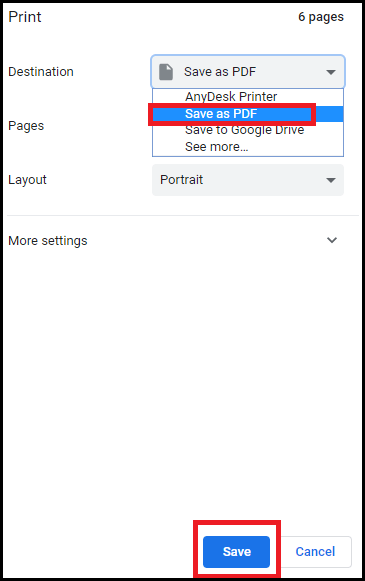
- As a result, a new window appears from which you select the Save as PDF option.
- Choose the destination and click Save.
- The resultant file will be saved in the location.
The above method is considerable, but not the best for saving Google Mail emails to PDF format. Because the user must save Gmail messages as PDFs one by one using the manual procedure. It will not work if the user wishes to download several Google emails in PDF format.
How to Save Gmail as PDF on Mac Using Apple Mail & Preview
When you need to sign in to Gmail, you can access your account without even opening the browser. By setting up your Gmail account in the native Apple Mail application, you can have your email served to you – no extensions or software needed.
Step 1: Connect Gmail to Apple Mail
- Open Mail on your Mac, then choose Mail > Add Account (or Mail > Settings > Accounts on newer macOS versions).
- Select Google, then log in and approve the required permissions.
- Please allow time for your Gmail folders and messages to synchronise into the Apple Mail sidebar.
Step 2: Export the Email as PDF
- Open the email you want to save.
- Go to File > Export as PDF…. (In older versions of the Mac Operating System, use File > Print, then click on PDF from the drop-down menu).
- Select a Save destination and name for FileName, then click Save.
Optional: Batch a Few at Once with Automator
To save a few emails without doing this manually one-by-one, you could create a simple Automator Quick Action that executes a Print-to-PDF command, then invoke the service from the Print… Dialogue of the Mail application for each message selected. It’s manual for each message, but you save a few clicks each time – handy if you do this from time to time and don’t want to invest in more comprehensive software.
Note: This method maintains the formatting quite well. However, like the browser method, it’s not possible to embed attachments in the PDF, so they have to be saved externally.
Save Gmail as PDF on iPhone, iPad, and Android
To do this from your phone instead of your Mac, the process is similar to the Print from Desktop step, except use the mobile Gmail app.
iPhone and iPad
- Tap the Gmail app. Open the email you want to save.
- Open the three-dot menu and select Print.
- On the print preview thumbnail, pinch outwards to zoom it to the full screen.
- Tap the Share icon and select Save to Files (or another app that accepts PDFs).
Android
- Navigate to Gmail and then open the email.
- Tap the three-dot icon, then press Print.
- In the destination dropdown, select Save as PDF.
- Decide on a location and filename, then click Save.
Unlike the desktop approaches, this will individually save each email – more practical to use software if you need to back up a large number of Mobile emails.
Expert Solution to Save Multiple Gmail Emails as PDF
With the Gmail Backup Wizard, we can directly save Gmail emails as PDF files. Get emails in batches from the account into a document file format using the software. The software is an effective alternative to directly downloading all the emails from the Google Mail account. The advanced options will allow you to export emails selectively with the filter option, and then you can print multiple Gmail emails at once.
Let’s discuss in detail the Working of the tool.
How to Download all Gmail Emails as PDF Files Instantly?
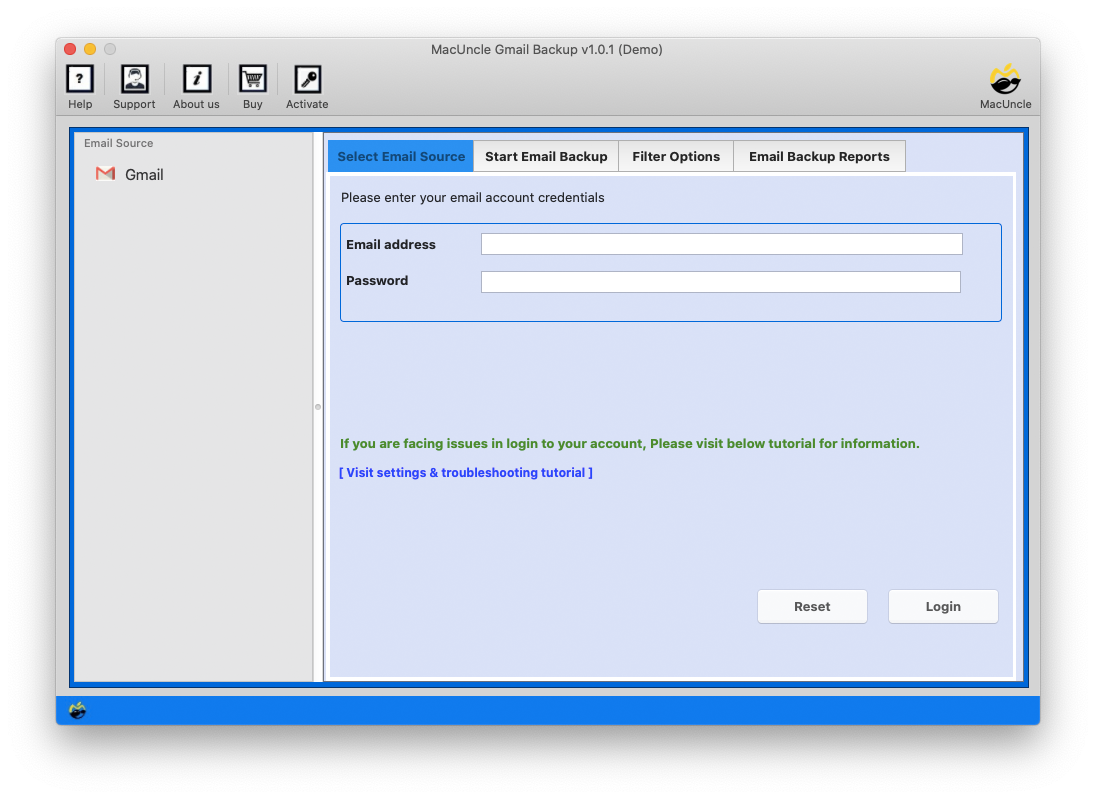
- Start the software to save Gmail emails in PDF format.

- Enter the Gmail account credentials in the software panel.
- Select the PDF option from the Select Saving Option.
- Choose the Destination path and File Naming Option for the resultant PDF files. Press the Start button.
- As a result, the software starts to process the emails in the Gmail account. In a few minutes, the folders with PDF files will display.
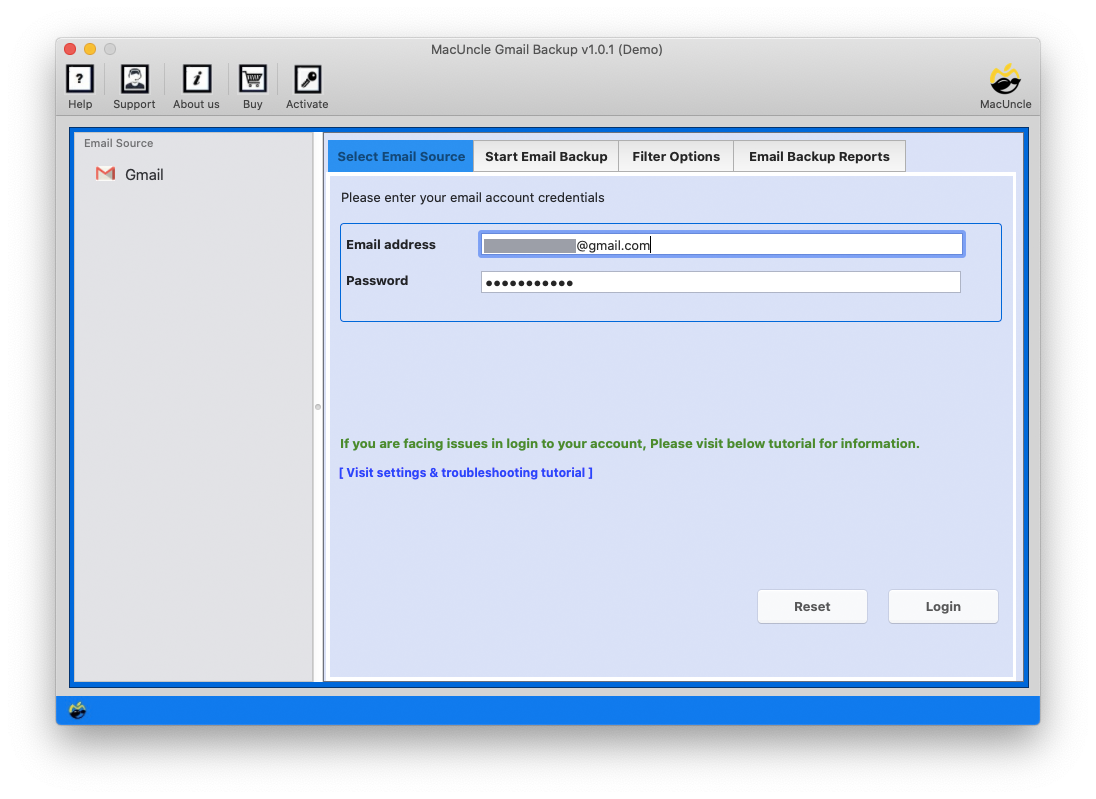
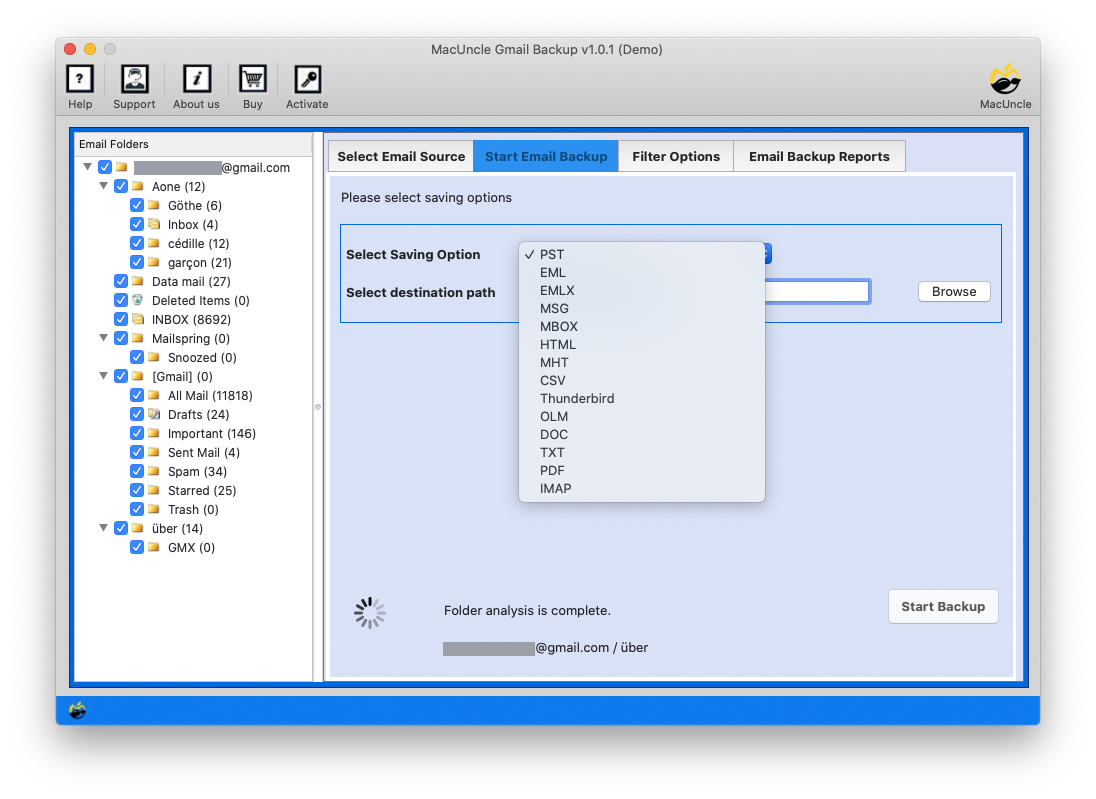
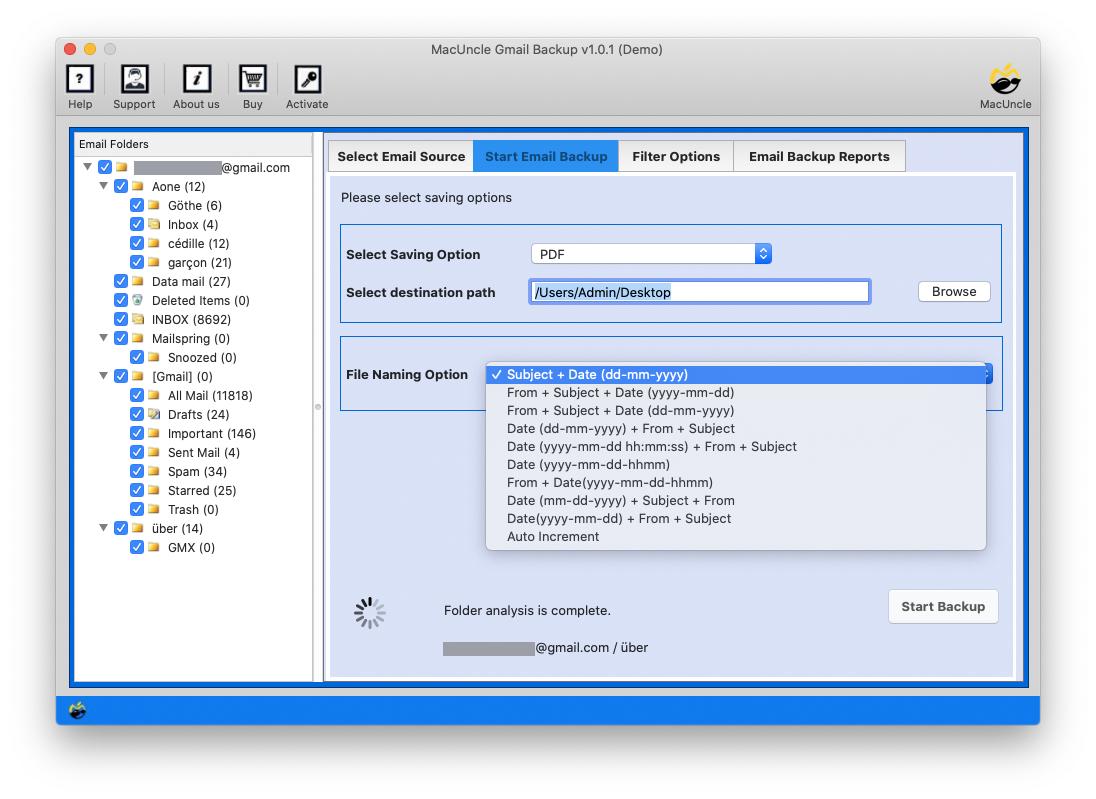
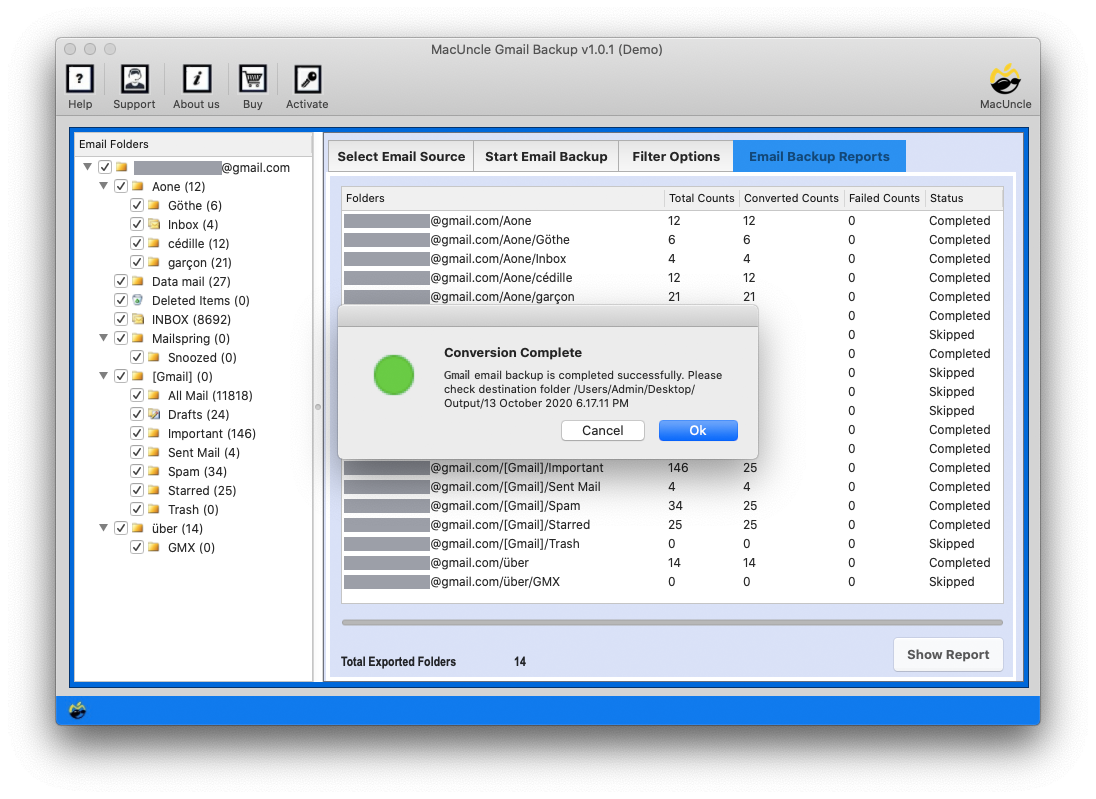
How to Save Gmail as PDF using the Software?
Below are a few traits of the software to fetch emails from the Google account in Adobe PDF format.
- Multiple File Conversion: The toolkit also allows multiple file conversions or backups with ease. You can select any number of Google emails and export them in a single click.
- Selective Migration: You can choose single or multiple messages according to your needs with this feature. You can pick those emails to save as PDFs after adding files.
- Stand-alone Utility: No external application is required for the Google emails-to-PDF saving process. The tool is fully independent.
- Maintains Original Formatting: All files’ original formatting and structure are preserved during and after downloading emails from the Google account in *.pdf format.
Wrapping Up
Undoubtedly, Google Mail is one of the most popular email clients, but it can only be used with Internet access. Many users, therefore, want to save Gmail emails as a PDF on Mac. The solutions provide the best features that make it easy for users to export Emails from Google accounts and store them in Adobe PDFs. For a deeper understanding, you should test the sample versions of the utilities.
Frequently Asked Questions
Q1) How do you download emails from the sender folder in Gmail?
A1) Start the Google Mail account and use the Print option to download all Gmail emails as PDFs from the Sender folder. Otherwise, use the software to export Gmail emails.
Q2) Does the tool perform any conversion of Gmail emails?
A2) The software does not perform the conversion separately; in fact, the whole process is done within the toolkit.
Q3) How do I save only selected emails in PDF format?
A3) There is no manual approach to selectively save emails from Gmail; however, with the software, we can select the required emails to save from the account.
Q4) Is it possible to combine several Gmail emails into a single PDF?
A4) Not by default with manual printing, as each email is saved as a single PDF. However, using either an add-in or the Gmail Backup Wizard software, you can combine or batch-export a number of emails to a PDF.
Q5) How do I save a Gmail email along with its attachments as a PDF?
A5) Manual print-to-PDF transmits the email body and inline images, but attachments (additional Word docs, spreadsheets, etc.) do not go along — you’ll need to download those separately. Get the recommended tool mentioned here to save Gmail emails in PDF format.
Q6) Is it safe to save Gmail emails as PDFs?
A6) Definitely. Saving an email as a PDF is, indeed, a snapshot and offline version of that message – it does not entail giving out access to your Gmail account or login details. Keep the PDF in a secure location if there is anything in it you wouldn’t want to be seen by a third party.
Q7) Can I save a Gmail Email as a PDF to Google Drive?
A7) Not in one step via the print dialogue – you can ‘save as a PDF’ locally to your hard drive, then upload the file to Drive (or drag it in as a file upload). Some browser extensions even have a ‘save to Drive’ command, which can skip the manual upload.