How to Save Outlook Emails as MSG Format?


Saving important emails is one of the most common requirements for Outlook users, especially when managing business communication, storing evidence, or maintaining an organised email archive. There are multiple export options in Outlook; however, there ain’t equal features available in the Mac. One such scenario is to save Outlook Emails as MSG file format, which is used for storing individual Outlook messages with attached documents. Here we will discuss the solution to save emails directly from Outlook and convert the email files.
Even though frequent users find it difficult to locate a direct or reliable option to save emails in MSG format. Apart from legal requirements or record keeping, some users want to convert Outlook emails to MSG to keep the message content intact, and this supports easy access without depending on Outlook.
Manually Save Outlook Emails in MSG Format
There is a manual approach to storing Outlook emails in the MSG File Format. Here we are with different methods to save emails from Outlook accounts.
#1 Method – Use the Drag & Drop option
- Start again with the Outlook application and select the emails to export.
- Drag and drop the selected emails to a specific folder.
- Now, check the saved files in the selected location.
#2 Method – With Save As Option to Save Outlook Emails as MSG
- Start the Outlook application.
- Click on the email that you want to export.
- Go to File>>Save As option
- Now, choose a location and enter a name for the file.
- Press the Save As Type and select Outlook Message Format
- Press the Save button.
Now, go to the destination location to get the MSG files just generated.
Limitations: The mentioned procedure is only applicable when you have only a few files to process. But to export multiple files at once, we need a platform that can process more than one file. Therefore, check the professional approach to get the solution.
How to Save Outlook Emails as MSG on Mac Directly?
When it comes to the direct conversion of Emails from Outlook, the Email Backup Tool is the best tool. The utility is for saving emails from different online email clients to multiple commonly used file formats. Out of the different email sources, Outlook is one of them. It is the best option to save emails from Outlook accounts directly without any extraction. After exporting the files, use the MSG Viewer to check the data to ensure all emails and metadata are accurately exported.
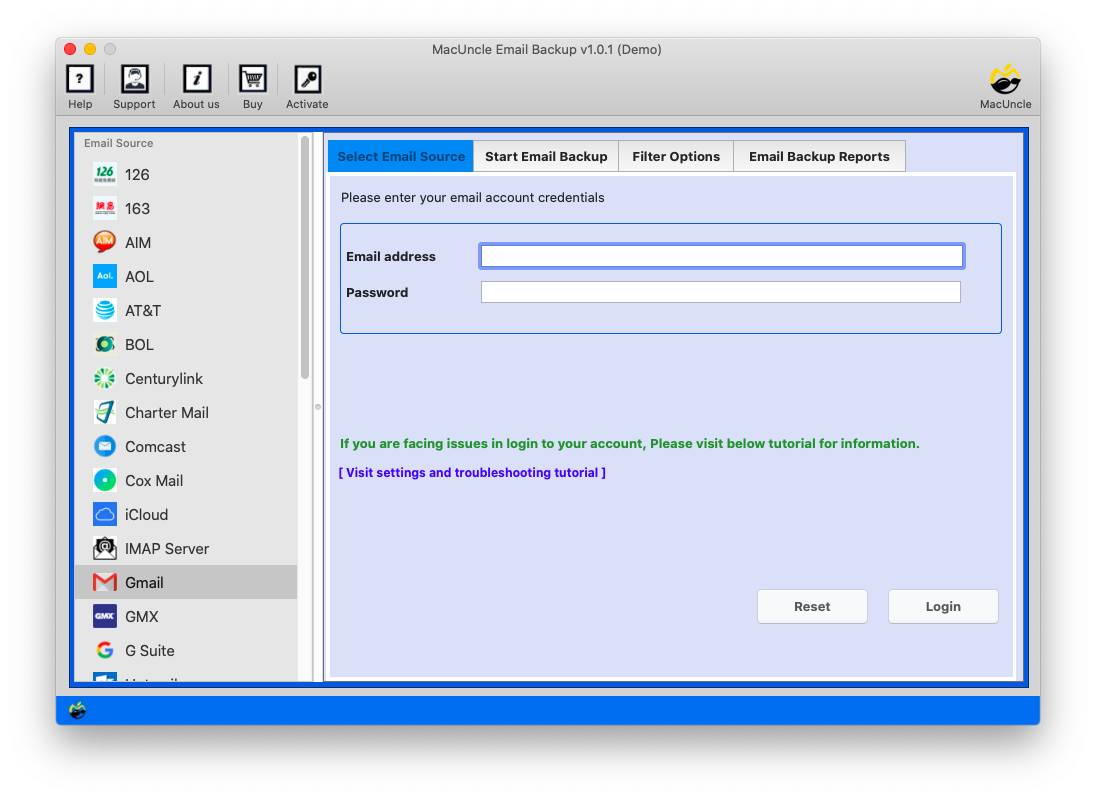
Select the Outlook option from Email Source and then continue with the procedure mentioned in the next section.
Before moving to the steps, let’s discuss some vital features that make the tool outstanding.
- Download Outlook emails to MSG directly without any need for backup.
- Execute the task within a few clicks.
- Save all email files along with the attached document in .msg format.
- Without any alteration, the tool maintains the folder structure of the email files.
How to Convert Outlook Email to MSG File Format?
Download & run the application on macOS 10.8 Mountain Lion or above versions.
- Start the tool and select Outlook from Email Source.

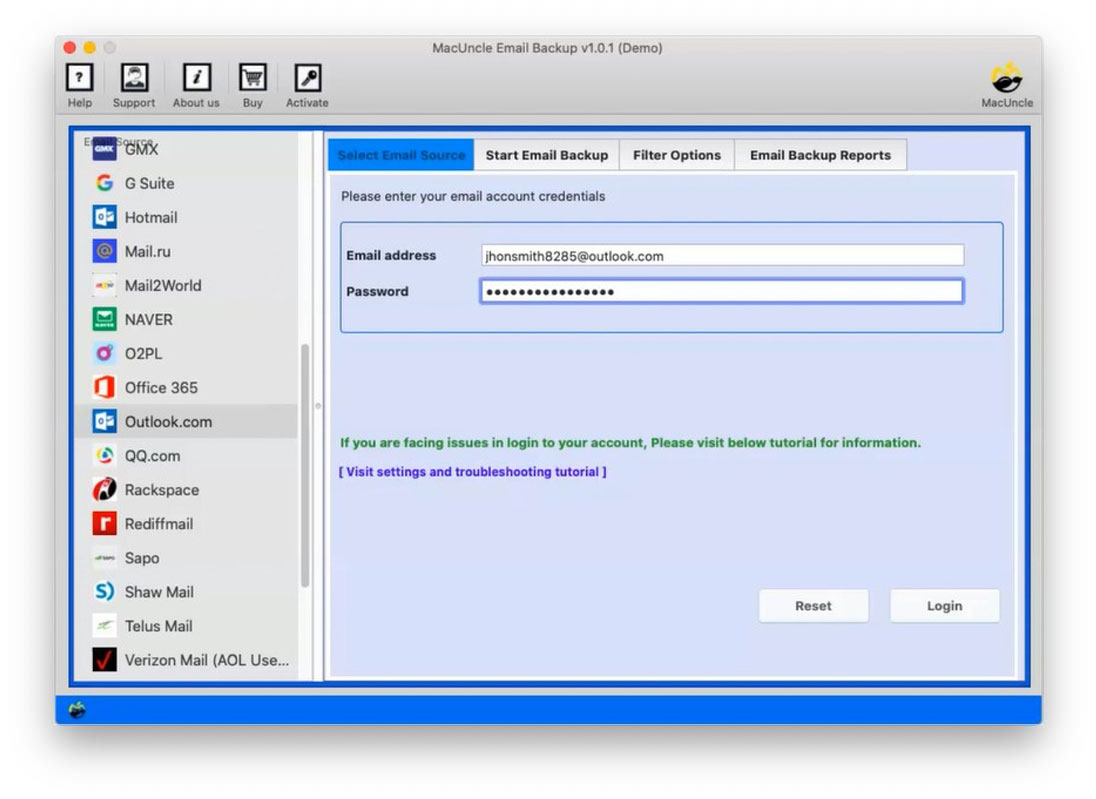
- Enter the Outlook credentials in the required fields: Email Address & Password. Further, press the login button.
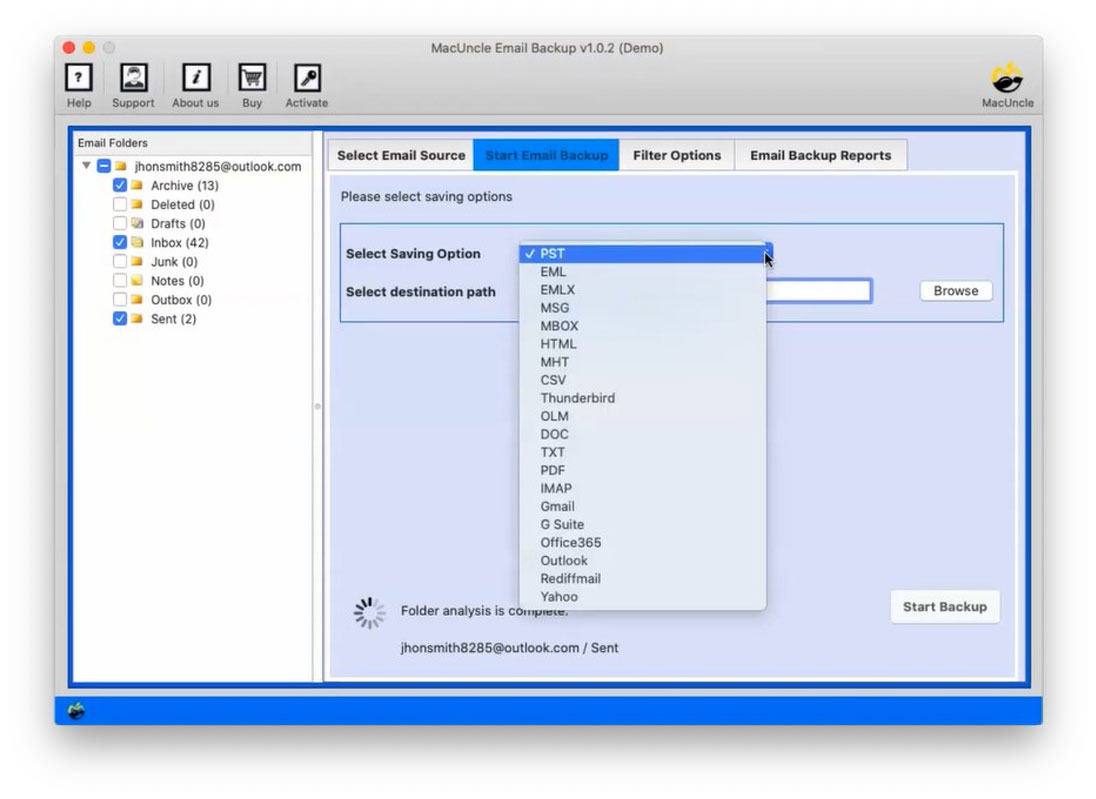
- Now, choose the MSG format and browse the location.
- Then, go back and press the Start Backup button to initiate the process.
There you go. Finally, save Outlook emails as MSG on Mac to the desired locations.
Get a solution for – How to Import Outlook PST files into Apple Mail.
Alternative to Save Outlook Email Files as MSG
For users who have backup files of Outlook in .pst format locally, get the application PST Converter. It is one of the most demanding applications for converting Outlook email files to MSG format. Add single or multiple Outlook files to MSG format without any cause of alteration to the email hierarchy.
Test the Tool with Demo Editions
Both the suggested tool comes with a free version. For free of cost save Outlook emails as MSG on macOS in batches of 25 emails each from any folder. The trial or demo version is for the users to understand the work and to check the tool. After a thorough check, use the upgraded version to save multiple files to MSG format.
Note: To safeguard the entire mailbox from the Outlook web app, consider using the Outlook.com Backup tool to get all Outlook emails to MSG format in batches.
Conclusion
The article is an all-in-one solution for users looking to save emails from Outlook in another format. Use any method as per the demand and get the Outlook email files in .msg format with other attached documents. With the software here, we can convert multiple email files to the *.msg file format.
Feel free to contact MacUncle Support for any Issues related to email services.
Frequently Asked Questions
Q) What Outlook data can be saved in MSG format using this tool?
A) You can save all or select Outlook emails in MSG format. Before starting the process, select the required folder.
Q) If I have PST files stored locally, then do I need to have Outlook installed on Mac?
A) No, for both methods, there is no requirement for Outlook installation. Execute the procedure without the assistance of any external application.
Q) I only required a few emails from a particular date. How to save those Outlook emails?
A) Use the advanced filter option, enter a particular date in the Date Range field, and complete the whole procedure.
There you go. Finally, save Outlook emails as MSG on Mac to the desired locations.
Get a solution for – How to Import Outlook PST files into Apple Mail.
Alternative to Save Outlook Email Files as MSG
For users who have backup files of Outlook in .pst format locally, get the application PST Converter. It is one of the most demanding applications for converting Outlook email files to MSG format. Add single or multiple Outlook files to MSG format without any cause of alteration to the email hierarchy.
Test the Tool with Demo Editions
Both the suggested tool comes with a free version. For free of cost save Outlook emails as MSG on macOS in batches of 25 emails each from any folder. The trial or demo version is for the users to understand the work and to check the tool. After a thorough check, use the upgraded version to save multiple files to MSG format.
Note: To safeguard the entire mailbox from the Outlook web app, consider using the Outlook.com Backup tool to get all Outlook emails to MSG format in batches.
Conclusion
The article is an all-in-one solution for users looking to save emails from Outlook in another format. Use any method as per the demand and get the Outlook email files in .msg format with other attached documents. With the software here, we can convert multiple email files to *.msg file format.
Feel free to contact MacUncle Support for any Issues related to email services.
Frequently Asked Questions
Q) What Outlook data can be saved in MSG format using this tool?
A) You can save all or select Outlook emails in MSG format. Before starting the process, select the required folder.
Q) If I have PST files stored locally, then do I need to have Outlook installed on Mac?
A) No, for both methods, there is no requirement for Outlook installation. Execute the procedure without the assistance of any external application.
Q) I only required a few emails from a particular date. How to save Outlook emails to MSG from a specific date?
A) Use the advanced filter option, enter a particular date in the Date Range field, and complete the whole procedure.
Q) How to convert the generated MSG files if required?
A) You can use a reliable MSG Converter tool to easily convert MSG files into other commonly used file formats.