How to Transfer Google Contacts to iCloud Accounts?


If you want to move the contacts from the Google account to iCloud, this is a crucial step when switching from an Android device to an iPhone. It can seem like a daunting task; therefore, we have come up with simple methods to transfer Google contacts to an iCloud account.
Changing from one online ecosystem to another almost always results in wasted time. It may look like a complicated job, but if you follow the right steps, it can be done by anyone without technical skills. This step-by-step tutorial will help you relocate your contacts from your Google account to iCloud without any hassle. Even if you are a beginner at the Apple ecosystem, this guide will help you with each step to have a stress-free transition.
Why Users Want to Transfer Google Contacts to iCloud
Before we dive into the solution, we must know why users want to migrate their contacts from their Google account. More than transferring it to iCloud for personal reasons. Integrating the contacts into one place has some unique features and benefits.
- As we know, iCloud syncs effortlessly with all Apple devices, providing contacts on the iPhone, iPad, etc. That is, if any updates are made to contacts, it affects all the devices
- iCloud offers a robust backup solution, ensuring the contacts are safely stored and can thus be easily recovered. Apple is known for its security features. All the data is secured on the device.
- If you want to move from Android to IOS, transferring the contacts to iCloud helps to maintain consistency.
How to Make the Transition Easier?
We have come up with some points that users can work on to perform an easy migration of Google Contacts to iCloud.
- Back up the Contacts: It is great to back up the contacts locally before starting the transfer procedure. You must back up the contacts from both Gmail and iCloud.
- Check for any Duplicates: Check for any duplicates in the contacts and combine the duplicates after importing to iCloud. Since there is an option to merge duplicate contacts in iCloud.
How to Manually Transfer Gmail Contacts to iCloud Accounts?
With the Google account, you can export the contacts to iCloud accounts. The manual approach can export all the contacts at once to a file format supported by the iCloud account. Follow the procedures below to transfer Google contacts to iCloud.
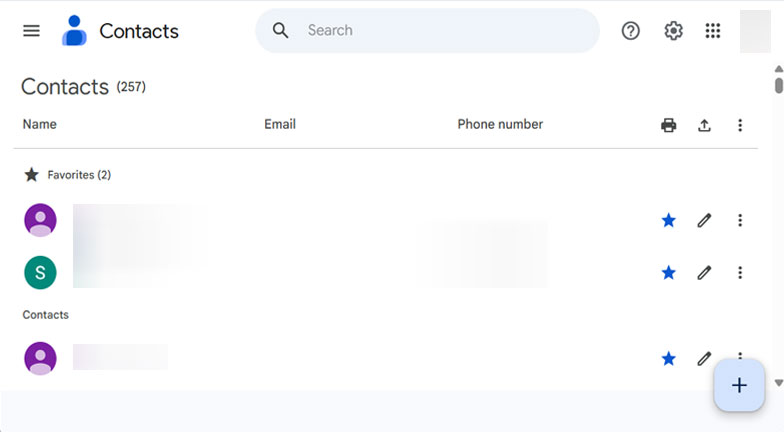
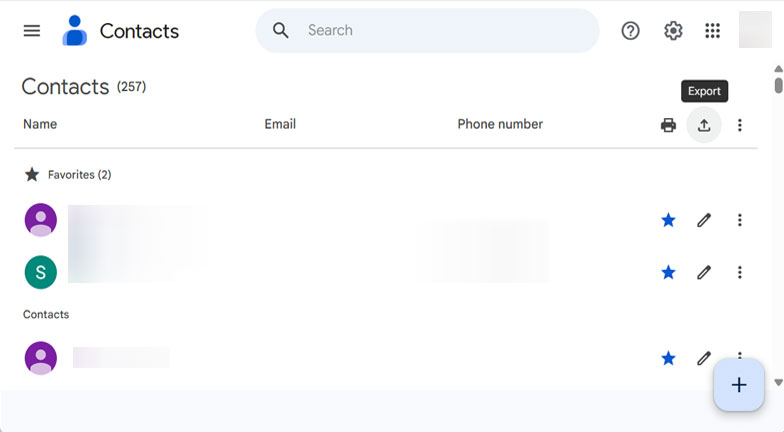
Export Gmail Contacts
- Sign in to your Google Account
- Go to the top right and click on Google Apps.
- Select Contacts from the drop-down menu and open it.

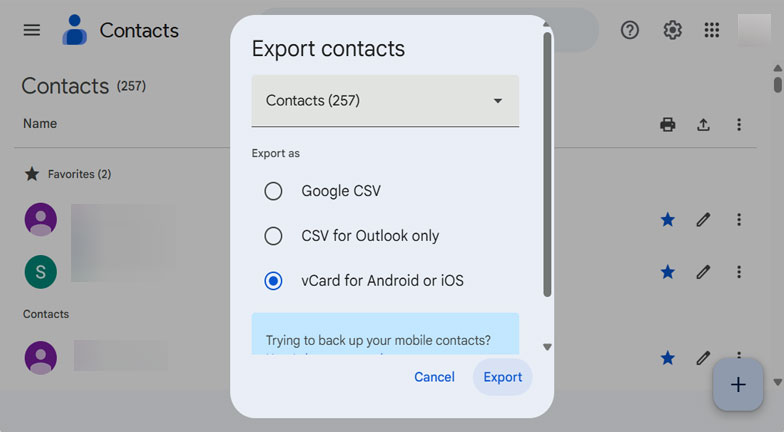
- Select the Export button and choose the contacts you want to export.
- Choose the vCard file format as it supports iCloud.
- Finally, click on the Export button.
Import the Contacts to the iCloud Account
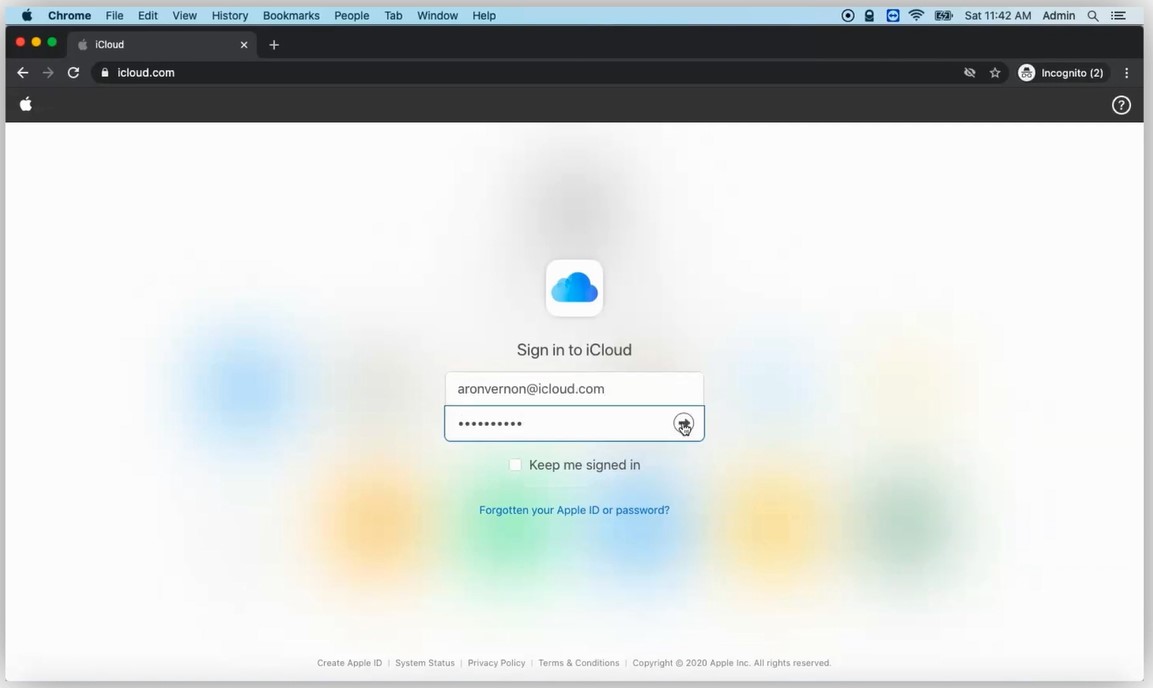
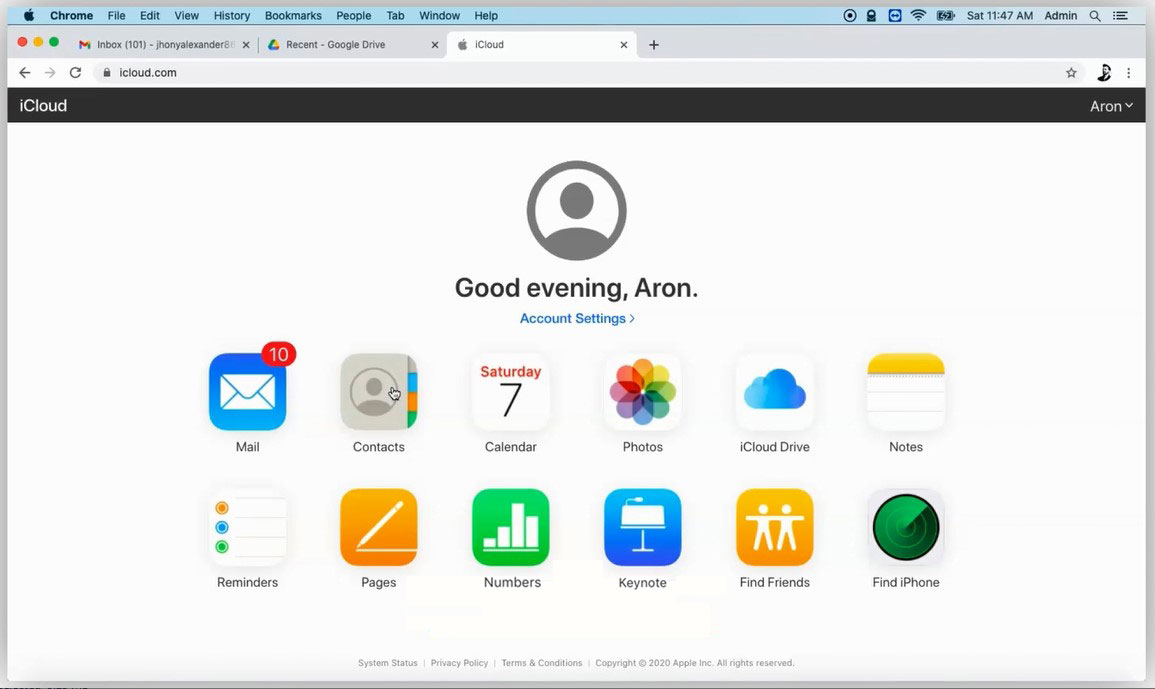
- Go to iCloud.com and log in with your Apple ID

- Click on the contacts and open iCloud contacts.

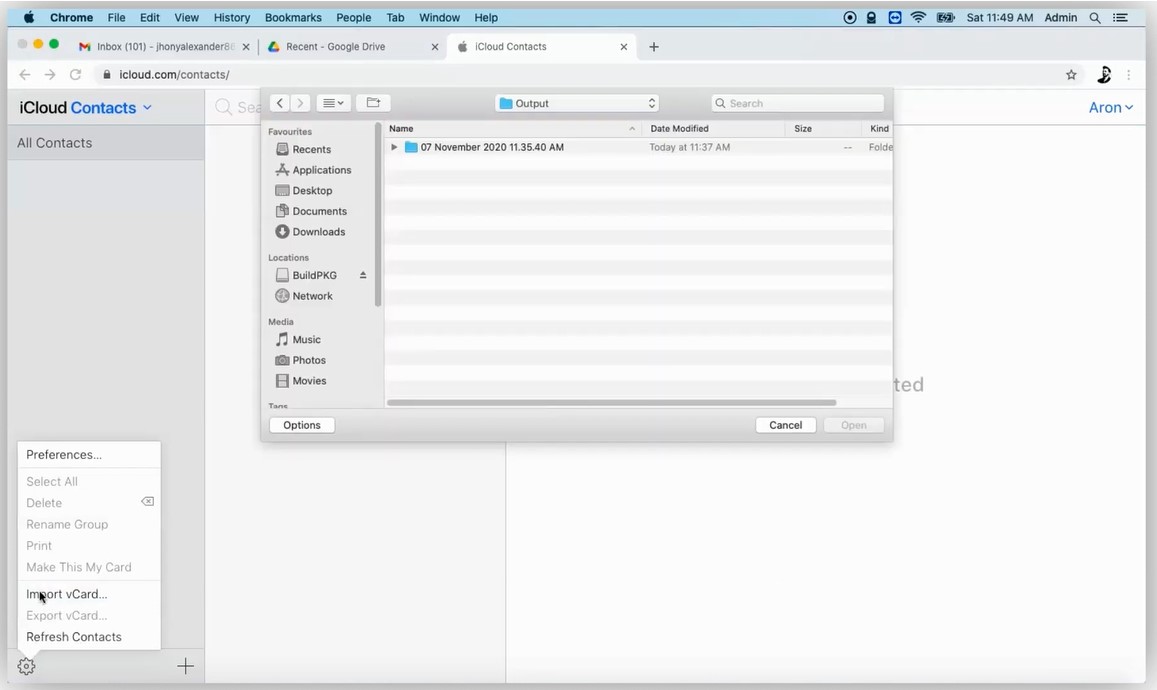
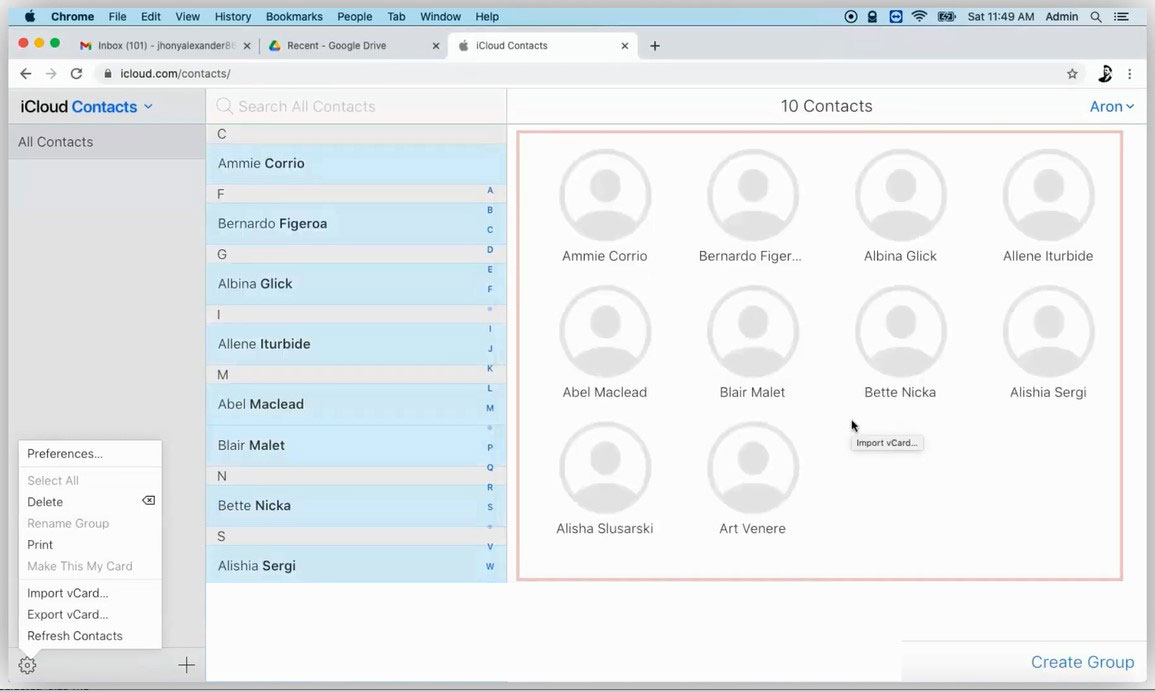
- Navigate and click on the Gear icon > Import vCard.

- Browse the VCF file to export from Gmail contacts and select it.

For quick and profound results, check out the automated approach to convert Google contacts to iCloud.
How to Transfer Google Contacts to iCloud Professionally?
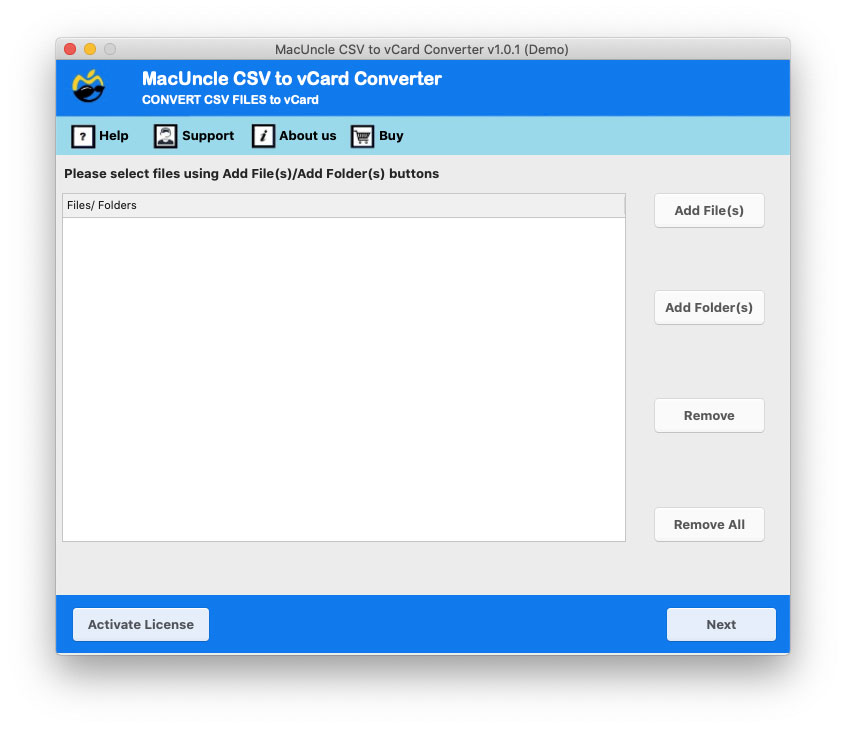
The process goes the same by converting the file format to a suitable format that supports iCloud. Use the CSV to vCard Converter to switch the contact list file format. It can add multiple files at once and convert them without the need for any additional support. The whole process will take only a few minutes to convert the files.
How to Import Google Contacts to iCloud Accounts
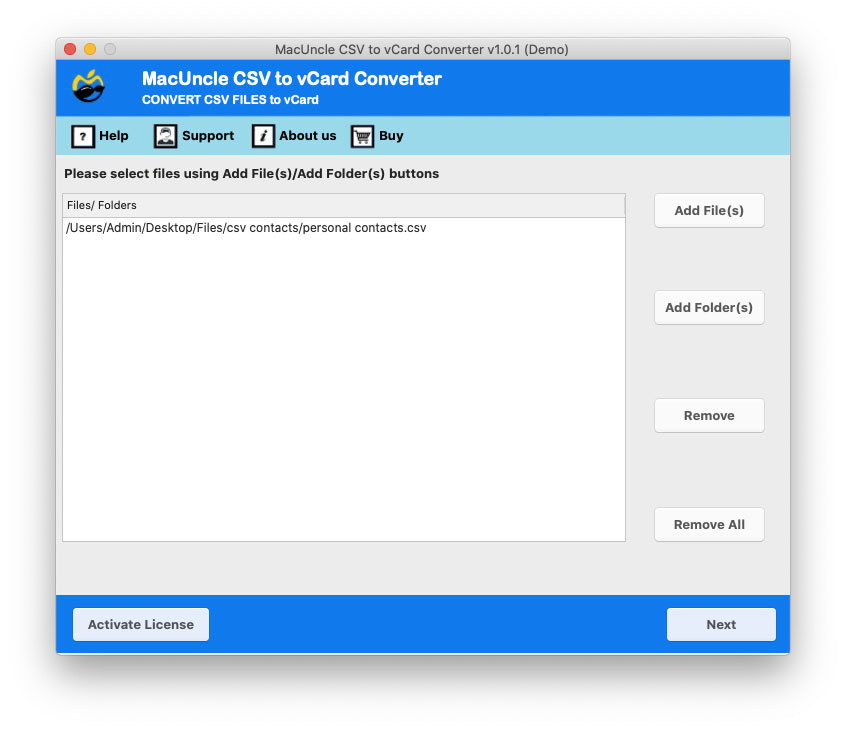
- Start the software to import Gmail contacts to iCloud.

- Add contact files from Google Contacts to the software.
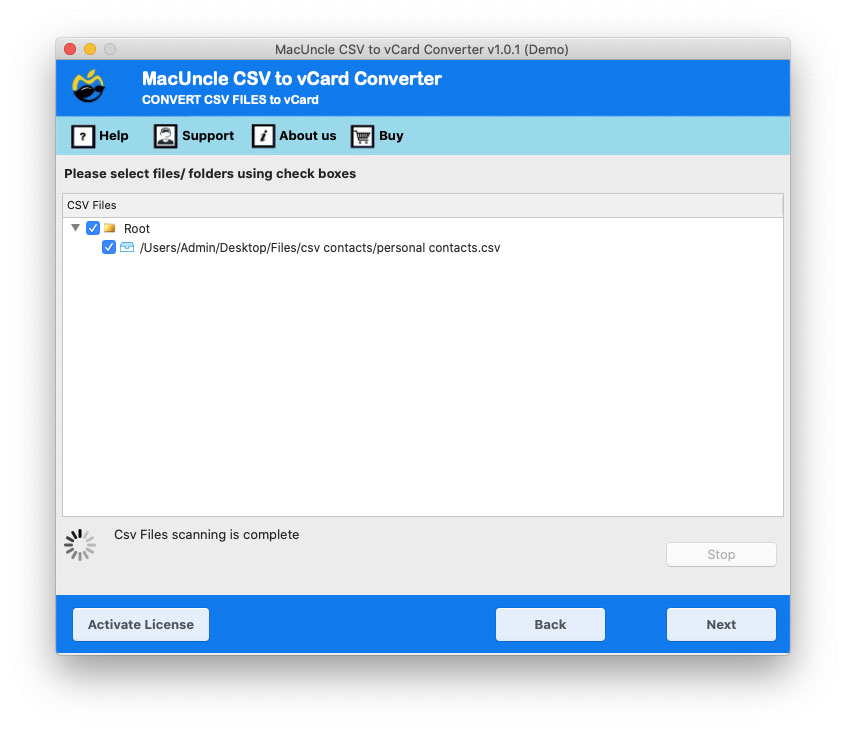
- Choose the desired files using the check box.
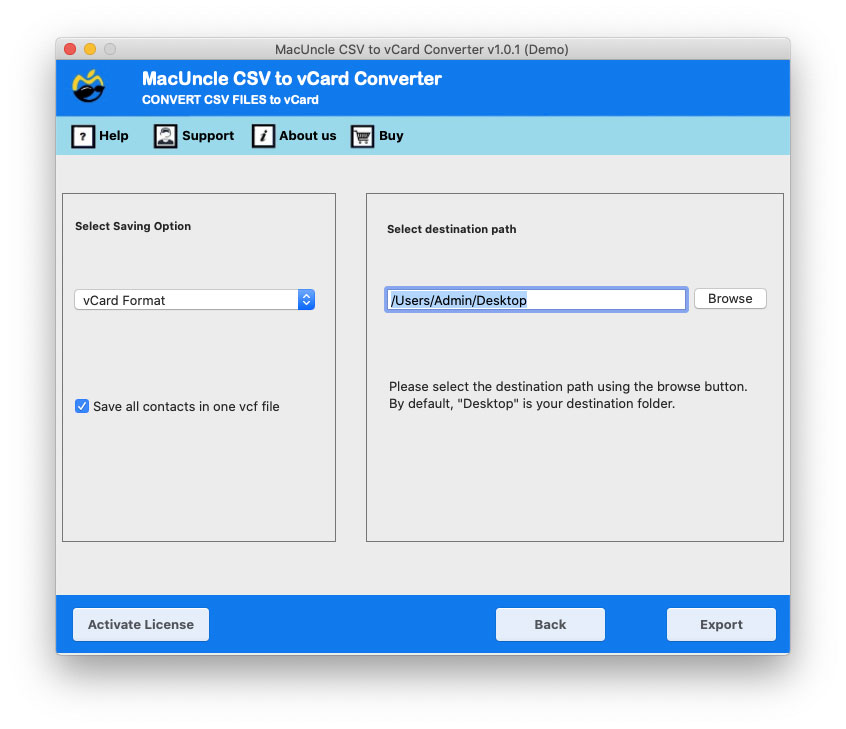
- Select the vCard file format from the Select Saving Format.
- Click on the Export button to execute the conversion.
Why Use Software to Transfer Google Contacts to iCloud?
Below are the traits that users must have to use the software mentioned above.
- Batch conversion of the contact list is possible with the software. It helps in improving efficiency and saving time.
- The simple and intuitive interface will guide the users through the conversion of the Google contacts step-by-step.
- The entire conversion takes place quickly, by completing the conversion within a few minutes.
- The software operates independently without the help of any additional support
- Directly export the converted files into the file format ready to import into iCloud.
Check out other related articles from her: How to delete duplicate contacts on Google Contacts?
Conclusion
Transferring the contacts from Google to iCloud involves exporting the contacts from Google Contacts and importing them directly into iCloud. By following the steps in the above write-up, you can import the contacts from your Apple devices to iCloud directly. If you are considering the automated methods, there are other traits with which users can perform the transition with ease.