How to Clear System Data on Mac Safely?


If you have wondered what is taking up the storage space even after deleting unwanted data, and notice a large space is labelled System Data (formerly known as “Other”). Unlike Photos or Applications, this category might feel a bit complicated and often consumes hundreds of gigabytes with hidden caches, background service files, and old backups. Therefore, we have the article here that exactly explains what this data is, why it becomes large and how to safely clear System Data on Mac.
Going through the hidden parts of the Library folder to clear these files can feel intimidating, but it is safe if you know which directory to target and which to leave alone. macOS attempts on its own to handle the System Data files, but is often unsuccessful in clearing up after app uninstallation or major system updates. In this guide, we will provide secure, detailed instructions to manually clear System Data and also the expert method for deep and permanent cleanup.
What is System Data on macOS?
The System Data in macOS is the data that is required for the system to run smoothly. It can be any file, such as supporting files created by the apps to work properly and the services within the system. These data files are not like other files, such as photos, documents, or Media files. Here are the types of files that are stored as the System Data,
- System cache and log files
- Temporary system files
- Mail and attachments
- App Supporting files
- iOS device backup
- Hidden folder in the Library Directory
As time goes by, these files accumulate, and thus it takes up the storage space.
But how does the System Data get large on macOS? The reason can be anything from the app cache file, the files in the app installation setup, email attachments and message data, temporary macOS files, old system logs, developer files, etc. These files are spread across the system and mostly hidden; we end up not noticing how much it takes up. That is the reason why users want a direct method to clear System Data files.
If you want a quick solution, check out our guide on how to delete temp files on Mac.
Is It Safe to Clear System Data on Mac Permanently?
Yes – it is generally safe to permanently delete only if the deletion is limited to non-essential system data that is cache, temporary or log files. It is to ensure that deleting the core macOS system files is NOT done, as it can cause System instability, Boot failures, and app crashes.
Check before Clearing System Data on macOS
- Click on the Apple menu > About this Mac.
- Open the Storage tab.
- Click on the Storage settings.
- Now, check how much space is under the System Data.
Now, we can clear the System Data files on the Mac machine with the right method.
How to Delete System Data on Mac Manually?
First, we will discuss whether there are any methods that can be used to clear System Data on macOS.
Method 1: Delete System Cache Files
Cache files speed up system processes. They help apps and the system run faster. Follow the steps below:
- Open Finder.
- Press Command + Shift + G.
- Enter: ~/Library/Caches
- Delete any unwanted cache folders.
- Empty Trash.
Method 2: Remove Old Time Machine Local Snapshots
Time Machine is the built-in backup system on macOS. It automatically saves copies of the files. If there are any old Time Machine local files, then ensure to delete the file copies.
Open Terminal and run:
tmutil listlocalsnapshots /
To delete the snapshot:
tmutil deletelocalsnapshots SNAPSHOT_NAME
Method 3: Delete Old iOS Device Backups
If there are any old iOS backups, we have to check them and delete them first.
- Go to Finder > General
- Select iPhone.
- Click Manage Backup
- Now, delete old backups that are no longer required.
Method 4: Clean Mail and Message Attachments
Large attachments stored in Mail and Messages usually contribute to the System Data. We can check these folders and then delete the unwanted attachments.
~/Library/Containers/com.apple.mail
~/Library/Messages
Method 5: Remove Any Unused App Support Files
When we install an app on the system, it comes with supporting files. And after uninstalling these apps, it often leaves behind large files.
Go to folder:
~/Library/Application Support
Remove any leftover files or folders from the app that you no longer use.
Method 6: Clear Xcode and Developer Files
If you are a developer using Xcode or building/testing apps on a Mac, then ensure you delete the developer files. These files can get very large and take up the System Data space.
- Delete old simulators
- Remove Derived Data:
~/Library/Developer/Xcode/DerivedData
Method 7: Empty the Trash
The last manual option is to delete the files from the Trash, that is, to empty the folder. If you have multiple unwanted files to remove before emptying the Trash, then learn how to delete multiple files on Mac using Finder, Terminal, and keyboard shortcuts, along with an advanced professional approach.
Wondering why Mac storage is still full even after deleting files? The reason could range from simple issues to advanced system problems. Check out the guide to learn more.
Fast & Safe Approach to Clear System Data on macOS
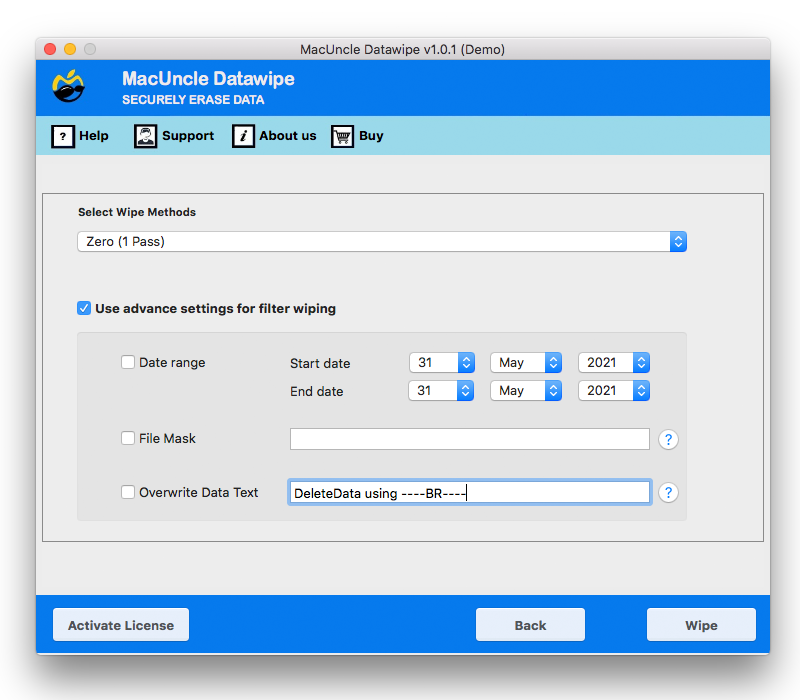
If you want a fast and permanent deletion of System Data, the best option is the DataWipe Tool. Unlike the manual approaches, the tool ensures the files are erased beyond recovery, which makes it ideal for users who want deep cleaning and permanent deletion of the files.
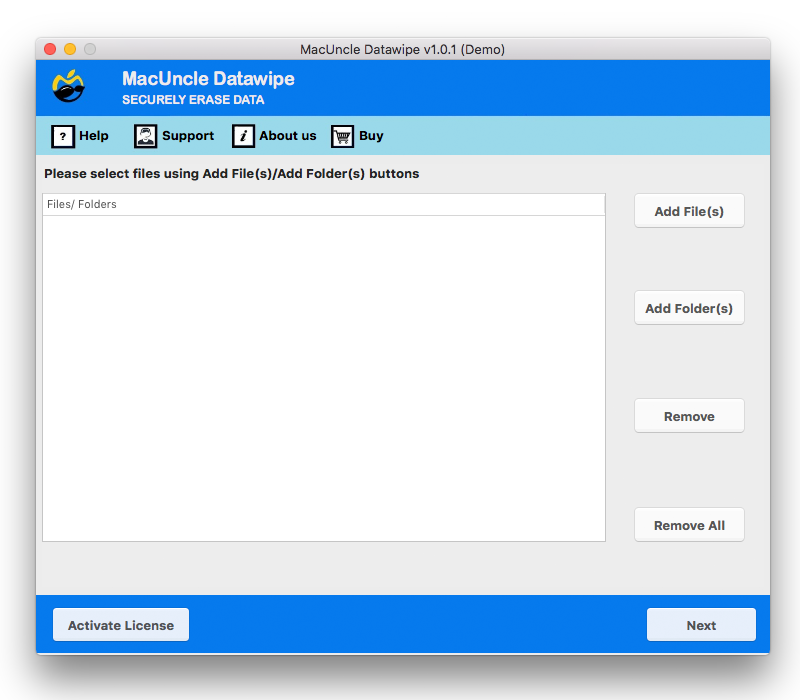
Follow the steps to permanently delete the System Data file on macOS:
- Start the tool to clear System Data.

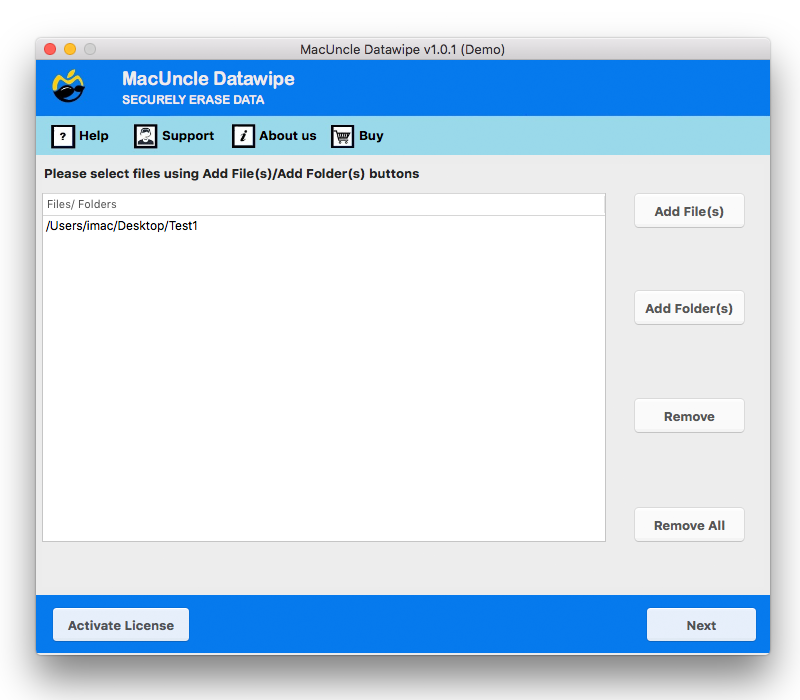
- Add the files/folders using the Add buttons.
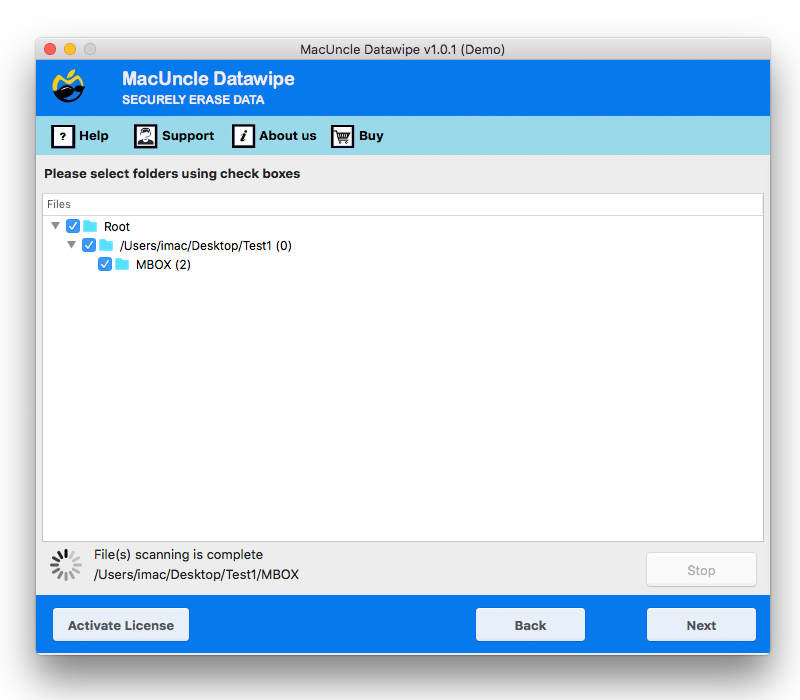
- Choose the file from the list and press the Next button.
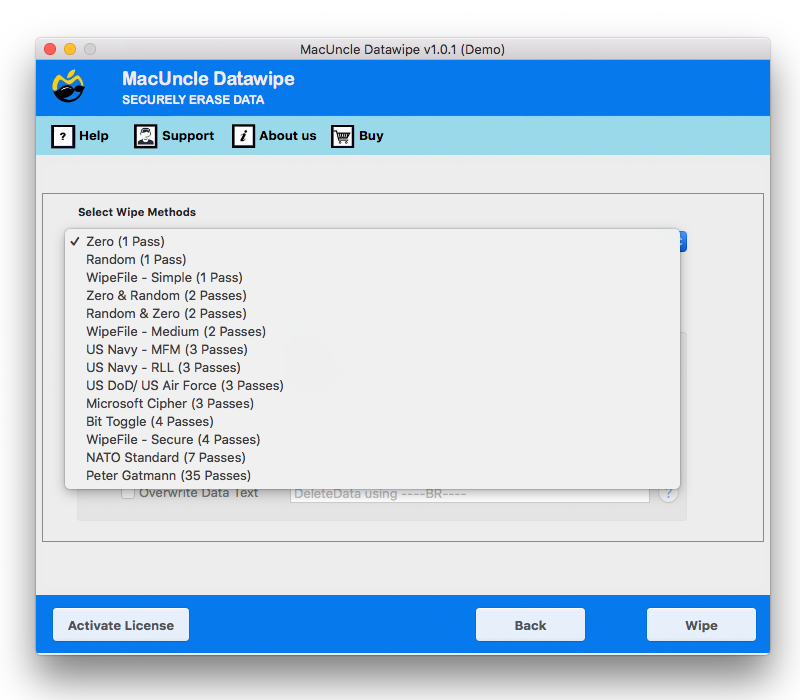
- Now, choose the wipe method.
- Set any Advanced settings to clear System Data on macOS.
Why Trust Us? When it comes to Mac’s health, we understand that security is the top priority. Our team consists of macOS experts and technical researchers who test each of the methods and the tool we mentioned here to ensure that it meets Apple’s notarization standards and system integrity protocol.
FAQs
Q) Why is my Mac System Data so large all of a sudden?
A) Mac System Data can suddenly become large as macOS stores temporary files, app support files, iOS backup, Software updates, Browser data and other leftover files from uninstalled apps inside that category. Even after deleting files, macOS may take time to recalculate storage, making the System Data appear larger.
Q) Can I delete everything in the Caches folder?
A) Yes, you can delete the cache/temp files from the Caches folder safely, as they are temporary files created by macOS and applications to improve performance. However, deleting the files might slow down the app the next time you open it since the cache needs to be rebuilt. Also, it is recommended to close applications before deleting cache files and avoid removing system-critical folders you are unsure about.
Q) Is System Data the same as Other Storage?
A) Yes, in newer macOS versions, “Other Storage” is renamed to “System Data.” Both refer to the files like logs, cache, virtual memory files, extensions, plugins, etc.
Q) How much System Data is normal for macOS?
A) It depends on how you use the Mac, but it generally ranges between 12 GB and 25 GB for most users. But the size grows beyond 30 GB, and it can be normal. However, going from 50 GB to 100 GB without any clear reason indicates excessive cache accumulation, and that can be cleared safely with the steps mentioned here.
Conclusion
System Data can quickly consume the storage space on the Mac, but only with the right method can you clear system data on Mac safely and then free up the space. Whether you choose a manual or a professional solution, we can regularly maintain the storage efficiently so that it does not affect the performance of the macOS system.