How to Convert HTML to EML Format?


An EML file is the standard file format that stores individual email messages. Apple Mail, Microsoft Outlook, Mozilla Thunderbird and Windows Mail are the main desktop email clients that support EML files. If you have the HTML file and want to import it into the email client, archive it as an email or send it as properly structured messages, converting it to EML is the right approach.
We have the guide here explaining what EML files are, how HTML and EML relate to each other and get the practical method for performing the safest conversion.
What are EML & HTML Files?
EML files are plain text files that support a wide range of email clients. They conform to the MIME (Multipurpose Internet Mail Extension) standard. EML consists of two main sections: Header — metadata about the email, that is, sender, recipient, subject, date and the content type. Body, that is the actual content of the email, which can be plain text, HTML, or a combination of both. Email attachments are also encoded with the body using Base64 encoding. EML files, at their core, are text files that can be edited in any text editor.
HTML files are used to create and structure web pages and email templates. It consists of elements such as Text formatting, images, Hyperlinks, Tables, and CSS styling. HTML files are commonly used to design newsletters, promotional emails, etc. The HTML files alone are not a complete email because it does not contain essential email headers like sender, recipient, subject or MIME structure.
That is why converting HTML to EML is necessary when you want the HTML content to function as an email message inside an email client.
Practical Uses of HTML to EML Conversion
First, find out the reasons the user has for the conversion before they make the decision on how. Below you’ll find the common cases. Save HTML Newsletter as Email Files
- Save HTML Newsletter as Email Files: Businesses make use of newsletters and promotional emails in the HTML format. By changing the HTML files into EML, users can see them in mail clients like Thunderbird and Outlook and have a preview.
- Freelancer Delivering Email Templates to Client: A designer of websites has prepared a unique HTML email template for the customer. Sending the EML version of the files allows the recipient to open them in the email client simply by double-clicking.
- Import HTML Content into Email Clients: Users have an HTML page or template that they want to use as an email message. By converting the HTML to EML, the formats become compatible with mail applications and hence can be easily imported into a regular email.
- Email Archiving and Backup: Usually, EML continues to be the format of choice for long-term storage and backup purposes. If the key email contacts reside in HTML, conversion ensures that their typical email structure, including header, formatting, and attachments, remains intact.
- Store Web content as Email Records: Some users want to convert invoices, reports, notifications, or webpage content into EML format to keep them as email records for documentation or legal purposes.
- Migrate Email Data Between Applications: EML is supported by multiple email clients, including Apple Mail, Windows Mail, and Thunderbird. Converting HTML to EML makes migration between different mail clients very simple.
How to Convert HTML to EML File?
Let’s find out how we can change the file format from HTML to the EML file format. Depending on the number of files, technical knowledge, and conversion requirements, choose either the manual or automated approach. We have explained different methods step-by-step so that both beginners and professional users can easily perform the process.
Method 1: Manually Create EML Files
The straightforward method. Since EML files are plain text, you can build one with a text editor.
- Open the HTML file in a text editor and copy the HTML content.
- Open a new file in Notepad (or any text editor)
- Open the following template at the top, filling in the details:
From: sender@example.com
To: recipient@example.com
Subject: Subject Here
MIME-Version: 1.0
Content-Type: text/html; charset=”UTF-8″
- Leave a blank line after the header and paste the HTML content below it.
- Save the file in .eml format.
- Double-click the file, and it will open in the default email client.
You can also check out the guide to open EML file in Chrome, to understand what the email message is about.
Method 2: Use Mozilla Thunderbird to Convert HTML to EML
Thunderbird is a free, open-source email client from Mozilla. It has the option to create EML from HTML content by composing a new email and saving it as a draft or file.
Download and complete the installation of Mozilla Thunderbird.
- Open Thunderbird and click on New Message.

- Now, go to Insert > HTML as shown in the screenshot here.
- Paste the HTML code into the body.
- Now, manually fill the Subject, To, and From fields.
- Then, go to File > Save As > Draft.
- Now, go to Draft and right-click> Save As.
- Enter the file name and save the files in EML format.
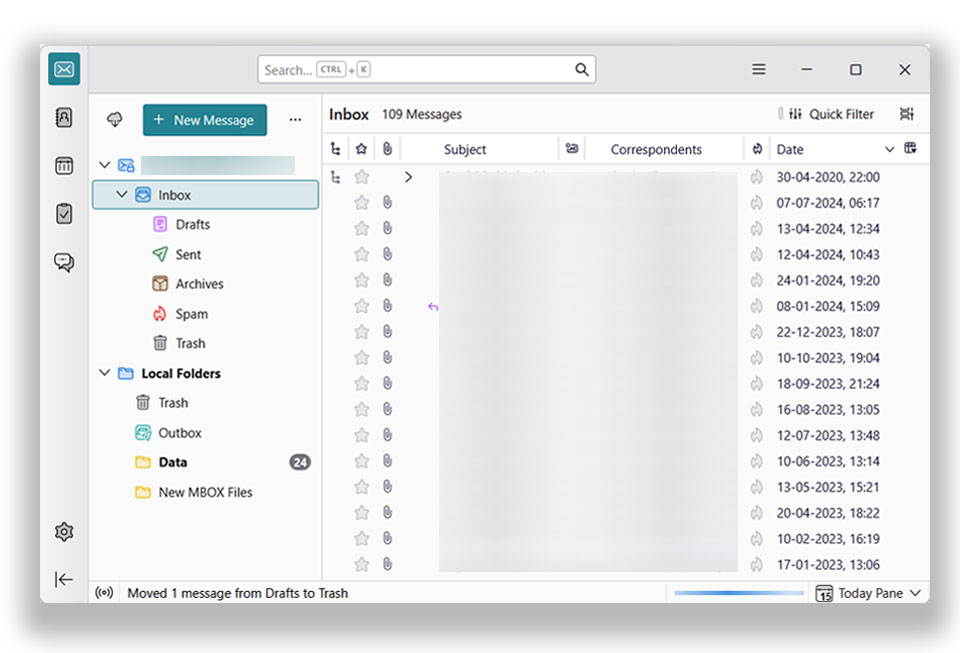
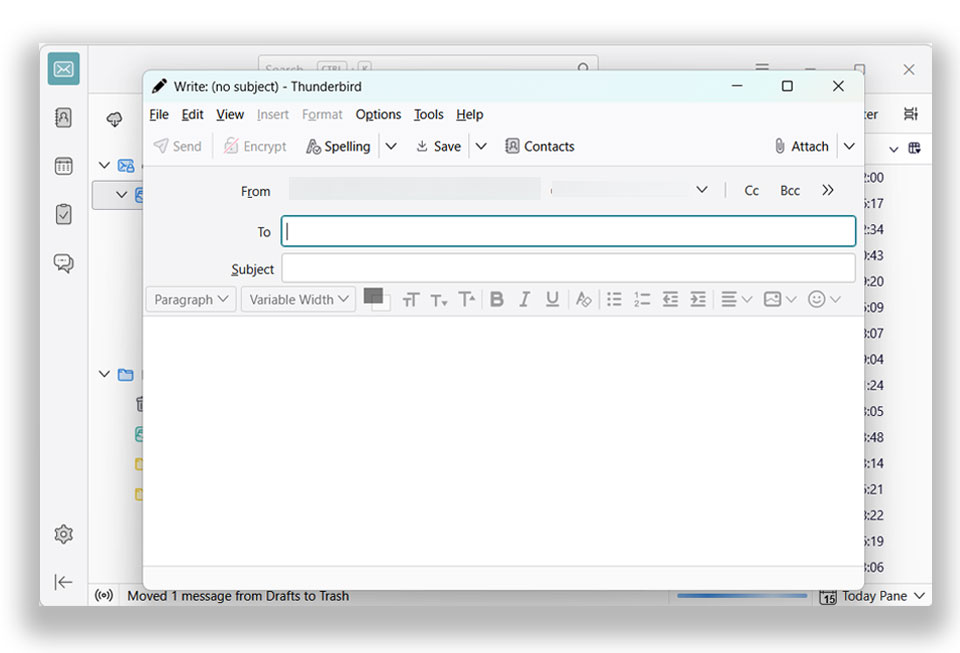
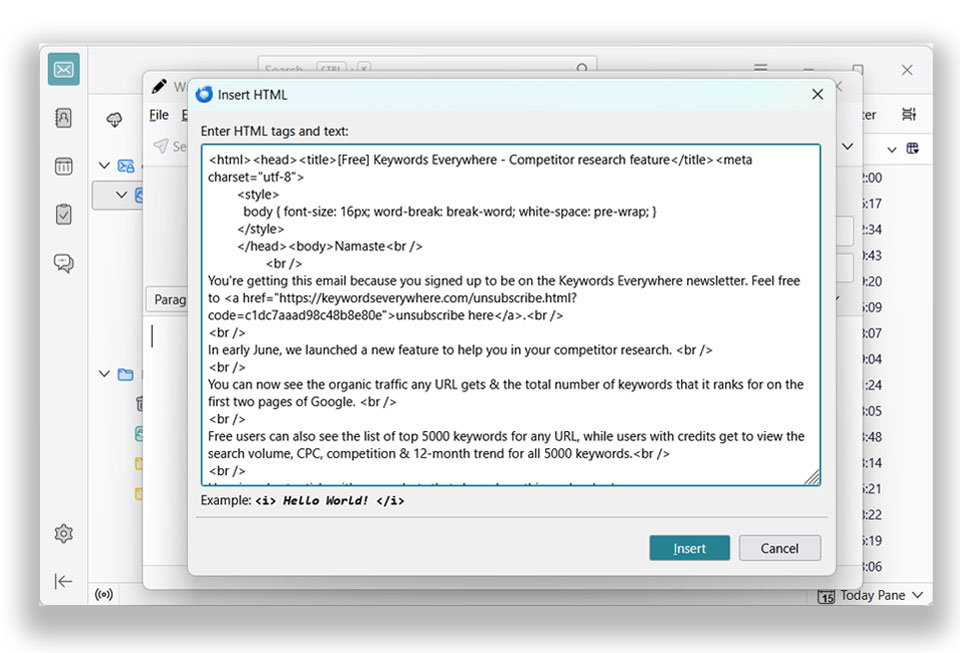
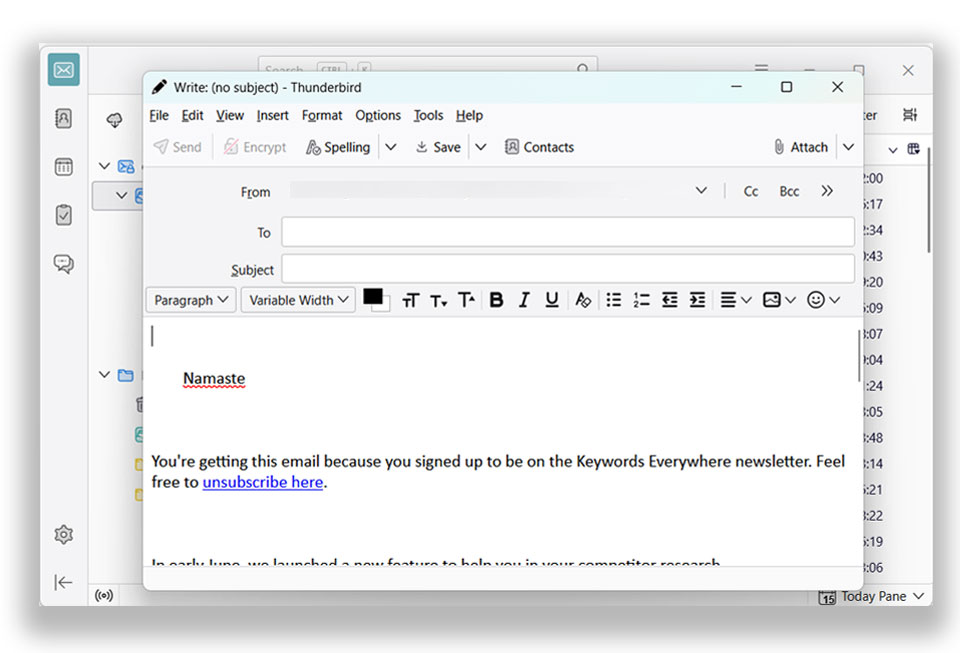
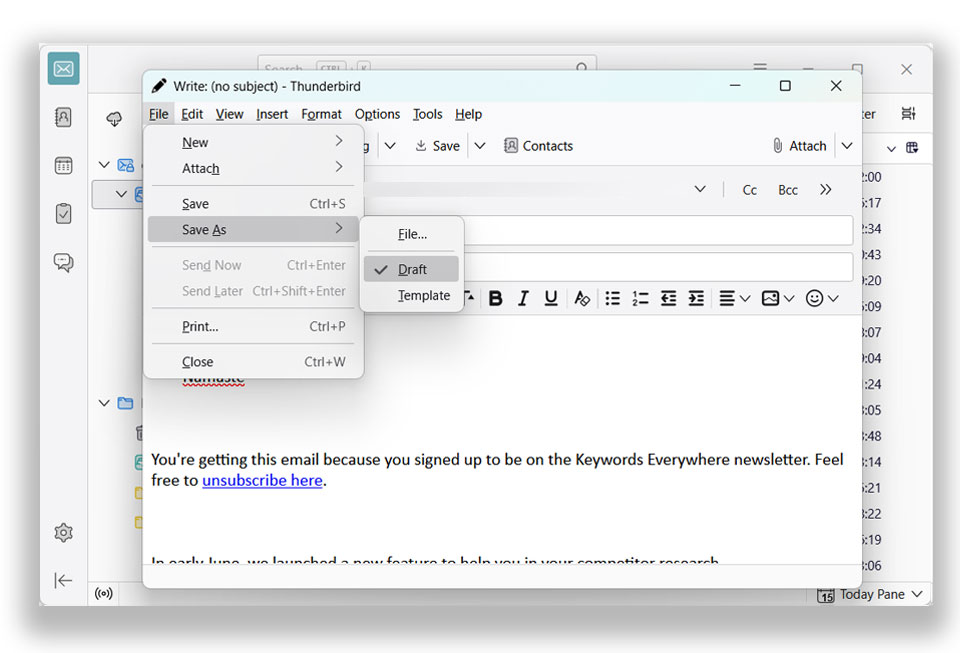
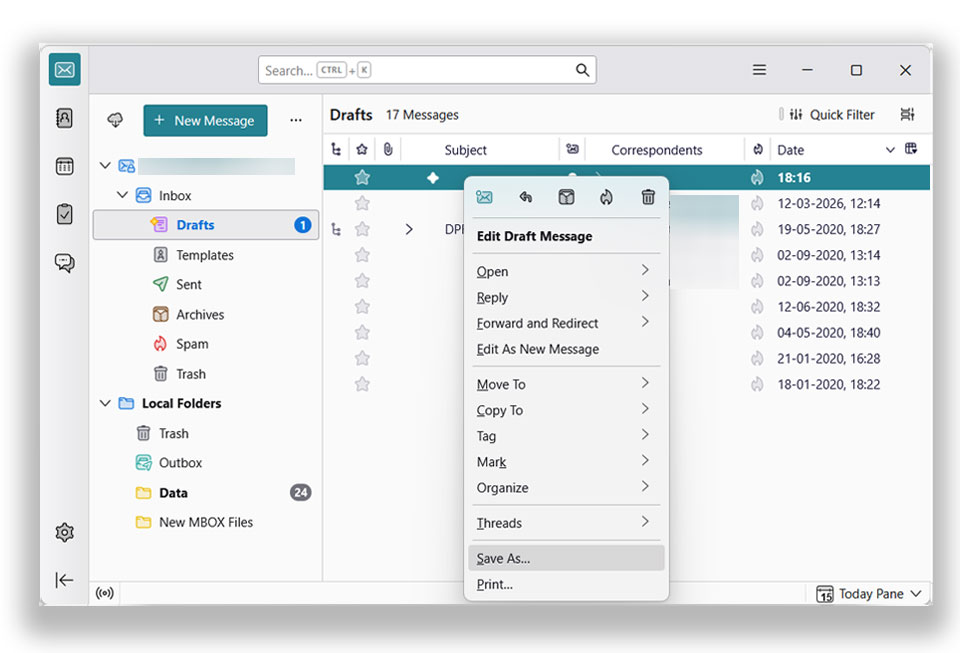
This method is free and reliable. It lets the user preview the emails. However, we need to perform the steps repeatedly to convert batches of HTML files to EML format.
Method 3: A Professional Way to Convert HTML Files to EML Format
Considering all the odds in the manual methods, we have designed a tool – HTML Converter. The dedicated tool here can convert multiple HTML webpages to any format, including EML. Without altering any data in the HTML file, it converts the file format into an email client-supporting format. The same can be used to convert and open HTML file in Outlook effortlessly.
How to Convert HTML to EML Files?
Download the desired version of the tool from the above link. Follow the steps below:
- Launch the software and start adding the HTML file. Press the Next button.

- Select the desired file from the list. Again, press the Next button.
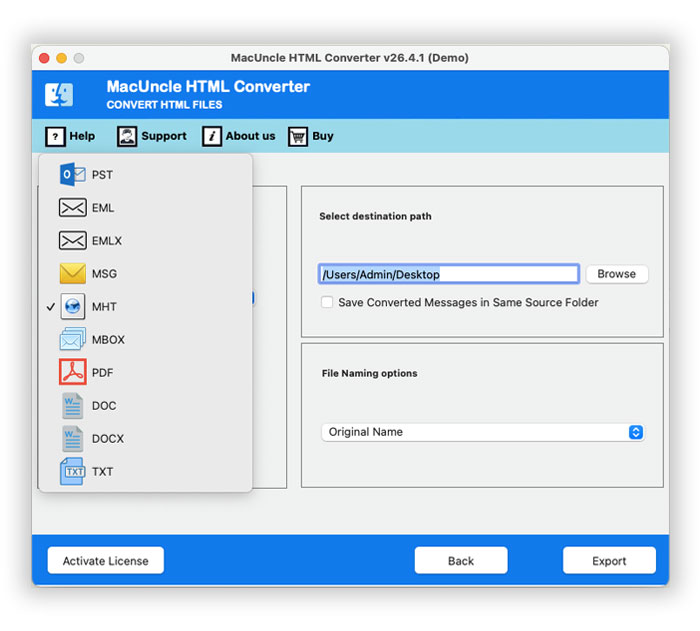
- Choose the desired EML format from the saving options.
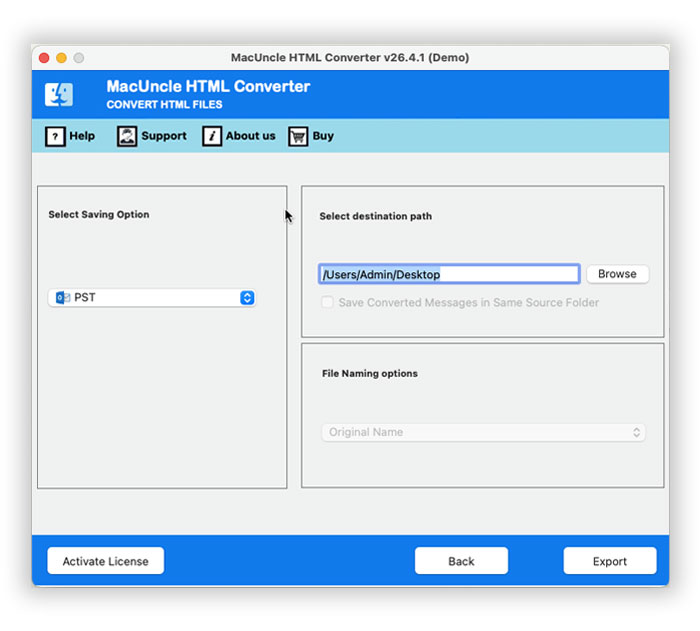
- Set a destination location to save the converted HTML file.
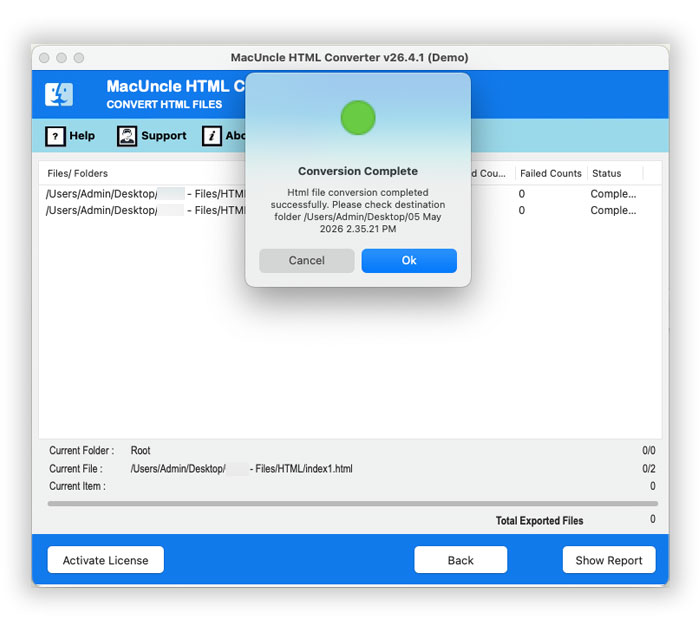
- Press the Export button to convert HTML to EML.
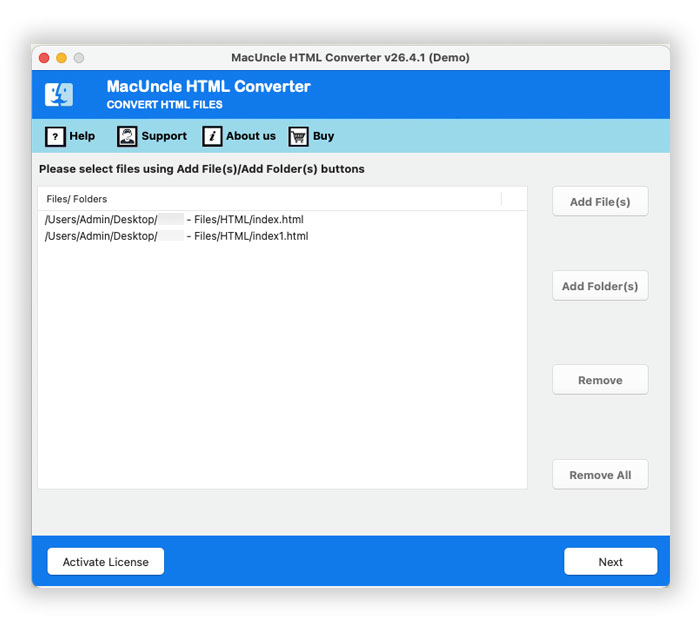
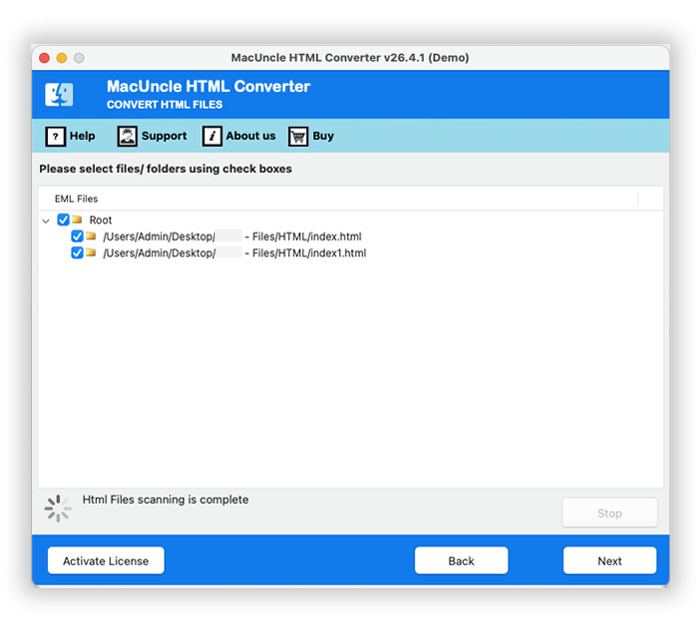
Conclusion
In the article, we’ve touched on a number of ways to change a whole bunch of HTML files to EML format. You should go for the manual tricks when you only have a few files, want to do it yourself, and also want the solution to be free, but if you are going for a mass conversion of files while keeping the original formatting, attachments, and structure, then a professional tool should be used, as it will save you a lot of time and effort. Depending on what you want to do, pick the methods that work the best in your scenario and then import the EML files you have converted into the corresponding email clients.