How to Export iCloud Contacts to CSV Format?


Contacts play a very important role in every field you get into; without them, communication would be nil. Thus, if you have a large set of contacts stored in your iCloud and want that to be viewed or accessed in other applications, then follow this article. You will get the right solution to export iCloud contacts to CSV format.
Businesses need a CSV format to ease their communication with clients. So, you can easily communicate through Excel sheets with your clients. CSV format is one of the most reliable and trusted formats if you want to get iCloud contacts to Excel or CSV. You can blindly trust the solution and go for it easily.
This article explains and gives you the right solutions to export iCloud contacts to CSV. Users can get the probable solution to do; the Exotic & Ultimate Tool is right here for you. Follow the guide to store iPhone contacts in an Excel CSV file format effortlessly.
Why Export Contacts from iCloud to CSV Format?
The reason might be different from person to person. Why users prefer the CSV format over other formats because it is easily accessible in other applications. Here are some of the reasons:
Here are the major benefits of choosing CSV over others: –
- The CSV format can easily be shared across different platforms because it is usually written in plain text.
- The format could be created very easily and quickly. You can even create using any text editor available.
- The *.csv format is easy to read and comprehend; you can also effortlessly manipulate it.
- The compactness of the CSV format is the major benefit users get.
- Big corporations use it very often to communicate with their clients, customers, etc.
- After converting to CSV format, it is easy to open iCloud contacts in Excel.
Thus, choosing CSV format is the Smartest decision for the users, according to us in this technological world, because it eases your work.
Is it possible to export iCloud Contact Directly to CSV?
No. Apple does not have a built-in option to export iCloud account contacts directly to CSV. The contacts can be exported to VCF (vCard) files, and then they need to be converted to CSV with an additional source – Gmail or a professional tool.
Export iCloud Contacts to CSV or Excel
You can export iCloud contacts to CSV using different methods, but most manual solutions are time-consuming, with a very long and complex procedure. Apple does not provide a built-in option to directly change iCloud contacts to CSV or Excel format. Instead, the contacts must first be exported to VCF files and then converted to CSV, which makes the process lengthy and complicated.
To simplify the process of exporting contacts from iCloud to CSV, use the professional vCard Contact Converter. The tool supports all types of VCF files; that being said, it also supports those exported from iCloud. It allows quick conversion of iCloud contact files to CSV format for Excel without any data loss or manual effort.
The software easily and effortlessly converts .vcf files to CSV in just a few minutes. You can save your resultant files as per your choice, whether it be in the document format or email file format; the choice is yours. The tool supports all the latest versions of the VCF file. Also, supports all types of vCard files, including iCloud, Skype, Google Contacts, etc.
Learn how to import vCard to Outlook with multiple contacts.
How to Convert iCloud Contacts to CSV Format?
To export iPhone Contacts to Excel, we need to extract the contacts from the iCloud account. With the help of an iCloud account, we need to get the complete contact list. Follow the procedure:
#Step 1. Save iCloud Contact List to vCard format
- Start and enter your iCloud account.
- Choose the Contact Icon, and all the iCloud contact list appears on the screen.
- Now, click on the settings button to get a new menu.
- From there, select All, and later press Export vCard.
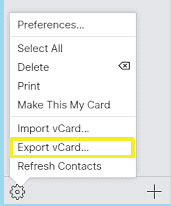
- Then, it will automatically download the contacts in VCF format.
Now, follow the instructions given below to Export iCloud Contacts to CSV format on the system.
Method 1: Use a Google Account to Export iCloud Contacts to CSV format.
Navigate to the extracted VCF file on the system.
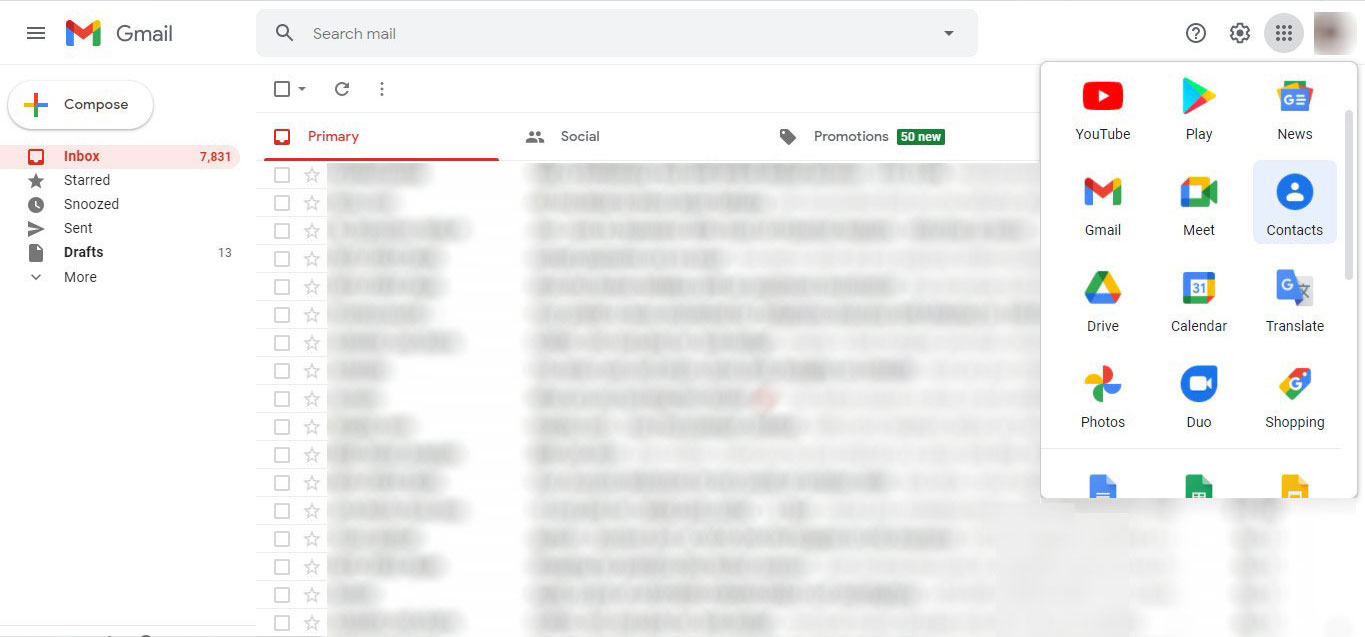
- Go to your Gmail account and log in.

- Select the Contacts from the menu.
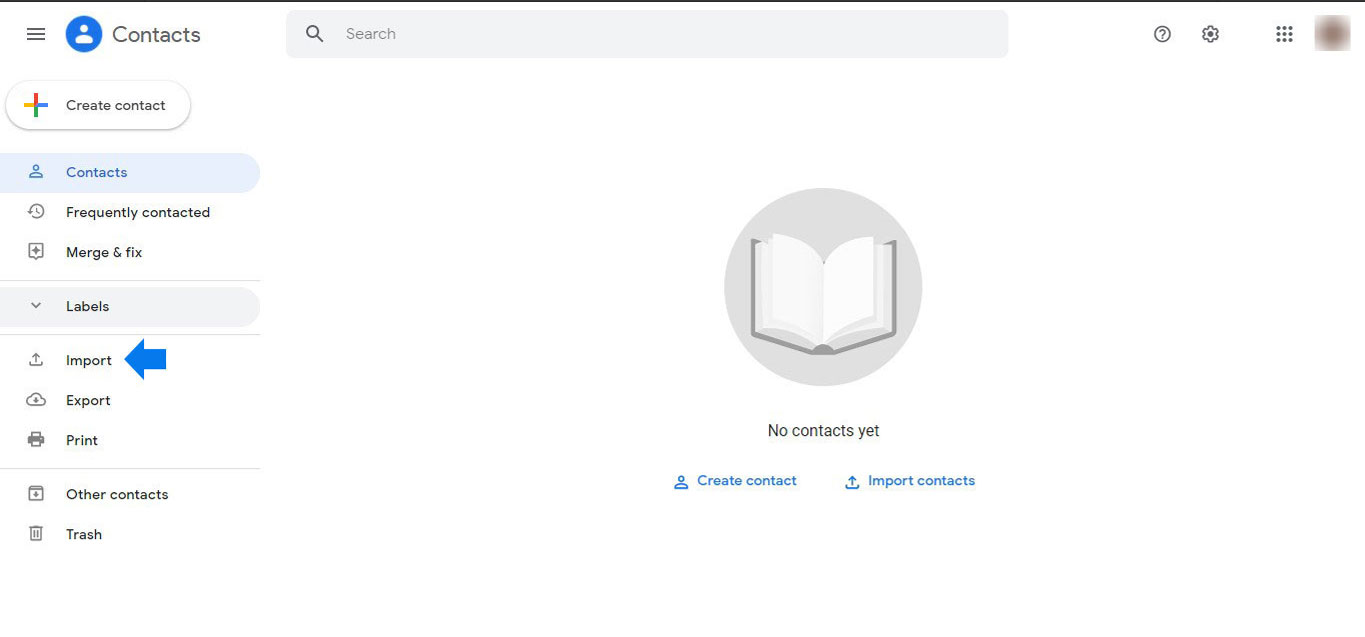
- In the left corner, select the Import option.
- Now, select the VCF file and convert it to CSV.
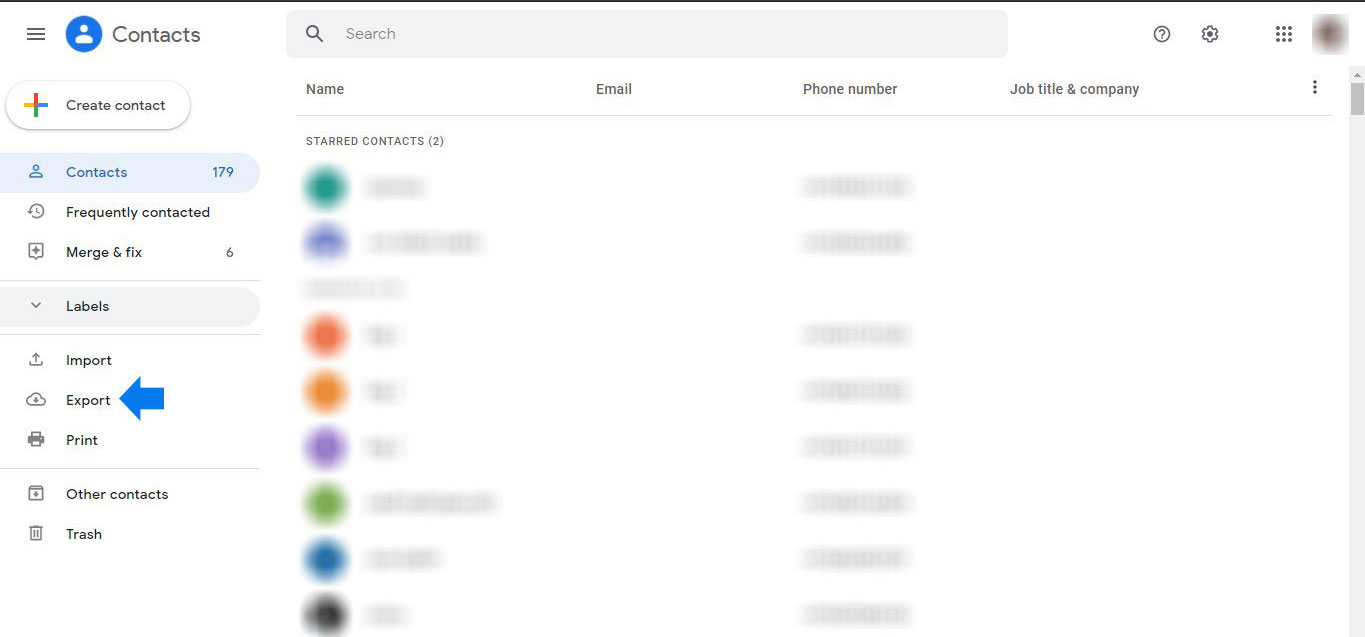
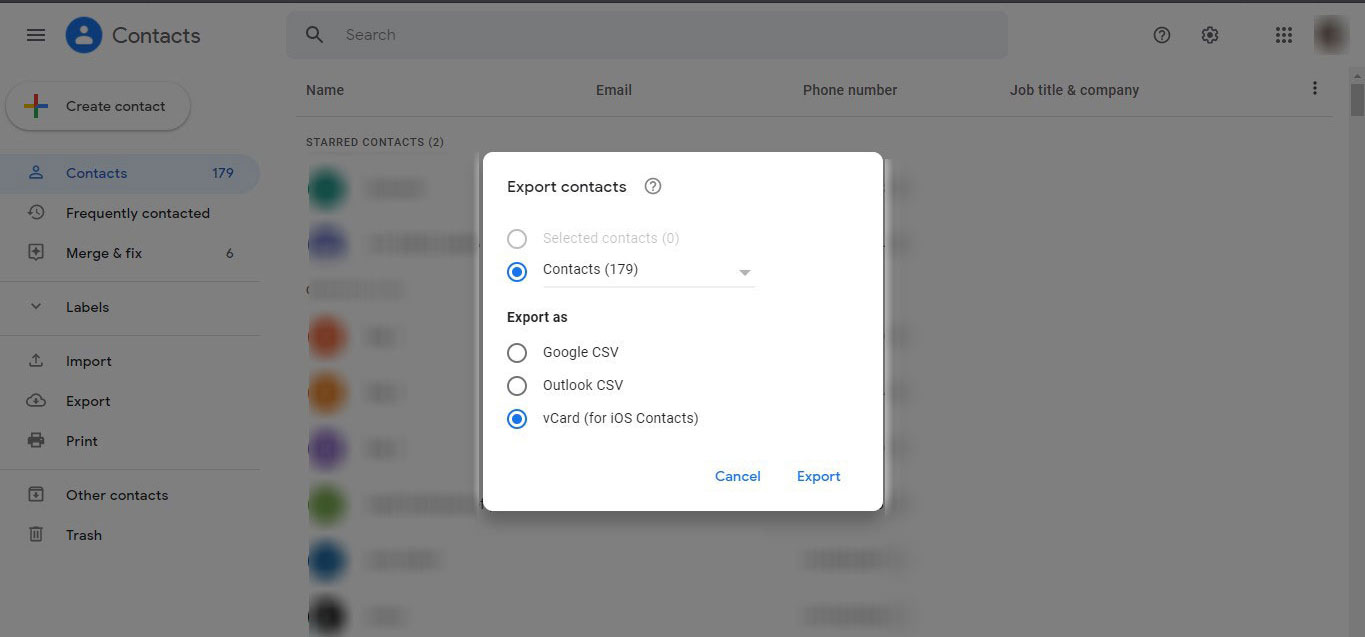
- You will find the Export icon and select Export as Google CSV.
- Thus, you can convert iCloud Contacts to CSV with a Google Account.
Method 2: Export iCloud Contacts to CSV Format
Follow the steps to convert iPhone contacts to Excel format easily: –
- Start the software and follow the steps to convert iCloud contacts to CSV.

- Add vCard files you wish to convert to *.csv using the Add folder (s) or Add file (s) options.
- Then click on the vCard file present on the tool’s left panel and preview it.
- Secondly, now go to the Convert option and select the CSV option from the Convert to Other Format.
- Finally, press the OK button.
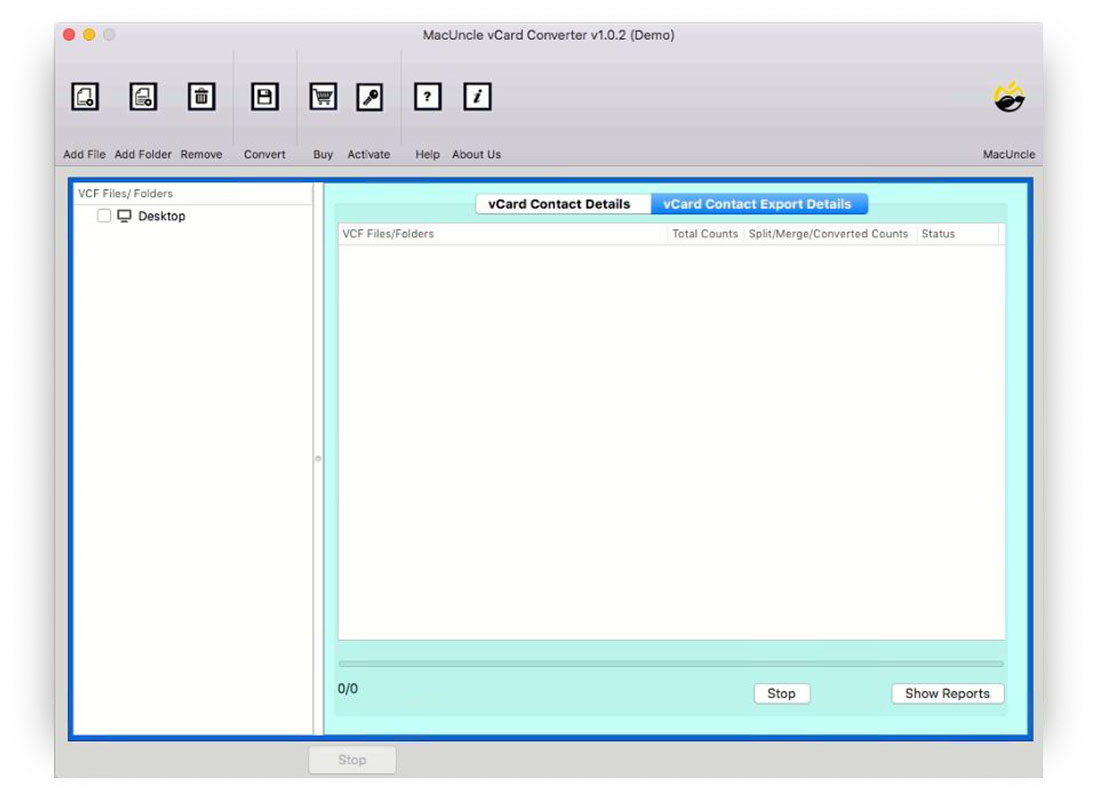
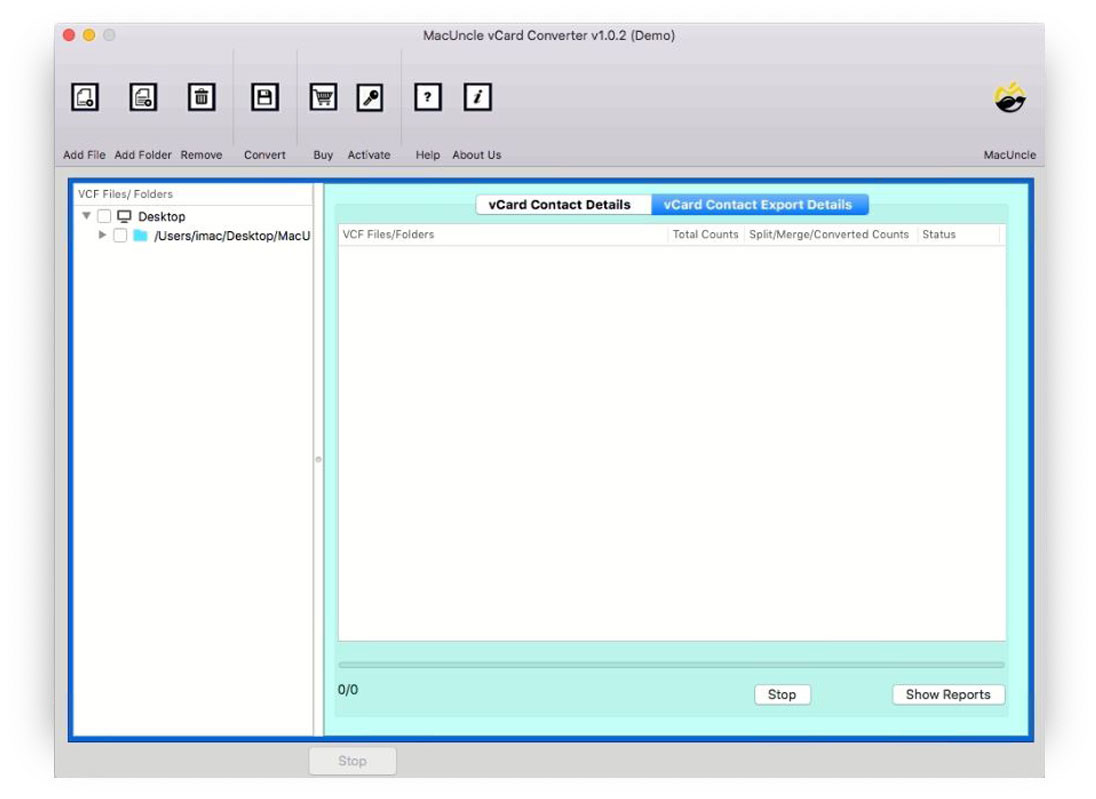
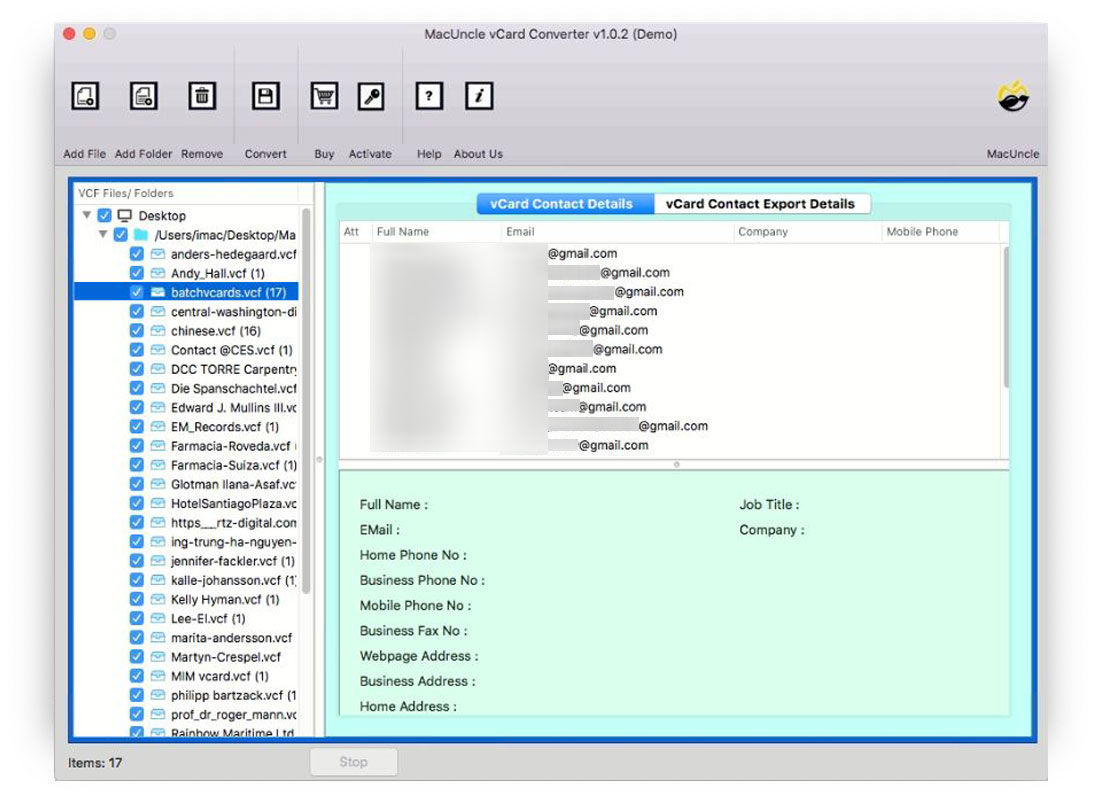
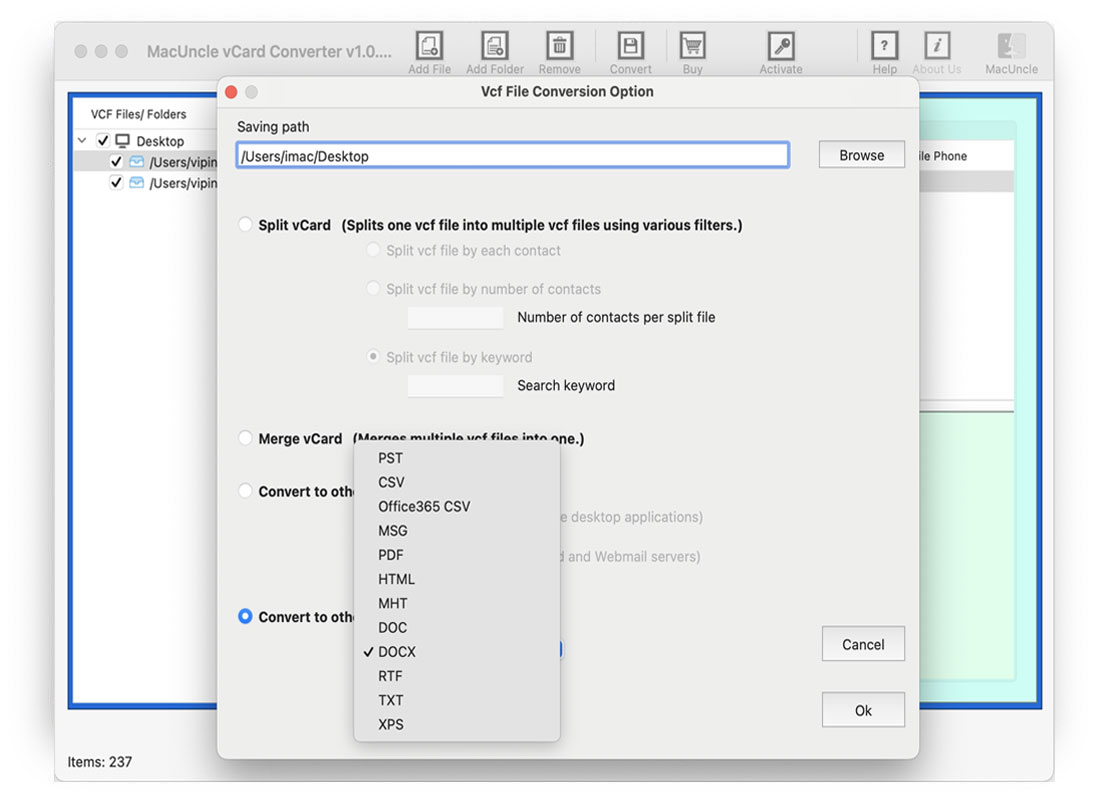
In just a few minutes, you will receive notifications regarding the successful completion of the conversion.
Thus, you can open the iCloud contact files in an Excel sheet after converting them to CSV format.
You can also find a solution for “How do I import a CSV file into iCloud Contacts?”
Significant Traits of the Software to Export iCloud Contacts to CSV
The tool offers exotic features, and you can also be a part of it. Here are some of the major traits of the software: –
- Effortless Way: The software offers you a smooth and effortless solution to export iCloud contacts to Excel. The tool gives you the result more quickly and efficiently.
- Saving options: The software saves the CSV files in two formats: –
- Email format– CSV, HTML, XPS
- Document format– DOC, TXT, PDF
- Supportability: It supports all the latest versions of the vCard file, like vCard 2.1, vCard 3.0, vCard 4.0, etc.
- Batch & Selective options: The toolkit provides you dual-mode to upload vCard files either in the bulk option or you can go for the Filter option in case of selective conversion.
- Preserves & Maintains: The tool preserves and maintains your folder’s hierarchy and prevents your data from any loss.
- Compatibility: The software supports all the latest versions of Mac OS, like 10.9 Mavericks, 10.8 Mountain Lion, 10.13 High Sierra, 10.12 Sierra, etc.
Bottom Lines
In conclusion, the article winds up with the perfect software, which you can use to export iCloud contacts to CSV. The tool offers exotic and rich features, which include the latest versions of vCard files to convert them into CSV. The converter tool also offers free conversion of up to 25 vCard files to CSV in its trial version. The tool guarantees 100% safety and security.
FAQs
Q) Can I export my iCloud contacts directly to CSV format?
A) iCloud does not have any options to export the contacts to CSV format. You can export the contacts to VCF files and then export the files to Excel or CSV.
Q) Will exporting contacts to CSV affect the iCloud data?
A) No, exporting the contacts from iPhone to CSV will not affect the iCloud data. These export processes will only create a copy of the contacts present in the iCloud in a new format. Even exporting the iCloud emails to an Excel sheet.
Q) Can I automate the process of exporting iPhone contacts to CSV format?
A) Exporting the contacts does not support the automated solution. One must manually export the contacts from the iCloud account.
Q) Is CSV better than VCF for organising contacts?
A) CSV is better for bulk editing, Excel and databases, while VCF is better for sharing contacts between devices.