How to Export Mac Outlook Calendar to Excel?


Today, let’s solve this issue. Know how to Export Mac Outlook Calendar to Excel. The article will walk you through different solutions, from which you can opt for any solution as per your requirements. Sometimes we need to export the Outlook events to Excel for various purposes, such as to share files or for data analysis. In this write-up, we will see the process of moving the Mac Outlook event list to Excel.
Sometimes, you may need to export your Outlook calendar data to Excel for various purposes, such as data analysis or sharing with others. In this guide, we will walk you through the process of manually exporting your Mac Outlook calendar to an Excel spreadsheet.
Overview of Outlook Calendar & Excel
The Mac Outlook Calendar stores every event, reminder, etc., in the OLM file format. You do not have to worry about the events; you can simply select the date & time, and Outlook will perform its task. On the other hand, MS Excel can easily manage your events, reminders, etc., as it is platform-independent. You can access Excel files on almost every operating system.
Why Excel? – OLM files are only supported and accessed using Outlook for Mac accounts. Therefore, people find it very difficult to access the OLM Calendar on another platform. There are various reasons why users want a simple technique to convert Calendar files.
Here are some of the major reasons why users export Mac Outlook calendar to Excel: –
- To transfer the OLM calendar file to another Email Client.
- To share events with event or meeting schedules with other users
- Access Mac Outlook Calendar on other devices like tablets, cell phones, etc.
Here, we are providing the top two ways to transfer Outlook for Mac Calendar Events to Excel.
Exporting Outlook for Mac to a compatible format can help you access the file in an Excel sheet. Read the complete article to know more about the process.
Related Article | Find out how to export Outlook Calendar to Google calendar?
Manually Export Mac Outlook Calendar to Excel
Follow these steps to convert a Mac Outlook data file to an Excel file.
- Start Outlook for Mac.
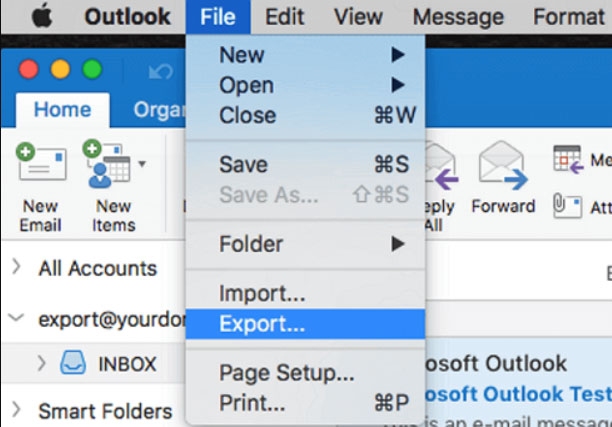
- Go to File > Export….

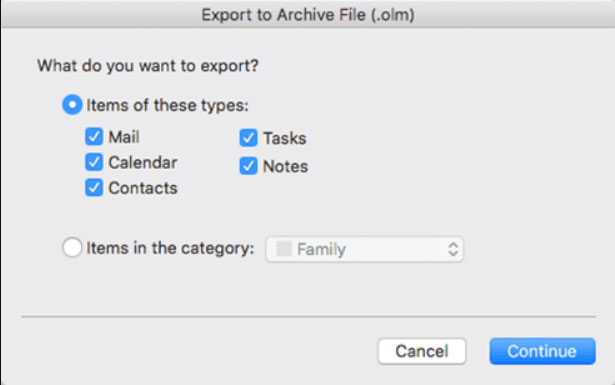
- Select ‘Export to File’ and select a calendar.

- Select the calendar events to be exported. Press the ‘Next’ button.
- Save the CSV file in the desired location.
Importing CSV Data into Excel
- Open Microsoft Excel
- Import the CSV File
- Review and Format the Data.
- Customise the Excel sheet.
- Save and share the Excel Calendar
Limitations: Here are the major limitations or loopholes of the manual method to Export Mac Outlook Calendar to Excel:
- The process is quite lengthy and time-consuming.
- It is mainly for a limited number of Outlook files; you have to work hard for bulk export.
How to Import Outlook Calendar to Excel Mac Instantly?
To overcome all the difficulties and loopholes of the manual method, we present the best tool to export Outlook calendar to excel is OLM to CSV Converter Software. The software will allow users to export multiple Outlook Mac calendar events to Excel. The tool preserves and maintains the folder’s hierarchy and prevents data loss. The wizard comes with a coherent GUI and a user-friendly interface, which enables users to operate it effortlessly.
The Converter allows you to export Mac Outlook events to Excel in bulk and also selectively by choosing Filter options. It is purely standalone and doesn’t require any other software installation.
In 5 Steps: Export Mac Outlook Calendar to Excel?
Follow the steps to export the calendar from Mac Outlook to an Excel sheet.
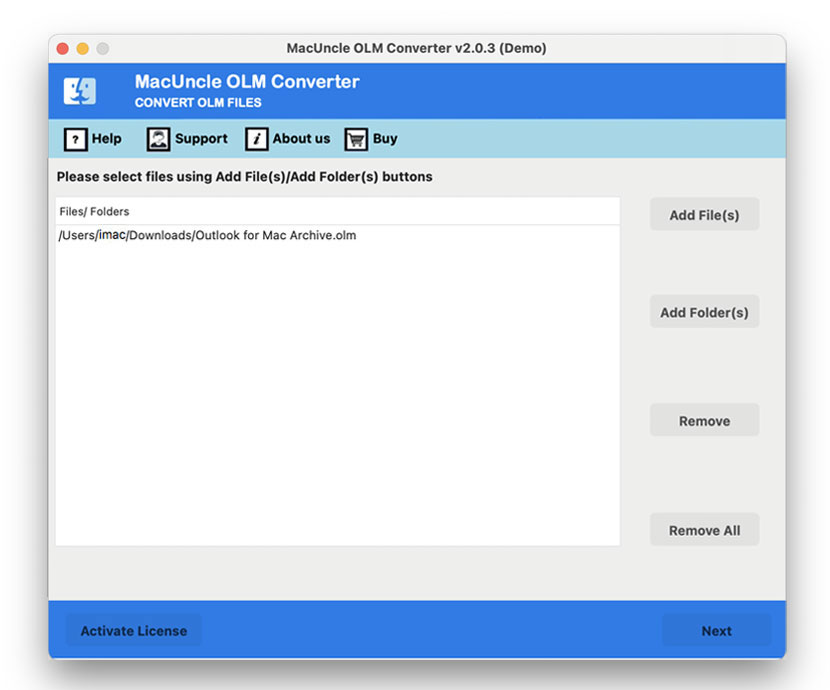
- Upload the OLM Calendar files in the software using the ADD option.

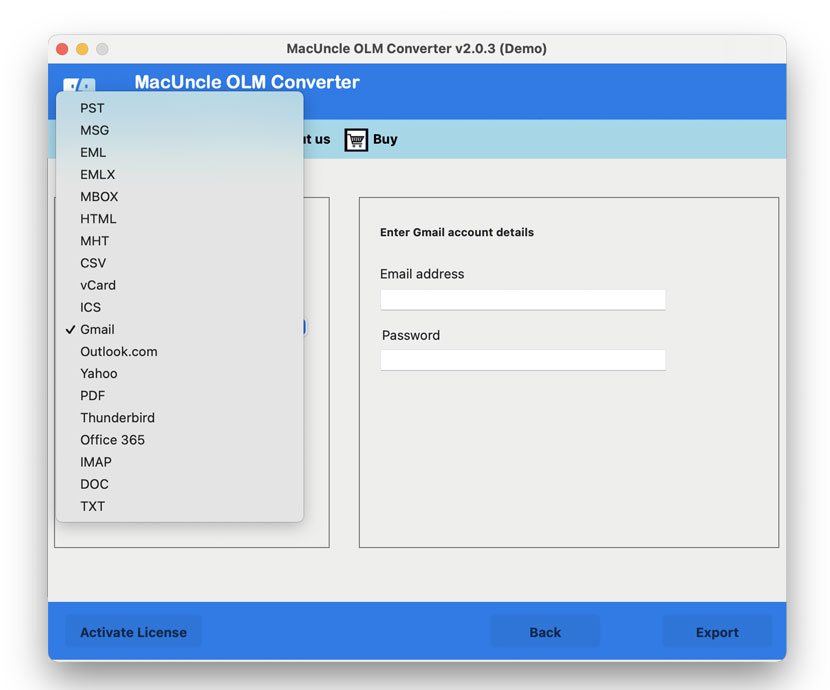
- Then, select the CSV option from the Select Saving Option.
- Also, choose your preferred location from the Destination option.
- At last, press the Export button to export Mac Outlook Calendar to Excel.
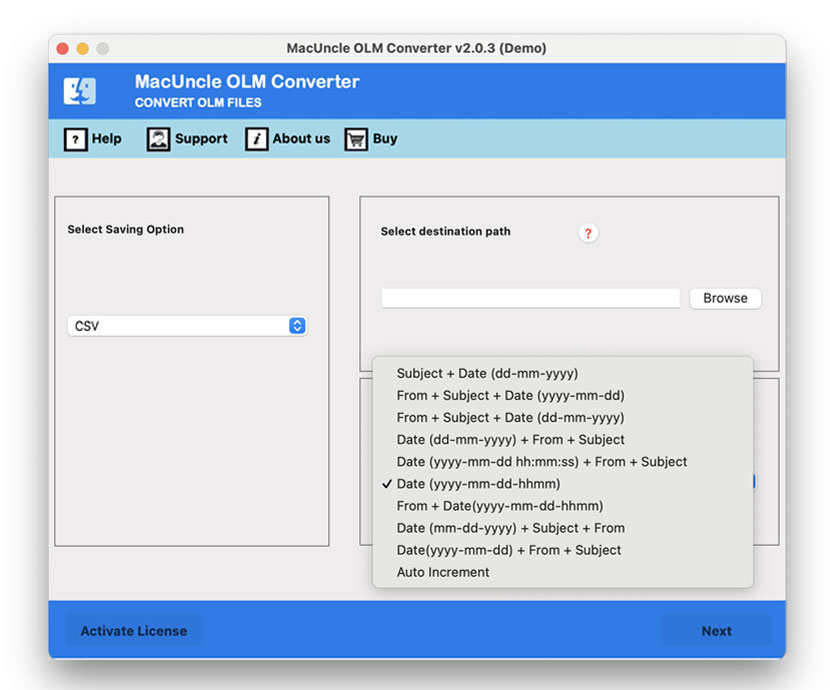
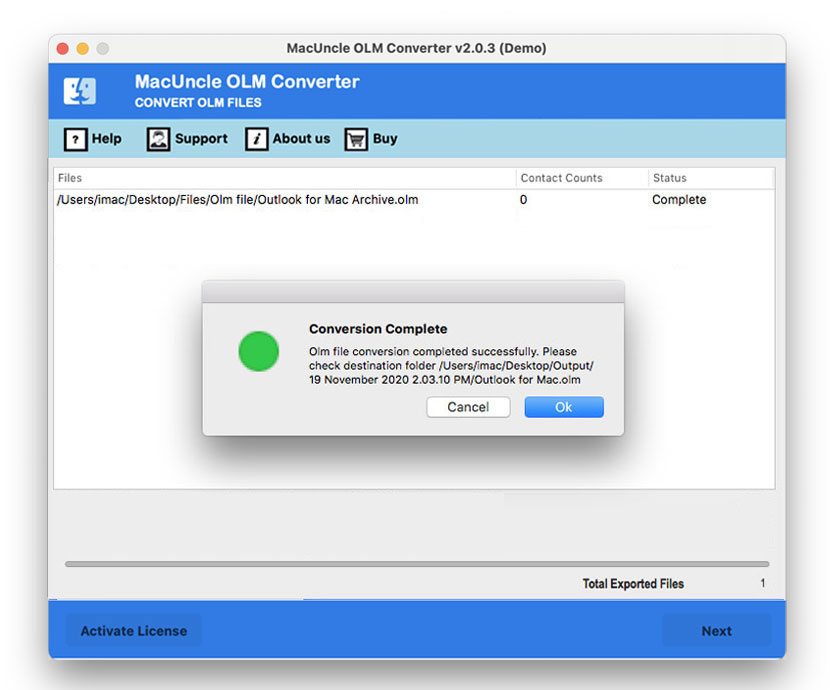
You will receive notifications regarding the successful completion of the same.
Find out the steps to create PST file in Outlook on Mac.
Final Words
The article applies reliable techniques to Export Mac Outlook Calendar to Excel. Thus, if you want to view or access the Outlook calendar file in Excel, you have to convert it to CSV, and then you can access it directly in Excel. Use the suggested software to get an instant solution.
Excel is ideal for organising and analysing calendar data. However, if the objective is to continue using the events in the Apple ecosystem, then you must transfer the Outlook calendar to Apple Calendar instead.
FAQs
Q1) How can I import the Calendar from Outlook to Excel?
A1) The simplest method would be to use the automated method to transfer the Outlook Events to Excel. Add the files to the software and just convert the files within the software interface itself.
Q2) Will I be able to export emails from Mac Outlook to Excel?
A2) Yes. Import OLM to Excel using the steps outlined here. Select the emails instead of calendars.
Q3) How to selectively export Outlook calendar to Excel?
A3) With the filter option in the Email Backup Tool, we can export Outlook calendar data to Excel effortlessly.
Q4) How to export the Mac Outlook calendar to CSV files on Mac?
A4) Use the recommended software to directly export emails from Outlook to a CSV file in batches.