How to Print Yahoo Emails without Header | Step-by-Step Guide


Printing emails is a common task, especially when you require a tangible copy for reference or documentation. On the other hand, printing emails with headers might be a waste of ink and paper. Here, we will discuss the steps to print Yahoo Emails without a header. Before learning about the steps to get the hard copy of Yahoo emails, let’s find out the reasons.
Why Print Yahoo Emails?
The reason might vary from user to user to print Yahoo emails. The hard copy of important mail offers a physical backup to store sensitive information in the event of any mishap or system failure. Also, the hard copy is useful as evidence for professional or legal requirements, a written record that is easily available and shared with ease.
Some find it easier to assess and comment on printed files, thereby enhancing the collaboration and understanding of an email’s messages easily. Additionally, others prefer offline reading and must get the information where digital devices are not feasible.
How to Print Yahoo Emails without Headers Manually?
Yahoo Mail does not have a direct option to remove the email header while printing. You can manually reduce unwanted header information by adjusting the browser print settings.
Follow the steps below:
- Open the web browser and log in to the Yahoo Mail account.
- Open the email that you want to print.
- Click on the Print icon or press Ctrl +p (Windows) or Command + P (Mac).
- The browser print windows will appear.
- In the print settings, go for the option such as Header and Footers, Page Headers, or Page Information.
- Uncheck the options to remove browser-added elements like page title, URL, and date.
- Preview the email to ensure it appears clean and readable.
- Click Print to complete the process.
Note: It removes the browser print headers. It does not eliminate email metadata, nor is it suitable for bulk printing.
Limitations
- The procedure might be different or never rely on the browser being used.
- Some e-mail systems or browsers may not offer specified options for excluding headers.
- Users who are much less skilled with those technologies can also come upon problems or confusion.
- Printing emails in this manner won’t be available to all users, especially folks who rely upon screen readers or different assistive technology.
- Printing emails might also reveal contact information, so customers have to be careful about where and how they print.
Overall, while the steps offer a fundamental manual for printing emails from Yahoo Mail, customers should be aware of those limitations and adapt the system as they wish, primarily based on their unique situations and alternatives.
If you want, after printing, you can delete emails from Yahoo Mail.
How to Print Yahoo Emails without Headers?
You can use the Yahoo Backup Software to get the emails separately in a printable document format. With the toolkit, the user can choose the desired files from the panel and store the files in any document format. It offers standalone features along with the ability to export only the email content to the desired location.
Select and Print the Emails from Your Yahoo Mail Account
Follow the steps below to learn how to print Yahoo emails without headers using the abovementioned software.
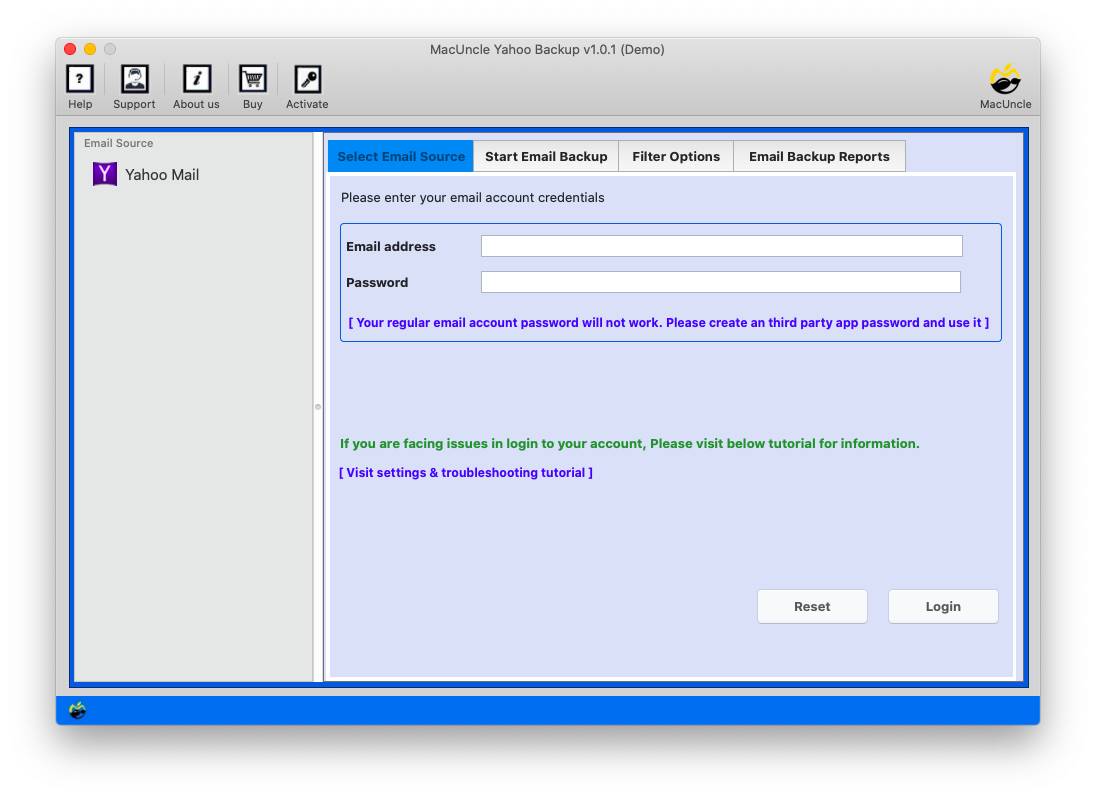
- Start the software to print Yahoo emails without a sidebar or header.

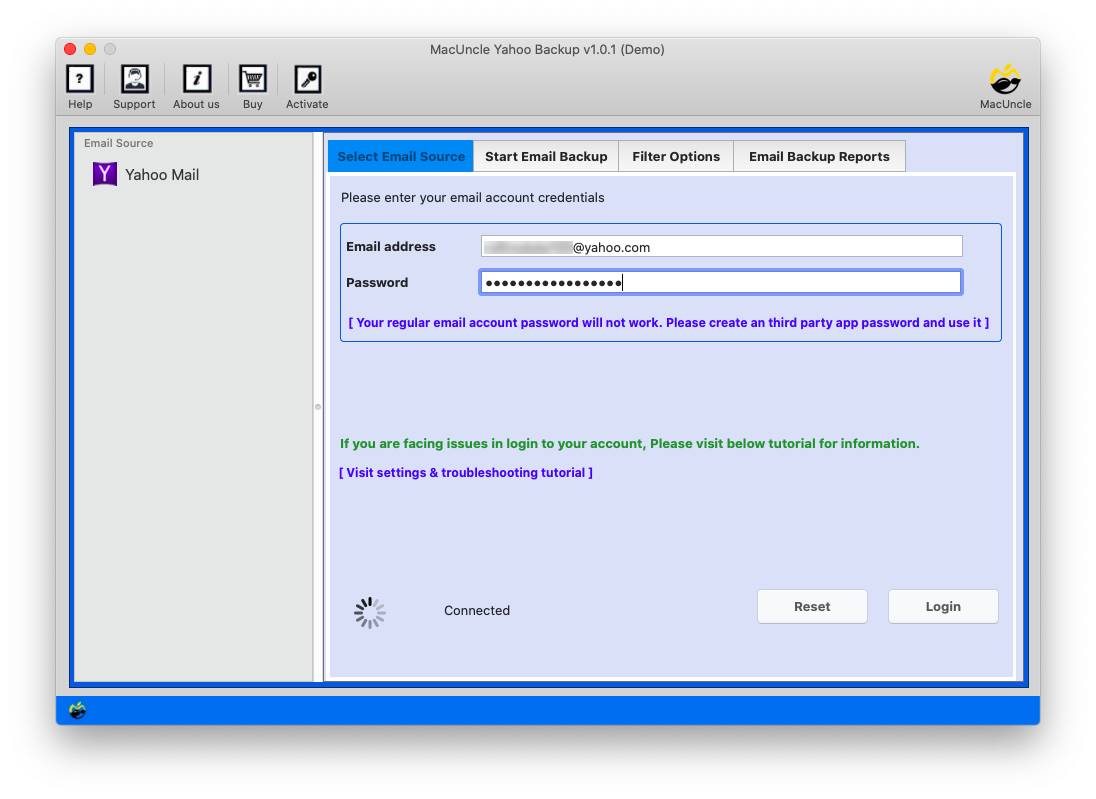
- Enter your Yahoo mail credentials in the required field. Press the login button.
- Choose the desired email folder from the software panel.
- Now, select PDF as the saving file format from the options.
- Press the Start button to get the Yahoo emails in printable documents.
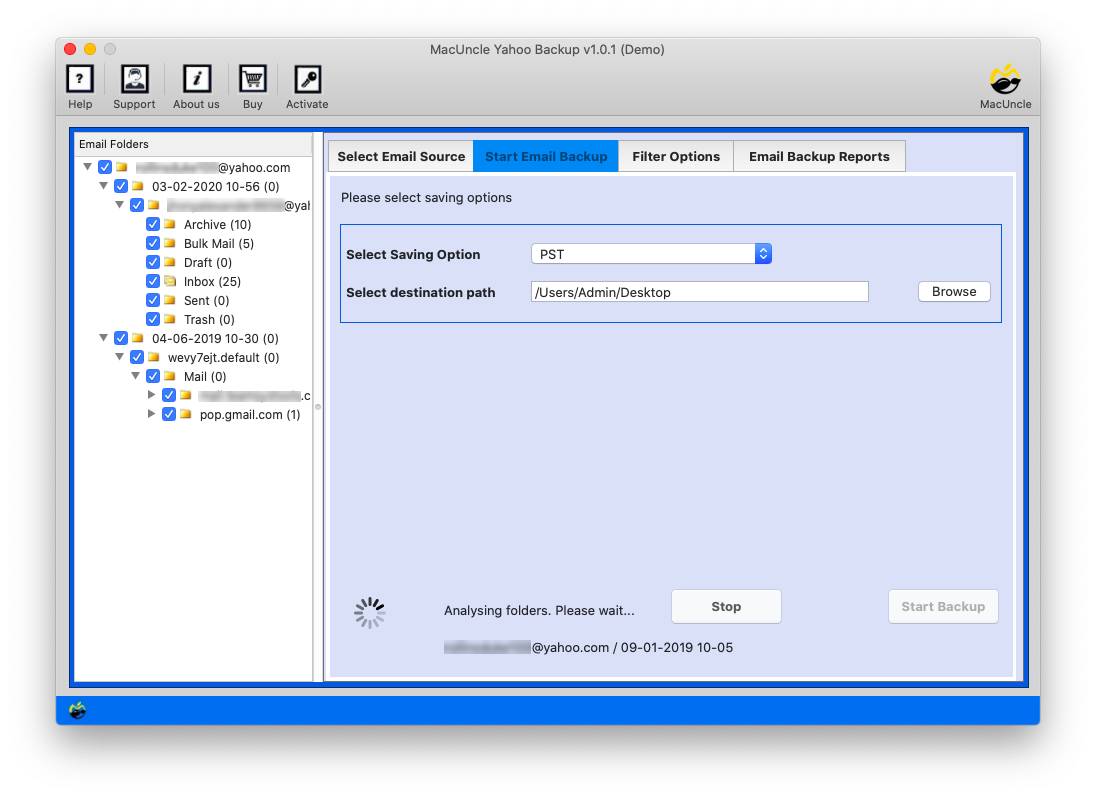
In a few minutes, all the files will be stored in the selected file format.
Check out the related article here: How to save an email as a PDF in Yahoo Mail?
Some of the Software Traits
The software has so many features to print Yahoo Emails without a header:
- Advanced functionality: Users can utilise the software program to backup yahoo mail to hard drive. You will get the option to choose any file format and then print the emails easily in any document format.
- Separate e-mail extraction: The software program lets users extract emails one by one. Select the emails using the check box.
- Printable document layout: Emails may be transformed into printable document formats as per the user’s demand.
- User-friendly toolkit: The software program presents a consumer-friendly toolkit interface.
- Document format flexibility: Users can store the extracted emails in any document format of their preference.
Conclusion
It’s easy to print Yahoo emails without the header, to prevent paper and ink, whilst still producing a clear and legible printout. It’s simple to print your Yahoo emails without extra header information if you comply with this guide’s instructions. You can also now print out tough copies with self-belief, knowing that you’re getting the most effective printout available, whether you need them for documentation, reference, or every other purpose.
Frequently Asked Questions
Q) Are there any risks involved in using the recommended tool?
If you are using the software mentioned here, there is rarely any risk while exporting the files from Yahoo emails in document format.
Q) Is it easy to print the Emails from Yahoo without headers?
A) Yes. You can try the manual and the automated method by following the provided instructions. Whether for any documentation, reference or other purposes.