How to Convert VCF to CSV on Mac & Windows?


The article is all about the solution for converting VCF to CSV on Mac & Windows. We have developed a secure, independent application to convert the vCard (Virtual Contact Files) files to CSV (Comma-separated Values) files. Both vCard and CSV-formatted files are used to store contact information.
Let’s understand what VCF and CSV files are. VCF (vCard) files store information such as Name, Phone Number, email address, address, etc. We can open VCF files using a contact application that mostly supports VCF files. There are different versions of vCard files. vCard 2.1 for Mobile devices and 3.0 for Webmail and cloud servers.
CSV files are plain text with contact or other data separated with comma. The file can be opened in Excel, and they are most commonly used for storing and transferring contacts. The article here has the best-known method to convert vCard to CSV format efficiently without data loss.
Why You Should Convert VCF to CSV on Mac & Windows?
In this section, let’s go through some of the major factors of the CSV files, which imply the reasons to convert VCF files to CSV format.
- It is always mandatory to save all the contacts as backups and store them in a format that can be accessed or transferred easily without any restrictions.
- CSV files are in text format, and therefore, they can be easily edited using any text editor.
- The CSV files are easy to manage, and they are better for organising a large amount of data.
- CSV files provide a clear structure, i.e., a clear tabular format, to easily understand and navigate.
Use Google Contacts to Convert VCF to CSV Format
Follow the steps mentioned here to manually change the vCard contact files to CSV.
- Go to https://contacts.google.com/
- Sign in to the account
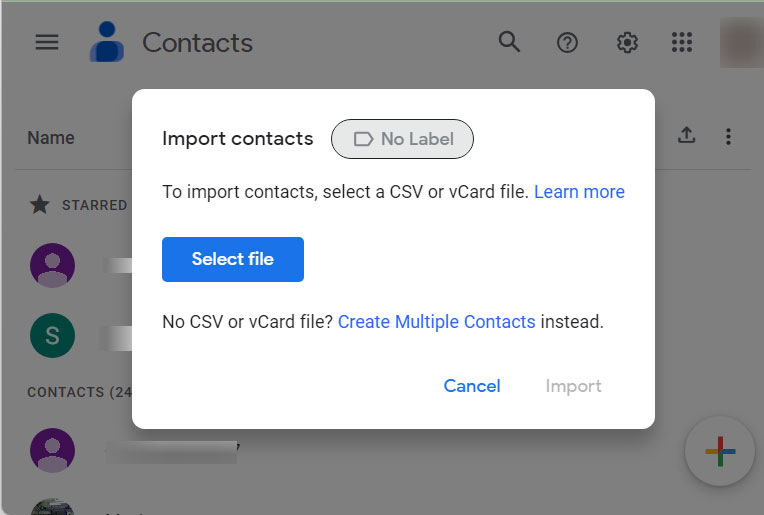
- Under the Fix and Manage section, navigate to Import.

- Go to Select File and add the VCF files. Click Import.
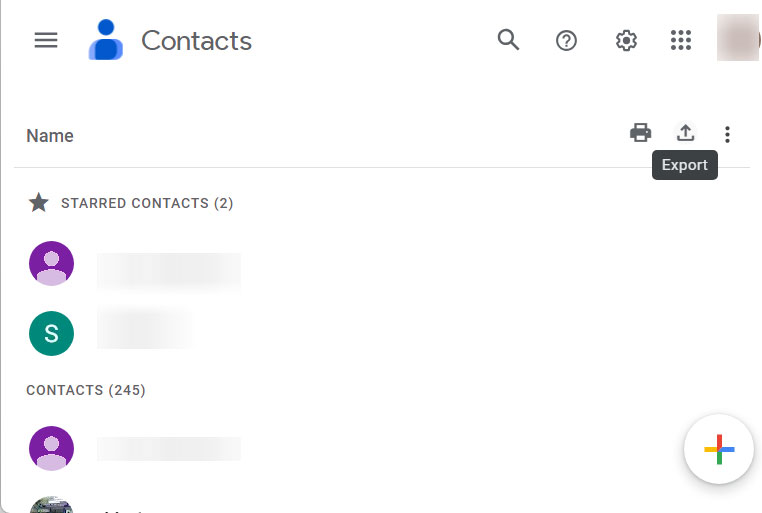
- To export the files, go to the Export icon as shown in the figure.

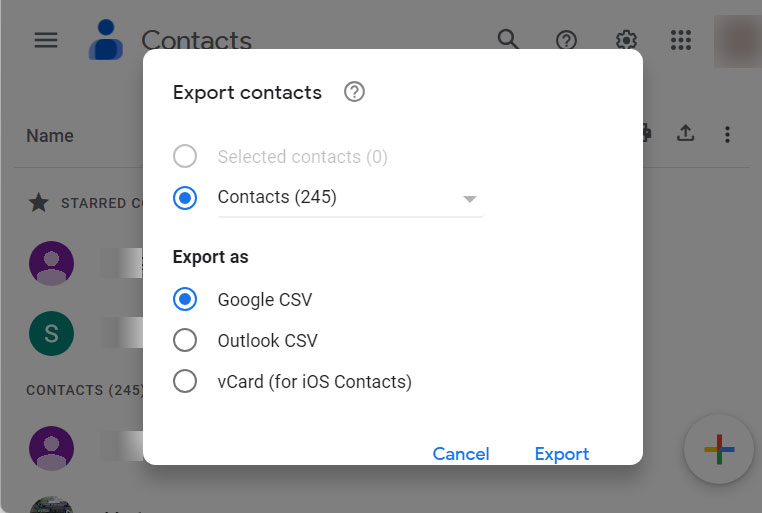
- Now choose the contacts you just imported.
- Select the file format as Google or Outlook CSV format. Click Export.

Convert VCF to CSV Using a Reliable Application
The vCard Converter is a tool to convert VCF files to CSV format with multiple contact lists. The tool exports the vCard files to Excel CSV format while maintaining the data integrity intact. It supports all types of VCF files and efficiently switches the file format to CSV by maintaining data integrity.
The vCard to CSV tool has multiple functionalities and also follows an advanced algorithm to change the file extension. It delivers 100% secured and accurate results in *.csv format.
How to Convert VCF Contacts to CSV File Format?
Follow the steps to convert VCF to CSV format with the MacUncle toolkit.
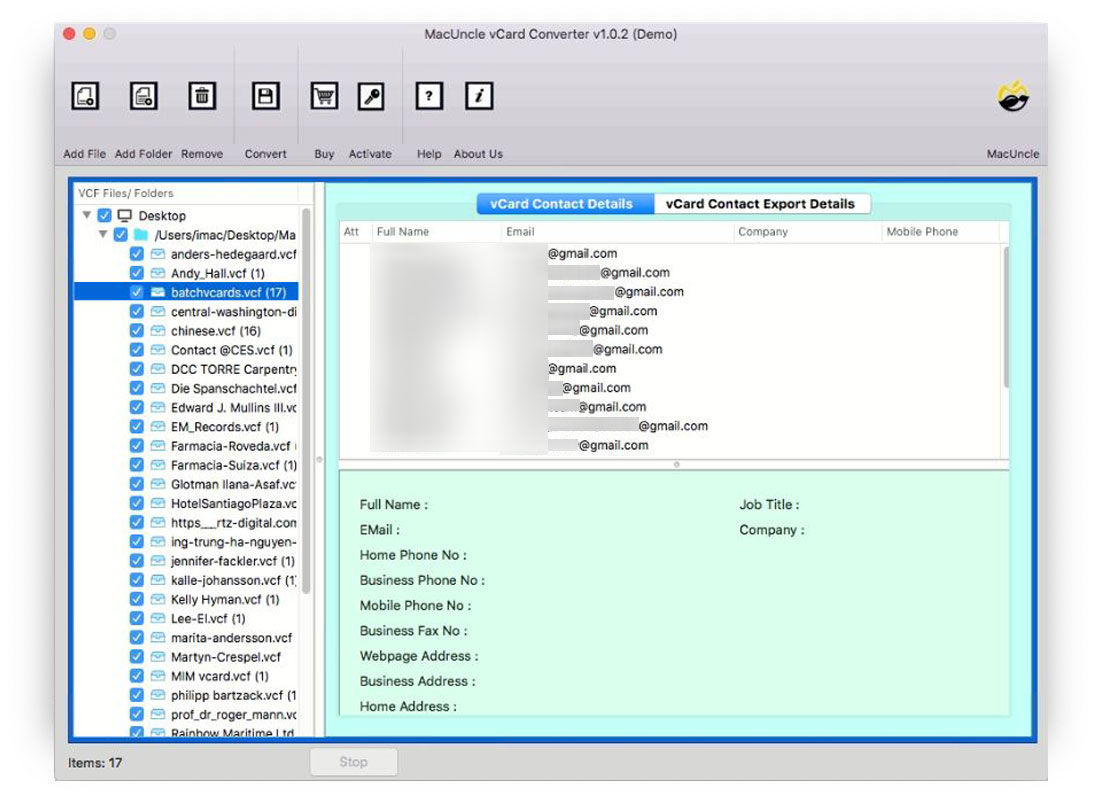
- Start by adding a vCard file. Press the Next button to convert vCard to CSV.

- Choose the required file and preview the vCard contact file on the vCard Contact Details.
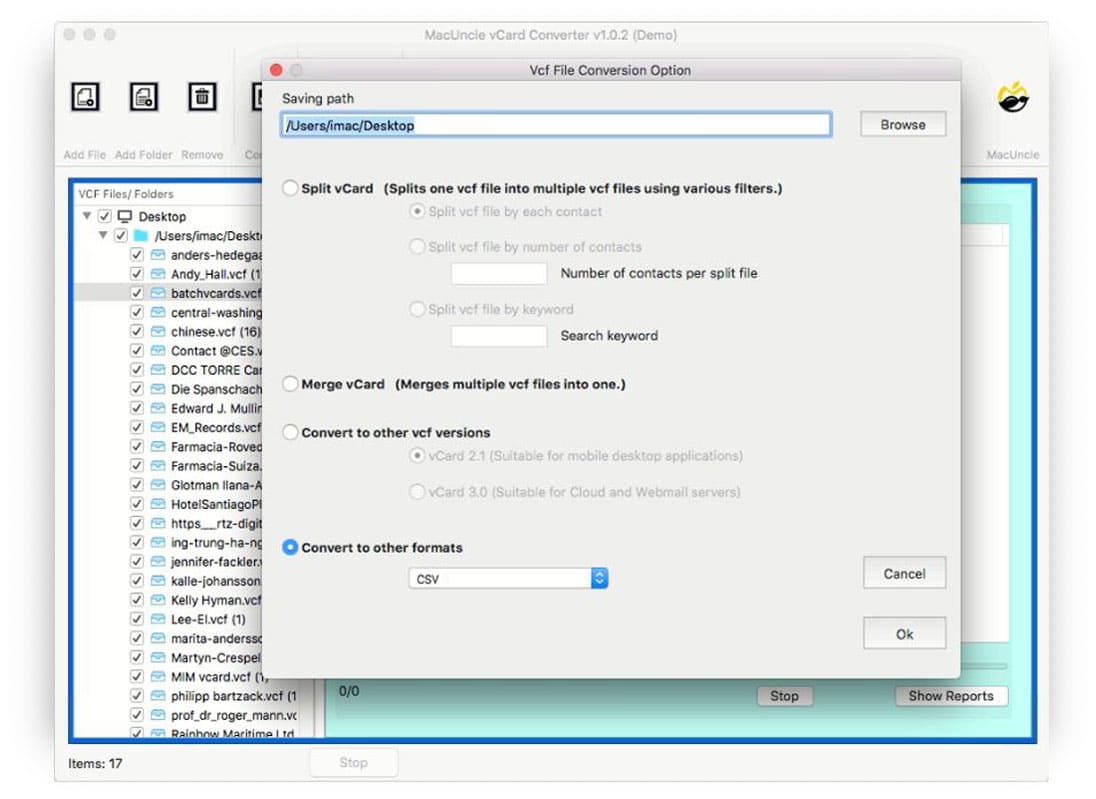
- Then, go to the Convert option and click on Convert to Other Format. Choose CSV format.
- Finally, click the OK button to convert VCF to CSV files easily.
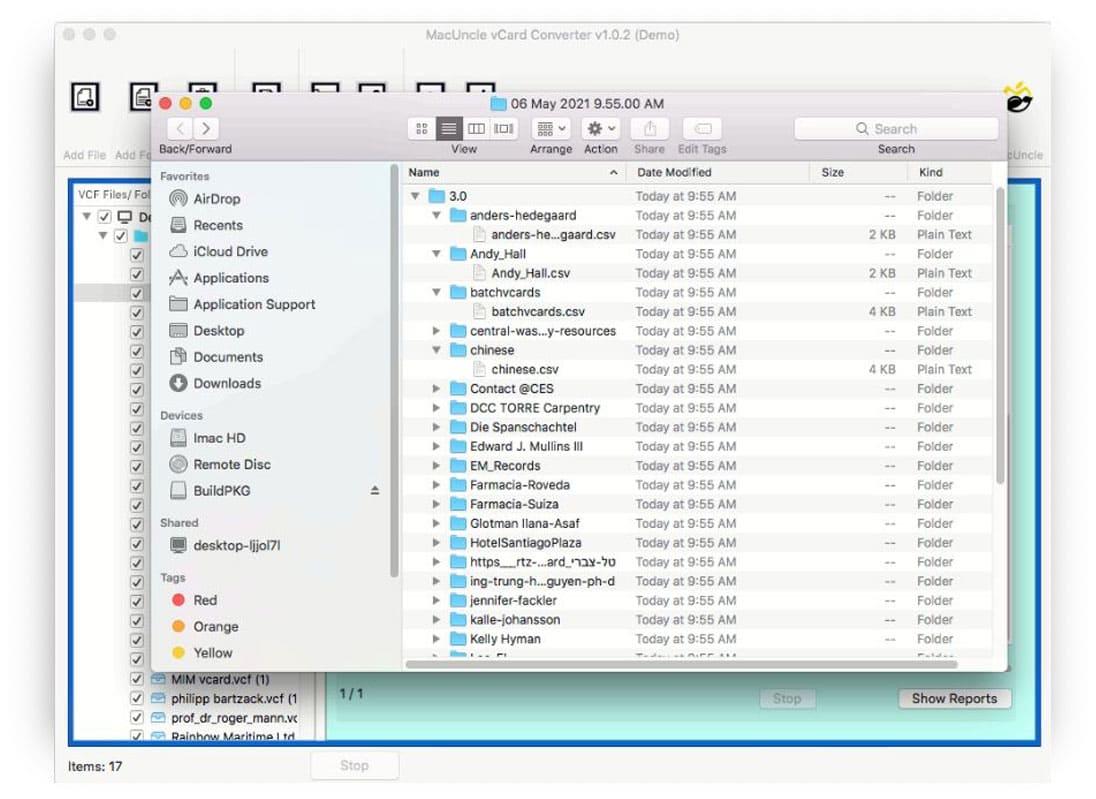
- In no time, the folder with the *.csv file will open up instantly.
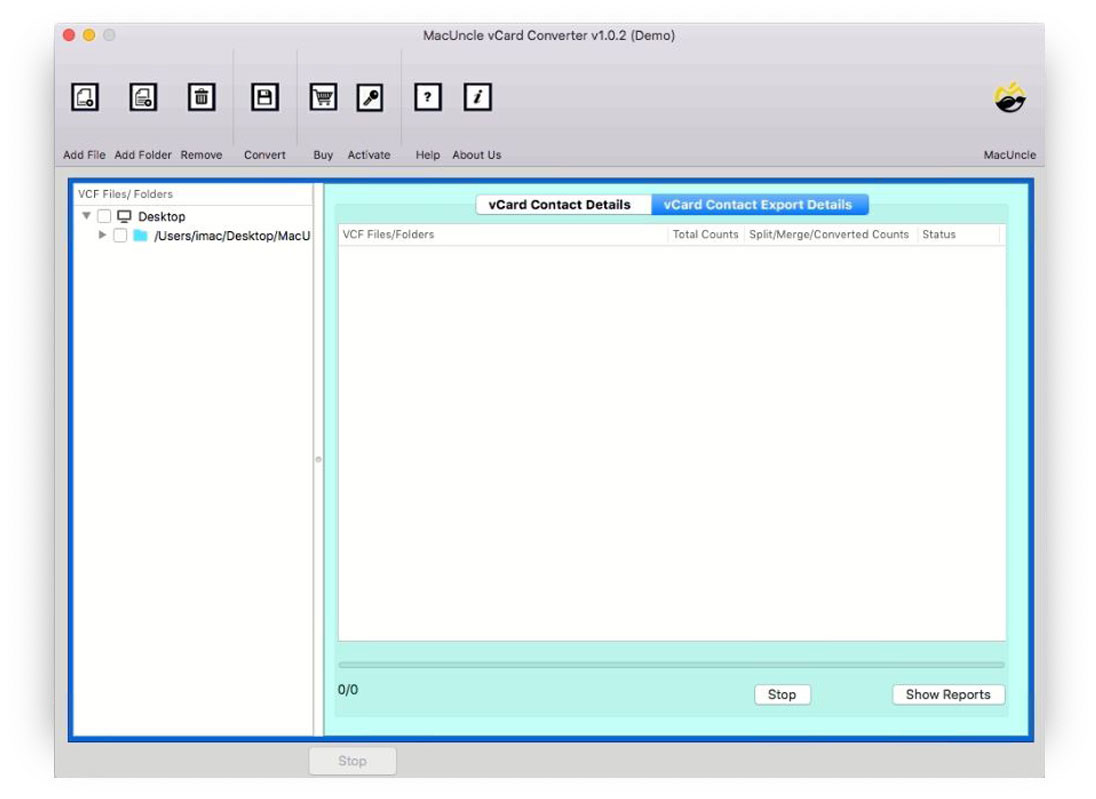
The conversion using the application is simple and offers accurate results in another file format. From the steps, it is clear how to convert vCard to CSV on Mac, even if you are a computer novice.
If you need to import your vCard contacts directly into your Microsoft account, you can follow our guide on Import vCard to Outlook on Mac very easily.
Advanced the VCF to CSV Conversion
The application has two different versions: the Trial and Pro versions. The trial version is a testing edition of the tool, which gives you a complete overview of the application’s functionality. Convert VCF to CSV format with a limit of 10 files, along with all the features.
Moreover, one can activate the Pro edition by using the above link. Upgrade the converter toolkit and export multiple contacts in vCard format to CSV without any restrictions on the process.
Significant Features of the Tool to Convert vCard to CSV on Mac
Along with the user-friendly software GUI, the tool also possesses some advanced features while converting VCF to CSV format. What makes the application stand out from the rest of the online services?
- Support Multiple File Conversion: Using the tool, convert single or multiple vCard files to CSV format. Add files via the Add File(s) or Add Folder(s) button and export bulk vCard files to Excel without any limitations.
- Preview vCard File: Before the conversion begins, the user can view the vCard contact files in the reading panel. In the vCard, you can see complete information such as Email Address, Full Name, Company, and Phone Number.
- Freedom to Choose Location: Convert VCF to CSV format, and choose the preferred destination location to save the converted file. Browse the saving path and select an appropriate location. Wherever the location is, the tool opens up the folder with the resultant file after the conversion.
- Get other Options too: The tool comes with other features such as splitting files based on each contact, several contacts, and keywords. Merge Multiple VCF files into a single file. Also, convert the VCF version to 2.1 and 3.0.
FAQ
Q1) Can I run this tool on my MacBook OS X 10.14?
A1) Yes, the tool operated smoothly on all the OS versions above 10.8 Mountain Lion.
Q2) I’ve got a large vCard file with more than 2,000 contact lists. I want to convert the file and also need a separate file with a preferred number of contacts in each CSV file. Does the tool have the option to split the files?
A2) Yes, divide the vCard file using the “Split vCard Option”. Enable split VCF into multiple files. And then later convert the divided VCF files to CSV format using “Convert to Other Format”.
Q3) Does the tool preview the VCF file before conversion?
A3) Yes, click the vCard Contact Details. Soon, the tool will display all the details of contact files. Click on the vCard file to learn more information about the contact.
Q4) Can I convert multiple VCF files to CSV all at once?
A4) Yes, with the recommended tool, the user can perform batch conversion, allowing you to convert multiple VCF files to a single CSV file. That is used as a spreadsheet-friendly conversion, managing and organising.
Q5) Will all the contact fields be preserved during the conversion of VCF to CSV?
A5) All the standard fields like name, phone number, and email address will be well preserved even after converting batches of VCF to CSV format.
Q6) Can I convert VCF to CSV without losing data?
A6) Yes, if you are using the suggested tool, then without losing any data, convert multiple VCF files to CSV and generate an accurate result.
Conclusion
In conclusion, the article has all the details of the tool to convert VCF to CSV. With the capabilities of the automated tool, we can easily convert vCard to CSV without any complex procedure. Follow the steps to change any version of VCF files. Test the tool before purchasing or go straight for the professional version. Using this method, change multiple *.vcf extensions to *.csv format. Carry out the steps mentioned here without any hassle.