How to Securely Erase an External Hard Drive on Mac Machine?


If you are going to sell/reuse/recycle your storage devices, simply deleting your files can help you avoid data risk. Your old data may be restored. In this article, we will offer you some manual methods, as well as a powerful utility, to show you how to securely erase an external hard drive on a Mac. Also learn about the difference between erase and wipe & discuss the best approach for accomplishing each.
Erase vs Wipe: What’s the Difference?
The major difference between erase and wipe Mac is quite straightforward. Erasing the drive actually removes the file system info, which tells where the files have been saved, whereas wiping goes a step further than this; it overwrites the data permanently so that it is not possible to retrieve it later. Upon erasing the drive, that storage space tends to become available for new data, but old info might still be hidden until it is overwritten by new data. On the contrary, wiping tends to replace existing data with some random patterns, which makes retrieval highly difficult or even totally impossible, even by advanced recovery tools.
Here is a quick rundown of erase vs wipe Mac hard drive, discussing the chief differences between wiping & erasing the Mac hard drive. You will get to know here which process is more secure:
| Factor | Erase | Wipe |
|---|---|---|
| Functionality | reset/format the hard drive for fast cleanup. | Permanent & safe data elimination from the device. |
| Data recovery risk | Can be recovered with advanced tools. | Mostly very difficult to restore, even impossible at times. |
| Speed | Remove file references only and don’t overwrite stored files. | The process of wiping data takes a lengthy time as each sector is overwritten. |
| Security level | Basic removal with limited privacy protection only. | Wiping data gives a greater level of data safety. |
| Best used for | Suitable at the time of reinstalling macOS or for cleaning up the storage fast with system resets. | Advisable before transferring device ownership. |
Why You Need to Securely Erase External Hard Drive Mac ?
Just think about selling an old USB drive to a person, but later finding out that your old deleted files were recovered! Isn’t it frightening? Well! Nowadays, data privacy is a huge concern, especially when old storage devices hold personal pics, office information, work docs, critical passwords, as well as financial documents. There could be many such scenarios where people wish to securely erase external hard drive Mac devices:
- Before selling some old external hard drives.
- Before donating/recycling any USB drive(s).
- Deleting confidential office docs permanently.
- Reusing any storage device for other purposes.
- Preventing data theft and avoiding privacy risks.
- Removing malware makes the infected drive safe to use.
A lot of Mac users assume that simply dragging their files to the Trash is sufficient. However, the truth is different; such deleted files still linger there, hidden inside your drive. With the help of some Recovery Software, these could be retrieved easily. This is the reason why so many people look for ways to erase an Apple hard drive securely before finally giving away their storage devices.
So, learn how to securely erase an external hard drive or USB on Mac as we explain both the manual data erasure approach and the professional wiping technique.
This also applies to SD cards. If you need to permanently delete files on SD card on Mac, the same secure approach mentioned here applies.
Back Up First: Before we start with the erase approach, ensure nothing important is still in the drive. Once the drive is entirely erased, recovering the files becomes hard.
- Copy the important data to another drive or iCloud/ cloud service.
- If the external drive is a Time Machine backup disk, confirm you have a backup before wiping it up.
- Double-check you have selected the correct drive in Disk Utility or Terminal; it is one of the most common mistakes people make when erasing the data.
Manual Method: Securely Erase External Hard Drive Mac
It is very significant for all to secure data erasure before disposing of any storage device, as leftover recoverable info can generate serious privacy & security risks. Here, we will explain to you the most common manual method.
Using Disk Utility’s Secure Erase Feature
You must be wondering how to securely erase a hard drive on Mac! Well! Apple provides Disk Utility to erase external drives. This free-to-use utility is built into macOS, providing multiple erase security levels. You can follow the steps given below:
- Start by connecting the external hard drive/USB to your Mac.
- Open Applications.
- Navigate to Utilities.
- Then, launch Disk Utility.
- Choose View > Show All Devices.
- Now, in the sidebar, select the required storage device for erasure.
- Next, click the Erase option at the top of the Window.
- Enter a new name for the drive if that’s required.
- Afterwards, pick the file format (APFS/exFAT/Mac OS Extended).
- Click Security Options.
- Set the slider to the level of secure erasure required.
- Choose a secure overwrite option.
- Click OK, and it is confirmed.
- Press Erase to clear the hard disk.
- Finally, tap Done to finish.
For macOS Sequoia and Tahoe: Security Option Might be Missing. If you don’t see a Security Options button after clicking Erase in Disk Utility, there is nothing wrong; Apple removed it for most drives starting with macOS Sequoia, and it is also not in macOS Tahoe.
If the button is not there, Disk Utility’s GUI can’t do a multi-pass secure erase on the drive. The option we can use here is Terminal or the encrypt-then-erase approach, which is the best choice for the SSD.
SSDs & HDDs Behave Differently
Traditional HDDs (hard disk drives) & modern-day SSDs (solid-state drives) tend to handle deletions in different ways. It is vital to know the differences before starting the process.
On an HDD, the data is stored magnetically on spinning platters, in a fixed location. When we use the Disk Utility security options, it overwrites the disk with zeros or any random data, they are writing over the same physical location where the original data is stored. This is the reason why overwrite-based secure erase works on hard drives.
Whereas SSDs do not store the files in a fixed location. When a Mac saves a file, it sees the logical storage location, while the SSD controller decides where the data must be written on the flash memory. To extend the lifespan of the drive, the controller uses the process called wear leveling, which spreads the data across different memory cells instead of writing to the same one frequently.
Here’s what matters for erasing: when you “overwrite: a file on an SSD, the controller does not touch the original physical cells at all. As it writes new data to a different unused location, it updates its internal map, and then marks the old one as garbage – they are invisible to users but are not actually erased. Those files are wiped out later during the background process called garbage collection. The user won’t ever know exactly when that happens or whether it is finished.
Securely Wipe SSD: Encrypt and Then Erase
As we said before, overwriting can’t guarantee a clear, secure erasure; then what does? Let’s make the data not readable in the first place.
Cryptographic Erase: encrypt the drive before starting to use it, so every file written to it is scrambled with an encryption key. When planning to get rid of the drive, we don’t need to overwrite anything but destroy the key. Without the key, the data left on the drive is unreadable, even for someone with direct access to the flash chips.
For Mac’s Internal SSD:
- Go to System Settings > Privacy & Security.
- Scroll and turn on FileVault.
- Choose whether to unlock with your iCloud account or a recovery key.
- At the time you dispose of the Mac, use Erase All Content and Settings – this destroys the encryption key and makes all the prior data unreadable.
If you have Apple silicon or a T2 chip, the internal SSD is encrypted by default; the chip holds a hardware-level key.
For an external SSD:
- Connect the drive and open the Finder.
- Control-click the drive and select Encrypt [Drive Name].
- Set a strong password.
- Once the encryption is done, any future erase will destroy the key and make the data unreadable.
Secure Erase Using Terminal (diskutil)
If Disk Utility does not offer Security Options for the drive, and you are comfortable with the command line, macOS’s built-in diskutil command can securely erase external hard drive on Mac, and it’s free.
⚠️Note: Terminal erases exactly what you tell it to do, without any undo option. Check the disk identifier properly before hitting Enter.
Step 1: Identify the drive
Open Terminal (Applications > Utilities > Terminal) and run:
diskutil list
This will list out every disk connected to the Mac – both internal and external. Find the external drive by the size and volume name; it most likely is listed as /dev/disk2, /dev/disk3, etc. Note the disk identifier, not the internal drive.
Step 2: Unmount the disk
diskutil unmountDisk /dev/disk3
Replace disk3 with the actual identifier. If it doesn’t unmount, add force:
diskutil unmountDisk force /dev/disk3
Step 3: Run the Secure Erase
diskutil secureErase [level] /dev/disk3
Replace the [level] with the following:
| 0 | Single-pass erase writes zeros |
| 1 | Single-pass erase writes random data |
| 2 | Seven-pass erase (writes zeros, ones, and random data over 7 passes) |
| 3 | Gutmann algorithm — 35-pass erase |
| 4 | Three-pass erase (DOE-compliant, random data twice + a final zero pass) |
For example, a 7-pass erase of disk3:
diskutil secureErase 2 /dev/disk3
Limitations of the Manual Method to Erase Hard Drive on Mac
The manual method works for simple erasures, but it would seem insufficient for heavy deletions.
- The Secure Erase option may not appear for SSD drives.
- There is a risk of deleting the wrong drive.
- Inevitable human errors can permanently damage critical data on the drive.
- Large drives can take a very long time to wipe out completely.
- Beginners might find these steps confusing. So, doing these steps isn’t easy for basic-level, non-technical users.
- Users do not get any detailed wipe report.
- You do not get any confirmation of deep-level data destruction.
- There are no advanced wiping standards available in some cases.
This calls for a smarter approach to wiping an Apple hard drive securely. So, here we are, mentioning the most efficient tool in this regard.
A Smarter Approach: Professionally Securely Erase External Hard Drive Mac
If you have been struggling with compatibility problems, missing out on the secure wipe options, & also facing critical loss accidentally after trying the manual processes, and now in search of a deeper & securer data wiping solution, then go for this professional software, i.e. Data Eraser Software, which can simplify the process for you greatly.
Core Features
- Permanently delete data from USB drives, SSDs, memory cards, flash drives, & other such storage devices on Mac before selling.
- Ensure that all data is completely overwritten to stop any further data from being recovered.
- Wipe out sensitive business documents, personal data, finances, and confidential files securely.
- Simple, user-friendly software gets rid of recoverable remnants of deleted files.
- Supports various secure wipe standards and assists in maintaining data privacy.
- The software is compatible with most of the modern macOS versions.
In 5 Steps: Wipe an External Hard Drive on Mac Permanently
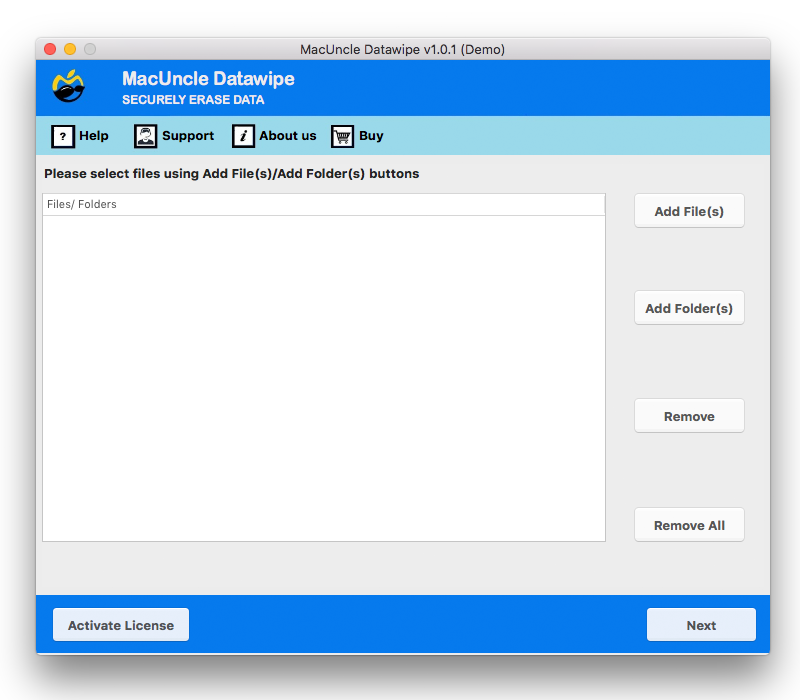
This tool helps to do a full drive cleaning in just a few simple steps. Attach the USB drive or connect the external hard drive to your Mac device.
- Open the tool on your Mac system.

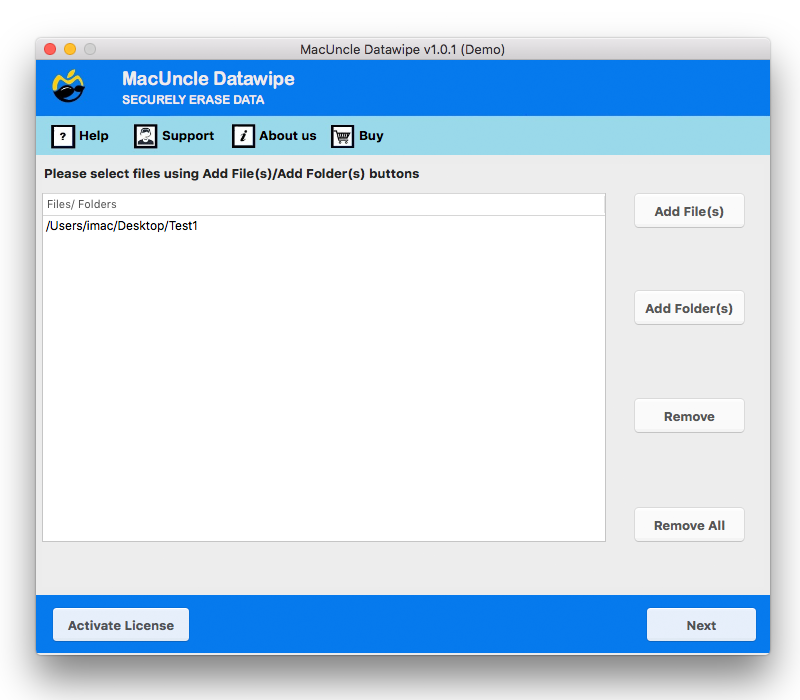
- Next, use the Add button to add file(s)/folder(s).
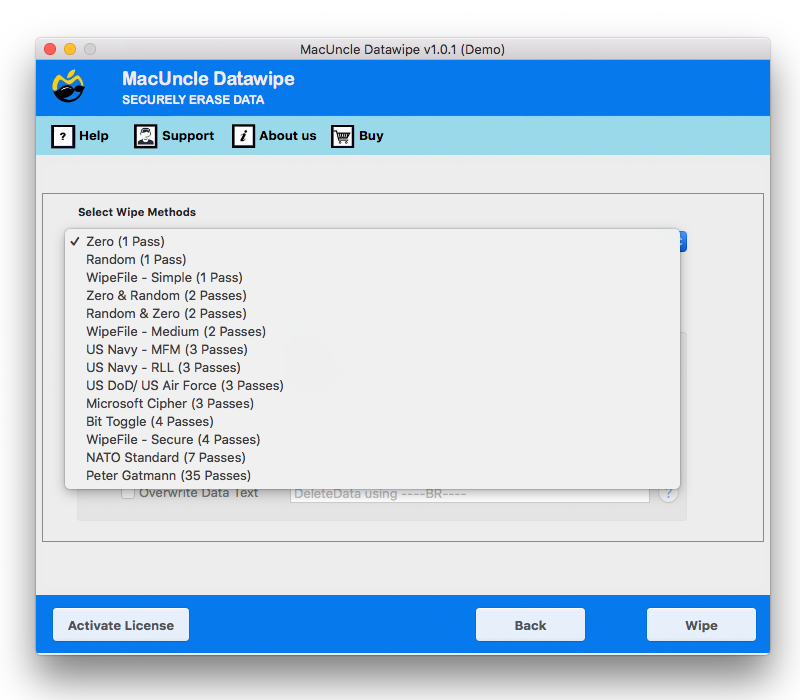
- Select a folder/subfolder and press Next. Then, Select Wipe Method.
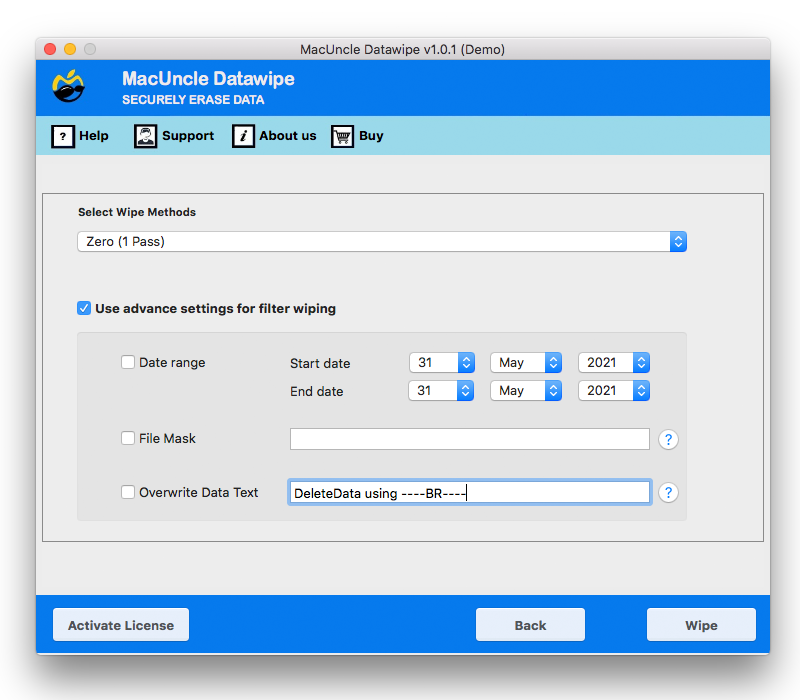
- Now, set up the required field in the Use Advanced Settings.
- Finally, press the Wipe button to erase external hard drive Mac permanently.
Dos & Don’ts While Erasing an Apple Hard Drive on Mac
Some points you need to keep in mind while doing this process.
DOs
- Remember to back up critical files before initiating the wiping process.
- Make use of a professional solution tool for sensitive data erasure.
DON’Ts
- Disconnect your drive while the wiping is still going on.
- Depend solely on manual deletion for private data security.
Common Myths and Facts
| Myth | Facts |
|---|---|
| If you format your drive, it will permanently delete all files. | If you format your drive, data may still be recoverable without secure erasure. |
| When you empty the Trash on your Mac, the data is permanently erased. | Upon emptying the Trash on your Mac system, traces of data might still be present on your drive |
FAQs
Q) Is it possible for any person to retrieve your data even after you have formatted your USB drive?
A) Yes, it is really possible that your formatted data could still be retrieved unless a safe & fully adequate erasure solution has been made use of.
Q) Does formatting safely erase an external hard drive on Mac?
A) No, simply formatting might not fully erase data permanently. A much safer overwriting solution is essential to make it happen. So, you must learn how to securely erase a hard drive on a Mac, which is possible with the help of the pro utility suggested here.
Q) Is there a way to permanently securely erase external hard drive Mac?
A) We can wipe an external hard drive on a Mac with Disk Utility; however, it comes with certain limitations. To overcome these limitations, it is advised to use the pro tools mentioned in the article.
Q) Will Disk Utility on a Mac remove all files permanently?
A) The files will be deleted and secured at an extreme level once they are erased with the overwrite method on Disk Utility.
Concluding Notes
Just because you “delete” a file doesn’t mean it’s gone-at least not for good-whether the file’s on an internal Mac hard drive or a more removable external drive. Wiping isn’t for simple tidying up and reinstallation of a machine you intend to use; it’s for wiping away information for good from any device going into new ownership. If you’re just tidying up some files and intend to continue using the Mac, then there’s a simpler, internal way to remove unwanted files. Go to how to delete multiple files at once on Mac. If you’re giving away,sellingg, or recycling the Mac, then you should use Disk Utility and/or some kind of wiping tool.