How to Save Outlook Emails to Hard Drive on Mac?


Summary: This write-up will take you through the procedure to download Outlook emails to Hard Drive Mac hard drive. Here, we will discuss the manual and the expert-recommended methods to save email files locally. Keeping a complete record of your mail on a hard drive is a smart idea, whether you are running a personal business or just wish to retain a thorough record of your email for other reasons.
If you have a clear-cut reason for saving Outlook emails to the hard drive, then go straight to the solution instantly. We have the manual as well as the expert-recommended method with complete details. Check it out now.
Why & How: Download Outlook Emails to Hard Drive on Mac
Downloading email files from an Outlook account is one of the most common things Outlook users often wish to perform due to the following reasons:
- To share Email Data: Exchanging the data from emails is not a problem if you have a backup or copy of the files that is saved on an external/internal hard disk. In this way, you can share Outlook emails that have been saved on your hard drive.
- Take data backup: Among many ways of backing up your data, one of the safest ways is by making a backup of your email data on a local/external device. In case you accidentally delete data from your Outlook emails or you are the victim of a security breach, having a backup stored on the hard drive would be a wise move.
- Move Data: New devices are often accompanied by the desire to transfer data between devices or to copy data when passwords have been forgotten. Therefore, downloading your Outlook data to your hard drive can be a good option in these scenarios.
- To Get Offline Access: The best way to access your emails when you are offline is to save them to your hard drive. This is of great help when there is no internet connection. With this, you can always be sure that even when you are not online, there is still access to the important emails.
Also, find out the technique to save Outlook emails as PDF with Attachments.
How do I get the emails from Outlook? Here are the two different Methods to save Outlook Emails to a Hard Drive:
- Common Technique to Download Outlook Emails to Hard Drive
- Expertise Solution to Save Outlook Emails
#1 Method to Save Outlook Emails to Hard Drive
Here is the simple and common practice of saving Outlook Mac emails.
- Start Mac Outlook and navigate to File > Export.

- A new window will pop up – Export to Archive file. Then, press the Continue button.

- Further, choose a destination location to store the *.olm files.

- Finally, press the Finish button.

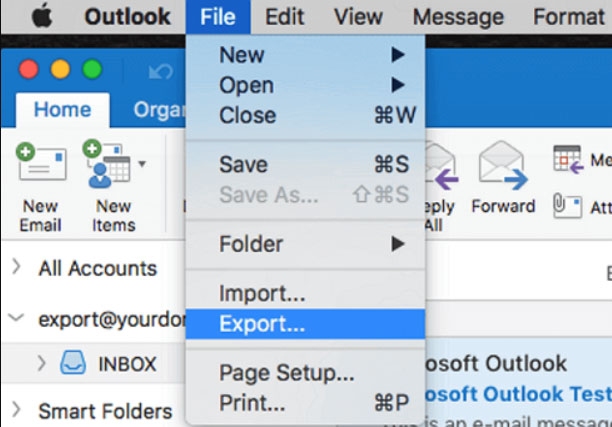
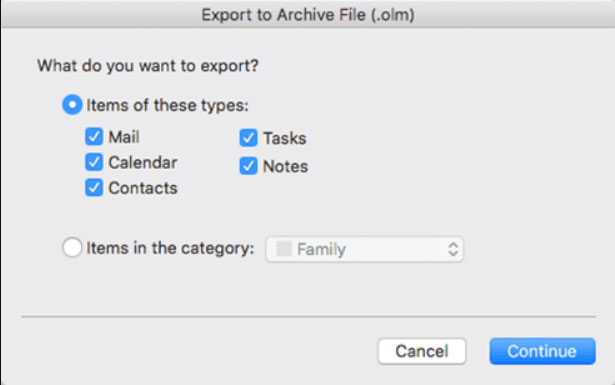
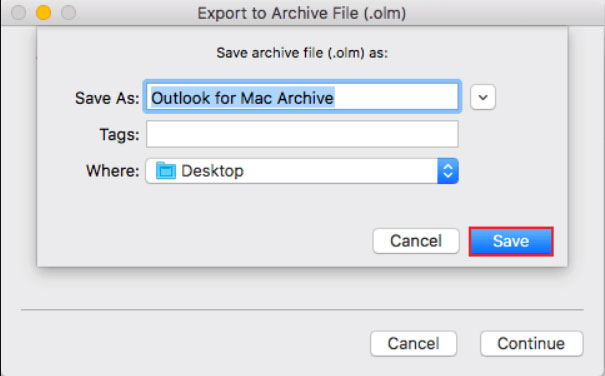
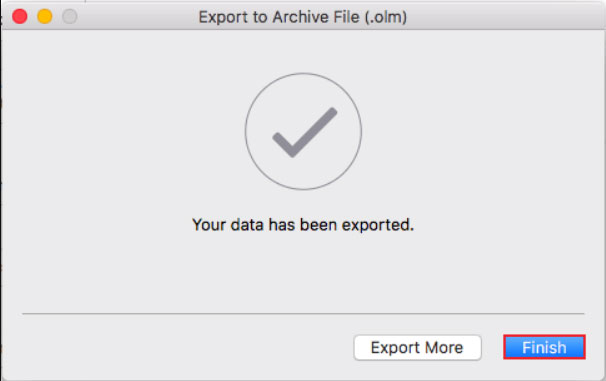
Limitations: To perform this method, users must have Outlook installed on their system. For those who are here to find a solution without Outlook, try out the automated process. Currently, the import-export option is greyed out in Outlook. You can also find the solution for that.
#2 Method to Download Outlook Emails to Hard Drive Mac
Download Email Backup Wizard to save Outlook data locally. Extract the email data in different file formats, from a document to an email format. You can also easily move Outlook files from one email client to another with the help of this application. Since we want the solution to back up emails from Outlook to a hard drive, we will see the different saving options to store the emails. Export Outlook for Mac to PST format or any other format while preserving data accuracy.
How to Backup Outlook Emails to Hard Drive?
First, create an app password using Outlook Account Settings to get Hotmail access to the software.
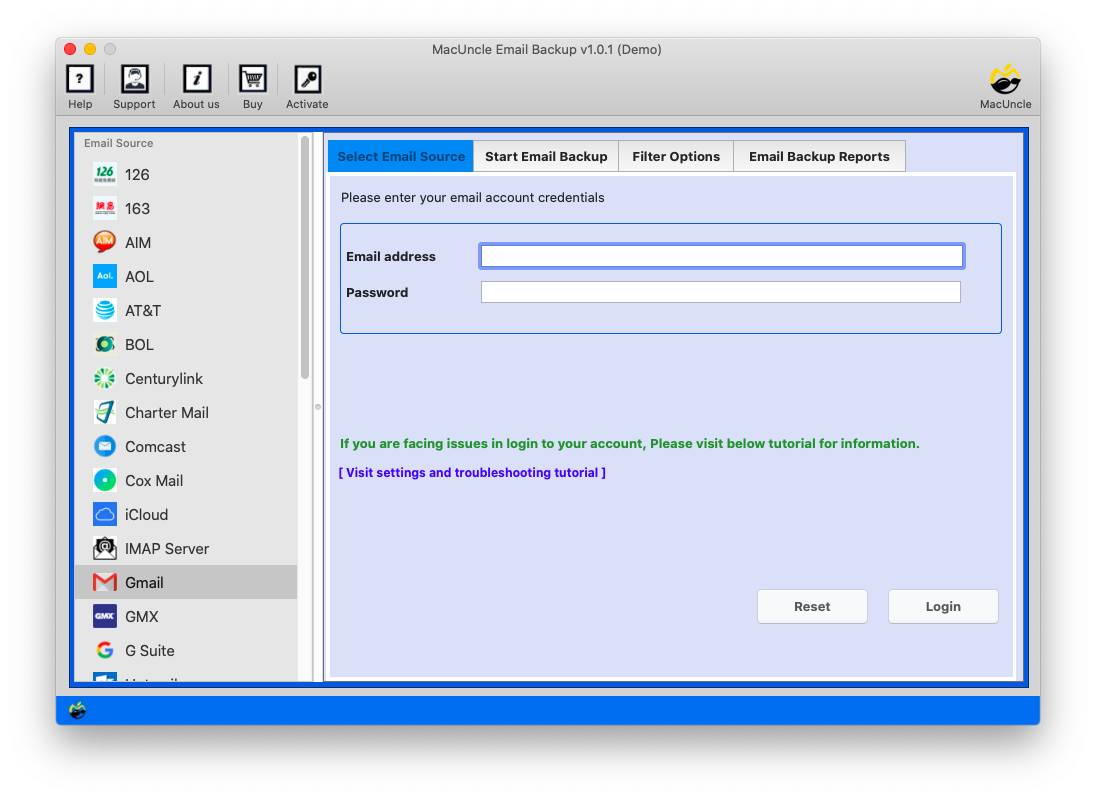
- Start the tool and choose the required Email client – Outlook.

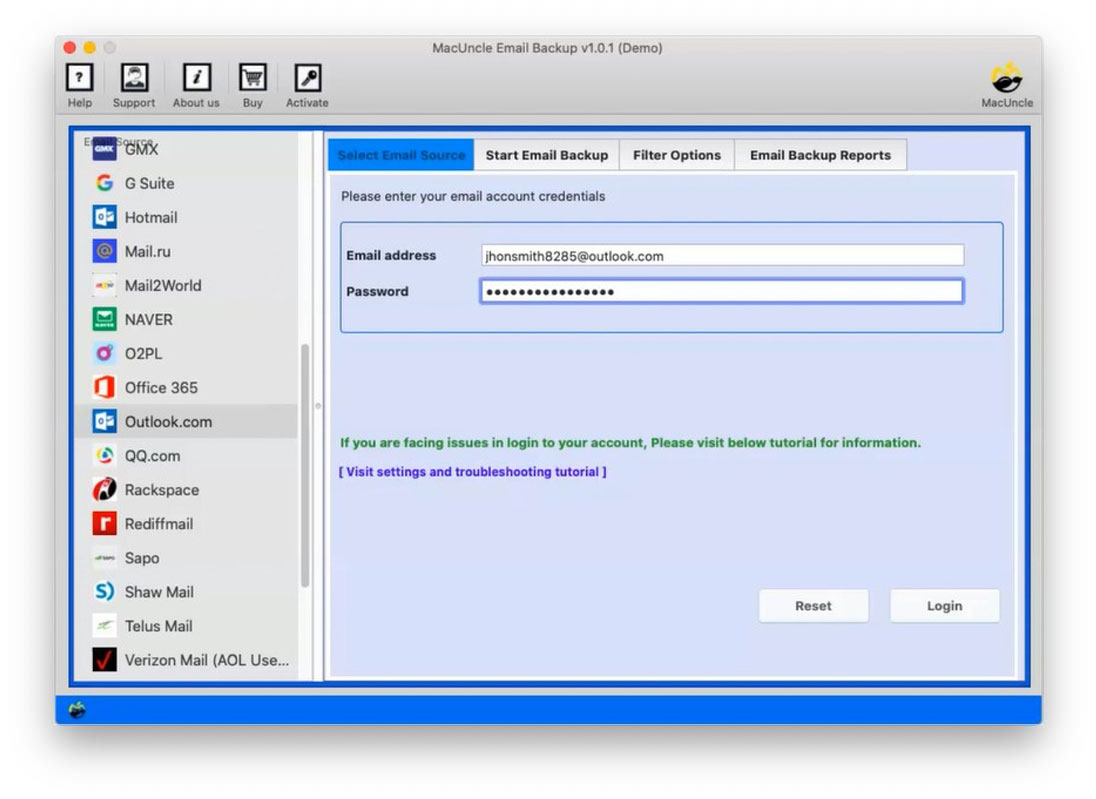
- Enter the login details of the Outlook account in the field provided. Press the Login button.
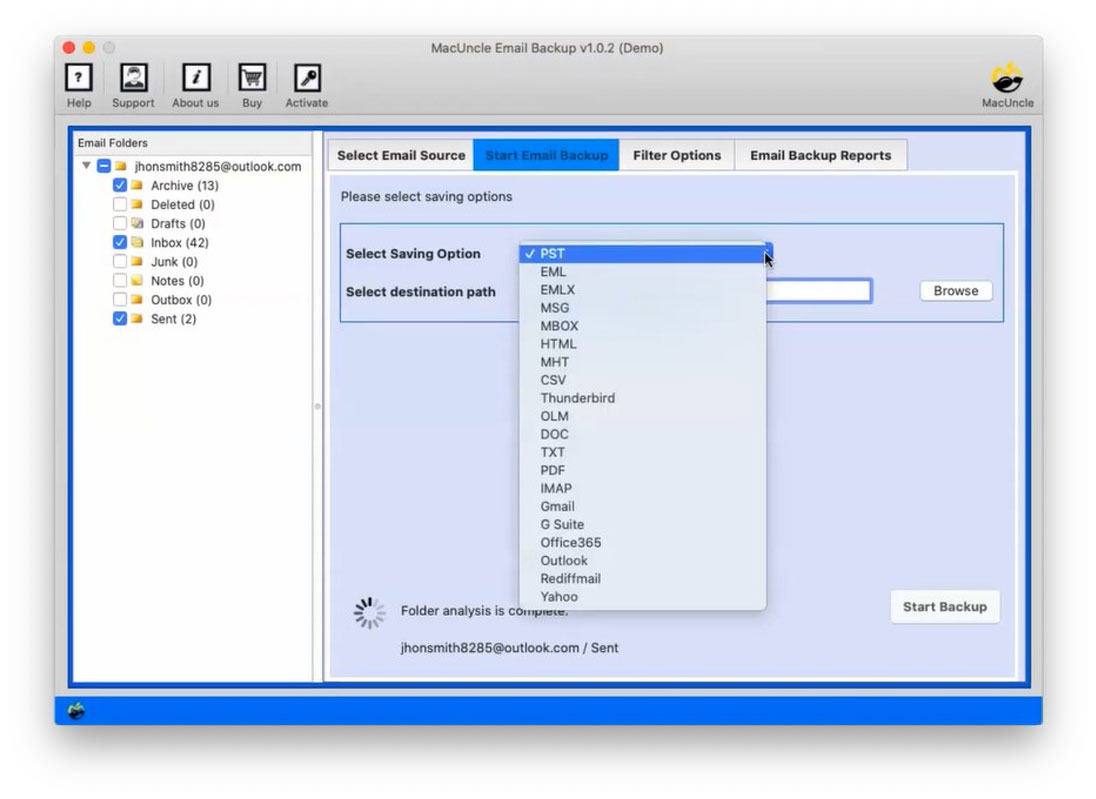
- Choose any of the folders – Send, Draft, Inbox, etc. to save to the hard drive.
- Go to Select Saving Option and opt for any file format.
- Also, browse to the location to store the email files.
- Press the Start Backup button to initiate the procedure.
Use the same tool to Backup Outlook Emails to Dropbox.
Trial Limitation: The free edition of the tool allows saving 20+ email files locally to a Mac hard drive. Moreover, it gives an insight into the tools’ working and the features offered. To download unlimited email files, use the licensed package. However, the trial edition has all the features that are included in the licensed or professional version.
Note: After you have created your .pst file, you may need to print some of the emails. For printing multiple emails, you can follow this guide: Print Multiple Emails in Outlook.
Final Point
Here, we have talked about solutions, both manual and automated, for saving Outlook emails to a hard drive, which cover all situations. To get a quick solution, you may pick the software addressed here. MacUncle is determined to bring the simplest and best software to its valuable users. We design software for users from all walks of life, whether they have technical skills or not. The tool is capable of doing everything without relying on the help of any external application. If you want to be able to directly open the files in Outlook later without losing the folder hierarchy, you may also save Outlook emails as MSG files.
FAQ
Q) Does exporting Outlook data include attachments?
A) Yes. Get the recommended tool and download Outlook emails to an external hard drive with the attached documents.
Q) How to save Outlook emails to a hard drive in batches?
A) Firstly, get the expert-recommended software from here. Then, add the account details to the required field and proceed with the remaining steps. Select the desired files or folders from the list.
Q) In which format does the program Save Outlook Emails to Hard Drive?
A) Users can choose any format from the software’s Saving options.
Q) Is there a way to back up or save Outlook emails to a local hard drive without having to create a PST?
A) The expert utility also gives you the option of selecting the output format, so you are not restricted to PST. If you want a format that can be accessed without the need for Outlook or a PST reader, opt for EML, MSG, MBOX, or PDF at the “Select Saving Option” stage.
Q) How can I easily move my Outlook data between devices?
A) First, you need to save the emails from MS Outlook using any other methods mentioned in the article. This makes it particularly useful when switching devices or when dealing with forgotten passwords.
Q) What are the limitations associated with the manual method of saving Outlook emails?
A) With the manual method, you need to install the Outlook application on your system. Thus, without Outlook, you can’t save emails to the hard drive.
Q) Is there a way to save Outlook emails from the browser?
A) Yes, you can use the Outlook.com backup tool to effortlessly save Outlook Emails directly from the browser.
Q) What amount of disk space should I have available to be able to back up my Outlook emails?
A) First, verify your mailbox size in the account settings in Outlook—roughly, make sure that there is at least 1.5x the current mailbox size free on the target drive to account for attachments and formatting when exporting.