How to Speed up Mac Mail? Different Methods to Fix Slow Apple Mail


Mail is a wonderful email client; however, similar to any other application, Mail also tends to slow down. And considering that now it is running all your mail, receiving data all the time, there are many ways to make Apple Mail run slowly. It may be due to lagging (unresponsive application), Slow loading or the overall slow performance of Mail. Here are all the steps to speed up Mac Mail.
When the Mac Mail application slows down, the daily email conversation becomes tough, and productivity suffers. Multiple users have already been experiencing Mac Mail freezes after macOS Tahoe (macOS 26). After updating, there is certainly a problem to deal with. Factors like a massive mailbox, broken indexes, or perhaps just a non-updated Mac OS can be reasons to deal with. We should analyse all the elements to find a solution. With all of the strategies discussed, you’ll manage to get the speed you expect, to make mail work faster and allow users to have better experiences using it.
Quick solution: Extract all the emails from Apple Mail to the system using the Email Backup Tool and clean the account effortlessly. Thus it could speed up the application. Save the data in a different file format or transfer it to another account within the tool itself. Download the desired version using the links below.
Why is Apple Mail Slow?
Some of the common causes of Mac Mail running slowly are:
- Large Mailboxes: The bigger your mailbox, the more time it will take to load and search for emails. Oftentimes, the reason for the delay in Apple Mail’s performance is due to the large mailboxes.
- Complex Filters: Overly complex filters will slow down sorting and categorisation considerably.
- Outdated version of Mac Mail: Older versions of Apple Mail/MacOS don’t have assurance of any optimisation.
- Networking Limitations: Slow internet or unavailable servers will also fail to download and sync emails, that is freeze Apple Mail.
- MacOS Tahoe update conflicts: A bug has been reported in macOS Tahoe (macOS 26) after a macOS upgrade. A lot of users had the issue of the Mail app crash/freeze after it had been updated to macOS Tahoe.
As the reasons could vary, the solutions remain the same. Let’s find out how we can improve the performance of a slow Apple Mail.
In some cases, slow performance may indicate a bigger issue with the Mail app. Follow the detailed guide if Apple Mail Not Working on Mac.
What Steps Can You Take to Speed Up Mac Mail?
Here we have categorised the troubleshooting solution into four different sections. As per the user’s requirement, go to that respective method and find an instant solution.
1. Optimise the Mac’s Performance
Before troubleshooting the Apple Mail application, we must verify that the performance of the Mac is not causing the issue.
Update macOS
- Go to the Apple Menu in the top left corner.
- Select System Settings>General.
- Click on Software Update.
- If any software update is available, you will see.
- Click on Update Now and install all the available updates.

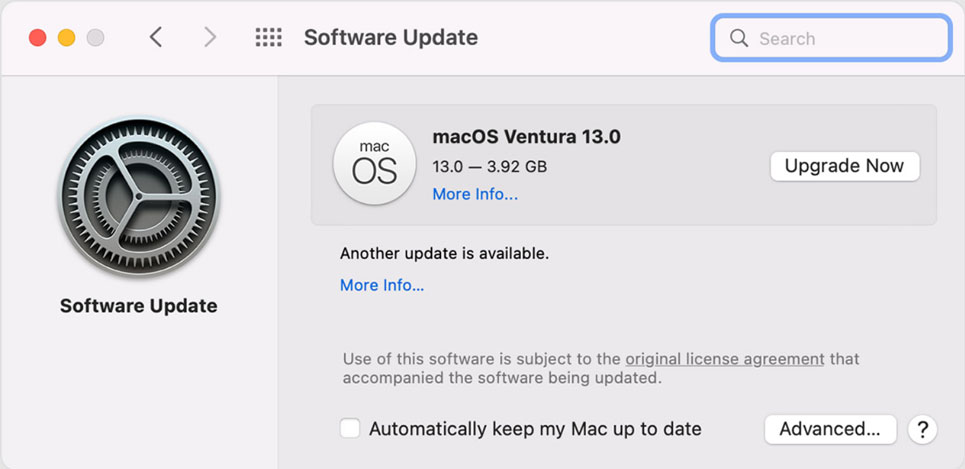
If you are using the latest macOS version, check out how to enable or disable Apple Mail intelligence in macOS to see if the AI features are affecting the performance.
Check for Malware
The built-in security functions, such as Gatekeeper, xProtect, Firewall, etc. The Mac can detect any virus attack or malware and give out warnings like “can’t be opened because Apple cannot check it for malicious software“. Also, detect any Malware running in the system, as this might lead to your Apple Mail running slowly.
Clear Out the Disk Space to Speed Up Mac Mail
Delete unnecessary files from the Mac. Empty the trash items, delete larger files in Downloads, remove download folders if not necessary, and uninstall unused Apple apps. You can use MacUncle DateWipe as a one-stop solution for deleting emails in a secure way.
2. Clean Up Mac Mail Inbox to Fix “Apple Mail So Slow”
Unwanted email clutter in the inbox can significantly affect Mail’s performance. Here’s how to tidy up the things:
Locally Save Old Emails:
You can externally save important emails and declutter your email account. Backup Apple Mail to the external hard drive and then clean up the Mac Mail inbox.
Delete Unnecessary Emails
- Start the Apple Mail Application.
- Select all the emails you want to delete.
- Right-click and select Delete.
- Press the Ok button to confirm the deletion.
Delete all Apple Mail Emails if required to speed up the performance. This is one of the simplest and proven methods to speed up any email client.
Unsubscribe from the unwanted Newsletter: If there are any newsletter emails, ensure to unsubscribe from the unwanted emails to avoid cluttering the emails in the account. You can find the unsubscribe option at the end of every newsletter email.
3. Troubleshoot Specific Issues to Speed up Mac Mail
If you are still experiencing performance problems, try these additional troubleshooting steps
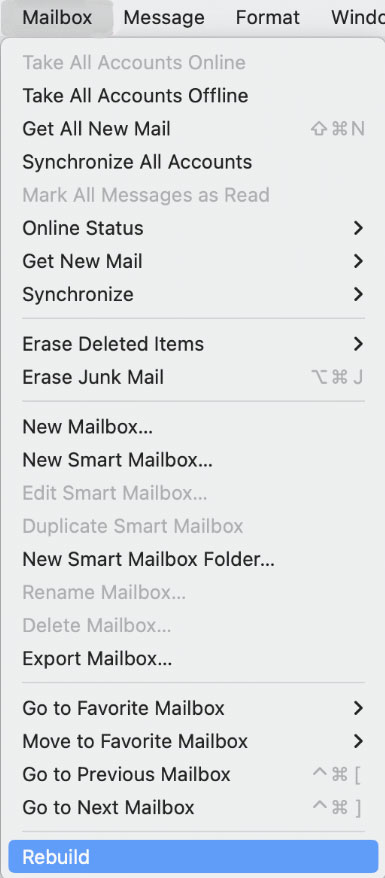
Rebuild the Mailbox
Most of the issues with Mail can be resolved by rebuilding the mailboxes.
- Open the Apple Mail application.
- Go to the Mailbox in the Menu.
- Then, select the option Rebuild.

- Soon, Apple Mail will recreate the Mailboxes.
Check Internet Connection
A slow or unstable internet connection can affect Mac Mail’s performance. Check the Internet connection if your Apple Mail is Slow. Browse other sites using any reliable search engine. If that’s causing the issue, ensure that the connection is a proper connection for the smooth operation of Mail.
Disable Mail Drop to Speed up Mac Mail
If you are using Mail Drop, once you disable it, check whether Mail works or not.
- Launch the Mail app.
- Click on Mail in the menu bar and select Preferences.
- Click on Accounts.
- Select the account and click on Account information.

- Uncheck the “Send large attachments in Mail Drop“.
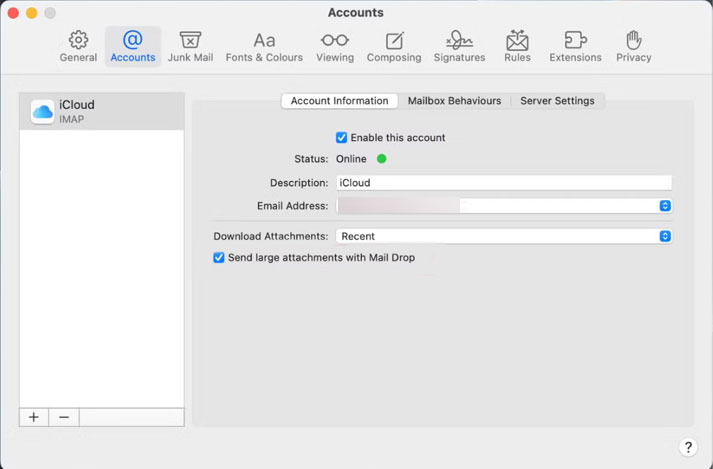
This will prevent the large attachments from being sent via iCloud; instead, you need to attach directly to the emails.
Reset Mac Mail: As the final solution to get back Apple Mail working perfectly at full speed, you can reset the Mac Mail account entirely. However, this will remove all data within your system. Therefore, back up your data before performing this operation.
4. Use a Professional Tool to Speed Up Apple Mail
In case any of the above techniques doesn’t work, try to use the MBOX File Splitter. As its name indicates, it splits the mailboxes into sensible sizes, hence enhancing the speed of your Mac mail application. Get the emails from Apple Mail and use the tool to split the files into smaller sizes.
Conclusion
Remember, the key to a fast and efficient Mac Mail experience is a combination of regular maintenance, optimised settings, and effective troubleshooting. By following the suggested method, users can level up the performance of Apple Mail. Without having any technical knowledge, anyone can speed up Mac Mail with the help of this article.
FAQs
Q) What makes my Mac Mail slow?
A) There is no definite answer for this, as each user may have a different reason. It can be a result of a few typical things, like having too many emails, large attachments, etc.
Q) Is there any way to enhance Mac Mail’s loading time?
A) Clearing out the junk emails, optimising mailboxes in Mail, and so on are some of the ways to speed up the Apple Mail application.
Q) What can I do to get rid of the slow interface on Mail for Mac?
A) If you want your interface to feel more responsive, you can get rid of useless features, change font sizes, or shut down the apps you’re not using.
Q) My Mail app is frozen on macOS Tahoe for what reason?
A) Mac Mail freezing on macOS Tahoe has been a commonly reported issue since the macOS 26 update. Account conflict due to updates, a bug that causes the application to freeze while sending emails and high memory usage due to Apple Intelligence indexing are the most likely causes.
Q) How do I reduce the size of my Mac Mail database?
A) Archive old emails, save attachments from Mac Mail, and optimise mailboxes could be things that help to reduce your database size.
Q) Does cleaning the Mac speed up Mail?
A) Yes, cleaning up your Mac is going to remove unwanted files, empty the Trash, and optimise disk space for better functioning of Mac Mail.
Q) How can I avoid the slowdown of my Mac Mail?
A) Clean your inbox, optimise your Mac for performance in general, and ensure regular software updates for maintaining maximum speed.